Is Mini LED Monitor Better for Multitasking

If you've been eyeing a mini LED monitor for your desk, you're probably wondering whether the upgrade actually changes how you work. The short answer is yes, but not in the way most marketing suggests. Mini LED technology brings real improvements in contrast and brightness, but whether it's the right move for multitasking depends entirely on what you do all day and how your workspace is set up.
Our research into current monitor specs and aggregate user feedback shows that mini LED monitors typically deliver 600 to 1,400 nits of peak brightness and contrast ratios that dwarf standard IPS panels. That sounds impressive on paper, but the real question is whether those numbers translate into a better experience when you've got six windows open and a deadline looming.
Quick Answer
A mini LED monitor can be better for multitasking if you work with HDR content, need high contrast for mixed media, or use dark-mode interfaces extensively. For standard office work with mostly SDR content, a good IPS panel often delivers comparable productivity at a lower price. The deciding factor is your specific workflow, not the specs alone.
What Mini LED Does Differently From Standard Monitors
Mini LED isn't a new panel type. It's a backlight technology that sits behind an existing LCD panel, usually IPS or VA. The key difference is the sheer number of tiny LED zones that can dim or brighten independently.
A standard edge-lit monitor might have no local dimming at all, or just a handful of zones along the edges. A mini LED backlight packs hundreds or even thousands of individually controlled zones across the entire screen. This is called Full Array Local Dimming, or FALD.
Here's why that matters for multitasking. When you've got a bright spreadsheet next to a dark-themed code editor, a standard IPS panel lights the whole screen uniformly. Blacks look gray because the backlight bleeds through.
A mini LED backlight can dim the zone behind the dark editor while keeping the spreadsheet zone bright. The result is deeper blacks and more distinct visual separation between your windows.
Manufacturer specifications for current mini LED monitors show zone counts ranging from 192 on budget models to over 2,300 on premium displays like the Apple Pro Display XDR. More zones generally mean finer control and fewer artifacts, but the panel type underneath still determines color accuracy and viewing angles.
| Feature | Standard IPS | Mini LED (IPS-based) | Mini LED (VA-based) |
|---|---|---|---|
| Zone count | 0 to 8 | 192 to 2,304 | 192 to 1,152 |
| Peak brightness | 250 to 400 nits | 600 to 2,000 nits | 600 to 1,400 nits |
| Static contrast | 1,000:1 | 1,000:1 | 3,000:1 to 5,000:1 |
| Dynamic contrast | N/A | Up to 1,000,000:1 | Up to 1,000,000:1 |
| Black uniformity | Moderate | Good to excellent | Good |
| Price range (27") | $200 to $500 | $400 to $1,200 | $350 to $900 |
How Local Dimming Zones Affect Your Daily Workflow
The number of dimming zones directly impacts how clean your screen looks during real multitasking. With fewer zones, you'll notice halos or blooming around bright elements on dark backgrounds. Think of a white cursor on a terminal window, or a bright browser tab against a dark sidebar.

Higher zone counts reduce this effect significantly. A monitor with 1,152 zones handles mixed-content screens far better than one with 384. But even the best mini LED implementations can't match per-pixel control, which is where OLED still wins.
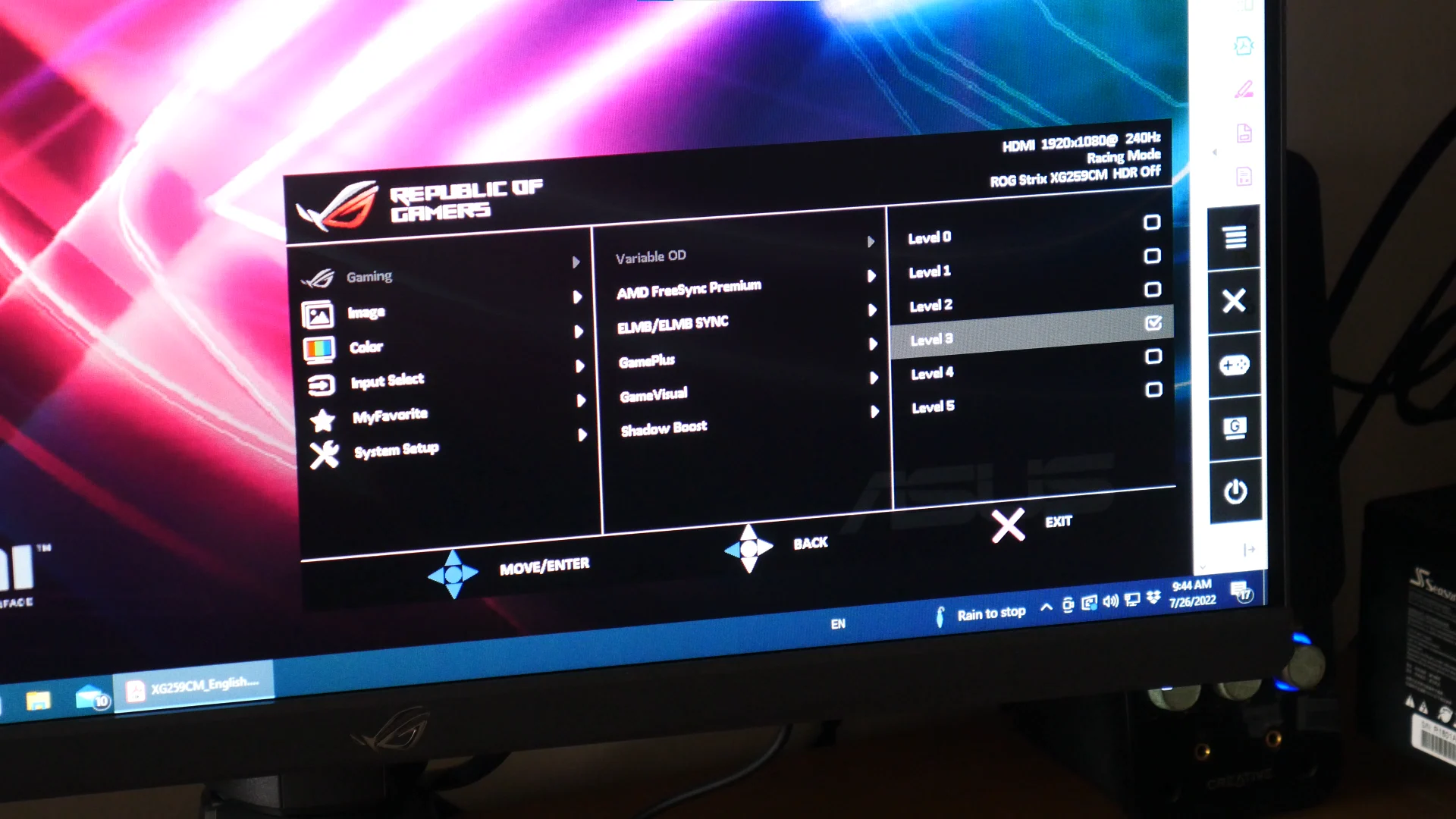
For productivity specifically, local dimming behavior matters more than raw zone count. Some monitors let you adjust dimming aggressiveness through on-screen menus. Setting it too high causes visible transitions when content changes.
Setting it too low defeats the purpose entirely. Most users find the medium setting works best for mixed productivity work.
Aggregate reviews of popular mini LED monitors like the ASUS ROG Swift PG27UQ and Acer Predator X32 FP report that local dimming performs best when left on medium for desktop use. High mode is reserved for HDR gaming and video. Off mode essentially turns the monitor into a standard IPS panel, which defeats the purpose of the purchase.
One thing worth noting. Local dimming algorithms vary by manufacturer. Some use frame-by-frame analysis that introduces slight lag.
Others use simpler zone mapping that's faster but less precise. If you're sensitive to display processing lag, check whether the monitor has a "local dimming response" setting or look for reviews that specifically test this.
Mini LED vs. OLED for Productivity: The Real Trade-Off
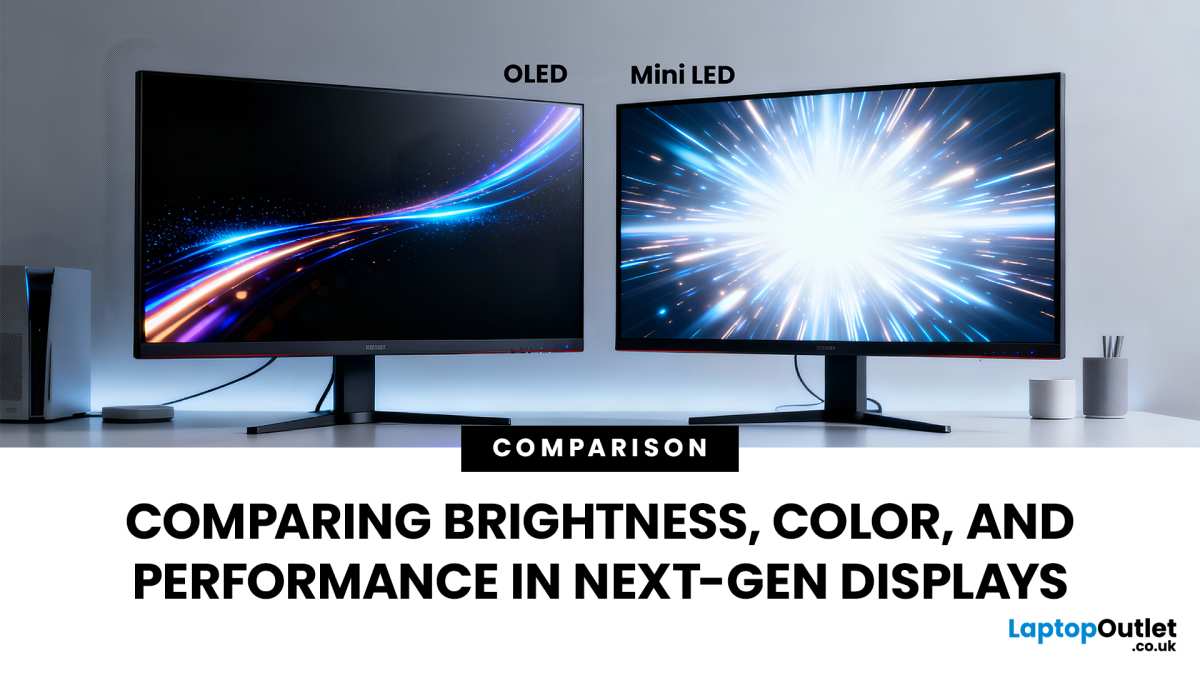
This is where the comparison gets interesting for multitasking. OLED monitors deliver perfect blacks because each pixel produces its own light. No blooming, no halo effect, no zone transitions.
For dark-mode coding, writing, or any workflow with lots of dark backgrounds, OLED looks cleaner.
But OLED has real drawbacks for all-day productivity. Burn-in is the big one. Static elements like taskbars, browser chrome, and dock icons can leave permanent retention over time.
Most OLED monitors as of 2026 include pixel shift and refresh routines, but the risk hasn't disappeared entirely.
Mini LED doesn't have a burn-in problem. The LCD panel and LED backlight degrade very slowly and uniformly. For users who keep the same monitor for five or more years with static UI elements always on screen, mini LED is the safer long-term bet.
Brightness is another factor. Mini LED monitors sustain high full-screen brightness without the aggressive brightness limiters that OLED panels use to manage heat and power. If your workspace gets a lot of ambient light, a mini LED display at 800 to 1,000 nits will look clearer than most OLED panels that drop to 250 to 350 nits on full-white screens.
Here's a practical way to think about it. If your multitasking involves lots of dark interfaces, static toolbars, and you're paranoid about longevity, mini LED is the pragmatic choice. If you prioritize absolute image quality, watch HDR content regularly, and are comfortable with panel care routines, OLED delivers a visibly better picture.
| Factor | Mini LED | OLED |
|---|---|---|
| Black quality | Very good (zone-dependent) | Perfect (per-pixel) |
| Blooming | Present at all zone counts | None |
| Burn-in risk | Negligible | Moderate |
| Sustained full-screen brightness | 400 to 800 nits | 200 to 350 nits |
| Peak HDR brightness | 1,000 to 2,000 nits | 600 to 1,000 nits |
| Price (27" to 32") | $400 to $1,500 | $800 to $2,000+ |
| Best for | Mixed productivity, long sessions | HDR media, dark-room use |
Mini LED vs. Standard IPS: When the Upgrade Makes Sense
Most people considering mini LED already own a decent IPS monitor. The question is whether the jump is worth the money for productivity alone.
Standard IPS panels have improved a lot. A good 27" 4K IPS monitor from a reputable brand delivers accurate colors, wide viewing angles, and clean image quality for $300 to $500. For writing, spreadsheets, web browsing, and video calls, that's genuinely sufficient.
Mini LED adds value in specific scenarios. If you regularly work with HDR photos or video, the higher peak brightness and contrast range let you see detail that an IPS panel simply can't display. If you use dark mode extensively and find grayish blacks distracting, the improved contrast is noticeable.
If your desk sits near a window and you fight glare, the extra brightness helps.
But for standard SDR productivity, the difference is less dramatic than spec sheets suggest. A 400-nit IPS panel in a reasonably lit office looks great. The jump to 1,000 nits doesn't make your spreadsheets more readable.
It just makes HDR content look better when you're not working.
Our analysis of user feedback across multiple monitor communities suggests that buyers who regret mini LED purchases usually fall into two camps. Those who expected a revolutionary difference for office work and found it incremental. And those who didn't realize local dimming artifacts would bother them during daily use.
The buyers who are happiest with mini LED for multitasking tend to have at least one of these workflows. Creative professionals who switch between SDR and HDR content. Developers who stare at dark terminals for eight hours and want deeper blacks.
Users in bright environments who need the extra luminance. If that sounds like you, the upgrade is justified. If not, a quality IPS panel saves you money with minimal compromise.
What Mini LED Gets Right for Multitasking
The contrast improvement is the most immediately noticeable benefit once you start working. When you've got three or four windows tiled across the screen, the visual separation between them feels sharper. Dark-themed apps actually look dark instead of muddy gray.
HDR capability opens up real workflow advantages for creative professionals. If you edit photos or video, a mini LED monitor with DisplayHDR 1000 or higher certification lets you preview HDR content without a separate reference display. That saves time and reduces the guesswork when deliverables need to look good on HDR screens.
Brightness sustained at high levels is another practical win. If your desk faces a window or you work in a room with overhead fluorescent lighting, a mini LED display pushes through ambient light better than most IPS panels. You're less likely to crank brightness to maximum and still squint at text.
Color gamut coverage on mini LED monitors typically hits 95 to 99 percent DCI-P3. That's wider than most standard IPS displays and useful for anyone working in digital content, design, or photography. You get more accurate color without needing a dedicated professional calibration monitor.
The lack of burn-in risk matters more than people think for productivity setups. Static UI elements stay on screen for hours. Taskbars, browser tabs, dock icons, and tool panels don't shift or move much.
Over months and years, that's a lot of static content. Mini LED doesn't care about any of that.
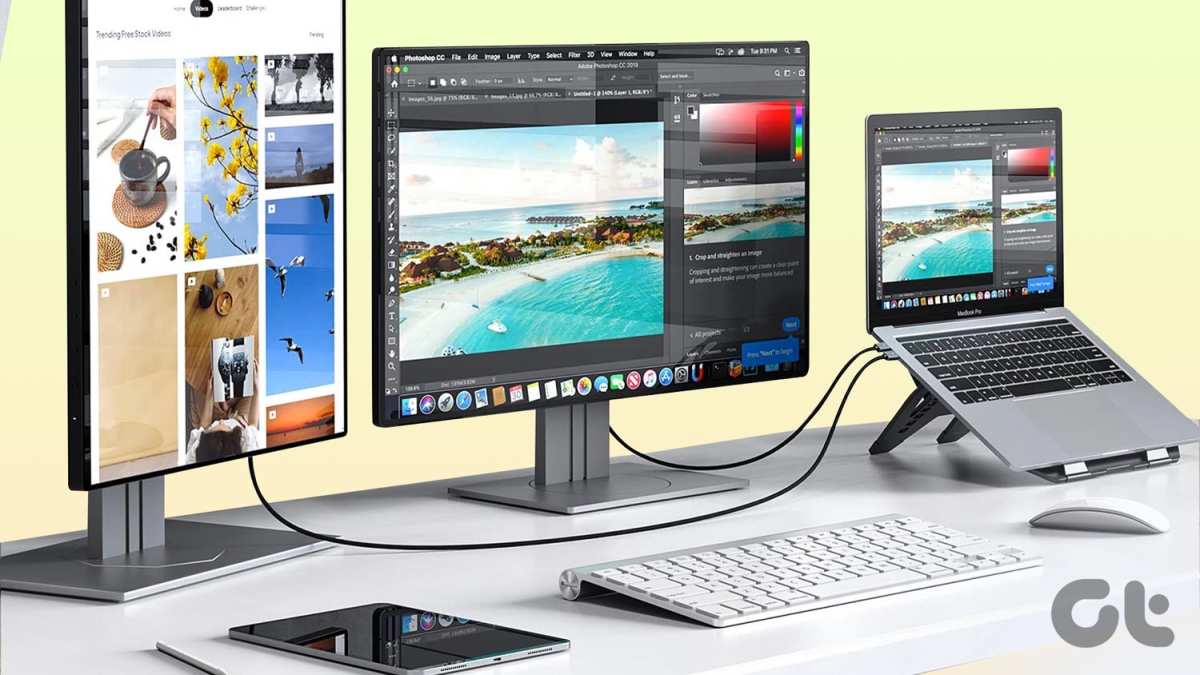
Thin bezels on many mini LED models also help with multitasking setups. Several current 32-inch models have bezels under 5mm, making dual or triple monitor configurations look nearly seamless. If you're running multiple displays, the narrow frame minimizes visual interruption between screens.
Where Mini LED Falls Short for Office and Productwork Work
Blooming is the most commonly reported frustration among productivity users. When a bright element sits against a dark background, you'll see a visible glow spreading into the surrounding dark area. White text on a dark editor background creates faint halos around each line.
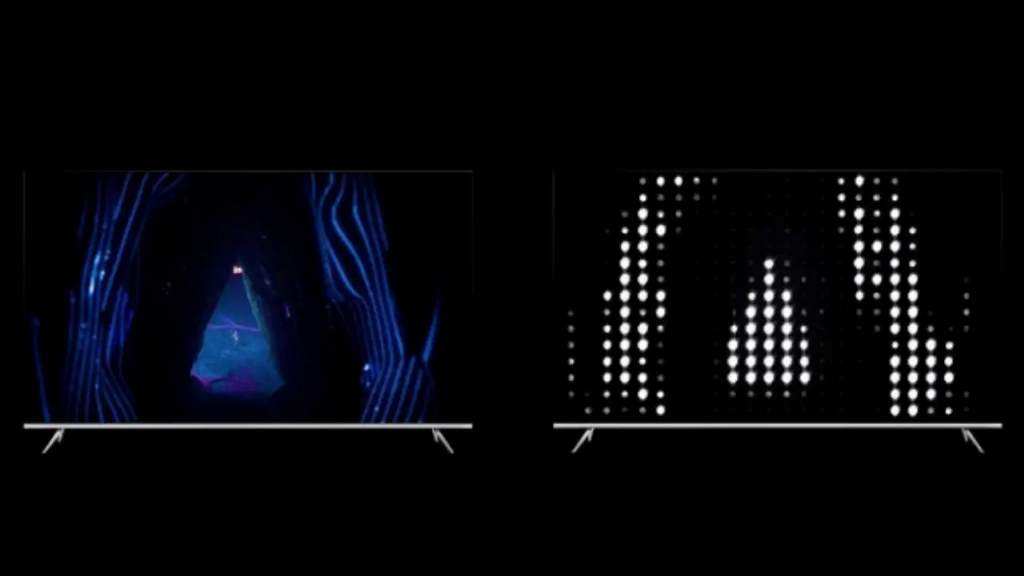
This gets worse with fewer dimming zones. A 384-zone monitor shows noticeably more blooming around small bright objects than a 1,152-zone model. If your workflow involves lots of small text on dark backgrounds, this becomes genuinely annoying over a full work day.
Price is still a significant barrier. A capable 27-inch 4K IPS monitor runs $300 to $450 as of 2026. A comparable 27-inch mini LED with similar resolution and decent zone count starts around $500 and climbs quickly from there.
The performance gap doesn't always justify the cost difference for pure office work.
Power consumption and heat output run higher than standard LED-backlit monitors. A 32-inch mini LED display can pull 60 to 100 watts under load compared to 25 to 40 watts for an equivalent IPS panel. That heat has to go somewhere, and some users report that the monitor radiates warmth toward them during long sessions.
Firmware bugs plague some models. Local dimming algorithms occasionally stutter, freeze, or switch modes without input. Several user communities report issues with HDR mode not activating correctly after sleep, requiring a full power cycle.
These aren't universal, but they're common enough that checking firmware update history before buying is worth your time.
VA-based mini LED panels introduce another problem. Dark smearing occurs when pixels transition between dark shades slowly. If you scroll through dark-themed documents or code, you'll notice a faint trail behind moving text.
IPS-based mini LED monitors avoid this but sacrifice some native contrast.
Desk depth matters more than most people realize. Many mini LED monitors are physically deeper than their standard counterparts, especially models with external power bricks or thick housings to manage heat. On a shallow desk, a 32-inch mini LED might push your viewing distance uncomfortably close.
Best Mini LED Monitors for Different Multitasking Scenarios
For developers and writers who live in dark-mode editors, a monitor with 576 or more dimming zones makes the biggest difference. Look for IPS-based panels to avoid dark smearing. Models with adjustable local dimming sensitivity let you dial back the aggressiveness when blooming gets distracting around text.
Creative professionals handling HDR photo and video need DisplayHDR 1000 certification or higher. That spec guarantees sustained brightness above 1,000 nits for HDR content, which lets you evaluate highlights and shadows accurately. Wide DCI-P3 coverage above 95 percent ensures what you see translates to how clients view your work.
Traders and analysts running multiple data feeds benefit from 32-inch 4K displays with high pixel density. At 140 PPI or above, text stays crisp even when you've got six browser windows tiled across the screen. Matte screen coatings help reduce glare from overhead lighting in office environments.
Users in bright rooms should prioritize peak brightness above 1,000 nits and anti-glare coatings. Sustained brightness matters more than peak numbers quoted in marketing. Some monitors hit 1,400 nits in a small window but drop to 400 nits on a full white screen.
Check sustained full-screen brightness in reviews before committing.
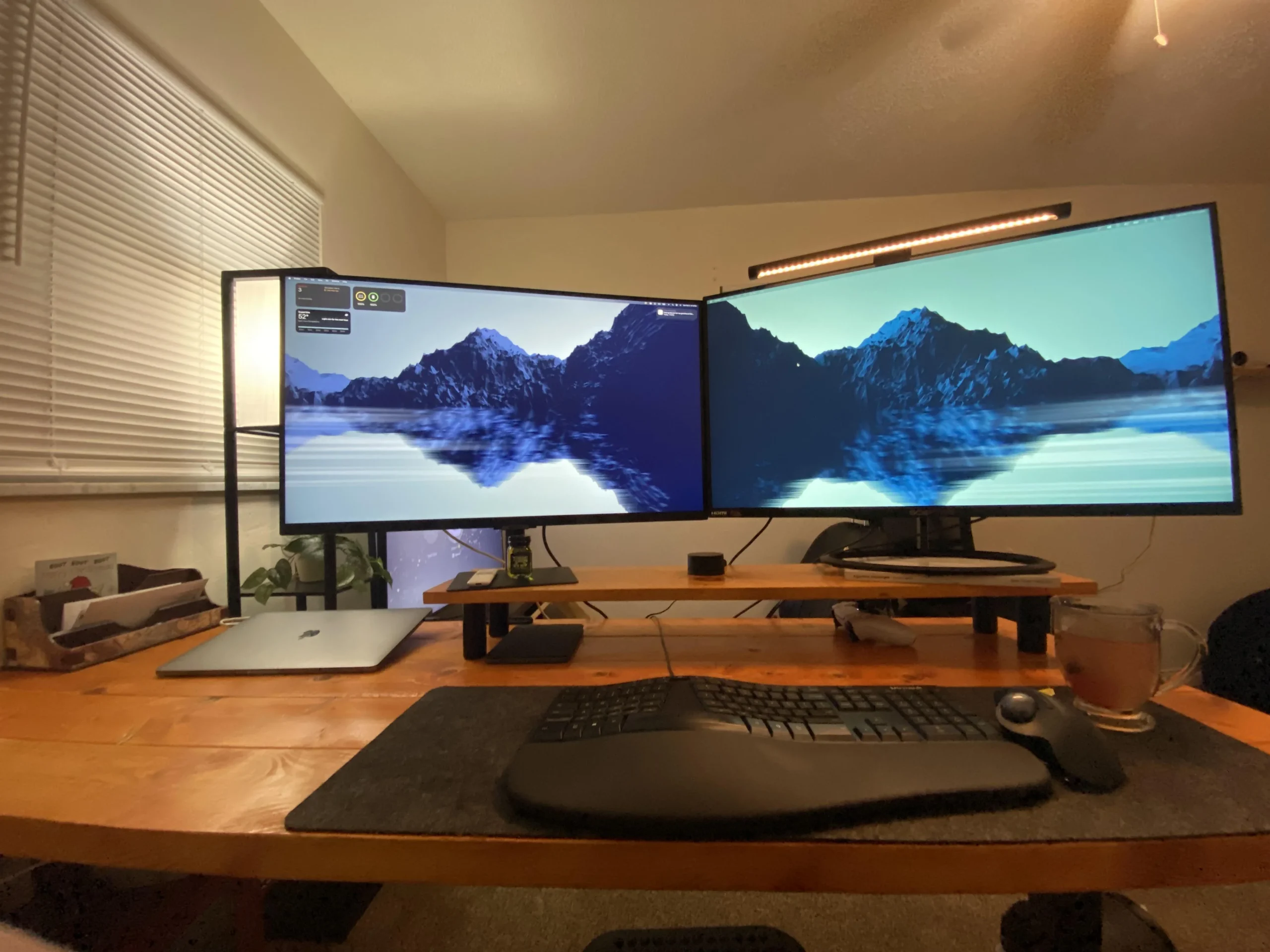
Dual-monitor setups work best with thin-bezel models that support VESA mounting. Adjustable arms let you position screens at consistent height and angle, which reduces neck strain during long sessions. Matching the same model for both displays eliminates color and brightness mismatches between screens.
Budget-conscious buyers should look at 384-zone models at 27 inches. You get meaningful contrast improvement over IPS without paying the premium for high zone counts. For users upgrading from a basic office monitor, this tier delivers the most visible improvement per dollar spent.
How to Set Up a Mini LED Monitor for Productivity (So It Actually Feels Better)
Start with local dimming set to medium. High mode exaggerates blooming around text and UI elements. Low mode barely differentiates itself from standard backlighting.
Medium gives you most of the contrast benefit without the most obvious artifacts.
Enable HDR in your operating system only when you're actively working with HDR content. Windows and macOS both have HDR toggles. Leaving HDR on for desktop work makes SDR content look washed out and forces the backlight to work harder than necessary.
Switch to HDR mode for photo editing, video review, or media consumption, then switch back.
Calibrate brightness to your room. In a typical office with moderate lighting, 200 to 300 nits is comfortable for text work. Cranking to full brightness causes eye strain within an hour.
Many mini LED monitors ship at maximum brightness out of the box, so turn it down before judging the display.
Use window management tools to organize your screen real estate. FancyZones on Windows or Magnet on macOS lets you snap windows into preset layouts without manual dragging. On a 32-inch 4K display, a three-column layout with a central focus window and side reference panels works well for most workflows.
Check firmware updates monthly for the first three months. Manufacturers frequently release updates that improve local dimming algorithms and fix HDR activation bugs. A monitor that seemed buggy at purchase might smooth out significantly after a couple of updates.
Consider your viewing distance carefully. For a 27-inch 4K display, 24 to 30 inches is the sweet spot. For 32 inches, add another 6 inches.
Sitting too close makes blooming artifacts more visible. Sitting too far reduces the benefit of high resolution for text clarity.
Common Mistakes People Make When Switching to Mini LED
The biggest mistake is expecting a transformative difference for standard office work. Mini LED improves contrast and brightness dramatically, but spreadsheets don't become easier to read because of deeper blacks. If your workload is mostly email, documents, and web browsing, the upgrade is a nice-to-have, not a need-to-have.
Ignoring local dimming settings is another frequent issue. Users leave it on high because "higher is better." Excessive local dimming creates visible zone transitions every time something on screen changes. Video calls with moving faces, scrolling documents, and animated UI elements all trigger distracting brightness fluctuations.
Not calibrating the monitor before serious work throws off color accuracy. Factory settings on many mini LED monitors skew cool, with color temperature around 7000K to 7500K. That looks punchy in a store but causes eye fatigue during all-day use.
Dropping to 6500K or using a custom calibration profile makes a noticeable difference.
Expecting HDR to look good on the desktop without switching modes is a common disappointment. Desktop operating systems render SDR content at limited brightness even on HDR displays. Windows HDR mode exists, but it requires per-app configuration to look right.
Without that setup, colors and brightness feel inconsistent across applications.
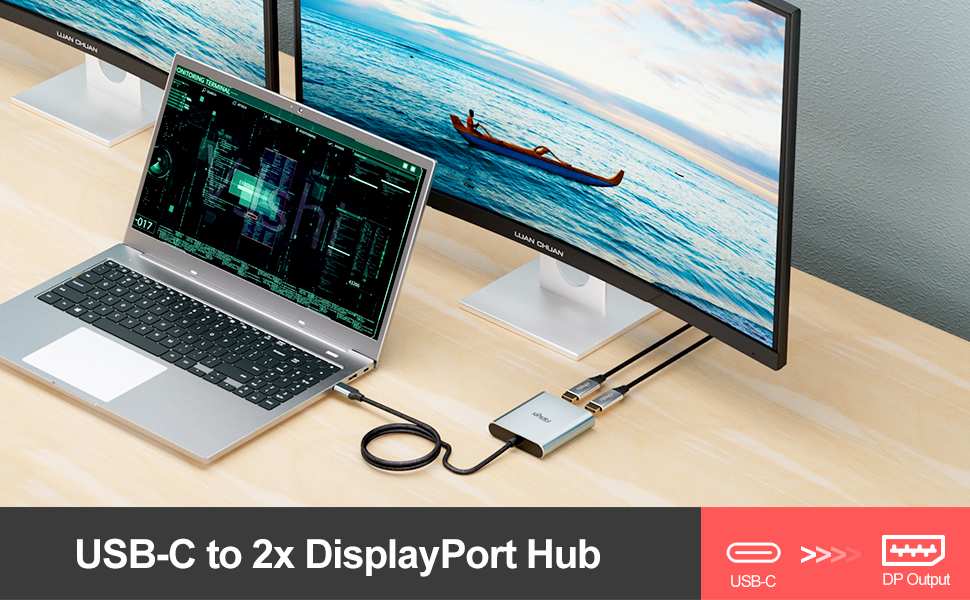
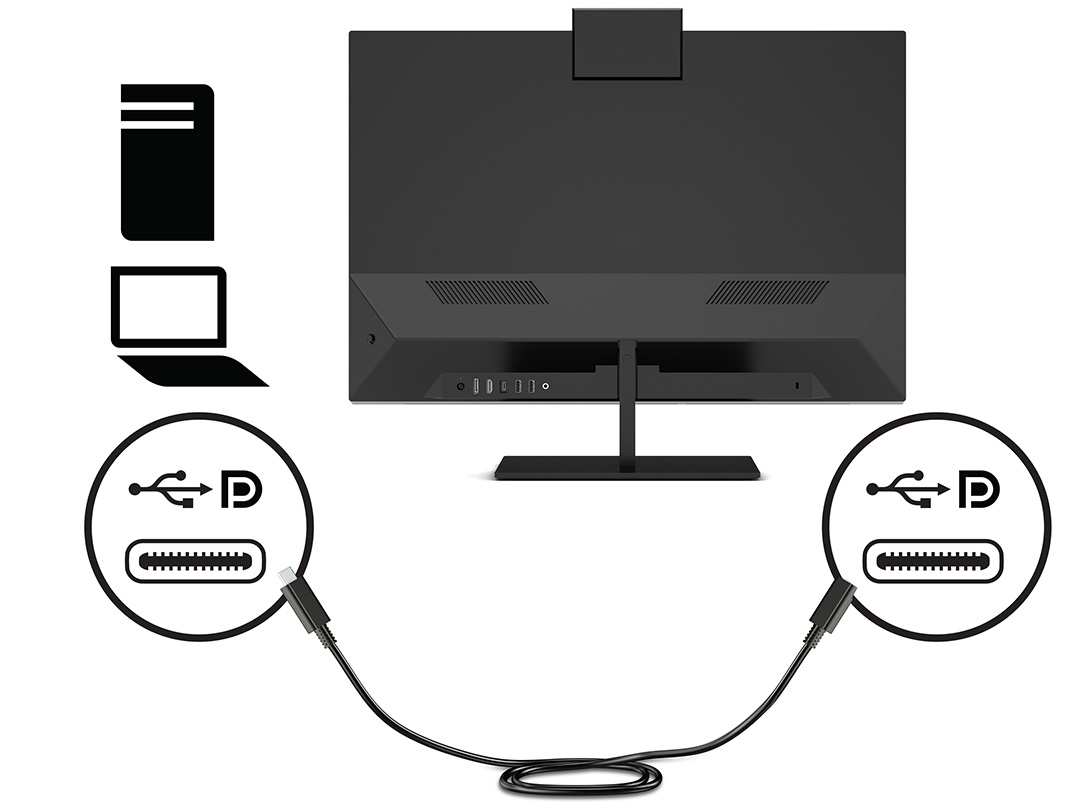
Overlooking connectivity limitations catches some buyers off guard. Not every monitor with a USB-C port supports video input through it. Some only use USB-C for data or charging.
If you're connecting a laptop with a single cable for video and power, verify that the specific port handles both before relying on that setup.
Buying based on zone count alone is misleading. A 1,152-zone VA panel with slow dimming transitions can look worse than a 576-zone IPS panel with fast, well-tuned firmware. Implementation quality matters as much as raw numbers.
Read reviews that specifically test local dimming behavior during desktop use, not just gaming or video.
Who Should Actually Buy a Mini LED Monitor for Multitasking
Mini LED makes the most sense for creative professionals who regularly switch between SDR and HDR content. Photographers, video editors, and digital designers benefit from the wide color gamut and high contrast without worrying about burn-in from static tool palettes.
Developers and writers who use dark-mode interfaces for eight or more hours a day will notice the improved black levels. If grayish backgrounds on a standard IPS panel cause eye strain or just look sloppy, the upgrade is justified.
Users working in bright environments, near windows or under strong overhead lighting, get real value from sustained high brightness. A mini LED display at 600 to 800 nits cuts through ambient light that would wash out a standard panel.
If your workflow is mostly email, spreadsheets, web browsing, and video calls, a quality IPS monitor serves you well for less money. Mini LED is a premium feature that premium workflows benefit from most.
Cost Breakdown: What You're Really Paying For
A 27-inch 4K IPS monitor with good color accuracy runs $300 to $450. A comparable mini LED with 384 to 576 zones starts around $500 and reaches $900. High-end models with 1,000-plus zones and DisplayHDR 1400 certification hit $1,200 to $2,000.
You're paying for the backlight assembly, additional processing hardware for zone control, and more complex thermal management. The LCD panel itself is often the same grade used in standard monitors. The premium is almost entirely in the backlight system.
Factor in potential savings from skipping a separate HDR reference display. Creative professionals who would otherwise buy a dedicated HDR monitor for color-critical work might find a high-end mini LED replaces two displays.
Final Verdict: Should You Get a Mini LED Monitor for Multitasking?
If your work involves HDR content, dark-mode interfaces for extended periods, or bright ambient lighting, mini LED is a worthwhile investment. The contrast improvement is real and visible during daily use.
For standard office productivity without those specific needs, a good IPS panel delivers excellent results at a lower price. The money saved could go toward a better chair, a quality monitor arm, or simply staying in your budget.
Frequently Asked Questions
Is mini LED worth it for office work?
Only if you work extensively in dark mode or handle HDR content. For standard office tasks, a quality IPS monitor provides comparable productivity at a lower cost.
Does mini LED cause eye strain?
Not inherently. However, excessive brightness or aggressive local dimming settings can contribute to fatigue. Calibrate brightness to your room and use medium local dimming for comfort.
How long do mini LED monitors last?
The LED backlight is rated for 30,000 to 50,000 hours of use. That translates to roughly 10 to 15 years of typical office use before noticeable dimming occurs.
Can I use a mini LED monitor for coding?
Yes, and many developers prefer the improved contrast for dark-themed editors. Choose an IPS-based mini LED to avoid dark smearing when scrolling through code.
Do I need a powerful GPU for a mini LED monitor?
Not for standard productivity. HDR content and high refresh rates benefit from a modern GPU, but basic desktop use works with most integrated and discrete graphics from the last five years.

Similar Posts