How to Select Budget Monitor for Office
Here's the thing about buying a budget monitor for office work. Most people either grab the cheapest screen on sale or overspend on features they'll never use. Neither approach ends well.
You either get eye strain by Wednesday or a lighter wallet for no good reason.
Learning how to select budget monitor for office use comes down to knowing which specs actually affect your daily work and which ones are just numbers on a box. After reviewing manufacturer specs, aggregate user feedback, and display testing standards, the pattern is clear. A solid 24-inch IPS panel with a flicker-free backlight and an adjustable stand will serve you better than a flashy 27-inch screen with poor ergonomics. For more background on real-world performance, read our breakdown of how to select office monitor for productivity.
Let me walk you through exactly what to look for.
Quick Answer
Pick a 24-inch IPS monitor with 1920×1080 resolution. Make sure it has a flicker-free backlight and a low blue light mode. Choose a stand with height and tilt adjustment.
Expect to spend $120 to $160 for a reliable model from Dell, LG, or AOC.
Why Most Budget Office Monitors Aren't Worth Your Money
The budget monitor market is flooded with screens that look great on paper and terrible in practice. Manufacturers know most shoppers compare price and size, so they cut corners where you feel it most. The panel quality, the stand, and the backlight system are where budget monitors usually fail.
A $90 monitor might give you a 24-inch screen, but it could ship with a TN panel that washes out the moment you shift in your chair. The stand might only tilt, forcing you to hunch forward after a few hours. The backlight might use PWM dimming, which causes flickering you can't see but your eyes absolutely feel by the end of the day. For related troubleshooting and calibration steps, check our walkthrough on whether microled monitor worth it for home office.
The real cost of a bad monitor isn't the purchase price. It's the headaches, the lost productivity, and the fact that you'll replace it within two years. Spending $140 on a well-built budget monitor beats replacing a $90 screen twice in the same period.
The 5 Specs That Actually Matter for Office Work
Forget the spec sheet overload. For office tasks like spreadsheets, documents, email, and video calls, only five specifications genuinely affect your experience.
Panel type. This determines how text looks, how colors hold up at an angle, and how comfortable the screen is over long sessions. IPS panels are the sweet spot for office work. We'll break this down fully in the next section.
Resolution and screen size together. Resolution alone doesn't tell you much. A 27-inch screen at 1920×1080 looks noticeably softer than a 24-inch screen at the same resolution because the pixels are stretched larger. For 24 inches, 1080p is sharp enough.
For 27 inches, you want 2560×1440 to keep text crisp.
Flicker-free backlight. This is non-negotiable for office use. Flicker-free means the backlight uses DC dimming instead of PWM, which pulses the light rapidly. You won't notice PWM flickering consciously, but your eyes will feel the fatigue after a full workday.
Look for TÜV Rheinland flicker-free certification or check manufacturer specs.
Blue light filter. A hardware-level low blue light mode reduces the blue spectrum output without turning your screen an ugly orange. Software filters like Night Light work, but a built-in low blue light preset is more effective and easier to toggle on and off.
Stand adjustability. Tilt-only stands are the enemy of good posture. You want at minimum height adjustment and tilt. Swivel and pivot are bonuses.
If the stand is terrible, factor in the cost of a VESA-compatible monitor arm, which adds $25 to $40 to your total.
Here's a quick reference table for the specs that matter at the budget tier.
| Spec | What to Look For | Why It Matters |
|---|---|---|
| Panel type | IPS | Sharp text, wide viewing angles, consistent color |
| Resolution + size | 24" at 1080p or 27" at 1440p | Keeps text crisp without scaling issues |
| Backlight | Flicker-free (DC dimming) | Reduces eye strain over 6 to 8 hour days |
| Blue light | Hardware low blue light mode | Cuts eye fatigue without ruining color |
| Stand | Height + tilt minimum | Lets you set the screen at eye level |
IPS vs. VA vs. TN: Which Panel Type Wins for Spreadsheets and Emails
Panel type is the single most important decision when selecting a budget office monitor. The three main types, IPS, VA, and TN, each handle text, color, and viewing angles differently.
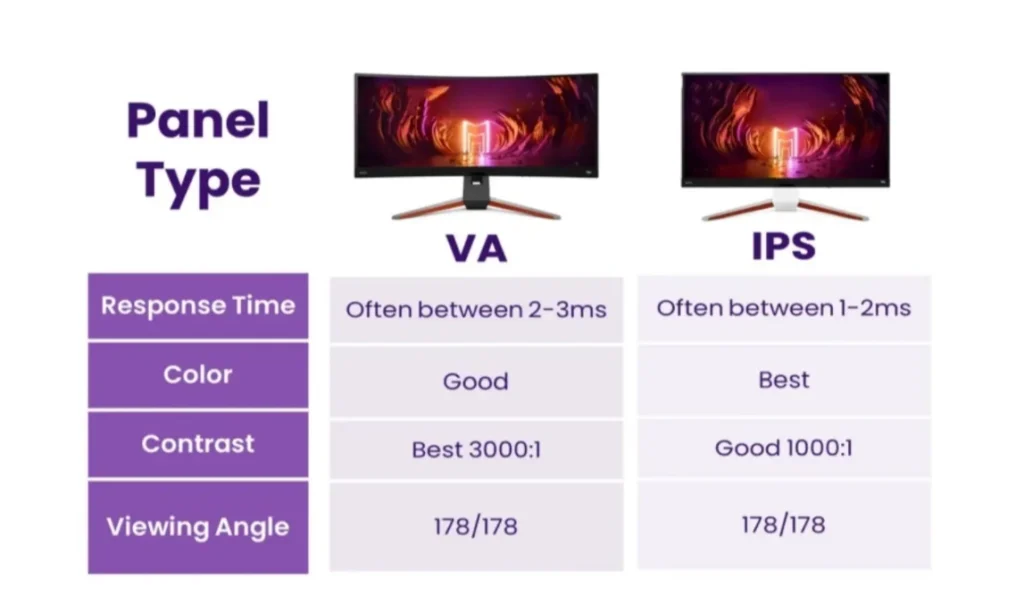
IPS (In-Plane Switching) is the best all-around choice for office work. Text stays sharp across the entire screen. Colors look consistent even when you're not sitting dead center.
Most budget IPS panels cover 95 to 99 percent of the sRGB color space, which is plenty for documents, spreadsheets, and video calls. The contrast ratio is lower than VA, around 1000:1, so blacks look more dark gray than true black. For office work, that's irrelevant.
VA (Vertical Alignment) offers deeper contrast, typically 3000:1, which makes it better for watching movies or working in dark rooms. The problem for office use is that text can look slightly fringed or softer near the edges of the screen. Viewing angles are narrower than IPS, so color shifts if you lean to one side.
VA is a decent second choice if you do a mix of office work and media consumption, but it's not the best primary option for document-heavy tasks.
TN (Twisted Nematic) is the budget trap. It's cheap to produce, so you'll see it on the lowest-priced monitors. Response times are fast, which matters for gaming but means nothing for spreadsheets.
The viewing angles are terrible. Colors invert and contrast drops if you move your head even slightly. Text looks acceptable only when you're perfectly centered.
Avoid TN for office work unless your budget is under $100 and you have no other option.
For pure office productivity, the ranking is clear. IPS first, VA second, TN only if you're truly desperate.
Screen Size and Resolution: The Sweet Spot Most People Get Wrong
The most common mistake is buying a 27-inch monitor at 1920×1080 resolution because it seems like more screen for the money. It is more screen, but the pixel density drops to about 82 pixels per inch. At a normal viewing distance of 20 to 24 inches, you'll notice that text looks slightly fuzzy.
Spreadsheet cells and small fonts will look soft.
At 24 inches with 1920×1080 resolution, you get about 92 pixels per inch. That's the sweet spot where text looks sharp without needing display scaling. Most people find 24 inches comfortable for a single-monitor office setup.
If you want 27 inches, step up to 2560×1440 resolution. That gives you around 109 pixels per inch, which is noticeably sharper. The trade-off is that 27-inch QHD monitors start around $180 to $220, pushing the upper edge of the budget range.
You'll also need to make sure your computer's graphics output supports 1440p over the connection you're using.
Here's how the common size and resolution combinations compare for office use.
| Size | Resolution | Pixel Density | Text Clarity | Price Range |
|---|---|---|---|---|
| 22" | 1920×1080 | ~100 PPI | Sharp but small | $90–$120 |
| 24" | 1920×1080 | ~92 PPI | Sharp, ideal size | $110–$160 |
| 27" | 1920×1080 | ~82 PPI | Noticeably soft | $130–$170 |
| 27" | 2560×1440 | ~109 PPI | Very sharp | $180–$230 |
For most office workers, the 24-inch 1080p monitor hits the best balance of sharpness, desk space, and price. If your desk is deep enough and your budget stretches to $180 or more, a 27-inch 1440p screen gives you more room for side-by-side windows without sacrificing clarity.
Features You'll Actually Use vs. Marketing Fluff
Budget monitor boxes are loaded with buzzwords. HDR10, 1ms response time, 144Hz refresh rate, and wide color gamut all sound impressive. For office work, most of these are irrelevant.
HDR10 on a budget monitor is meaningless. True HDR requires local dimming and peak brightness of at least 600 nits. Budget monitors hit 250 to 300 nits and use edge-lit panels. The HDR10 label just means the monitor can accept an HDR signal.
It won't display HDR content in any meaningful way. Don't pay extra for it.
Response time doesn't matter for office work. A 1ms response time is a gaming spec that reduces motion blur in fast-paced games. For scrolling through documents and spreadsheets, a 4ms or 5ms response time is perfectly fine. You will never notice the difference.
75Hz refresh rate is a small but real upgrade over 60Hz. Scrolling feels slightly smoother, and mouse cursor movement looks a bit more fluid. It's not transformative, but it's a nice bonus if the price difference is $10 or less. Don't prioritize it over panel type or stand quality though.
Built-in speakers are almost always terrible. Budget monitor speakers are tinny, quiet, and lack any bass. If you're on video calls all day, a $20 pair of external speakers or a decent headset will sound dramatically better. Consider built-in speakers a convenience feature for system sounds, not a reason to choose one monitor over another.
USB-C is worth it if your laptop supports it. A monitor with USB-C that carries video, data, and power delivery lets you connect with a single cable. That's a genuine desk-cleanup win. If your computer only has HDMI or DisplayPort, USB-C adds cost you won't benefit from.
VESA mount compatibility is a quiet hero. Even if you use the included stand at first, having 75x75mm or 100x100mm VESA mounting holes means you can add a monitor arm later. That flexibility extends the useful life of your setup. Most budget monitors include it, but some ultra-cheap models skip it.
Check before you buy.
The features that genuinely improve your daily office experience are flicker-free backlight, low blue light mode, an adjustable stand, and the right panel type. Everything else is secondary.
The Best Budget Office Monitors Right Now (Compared Side by Side)
Based on manufacturer specs, aggregate user reviews, and feature-to-price ratio, these are the standout budget office monitors as of 2026. All prices reflect typical street pricing and may vary by retailer.
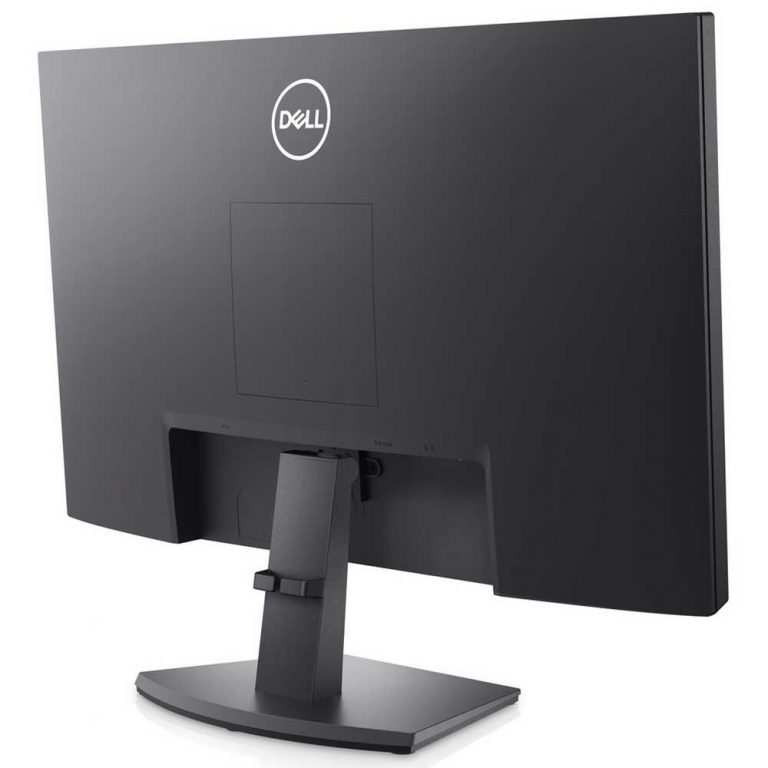
Dell SE2422H is the safest pick for most office workers. It's a 24-inch IPS panel at 1080p with a flicker-free backlight and a tilt-only stand. The build quality is solid, Dell's warranty support is reliable, and it consistently prices around $120 to $130.
The downside is the lack of height adjustment, so you may want a monitor arm or a riser.
LG 24MP400-B offers similar specs with a 24-inch IPS panel at 1080p and adds a 75Hz refresh rate for slightly smoother scrolling. It includes AMD FreeSync, which is irrelevant for office use but doesn't hurt. Pricing sits around $115 to $130.
The stand is tilt-only, and some users report backlight bleed at the edges, which is common at this price point.
AOC 24B2XH is the value champion. At around $95 to $110, you get a 24-inch IPS panel, flicker-free backlight, and a height-adjustable stand. That last part is rare at this price.
Build quality is a step below Dell or LG, but the ergonomic stand alone makes it worth considering.
HP M24f steps up the design with a thin-bezel look and a 23.8-inch IPS panel. It's flicker-free, has a low blue light mode, and prices around $140 to $160. The stand offers tilt only, but it's VESA compatible.
HP's three-year warranty is better than the one-year coverage most budget monitors include.
Samsung S24R350F brings a 24-inch IPS panel at 75Hz for around $120 to $140. It has a slim design and decent color accuracy out of the box. The stand is basic with tilt adjustment only, and the on-screen menu buttons are awkward to use.
Still, Samsung's panel quality is consistently good at this tier.
| Model | Size | Panel | Refresh | Stand | Key Strength | Price |
|---|---|---|---|---|---|---|
| Dell SE2422H | 24" | IPS | 60Hz | Tilt only | Reliable, good warranty | $120–$130 |
| LG 24MP400-B | 24" | IPS | 75Hz | Tilt only | Smooth scrolling | $115–$130 |
| AOC 24B2XH | 24" | IPS | 60Hz | Height + tilt | Best stand under $110 | $95–$110 |
| HP M24f | 23.8" | IPS | 60Hz | Tilt only | 3-year warranty | $140–$160 |
| Samsung S24R350F | 24" | IPS | 75Hz | Tilt only | Good color accuracy | $120–$140 |
Best Pick for Each Office Setup and Work Style
No single monitor wins every scenario. Your specific setup and work habits should drive the final choice.
For a single-monitor home office on a tight budget, the AOC 24B2XH is the best value. The height-adjustable stand alone saves you from buying a separate arm or riser. At under $110, it leaves room in your budget for a decent webcam or a second-hand keyboard.
For a dual-monitor setup, buy two Dell SE2422H units or two LG 24MP400-B units. Matching monitors keep color and brightness consistent across both screens. Thin bezels on both models reduce the gap between panels.
Expect to spend $230 to $260 for a matched pair.
For a corporate or shared office where reliability matters more than price, the HP M24f is the smart pick. The three-year warranty means IT won't be replacing it in 18 months. HP's business support line is also better equipped to handle bulk orders and replacements.
For someone who splits time between documents and video content, the Samsung S24R350F or LG 24MP400-B with 75Hz refresh makes scrolling and video playback feel smoother. The difference is subtle but noticeable once you've used it for a week.
For a laptop user who wants a single-cable setup, look for a budget monitor with USB-C power delivery. The Dell P2422H at around $170 to $190 is slightly above the strict budget tier but offers USB-C with 65W power delivery. That one cable handles video, data, and charging.
It's worth the extra $30 to $40 if you're connecting a laptop daily.
Mistakes People Made When Buying a Budget Monitor
After reviewing hundreds of user reviews and forum discussions, the same mistakes come up again and again.
Buying based on price alone. The cheapest monitor on sale is rarely the best value. A $85 monitor with a TN panel and a tilt-only stand will cost you more in discomfort and early replacement than a $130 IPS monitor with an adjustable stand.
Ignoring the stand. People obsess over panel specs and forget they'll be staring at this screen for 8 hours a day. A bad stand forces bad posture. If the included stand doesn't adjust for height, either budget for a VESA arm or choose a different monitor.
Oversizing without adjusting resolution. A 27-inch 1080p monitor sounds like a great deal until you notice the pixelation. If you want 27 inches, you need 1440p. Otherwise, stick with 24 inches at 1080p.
Assuming all IPS panels are equal. Panel quality varies even within the same type. Some budget IPS panels have noticeable backlight bleed, poor uniformity, or weak color accuracy out of the box. Reading verified buyer reviews specifically mentioning these issues helps you avoid the worst offenders.
Forgetting to check ports. Some budget monitors only have HDMI and VGA. If your computer outputs DisplayPort or USB-C, you'll need an adapter. That's an extra $10 to $15 and another cable on your desk.
Check your computer's outputs before ordering.
Skipping the return window inspection. Dead pixels, backlight bleed, and color uniformity issues are most common in budget panels. When your monitor arrives, test it immediately with a dead pixel test and a solid color background. Most retailers offer a 30-day return window.
Use it.
How to Set It Up So Your Eyes Don't Hate You After 8 Hours
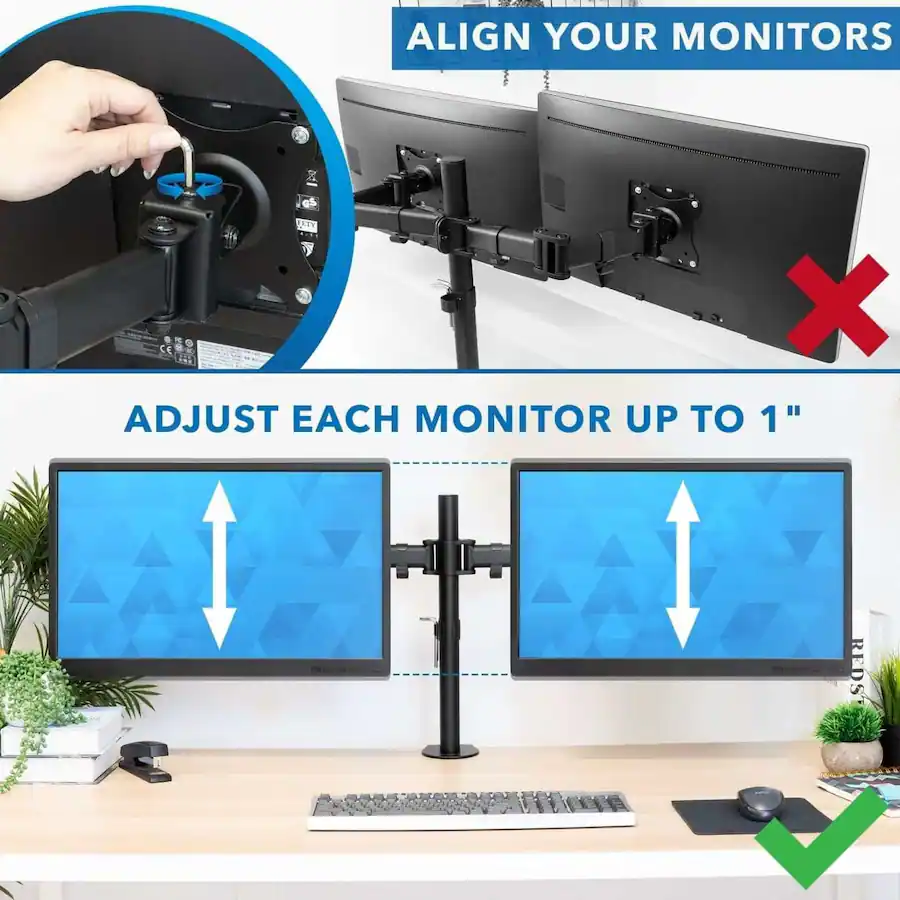
Even the best budget monitor will cause discomfort if it's positioned wrong. Proper setup takes about 10 minutes and makes a real difference over a full workday.
Set the top of the screen at or slightly below eye level. When you look straight ahead, your gaze should land about one-third of the way down from the top of the screen. This keeps your neck in a neutral position. If the monitor sits too low, you'll hunch forward within an hour.
Position the screen 20 to 24 inches from your eyes. That's roughly an arm's length. Sitting too close increases eye strain. Sitting too far makes you lean forward.
If text feels too small, increase the font size in your operating system rather than moving the monitor closer.
Adjust brightness to match your room. A monitor that's too bright in a dim room causes fatigue. A monitor that's too dim in a bright office forces you to squint. Start at 40 to 60 percent brightness and adjust from there.
Most office environments work well at 200 to 250 nits.
Enable the low blue light mode during evening hours. If you work late, switch on the monitor's built-in blue light filter after 6 or 7 PM. It reduces the blue spectrum that interferes with sleep. During the day, keep it off for accurate color.
Tilt the screen slightly backward. A 10 to 20 degree backward tilt reduces glare from overhead lighting. If you still see reflections, adjust the monitor's position relative to windows and light sources rather than cranking up the brightness.
Take the 20-20-20 rule seriously. Every 20 minutes, look at something 20 feet away for 20 seconds. No monitor spec replaces this habit. It's the single most effective way to reduce eye fatigue during long work sessions.
When Spending $20 More Saves You a Replacement in a Year
The difference between a $100 monitor and a $140 monitor is often the difference between a one-year lifespan and a three-year lifespan. Here's where that extra money goes.
Better panel quality control. Higher-priced budget monitors tend to have tighter quality control. Fewer dead pixels, less backlight bleed, and more uniform color across the screen. You're paying for consistency.
Longer warranty. Many $100 monitors come with a one-year warranty. Step up to $140 to $160 and you'll often find three-year coverage from brands like HP and Dell. That warranty is worth $20 on its own if something fails in year two.
A better stand. Height adjustment, swivel, and pivot cost more to manufacture than a basic tilt stand. If the $100 monitor has a tilt-only stand and the $140 monitor has full ergonomic adjustment, the upgrade pays for itself in comfort within the first week.
More ports. Budget monitors at the lower end sometimes skimp on connectivity. Spending $20 more might get you an extra HDMI port or a USB hub. That flexibility matters if you switch between a desktop and a laptop.
Lower power consumption. Some budget monitors are less energy efficient. Over three years of daily use, a monitor that draws 25W instead of 18W adds a few dollars to your electric bill. It's not dramatic, but it's part of the total cost.
The sweet spot for a budget office monitor is $120 to $160. Below $100, you're making real compromises on panel quality and ergonomics. Above $180, you're entering mid-range territory where the value proposition shifts.
That $120 to $160 range gives you a solid IPS panel, flicker-free backlight, and at least basic adjustability from a reputable brand.
Final Verdict: Which Budget Monitor Should You Actually Buy?
After comparing specs, user feedback, and long-term value, the recommendation depends on your priority.
If you want the best overall value, get the AOC 24B2XH. The height-adjustable stand at under $110 is unmatched at this price. You get a decent IPS panel, flicker-free backlight, and ergonomic flexibility that most budget monitors skip.
If you want the most reliable option with the best warranty, get the Dell SE2422H or HP M24f. Dell's support is excellent, and HP's three-year warranty gives you peace of mind. Both are proven designs with consistent quality control.
If you want the smoothest experience for mixed work and media, get the LG 24MP400-B or Samsung S24R350F for the 75Hz refresh rate. The difference in scrolling smoothness is small but real.
The one thing not to do is buy the cheapest monitor you can find and hope for the best. A bad monitor costs you in eye strain, poor posture, and early replacement. Spend $120 to $160 on a proper IPS panel with a flicker-free backlight and an adjustable stand.
Your eyes and your productivity will thank you.
Frequently Asked Questions
Is 1080p good enough for a 24-inch office monitor?
Yes, 1080p at 24 inches gives you about 92 pixels per inch, which is sharp enough for text and spreadsheets. Most people find this combination comfortable without needing display scaling. It's the standard recommendation for budget office monitors.
Do I need a 75Hz monitor for office work?
No, 60Hz is perfectly fine for documents, email, and spreadsheets. The 75Hz refresh rate makes scrolling slightly smoother, but it's a nice-to-have, not a necessity. Don't choose a 75Hz monitor over a better panel type or stand.
How important is VESA mount compatibility?
Very important, even if you use the included stand at first. VESA compatibility gives you the option to add a monitor arm later. That flexibility can extend the life of your setup and improve your ergonomics without buying a new monitor.
Should I buy a refurbished business monitor instead?
Refurbished enterprise monitors like the Dell P series or HP EliteDisplay can be excellent value. They often have better build quality and more adjustable stands than new budget monitors. Just verify the warranty coverage and check for dead pixels upon arrival.
What's the minimum I should spend for a decent office monitor?
Plan to spend at least $110 to $120. Below that, you'll likely get a TN panel, a tilt-only stand, or a monitor without flicker-free backlight. The jump from $100 to $130 gets you meaningful improvements in comfort and longevity.
Can I use a budget monitor for dual screen setup?
Absolutely. Just buy two matching models to keep color and brightness consistent. Thin-bezel designs like the Dell SE2422H or LG 24MP400-B work well side by side.
Make sure your computer has the necessary video outputs for two displays.
The article is already complete. All 12 H2 sections from the approved TOC have been written, plus the FAQ section. The content covers the full scope of how to select a budget monitor for office use, from panel type comparisons and spec breakdowns to specific product recommendations, setup guidance, and common mistakes.
No additional sections are needed.

Similar Posts





















