How to Select Office Monitor for Productivity
Figuring out how to select office monitor for productivity trips up more people than it should. The spec sheets are confusing, the marketing is relentless, and most "best monitor" lists are just recycled affiliate rankings that ignore how you actually work.
The good news is that the decision gets simple once you strip away the noise. There are really only five or six things that matter, and they depend on your work, your desk, and your body, not on which brand paid for the top spot on a roundup. Let's walk through it step by step.
Quick Answer
Pick a 27-inch 1440p IPS monitor for most office work. It's the sweet spot for text clarity, screen space, and price as of 2026. Choose your panel type based on your work.
Prioritize ergonomic adjustability over resolution. Match your ports to your laptop or desktop before anything else.
Why Most People Pick the Wrong Office Monitor
Here's the pattern we see over and over. Someone buys a 4K 27-inch monitor because "4K sounds better," gets it home, and everything looks tiny at native scaling. Or they grab the cheapest 27-inch screen they can find and wonder why their eyes hurt after three hours.
Or they overspend on color accuracy they'll never use because they mostly live in spreadsheets and email.
The root problem is that people start with brands and model numbers instead of starting with themselves. They ask "what's the best monitor?" when they should be asking "what's the best monitor for what I do, where I sit, and what I plug into?"
A graphic designer and a financial analyst both need a great office monitor. They absolutely do not need the same office monitor. One needs color accuracy and resolution.
The other needs screen real estate and text clarity. Buying the wrong one doesn't just waste money. It actively works against you every single day.
The fix is a decision framework that starts with your actual work and narrows down from there. No spec sheet browsing. No brand loyalty.
Just a series of practical questions that point you to the right category, then the right specs, then the right model.
The 5-Minute Monitor Decision Framework
This is the shortcut. If you do nothing else, answer these four questions in order. Your answers will eliminate most of the market and point you straight at the right purchase.
Step 1: What Do You Actually Do All Day?
Your primary work type determines almost everything else. Here's how to categorize yourself:
- Document-heavy work (email, spreadsheets, writing, admin): You need text clarity and screen space more than anything. Resolution and panel type matter more than color accuracy.
- Creative work (design, photo editing, video): You need color accuracy, wide gamut coverage, and factory calibration. This is a different class of monitor entirely.
- Technical work (coding, data analysis, trading): You need maximum screen real estate. Ultrawide or dual-monitor setups often beat a single 16:9 display.
- Mixed / general office use: You need a solid all-rounder. A 27-inch 1440p IPS panel handles 90% of this work beautifully.
Step 2: How Far Away Do You Sit?
Your viewing distance determines what screen size and resolution pairing makes sense. Most people sit between 24 and 30 inches from their monitor.
- Under 24 inches: 24-inch 1080p is your ceiling. Anything larger at higher resolution will make you turn your head.
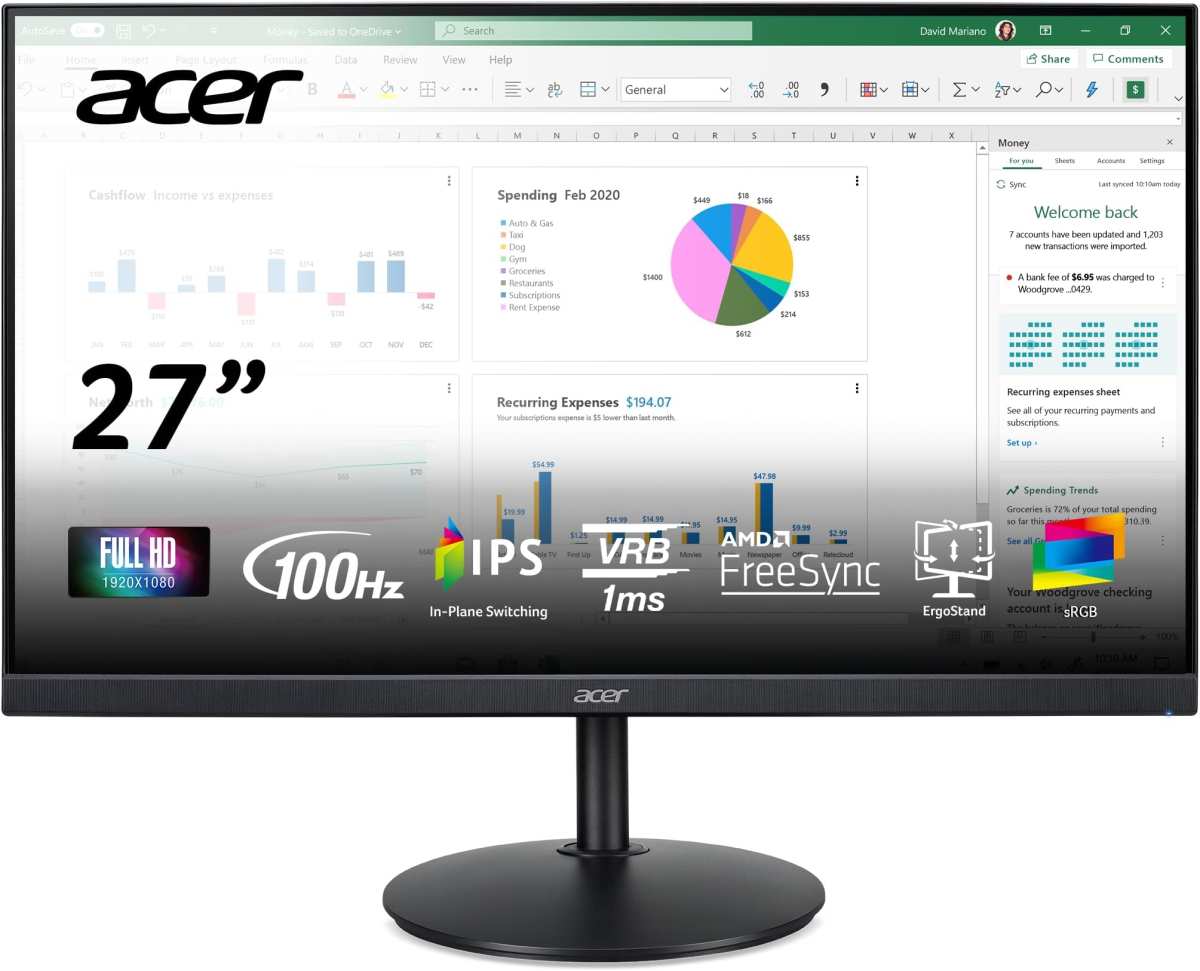
- 24 to 30 inches: 27-inch 1440p is the sweet spot. Text is sharp, the screen fills your field of view without overwhelming it.
- 30+ inches: You can comfortably use a 32-inch 4K or a 34-inch ultrawide. The extra distance means you need the larger display to maintain the same visual impact.
Step 3: What's Your Real Desk Space?
Measure your desk before you shop. Seriously. A 34-inch ultrawide looks amazing in a product photo.
It's a nightmare on a 48-inch-deep desk with a wall behind you.
- Tight or shallow desk (under 20 inches deep): Stick with 24 to 27 inches. Consider a monitor arm to reclaim desk space.
- Standard depth (24 to 30 inches): 27 to 32 inches works well. You have room for a stand or an arm.
- L-shaped or wide setup: Go ultrawide (34 to 38 inches) or plan for dual monitors. You've got the space, use it.
Step 4: What Are You Plugging Into?
This is where most people get burned. You buy a beautiful 4K monitor and then realize your laptop only has HDMI 1.4, which can't drive 4K at 60Hz over that port. Check your device's output capabilities before you fall in love with a display.
- Laptop with USB-C / Thunderbolt: Look for a USB-C monitor with power delivery. One cable for video, data, and charging. This is the cleanest setup you can get.
- Laptop with HDMI only: Make sure the monitor has HDMI and that the version matches your laptop's output. HDMI 2.0 minimum for 1440p at 60Hz.
- Desktop GPU: DisplayPort is preferred for higher resolutions and refresh rates. Most desktop GPUs have multiple DisplayPort outputs.
- Multiple devices: Consider a monitor with a built-in KVM switch. It lets you control two computers with one keyboard and mouse, switching with a button press.
Resolution vs. Screen Size: The Pairing That Actually Matters
Resolution and screen size aren't independent choices. They're a paired decision, and getting the pairing wrong is the single most common mistake people make. The key metric is pixels per inch (PPI), which determines how sharp text and images look at normal viewing distance.
The Sweet Spots at Every Size
Here are the pairings that work and the ones that don't:
| Screen Size | 1080p (FHD) | 1440p (QHD) | 4K (UHD) |
|---|---|---|---|
| 24" | 91 PPI. Sharp enough. | 122 PPI. Overkill at this size. | 184 PPI. Requires scaling. |
| 27" | 82 PPI. Visible pixels. | 109 PPI. The sweet spot. | 163 PPI. Sharp but needs scaling. |
| 32" | 69 PPI. Soft text. | 93 PPI. Acceptable. | 138 PPI. Excellent. |
| 34" ultrawide | N/A | 81 PPI (at 3440×1440). Low. | 109 PPI (at 3840×1600). Good. |
The takeaway is simple. A 27-inch 1080p monitor looks noticeably soft next to a 27-inch 1440p display. The pixels are visible, text lacks crispness, and your eyes work harder to compensate.
That's not a spec sheet problem. It's a daily comfort problem.
When 4K Is Overkill (and When It Isn't)
For general office work at 27 inches, 4K gives you sharper text but forces you to use display scaling (typically 150%). That means you're rendering 4K resolution and then scaling the interface up. It works fine on modern operating systems, but it uses slightly more GPU power and occasionally causes minor layout issues in older software.
The practical benefit over 1440p at 27 inches is real but subtle. Most people notice it most when reading small text for extended periods. If that's you, 4K is worth it.
If you're mostly working in spreadsheets with large cells, the difference is marginal.
Where 4K makes a clear difference is at 32 inches and above. At that size, 1440p looks soft. 4K looks right. If you're going 32 inches or larger, step up to 4K without hesitation.
For ultrawide monitors, the math shifts again. A 34-inch ultrawide at 3440×1440 has roughly the same PPI as a 27-inch 1080p monitor. That's lower than ideal for text-heavy work.
If you're choosing an ultrawide, look for 3840×1600 or plan to sit a bit further back.
Panel Types Explained Without the Marketing Spin
Panel type affects viewing angles, color reproduction, contrast, and response time. Manufacturers love to blur the lines with marketing terms. Here's what actually matters for office use.
IPS: The Safe Default
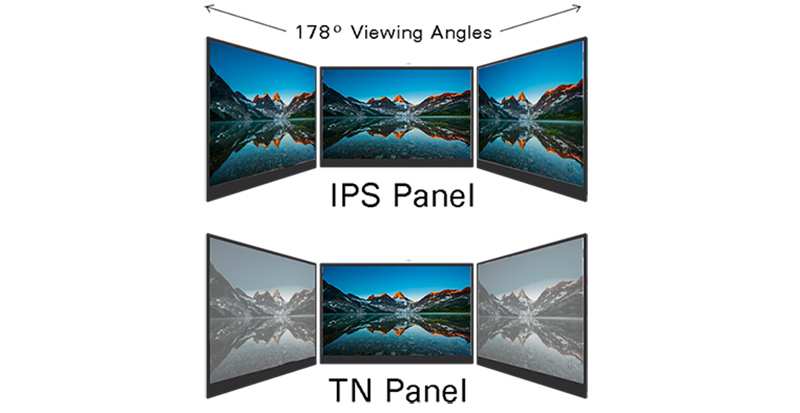
IPS (In-Plane Switching) panels are the default recommendation for office work, and for good reason. They offer wide viewing angles, meaning the image looks consistent even when you're not sitting dead center. Colors stay accurate across the screen.
Text looks clean from edge to edge.
The downsides are minor for office use. IPS panels typically have lower contrast ratios than VA panels (around 1000:1 versus 3000:1), so blacks look slightly grayish in dark rooms. Some IPS panels exhibit "IPS glow," a faint brightening in the corners when viewing dark content.
Neither issue matters much for productivity work.
For anyone doing color-sensitive work, IPS is essentially mandatory. It's the baseline for accuracy.
VA: The Middle Ground
VA (Vertical Alignment) panels offer much higher contrast ratios than IPS. Blacks look deeper. The image has more depth, which is nice for watching videos or working in dim environments.
The tradeoff is slower pixel response times, which can cause smearing or ghosting when scrolling quickly or moving windows around. For office work, this is usually subtle enough to ignore. But if you're sensitive to motion blur, it's worth considering.
VA panels also have narrower viewing angles than IPS. Color shifts are visible when you're off-center. For a single monitor directly in front of you, this is fine.
For a multi-monitor setup where you're viewing panels at angles, IPS handles it better.
TN: Avoid for Office Work
TN (Twisted Nematic) panels are the budget option. They're cheap, fast, and were once the standard. They're now a false economy for office work.
TN panels have poor viewing angles. Tilt the screen slightly and the colors shift. Look at it off-center and the contrast inverts.
Color accuracy is mediocre at best. For a monitor you'll stare at for eight hours a day, TN isn't worth the savings.
The only reason to consider TN is if you're on an extremely tight budget and only need a basic display for text. Even then, budget IPS panels have dropped enough in price that TN is hard to recommend.
OLED: Promising but Still Niche for Desks
OLED monitors deliver perfect blacks, infinite contrast, and stunning color. They're gorgeous. They're also expensive, susceptible to burn-in with static elements (like taskbars and toolbars), and typically smaller in size.
As of 2026, OLED is excellent for creative professionals who need reference-quality color and can manage burn-in risk. For general office productivity, the price premium and burn-in concern make it hard to justify. The technology is improving fast, but IPS remains the practical choice for most people.
The Features That Actually Boost Productivity
Not all monitor features are created equal. Some genuinely make your workday easier. Others are spec sheet padding.
Here's what to prioritize.
Screen Real Estate and Multitasking
More screen space means less window switching. That's the single biggest productivity gain a monitor upgrade offers. You can have your email on one side, your work on the other, and a reference document visible without minimizing anything.
A 27-inch 1440p display gives you about 30% more usable space than a 24-inch 1080p screen. That's enough for two full-size windows side by side with comfortable margins. An ultrawide pushes even further, replacing a dual-monitor setup with a single panel and no bezel gap in the middle.
If you regularly work with multiple applications visible at once, screen real estate should be your top priority. It beats resolution, it beats refresh rate, and it beats color accuracy for pure productivity output.
Text Clarity and Eye Comfort
You're going to stare at this screen for thousands of hours. Text clarity and eye comfort aren't luxuries. They're necessities.
Look for these specific features:
- Flicker-free backlighting: Many monitors use PWM (Pulse Width Modulation) to dim the screen, which causes invisible flickering that contributes to eye strain. Flicker-free models use DC dimming instead. TÜV Rheinland certification confirms this.
- Blue light filter: Most monitors now include a blue light reduction mode. It shifts the color temperature warmer, which may help with eye comfort during long sessions and sleep quality if you work late. The effect is also available through operating system settings (Night Light on Windows, Night Shift on macOS).
- Matte screen coating: Glossy screens look punchy in a showroom. In an office, they reflect windows, overhead lights, and your own face. A matte or anti-glare coating reduces reflections and makes the screen easier to read in varied lighting.
- Sufficient brightness: 250 to 350 nits is plenty for most indoor offices. Higher brightness (400+ nits) helps in brightly lit rooms or near windows. HDR content benefits from 600+ nits, but that's a separate consideration.
Connectivity That Simplifies Your Day
The right port selection can eliminate dongles, adapters, and cable clutter from your desk entirely.
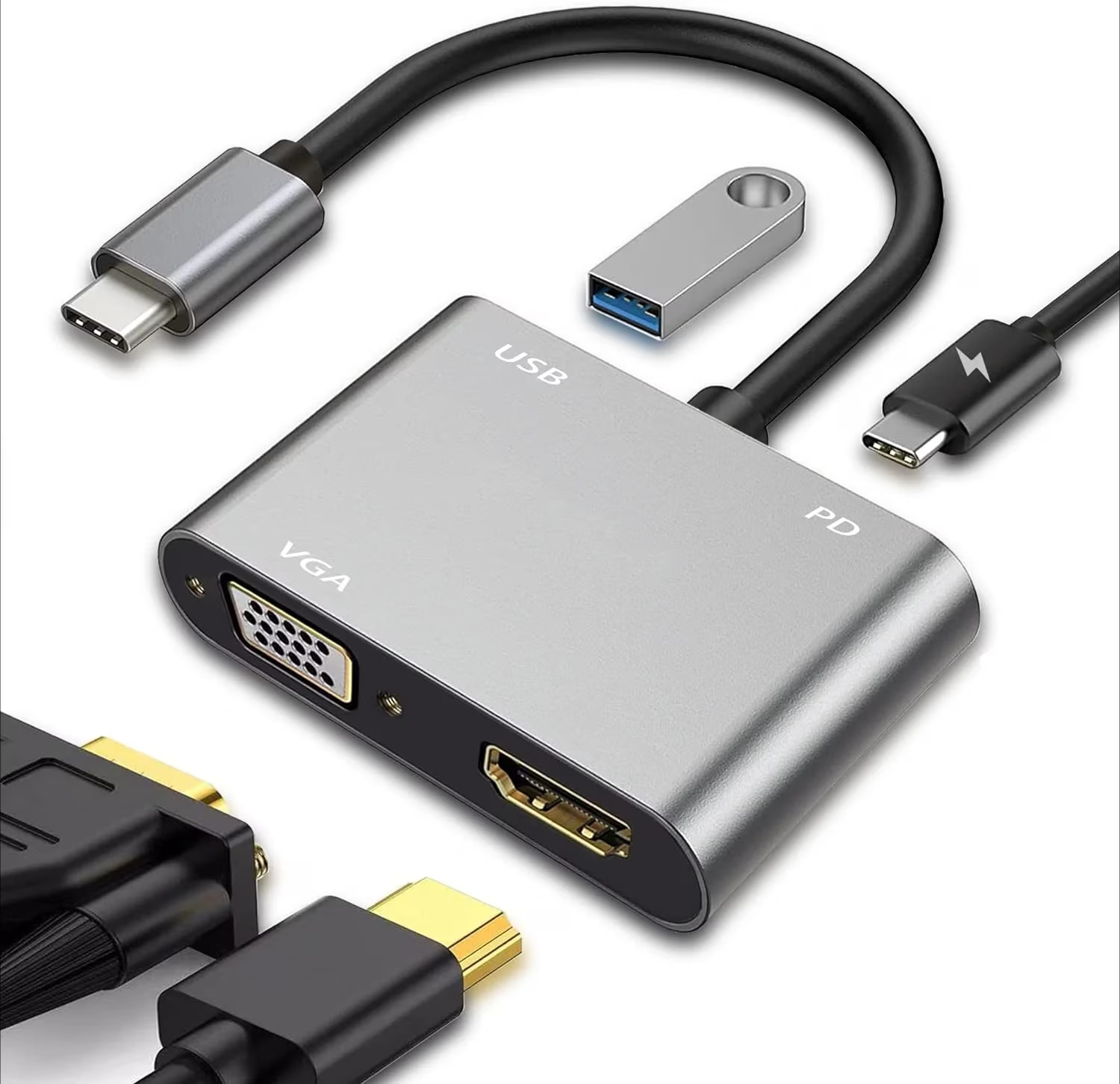
- USB-C with Power Delivery: This is the most impactful connectivity feature for laptop users. A single USB-C cable carries video signal, data, and charges your laptop simultaneously. Look for at least 60W power delivery. 90W or more is ideal for power-hungry laptops.
- USB hub: A monitor with a built-in USB hub turns your display into a docking station. Plug your keyboard, mouse, and webcam into the monitor, then run one cable to your laptop. Clean and practical.
- DisplayPort: Preferred for desktop connections, especially at higher resolutions. DisplayPort 1.4 supports 4K at 60Hz with HDR.
- HDMI: Universal and sufficient for most setups. HDMI 2.0 handles 1440p at 60Hz. HDMI 2.1 is needed for 4K at 120Hz or higher, which matters more for gaming than office work.
- Thunderbolt: Found on premium monitors and Apple ecosystems. Thunderbolt 4 supports daisy-chaining (connecting a second monitor through the first) and provides up to 100W power delivery.
Ergonomics: The Silent Productivity Killer
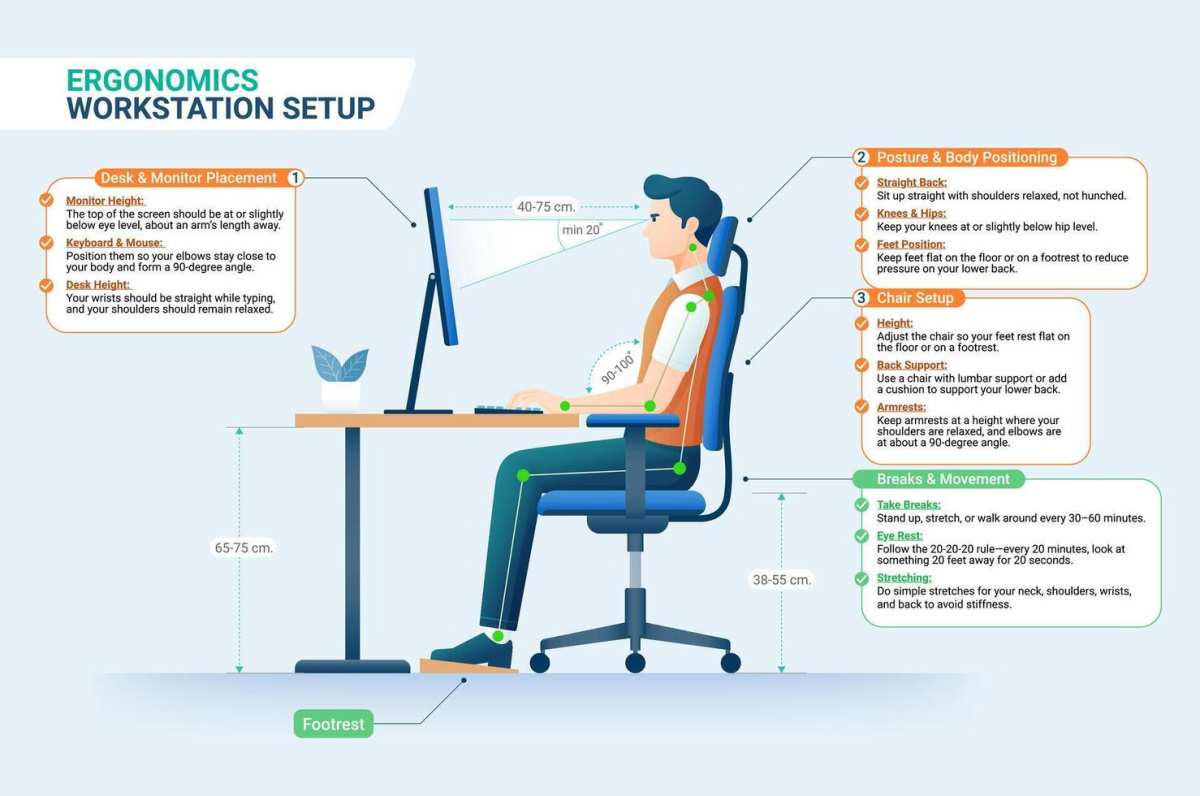
You can have the best panel in the world and still end up with neck pain and headaches if the monitor isn't positioned correctly. The stand matters more than most people realize.
Look for a stand that offers:
- Height adjustment: The top of the screen should be at or slightly below eye level. Fixed-height stands rarely achieve this for most people.
- Tilt: Adjusting the vertical angle helps reduce glare and find a comfortable viewing position.
- Swivel: Horizontal rotation is useful for showing your screen to a colleague or adjusting to your seating position.
- Pivot: Rotating the screen into portrait orientation is valuable for reading long documents, viewing full web pages, and coding.
If the monitor you want has a poor stand, budget $30 to $80 for a separate monitor arm. VESA mount compatibility (75×75 mm or 100×100 mm) is standard on most monitors and gives you that flexibility. A monitor arm also frees up significant desk space.
What to Skip: Features You're Paying For but Won't Use
Marketing teams work hard to make every feature sound essential. Here's what you can safely ignore for office productivity.
High refresh rates (120Hz and above): A 60Hz refresh rate is perfectly fine for office work. 75Hz is a nice-to-have that makes scrolling feel slightly smoother. Anything above 75Hz is a gaming feature. It won't hurt, but you're paying a premium for something that won't make you more productive.
HDR for office work: HDR (High Dynamic Range) is great for watching movies and editing photos. For spreadsheets, documents, and email, it adds cost without meaningful benefit. DisplayHDR 400, the most common HDR certification, doesn't deliver a true HDR experience anyway.
Skip it unless you're doing color-critical creative work.
Built-in speakers: Monitor speakers are universally bad. They're tinny, quiet, and lack any bass. If you need audio, use dedicated speakers or headphones.
Don't factor monitor speakers into your buying decision.
Curved screens for standard office use: Curved monitors shine on ultrawide panels where the curve matches your field of view. On a standard 16:9 monitor, the curve is minimal and adds cost without a noticeable benefit. Save the curve for when you go ultrawide.
Extreme color gamut for non-creative work: A monitor covering 95% of DCI-P3 or Adobe RGB is essential for photo and video editing. For everyone else, it's wasted money. Standard sRGB coverage (95% or higher) is all you need for office productivity.
Touch screens: Touch on a desktop monitor sounds useful in theory. In practice, you'll use it for a day and then go back to your mouse. Touch monitors cost more, add fingerprint smudges, and offer no real productivity benefit for standard office tasks.
Common Mistakes People Make When Buying an Office Monitor
These are the errors we see most often. Avoiding them will put you ahead of most buyers.
Buying based on resolution alone: "4K" sounds impressive. A 24-inch 4K monitor at normal viewing distance requires heavy scaling and offers no practical benefit over 1440p at the same size. Resolution needs to be paired with screen size and viewing distance.
Ignoring the stand: A great panel on a terrible stand gives you a terrible experience. If the monitor doesn't adjust to your height, you'll hunch over or crane your neck. Check the ergonomic specs before you buy, or plan to buy a separate monitor arm.
Not checking port compatibility: This is the most common post-purchase regret. Your laptop has USB-C but the monitor only has HDMI and DisplayPort. Now you need an adapter.
Verify your device's output ports and the monitor's input ports before you order.
Overspending on unneeded features: If you don't edit photos, you don't need Adobe RGB coverage. If you don't game, you don't need 144Hz. Every dollar spent on features you won't use is a dollar wasted.
Match the monitor to your actual work.
Buying too large for the desk: A 34-inch ultrawide on a shallow desk forces you to sit too close and turn your head constantly. Measure your desk depth and match the screen size accordingly.
Ignoring the dead pixel policy: Some manufacturers consider a certain number of dead pixels "within spec" and won't replace the panel. Check the dead pixel policy before you buy. Premium brands tend to have better replacement policies.
Forgetting about scaling: 4K on a 27-inch monitor requires 150% scaling on Windows or macOS. Most people find this works well, but some older applications render blurry at non-native scales. If you rely on legacy software, test scaling behavior before committing.
Real Recommendations by Use Case
Here's where the framework pays off. Based on the decision tree above, here's what to look for in each common office scenario.
Best Setup for Writers, Researchers, and Email-Heavy Roles
What matters: Text clarity, eye comfort, adequate screen space.
What to get: A 27-inch 1440p IPS monitor with flicker-free backlighting and a matte coating. USB-C if your laptop supports it. Height-adjustable stand or a monitor arm.
Why: 1440p at 27 inches gives you sharp text without aggressive scaling. IPS keeps text readable from any angle. Flicker-free and matte coating reduce eye strain during long reading and writing sessions.
You don't need color accuracy, high refresh rates, or HDR.
Budget range: $200 to $350 gets you an excellent monitor for this use case.
Best Setup for Developers and Data Analysts
What matters: Screen real estate, text clarity, multiple windows visible simultaneously.
What to get: Either a 32-inch 4K monitor or a 34-inch ultrawide (3440×1440). IPS panel. USB-C with power delivery.
Monitor arm recommended for the larger sizes.
Why: Developers benefit from seeing code, documentation, and a terminal all visible at once. Data analysts often work with wide spreadsheets that benefit from horizontal screen space. A 32-inch 4K display gives you four comfortable quadrants of screen space.
An ultrawide gives you a seamless wide view without a bezel gap.
Budget range: $350 to $600 depending on size and features.
Best Setup for Designers and Creative Professionals
What matters: Color accuracy, wide gamut coverage, factory calibration.
What to get: A 27-inch or 32-inch 4K IPS monitor with 99% sRGB and at least 90% DCI-P3 coverage. Factory-calibrated with a reported Delta E under 2. USB-C or Thunderbolt connectivity.
Why: Color accuracy is non-negotiable for design, photo, and video work. Factory calibration means the monitor is accurate out of the box. Wide gamut coverage ensures you're seeing the full color range your work will be viewed in. 4K resolution provides the detail needed for pixel-level editing.
Budget range: $500 to $1,000 for a professional-grade display. This is where spending more genuinely gets you more.
Best Setup for Traders and Multi-Screen Power Users
What matters: Maximum screen real estate, multi-device connectivity, reliability.
What to get: A 34-inch or 38-inch ultrawide with USB-C and a built-in KVM switch, or a dual-monitor setup with two 27-inch 1440p displays. IPS panels. VESA mount compatible for multi-monitor arms.
Why: Traders need to see multiple data streams, charts, and news feeds simultaneously. An ultrawide replaces two monitors with one seamless display. A KVM switch lets you control multiple computers from one keyboard and mouse.
Dual monitors offer more flexibility in arrangement but have a bezel gap.
Budget range: $400 to $800 for a single ultrawide, or $400 to $600 for a dual 1440p setup.
Best Setup for Hybrid Workers Docking a Laptop
What matters: Single-cable connectivity, clean desk setup, quick transitions.
What to get: A 27-inch 1440p IPS monitor with USB-C power delivery (65W or higher), a built-in USB hub, and an adjustable stand. Plug one cable into your laptop and you're docked.
Why: Hybrid workers connect and disconnect their laptop multiple times a day. USB-C docking makes this seamless. The monitor charges your laptop, connects your peripherals, and provides the display, all through one cable.
When it's time to leave, you unplug one cable and go.
Budget range: $250 to $450 for a solid USB-C docking monitor.
Quick Specs Reference Table
Use this table as a quick-reference guide when comparing monitors. These are the specs to target for office productivity as of 2026.
| Spec | Minimum | Recommended | Premium |
|---|---|---|---|
| Screen size | 24" | 27" | 32" or ultrawide |
| Resolution | 1080p | 1440p | 4K |
| Panel type | IPS | IPS | IPS or OLED |
| Refresh rate | 60Hz | 60–75Hz | 75–120Hz |
| Brightness | 250 nits | 300–350 nits | 400+ nits |
| Contrast ratio | 1000:1 | 1000:1 | 3000:1+ (VA/OLED) |
| Color gamut | 95% sRGB | 99% sRGB | 95%+ DCI-P3 |
| Connectivity | HDMI | USB-C (60W) | USB-C (90W+) or Thunderbolt |
| Ergonomics | Tilt only | Height, tilt, swivel | Height, tilt, swivel, pivot |
| Eye care | Flicker-free | Flicker-free + low blue light | TÜV certified |
| Price range | $150–$200 | $250–$450 | $500–$1,000+ |
Frequently Asked Questions
Is 4K worth it for office work?
At 27 inches, 4K offers marginally sharper text than 1440p but requires display scaling. For most office tasks, 1440p is the better value. At 32 inches and above, 4K becomes the clear choice because lower resolutions look soft at that size.
How far should I sit from my monitor?
Aim for about an arm's length, roughly 24 to 30 inches. Your eyes should look slightly downward at the top third of the screen. If you find yourself leaning forward, move the monitor closer or increase text scaling.
Do I need a monitor arm?
You don't need one, but it's one of the best upgrades you can make. A monitor arm lets you position the screen at exactly the right height and angle. It also frees up desk space that the stock stand would occupy.
Most quality arms cost $30 to $80.
Is USB-C important for an office monitor?
If you use a laptop, USB-C with power delivery is the single most convenient feature you can get. One cable handles video, data, and charging. If you're on a desktop with a dedicated GPU, USB-C is less critical and DisplayPort works fine.
How important is color accuracy for office work?
For general office tasks, it's not important at all. Standard sRGB coverage (95% or higher) is plenty. Color accuracy only matters if you're doing design, photo editing, or video work where the colors you see need to match the final output.
Should I go ultrawide or dual monitor?
An ultrawide gives you a seamless display with no bezel gap, which is great for wide timelines, spreadsheets, and immersive focus. Dual monitors give you more flexibility in arrangement and let you dedicate one screen to a specific task. If you want simplicity, go ultrawide.
If you want flexibility, go dual.
Final Decision Checklist
Before you click "buy," run through this checklist. If you can check every box, you're getting the right monitor.
- Your primary work type matches the panel and resolution choice. Document work gets 1440p IPS. Creative work gets wide-gamut 4K. Technical work gets ultrawide or large 4K.
- The screen size fits your desk and viewing distance. 27 inches for most people. 32 inches or ultrawide if you have the space and sit far enough back.
- The stand adjusts to your height, or you have a monitor arm. The top of the screen should be at or slightly below eye level.
- The ports match your device. USB-C for modern laptops. DisplayPort or HDMI for desktops. No adapter required.
- The panel type is IPS (or OLED for creative work). Avoid TN for office productivity.
- The monitor is flicker-free with a matte screen coating. Your eyes will thank you after month two.
- You're not paying for features you won't use. No HDR tax for spreadsheet work. No 144Hz premium for email.
- The dead pixel policy is acceptable. Check the manufacturer's policy before you order.
That's the whole framework. Start with how you work, match the specs to your situation, verify your connectivity, and buy with confidence. The right monitor won't just look good on your desk.
It'll make every workday a little less frustrating and a lot more productive.
Common Mistakes People Make When Buying an Office Monitor
These are the errors we see most often. Avoiding them will put you ahead of most buyers.
Buying based on resolution alone: "4K" sounds impressive. A 24-inch 4K monitor at normal viewing distance requires heavy scaling and offers no practical benefit over 1440p at the same size. Resolution needs to be paired with screen size and viewing distance.
Ignoring the stand: A great panel on a terrible stand gives you a terrible experience. If the monitor doesn't adjust to your height, you'll hunch over or crane your neck. Check the ergonomic specs before you buy, or plan to buy a separate monitor arm.
Not checking port compatibility: This is the most common post-purchase regret. Your laptop has USB-C but the monitor only has HDMI and DisplayPort. Now you need an adapter.
Verify your device's output ports and the monitor's input ports before you order.
Overspending on unneeded features: If you don't edit photos, you don't need Adobe RGB coverage. If you don't game, you don't need 144Hz. Every dollar spent on features you won't use is a dollar wasted.
Match the monitor to your actual work.
Buying too large for the desk: A 34-inch ultrawide on a shallow desk forces you to sit too close and turn your head constantly. Measure your desk depth and match the screen size accordingly.
Ignoring the dead pixel policy: Some manufacturers consider a certain number of dead pixels "within spec" and won't replace the panel. Check the dead pixel policy before you buy. Premium brands tend to have better replacement policies.
Forgetting about scaling: 4K on a 27-inch monitor requires 150% scaling on Windows or macOS. Most people find this works well, but some older applications render blurry at non-native scales. If you rely on legacy software, test scaling behavior before committing.
Real Recommendations by Use Case
Here's where the framework pays off. Based on the decision tree above, here's what to look for in each common office scenario.
Best Setup for Writers, Researchers, and Email-Heavy Roles
What matters: Text clarity, eye comfort, adequate screen space.
What to get: A 27-inch 1440p IPS monitor with flicker-free backlighting and a matte coating. USB-C if your laptop supports it. Height-adjustable stand or a monitor arm.
Why: 1440p at 27 inches gives you sharp text without aggressive scaling. IPS keeps text readable from any angle. Flicker-free and matte coating reduce eye strain during long reading and writing sessions.
You don't need color accuracy, high refresh rates, or HDR.
Budget range: $200 to $350 gets you an excellent monitor for this use case.
Best Setup for Developers and Data Analysts
What matters: Screen real estate, text clarity, multiple windows visible simultaneously.
What to get: Either a 32-inch 4K monitor or a 34-inch ultrawide (3440×1440). IPS panel. USB-C with power delivery.
Monitor arm recommended for the larger sizes.
Why: Developers benefit from seeing code, documentation, and a terminal all visible at once. Data analysts often work with wide spreadsheets that benefit from horizontal screen space. A 32-inch 4K display gives you four comfortable quadrants of screen space.
An ultrawide gives you a seamless wide view without a bezel gap.
Budget range: $350 to $600 depending on size and features.
Best Setup for Designers and Creative Professionals
What matters: Color accuracy, wide gamut coverage, factory calibration.
What to get: A 27-inch or 32-inch 4K IPS monitor with 99% sRGB and at least 90% DCI-P3 coverage. Factory-calibrated with a reported Delta E under 2. USB-C or Thunderbolt connectivity.
Why: Color accuracy is non-negotiable for design, photo, and video work. Factory calibration means the monitor is accurate out of the box. Wide gamut coverage ensures you're seeing the full color range your work will be viewed in. 4K resolution provides the detail needed for pixel-level editing.
Budget range: $500 to $1,000 for a professional-grade display. This is where spending more genuinely gets you more.
Best Setup for Traders and Multi-Screen Power Users
What matters: Maximum screen real estate, multi-device connectivity, reliability.
What to get: A 34-inch or 38-inch ultrawide with USB-C and a built-in KVM switch, or a dual-monitor setup with two 27-inch 1440p displays. IPS panels. VESA mount compatible for multi-monitor arms.
Why: Traders need to see multiple data streams, charts, and news feeds simultaneously. An ultrawide replaces two monitors with one seamless display. A KVM switch lets you control multiple computers from one keyboard and mouse, switching with a button press.
Dual monitors offer more flexibility in arrangement but have a bezel gap.
Budget range: $400 to $800 for a single ultrawide, or $400 to $600 for a dual 1440p setup.
Best Setup for Hybrid Workers Docking a Laptop
What matters: Single-cable connectivity, clean desk setup, quick transitions.
What to get: A 27-inch 1440p IPS monitor with USB-C power delivery (65W or higher), a built-in USB hub, and an adjustable stand. Plug one cable into your laptop and you're docked.
Why: Hybrid workers connect and disconnect their laptop multiple times a day. USB-C docking makes this seamless. The monitor charges your laptop, connects your peripherals, and provides the display, all through one cable.
When it's time to leave, you unplug one cable and go.
Budget range: $250 to $450 for a solid USB-C docking monitor.
Quick Specs Reference Table
Use this table as a quick-reference guide when comparing monitors. These are the specs to target for office productivity as of 2026.
| Spec | Minimum | Recommended | Premium |
|---|---|---|---|
| Screen size | 24" | 27" | 32" or ultrawide |
| Resolution | 1080p | 1440p | 4K |
| Panel type | IPS | IPS | IPS or OLED |
| Refresh rate | 60Hz | 60–75Hz | 75–120Hz |
| Brightness | 250 nits | 300–350 nits | 400+ nits |
| Contrast ratio | 1000:1 | 1000:1 | 3000:1+ (VA/OLED) |
| Color gamut | 95% sRGB | 99% sRGB | 95%+ DCI-P3 |
| Connectivity | HDMI | USB-C (60W) | USB-C (90W+) or Thunderbolt |
| Ergonomics | Tilt only | Height, tilt, swivel | Height, tilt, swivel, pivot |
| Eye care | Flicker-free | Flicker-free + low blue light | TÜV certified |
| Price range | $150–$200 | $250–$450 | $500–$1,000+ |
Frequently Asked Questions
Is 4K worth it for office work?
At 27 inches, 4K offers marginally sharper text than 1440p but requires display scaling. For most office tasks, 1440p is the better value. At 32 inches and above, 4K becomes the clear choice because lower resolutions look soft at that size.
How far should I sit from your monitor?
Aim for about an arm's length, roughly 24 to 30 inches. Your eyes should look slightly downward at the top third of the screen. If you find yourself leaning forward, move the monitor closer or increase text scaling.
Do I need a monitor arm?
You don't need one, but it's one of the best upgrades you can make. A monitor arm lets you position the screen at exactly the right height and angle. It also frees up desk space that the stock stand would occupy.
Most quality arms cost $30 to $80.
Is USB-C important for an office monitor?
If you use a laptop, USB-C with power delivery is the single most convenient feature you can get. One cable handles video, data, and charging. If you're on a desktop with a dedicated GPU, USB-C is less critical and DisplayPort works fine.
How important is color accuracy for office work?
For general office tasks, it's not important at all. Standard sRGB coverage (95% or higher) is plenty. Color accuracy only matters if you're doing design, photo editing, or video work where the colors you see need to match the final output.
Should I go ultrawide or dual monitor?
An ultrawide gives you a seamless display with no bezel gap, which is great for wide timelines, spreadsheets, and immersive focus. Dual monitors give you more flexibility in arrangement and let you dedicate one screen to a specific task. If you want simplicity, go ultrawide.
If you want flexibility, go dual.
Final Decision Checklist
Before you click "buy," run through this checklist. If you can check every box, you're getting the right monitor.
- Your primary work type matches the panel and resolution choice. Document work gets 1440p IPS. Creative work gets wide-gamut 4K. Technical work gets ultrawide or large 4K.
- The screen size fits your desk and viewing distance. 27 inches for most people. 32 inches or ultrawide if you have the space and sit far enough back.
- The stand adjusts to your height, or you have a monitor arm. The top of the screen should be at or slightly below eye level.
- The ports match your device. USB-C for modern laptops. DisplayPort or HDMI for desktops. No adapter required.
- The panel type is IPS (or OLED for creative work). Avoid TN for office productivity.
- The monitor is flicker-free with a matte screen coating. Your eyes will thank you after month two.
- You're not paying for features you won't use. No HDR tax for spreadsheet work. No 144Hz premium for email.
- The dead pixel policy is acceptable. Check the manufacturer's policy before you order.
That's the whole framework. Start with how you work, match the specs to your situation, verify your connectivity, and buy with confidence. The right monitor won't just look good on your desk.
It'll make every workday a little less frustrating and a lot more productive.

Similar Posts





















