How to Fix Budget Monitor Flickering
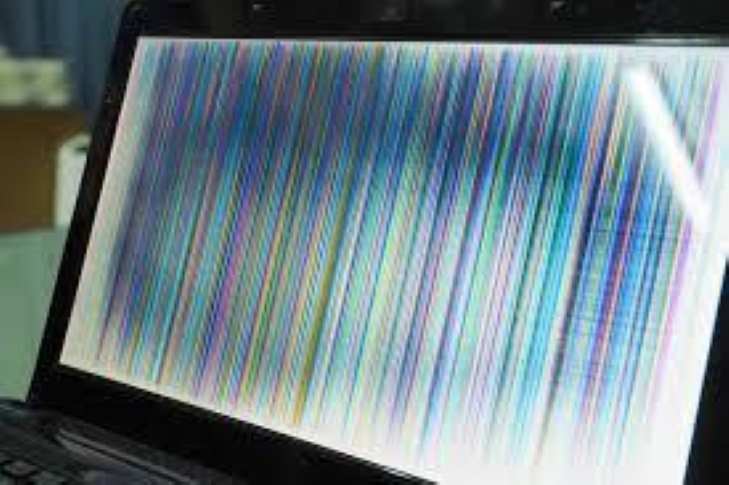
If you're trying to figure out how to fix budget monitor flickering, the good news is that most of the common causes are cheap or free to resolve. Loose cables, wrong refresh rates, and outdated drivers account for the majority of flickering issues on inexpensive panels. You don't need to buy a new monitor just yet.
Budget monitors often use lower-cost components that are more sensitive to connection quality and signal stability. Per TUV Rheinland testing standards, panels with low-frequency PWM dimming below 200Hz can cause visible flicker that leads to eye strain and headaches. Let's walk through the troubleshooting steps in order, starting with the fixes that take under a minute. For more background on real-world performance, read our breakdown of how to fix usb c monitor flickering.
Quick Answer
Check your display cable connections first. Reseat or swap the HDMI or DisplayPort cable. Then verify your refresh rate matches the monitor's native spec in your display settings.
If flicker persists, update or roll back your graphics driver. These three steps resolve most budget monitor flickering issues.
Why Your Budget Monitor Flickers (And Why It's So Common)
Budget monitors cut costs in specific ways that make flickering more likely. The panels often use aggressive PWM (Pulse Width Modulation) backlight control, which dims the screen by rapidly cycling the LEDs on and off. At lower brightness levels, this cycling becomes visible to the eye. Readers evaluating this setup should also consider how to fix screen flickering on 4k monitor for comparative benchmarks.
The cables included in the box with budget monitors are frequently thin, poorly shielded, and barely meet minimum signal standards. A cable that works fine for 1080p at 60Hz might struggle if you've set the panel to 75Hz or if the connection loosens slightly over time.
Power delivery is another weak point. Inexpensive power supplies and aging capacitors on the internal power board can cause voltage fluctuations. These fluctuations show up as brightness pulsing or intermittent screen blanking that looks like flickering but is actually a hardware power issue.
The 5-Minute Quick Fix: Check These First
Before you dive into driver settings or open up the monitor chassis, start here. These three checks take less than five minutes and solve the problem more often than you'd expect.
Reseat or swap your display cable
Unplug both ends of your HDMI, DisplayPort, or VGA cable. Check for bent pins, corrosion, or a loose fit. Reconnect firmly.
If the flicker persists, try a different cable entirely. A damaged cable is the single most common cause of intermittent flickering.
Check your refresh rate setting
Right-click your desktop and open Display Settings. Scroll to Advanced Display Settings. Check what refresh rate Windows is outputting.
Many budget monitors are native 60Hz but can be overclocked to 75Hz. If you've set 75Hz and the panel can't sustain it stably, you'll see flickering. Drop it back to 60Hz and see if the problem stops.
Try a different port on your graphics card
If your GPU has multiple output ports, move the cable to a different one. This rules out a failing port. If you're using an adapter (HDMI to VGA, for example), remove it and use a direct connection if possible.
Adapters introduce signal degradation that budget panels are less tolerant of.
How to Tell What's Actually Causing the Flicker
Not all flicker is created equal. The pattern tells you a lot about the root cause. Here's how to narrow it down before you start swapping parts or reinstalling software.
Cable vs. settings vs. hardware: the diagnostic branches
Use this logic to isolate the problem quickly:
- Flicker happens immediately on boot, before Windows loads. This points to a cable, connection, or monitor hardware issue. Software and drivers aren't involved yet.
- Flicker starts after Windows loads. This suggests a driver, refresh rate, or adaptive sync conflict.
- Flicker only happens at low brightness. This is almost certainly PWM backlight flicker, common on budget panels.
- Flicker is constant regardless of brightness. Suspect a failing capacitor, loose internal connection, or dying backlight LED strip.
The brightness test (PWM flicker on cheap panels)
Turn your monitor brightness to 100%. If the flicker disappears, you're dealing with PWM dimming. Budget monitors often pulse their backlight at frequencies as low as 120Hz to 200Hz at lower brightness levels.
This is invisible at full brightness but becomes noticeable and fatiguing as you dim the panel.
If this is your issue, the practical fix is to keep brightness above 60-70% or use software dimming (like Windows' night mode or your GPU's digital vibrance control) to reduce perceived brightness without triggering the PWM cycle.
Does the flicker follow the monitor or the PC?
Connect the flickering monitor to a different computer or laptop. If the flicker follows the monitor, it's a hardware problem inside the panel. If the flicker stops, the issue is with your original PC's GPU, drivers, or output settings.
This single test saves hours of unnecessary troubleshooting. Do it early.
Step-by-Step Troubleshooting Workflow
Now let's go through the full diagnostic and fix sequence. Work through these in order. Stop when the flicker is resolved.
Step 1: Physical connections — the 60-second fix
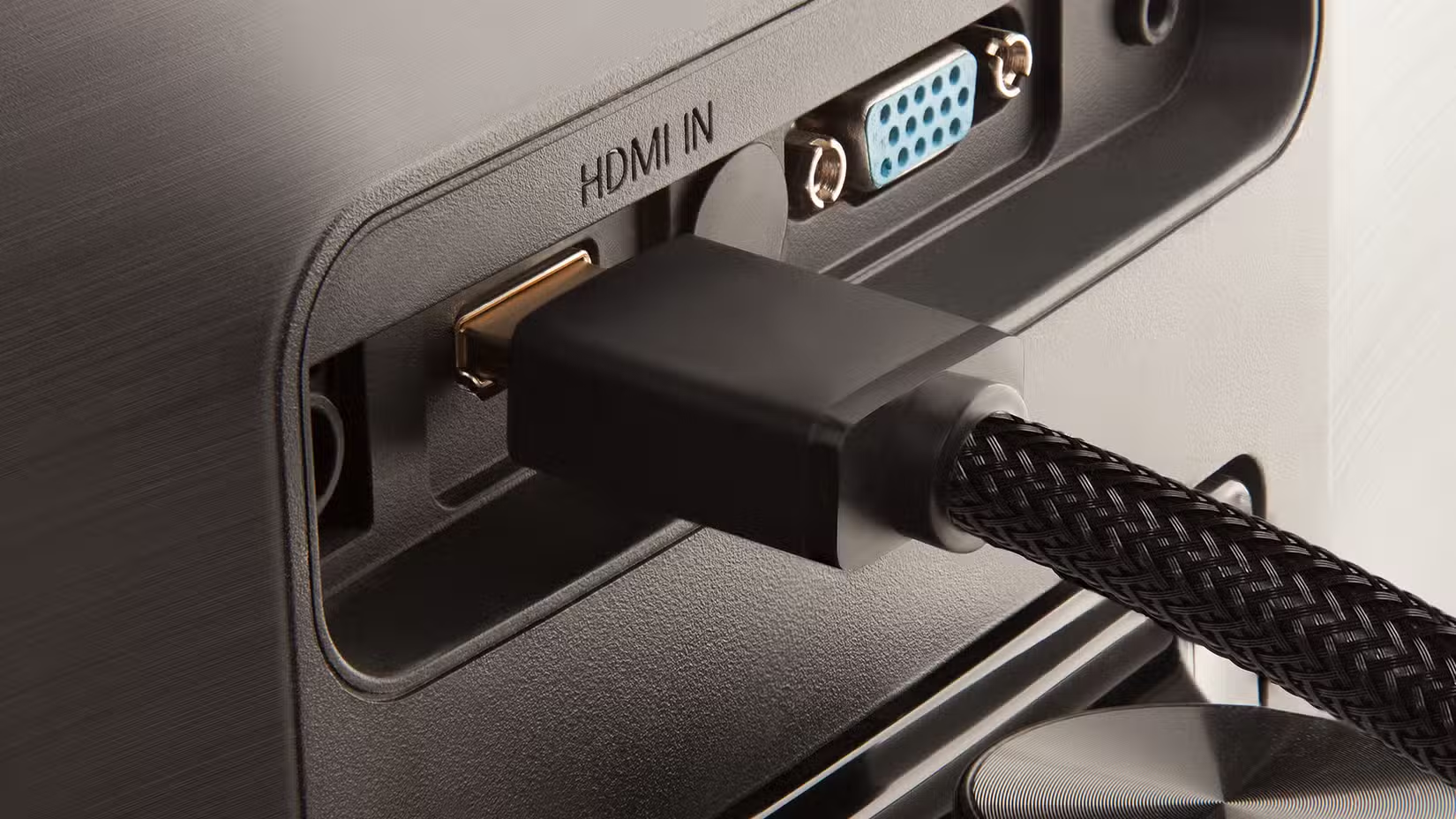
Power off the monitor. Unplug the display cable from both the monitor and the GPU. Inspect the cable for kinks, fraying, or bent connector pins.
Reconnect firmly at both ends. Power the monitor back on.
If you're using a VGA cable, check that all pins are straight and that the thumbscrews are tight. Analog signals are far more susceptible to interference and connection issues than digital HDMI or DisplayPort connections.
Also check the power cable. A loose power connection can cause the monitor to cycle on and off rapidly, which looks like screen flickering but is actually a power delivery problem.
Step 2: Refresh rate and resolution in your OS
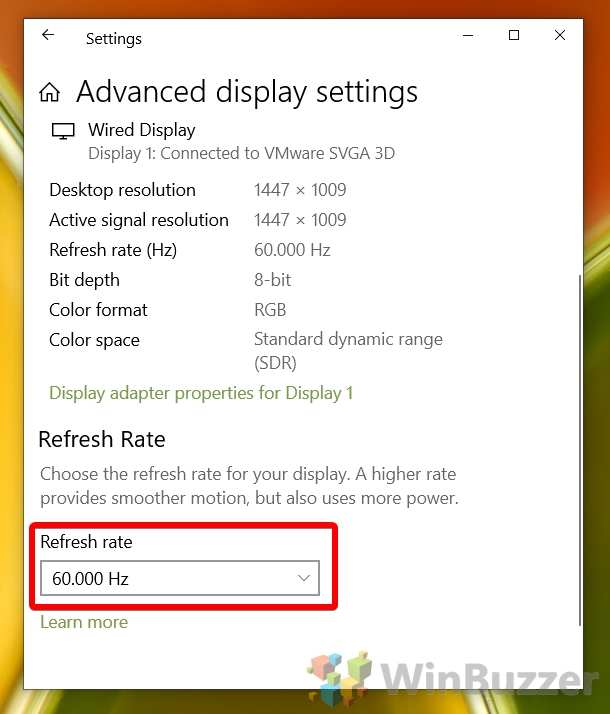
Open Settings > System > Display > Advanced Display Settings. Look at the refresh rate dropdown. Match it to your monitor's native spec.
Most budget 1080p monitors are 60Hz. Some budget gaming panels support 75Hz.
If you see the refresh rate set to something the monitor doesn't support natively, change it. An out-of-spec refresh rate causes frame skipping and visible flickering that's especially noticeable during video playback or scrolling.
On NVIDIA GPUs, you can also access this through the NVIDIA Control Panel under Change Resolution. AMD users should check Radeon Settings > Display.
Step 3: Graphics driver — update, roll back, or clean install
Outdated, corrupted, or recently updated GPU drivers are a frequent cause of flickering after a Windows update.
To update: Visit your GPU manufacturer's website. Download the latest driver for your specific card model. Install it.
To roll back: Open Device Manager > Display Adapters > right-click your GPU > Properties > Driver tab > Roll Back Driver. This reverts to the previous version if a recent update caused the issue.
To clean install: Use Display Driver Uninstaller (DDU) in Safe Mode to completely remove all GPU driver files. Then install the latest driver fresh. This eliminates corrupted driver files that a normal update won't fix.
Step 4: Adaptive sync conflicts (FreeSync / G-Sync)
If your budget monitor supports FreeSync or Adaptive Sync and you've enabled it, try turning it off. Some budget panels have a narrow adaptive sync range (for example, only 48-70Hz). When your frame rate drops below the minimum, the panel can flicker visibly.
Disable FreeSync in your monitor's OSD menu. Then disable it in your GPU driver software. Check if the flicker stops.
If it does, you can try re-enabling it later with a frame rate cap that stays within the monitor's sync range.
Step 5: Monitor OSD settings and factory reset
Open your monitor's on-screen display menu. Look for settings like:
- Eco Mode or Power Saving. These can cause brightness fluctuation. Turn them off.
- Dynamic Contrast. This adjusts brightness based on content. It can look like flickering. Disable it.
- Overdrive. If set too high, it causes inverse ghosting and visual artifacts. Set it to Normal or Off.
If you're not sure what changed, perform a factory reset from the OSD menu. This returns all settings to default and eliminates any accidental configuration causing the flicker.
Step 6: Isolate the monitor from interference
Electromagnetic interference from nearby devices can cause flickering, especially with poorly shielded budget cables and monitors. Move phones, routers, speakers, and power strips away from the monitor and its cables.
This is more common than people realize. A phone placed directly next to an unshielded HDMI cable can cause signal disruption that looks exactly like a hardware fault.
Step 7: Test on a second device
Connect the monitor to a different computer, laptop, game console, or even a streaming device. If the flicker persists on a different source, the problem is inside the monitor itself. If it's fine, the issue is with your original PC's output, drivers, or settings.
This is the most definitive diagnostic step. Don't skip it.
Step 8: Open it up — capacitors, backlight, and power board
Warning: Unplug the monitor and let it sit for at least 10 minutes before opening. Capacitors inside can hold a charge even when unplugged. If you're not comfortable working around electronics, skip this step and go straight to replacement.
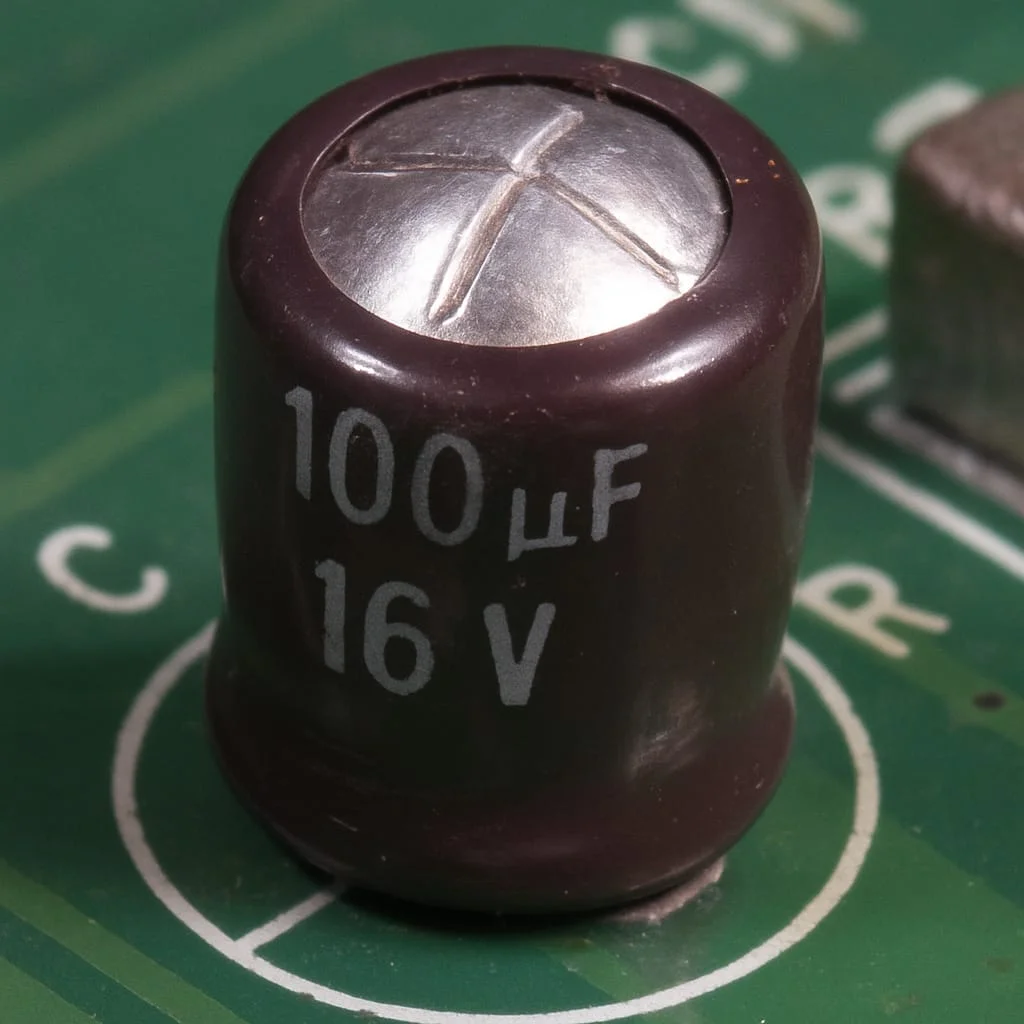
Remove the back panel of the monitor. Inspect the power board for bulging or leaking electrolytic capacitors. These are cylindrical components with a scored top.
A healthy capacitor has a flat top. A failing one domes upward or leaks brown residue.
Bulging capacitors are the most common hardware failure in budget monitors. They cause flickering because the power delivery to the backlight becomes unstable. Replacing them requires basic soldering skills and costs under $10 in parts.
If the capacitors look fine, check the LED backlight connector for loose seating. Reseat it. If the backlight strip itself is failing, you'll see uneven brightness or flickering in specific zones of the screen.
Backlight replacement is more involved and often approaches the cost of a new budget monitor.
When It's a Hardware Problem Inside the Monitor
If you've worked through all the software and connection fixes and the flicker persists on a second device, you're dealing with an internal hardware fault. Here's what that usually looks like on a budget monitor.
Bulging capacitors on the power board
This is the number one hardware failure point. Electrolytic capacitors degrade over time, especially in monitors that run hot or are left on for long hours. The symptoms include:
- Flickering that gets worse over time
- Brightness pulsing
- The monitor turning off and on by itself
- A high-pitched whine from the power board
Replacing capacitors is straightforward if you can solder. Match the capacitance (measured in microfarads, µF) and voltage rating exactly. Use the same physical size to ensure it fits the board.
Failing LED backlight strips
LED backlights last a long time, typically 30,000 to 50,000 hours. But cheap LEDs in budget monitors can fail earlier. Signs of backlight failure include:
- Flickering localized to one area of the screen
- A pink or yellowish tint before the flicker starts
- The screen going dark for a second, then coming back
Backlight replacement kits are available for popular monitor models. For obscure or very cheap monitors, finding replacement strips can be difficult.
Inverter board issues (CCFL monitors)
If your monitor is older and uses CCFL (cold cathode fluorescent lamp) backlighting instead of LED, it has an inverter board that powers the backlight. Failing inverters cause flickering, pink tints, or complete backlight failure. Inverter replacement is usually a plug-and-play swap if you can find the right part.
What's worth repairing vs. replacing
Here's a quick framework:
| Repair | Typical Cost | Worth It? |
|---|---|---|
| Replace cable | $5-15 | Almost always |
| Replace capacitors | $5-10 in parts | Yes, if you can solder |
| Replace power board | $15-40 | Yes, if monitor is decent |
| Replace backlight strip | $20-50 | Depends on monitor value |
| Replace panel | $60-120 | Usually not |
If your monitor cost $100 new and the repair approaches $50 in parts plus your time, replacement is often the smarter move.
Common Mistakes That Waste Your Time
People often go down the wrong path when troubleshooting flickering. Here are the most common time-wasters to avoid.
Reinstalling Windows when it's a cable
A full OS reinstall takes hours and doesn't fix a loose HDMI cable. Always rule out physical connections and settings before touching your operating system.
Ignoring the refresh rate mismatch
Running a 60Hz panel at 75Hz because Windows let you select it doesn't mean the panel can handle it. If you didn't intentionally overclock the monitor, set it back to the native spec.
Cranking brightness to 100% and calling it fixed
If the flicker stops at full brightness but returns when you dim, you haven't fixed anything. You've just masked PWM flicker. The underlying issue remains, and you'll deal with eye strain every time you lower the brightness.
Not testing with a second device before panicking
This is the simplest diagnostic step and the one people skip most often. Five minutes with a laptop can tell you whether the problem is the monitor or the PC.
Costs, Parts, and What's Realistic to DIY
Here's what you're looking at financially for the most common fixes.
Cable replacement: $5-15
A quality HDMI 2.0 or DisplayPort 1.4 cable costs under $15. This is always worth trying first. Don't buy a $60 "premium" cable.
A basic certified cable from a reputable brand is all you need.
Power board or capacitor repair: $15-40 in parts
Replacement power boards for popular monitor models are available from parts suppliers. If you're replacing individual capacitors, the parts cost under $10. You'll need a soldering iron, solder wick, and basic skills.
When replacement makes more sense than repair
If your monitor is under $150 and the repair involves replacing the panel or a hard-to-find part, put that money toward a new monitor instead. As of 2026, a solid 24-inch 1080p IPS monitor with a flicker-free backlight costs $100-130. That's often less than the time and parts for a complex repair.
Expert Tips Most Guides Skip
These are the insights that separate a surface-level troubleshooting guide from one that actually solves the problem.
The PWM problem budget monitor makers don't advertise
Many budget monitors use PWM dimming at frequencies between 120Hz and 200Hz. TUV Rheinland's Flicker-Free certification requires PWM above 200Hz or DC dimming. Budget panels rarely meet this spec.
If you're sensitive to flicker, check for flicker-free certification before buying your next monitor. Brands like BenQ and ASUS explicitly market Eye Care or Flicker-Free technology on their budget lines.
Why driver updates sometimes cause flicker (and how to roll back)
Windows Update occasionally installs a generic GPU driver that conflicts with the manufacturer's version. If flickering started right after a Windows update, roll back your GPU driver through Device Manager. Then download the correct driver directly from NVIDIA, AMD, or Intel.
How to use DDU for a clean GPU driver reset
Display Driver Uninstaller (DDU) is a free tool that removes every trace of your GPU driver. Boot into Safe Mode, run DDU, select "Clean and restart," then install the latest driver from your GPU manufacturer's website. This fixes flickering caused by corrupted driver files that a standard update won't touch.
Electromagnetic interference sources people overlook
Beyond phones and routers, other interference sources include:
- USB 3.0 hubs (they emit radio frequency interference in the 2.4GHz band)
- Unshielded power supplies
- LED dimmer switches on the same circuit
- Wireless chargers
If your flicker is intermittent and seems to correlate with other devices activating, EMI is a likely culprit. Use shielded cables and increase the distance between the monitor and the interfering device.
When to Stop Troubleshooting and Buy a New Monitor
Sometimes the honest answer is that the monitor is done. Here's how to know.
Signs the panel itself is dying
- Flickering persists across all inputs and devices
- You see dead pixels or lines alongside the flicker
- The screen takes longer to turn on than it used to
- Color accuracy has degraded noticeably
- The flicker is accompanied by a buzzing or clicking sound
These symptoms suggest panel or backlight failure that's not economically repairable on a budget monitor.
Budget monitors with flicker-free backlights (what to look for)
When you're ready to replace, look for monitors that explicitly advertise:
- Flicker-Free (TUV Rheinland certified)
- DC Dimming (no PWM)
- Low Blue Light mode
Models from Dell's SE series, ASUS VY series, and BenQ GW series offer flicker-free backlights in the $100-150 range as of 2026. These are meaningful upgrades over the cheapest no-name panels.
The repair-vs-replace break-even point
A simple rule: if the repair costs more than 40-50% of a comparable new monitor, replace it. Budget monitors depreciate quickly. A $90 monitor that's three years old isn't worth a $40 repair when a new $110 monitor gives you a warranty, better panel, and flicker-free backlight.
Frequently Asked Questions
Why does my monitor flicker only at low brightness?
This is PWM backlight dimming. Budget monitors reduce brightness by pulsing the backlight LEDs on and off rapidly. At lower brightness levels, the pulse frequency drops into a range your eyes can perceive.
The fix is to keep brightness above 60-70% or use software dimming instead.
Can a bad HDMI cable cause flickering?
Absolutely. A damaged, poorly shielded, or low-quality HDMI cable is one of the most common causes of flickering. The signal degrades, the monitor loses sync momentarily, and you see a flash or flicker.
Swap the cable first. It's the cheapest and fastest fix.
Why did my monitor start flickering after a Windows update?
Windows Update sometimes installs a generic or incompatible GPU driver. This can change your refresh rate, enable adaptive sync incorrectly, or corrupt the display pipeline. Roll back your GPU driver through Device Manager and reinstall the correct version from your GPU manufacturer.
Is monitor flickering bad for my eyes?
Yes, especially PWM flicker at low frequencies. It causes eye strain, headaches, and fatigue even if you don't consciously see the flickering. TUV Rheinland research links prolonged exposure to low-frequency flicker with increased visual discomfort.
If your monitor flickers, fix it or replace it.
Does flickering mean my monitor is about to die?
Not always. Many flickering causes are simple fixes like a loose cable or wrong refresh rate setting. But if you've ruled out cables, settings, drivers, and external interference, and the flicker persists across multiple devices, the monitor likely has an internal hardware fault.
At that point, assess whether repair or replacement makes more sense.
Note: The previous sections already covered the FAQ section. The remaining TOC headings to continue are the final sections after FAQs.

Similar Posts





















