How to Enable Touch on Touchscreen Monitor
So you plugged in your new touchscreen monitor, fired it up, and… nothing. No touch response. You're tapping the screen like it's a magic trick that won't start working.
You're not alone. Figuring out how to enable touch on a touchscreen monitor trips up more people than you'd think, and it's almost never because the hardware is broken.
The real culprit is almost always one of three things: a missing USB data cable, a driver that never installed, or a USB-C cable that only carries video. Touch data and video travel on separate paths, and if that data path isn't connected, your screen stays stubbornly unresponsive no matter how many times you tap it. Let's walk through exactly how to get it working.
Quick Answer
Connect the USB upstream cable from your monitor to your computer. This cable carries touch data separately from the video signal. Check Device Manager for a HID-compliant touch screen entry.
Install the manufacturer's touch driver if Windows doesn't detect it automatically. Calibrate through Tablet PC Settings if touch response feels offset.
Why Your Touchscreen Monitor Isn't Responding (And How to Fix It)
Here's the thing that catches almost everyone off guard. Your monitor has two separate systems running at the same time. One handles the display.
The other handles touch. And they need completely different connections to your computer.
Most people connect an HDMI or DisplayPort cable, see the picture come up, and assume everything should work. But that video cable only carries the image. Touch input needs its own data connection, usually over USB.
Without it, your computer literally doesn't know the screen can sense touch.
The fix is straightforward once you understand the setup. But the troubleshooting path changes depending on what cables you have, what ports are available, and what operating system you're running. That's why a simple "just plug it in" answer never works for everyone.
The One Thing Most People Miss: The USB Upstream Cable
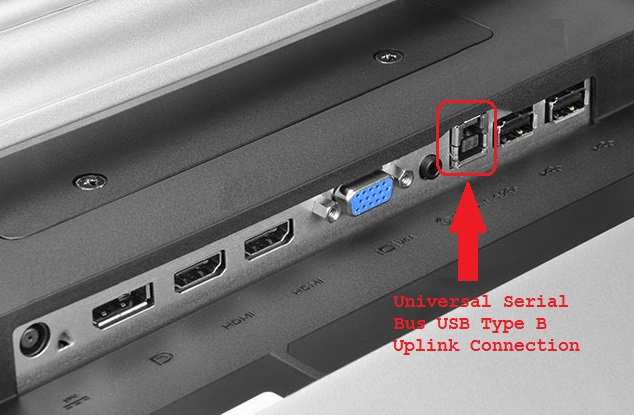
This is the single most common reason touch doesn't work on a touchscreen monitor. There's a USB cable that needs to run from the monitor to your computer, separate from the video cable. It's called the USB upstream cable, and without it, touch is dead.
Most touchscreen monitors ship with this cable in the box. It's typically a USB Type-A to Type-B cable, though some newer monitors use USB Type-C. The upstream port on the monitor is usually labeled "USB Upstream" or just "USB IN." The other end plugs into any standard USB port on your computer.
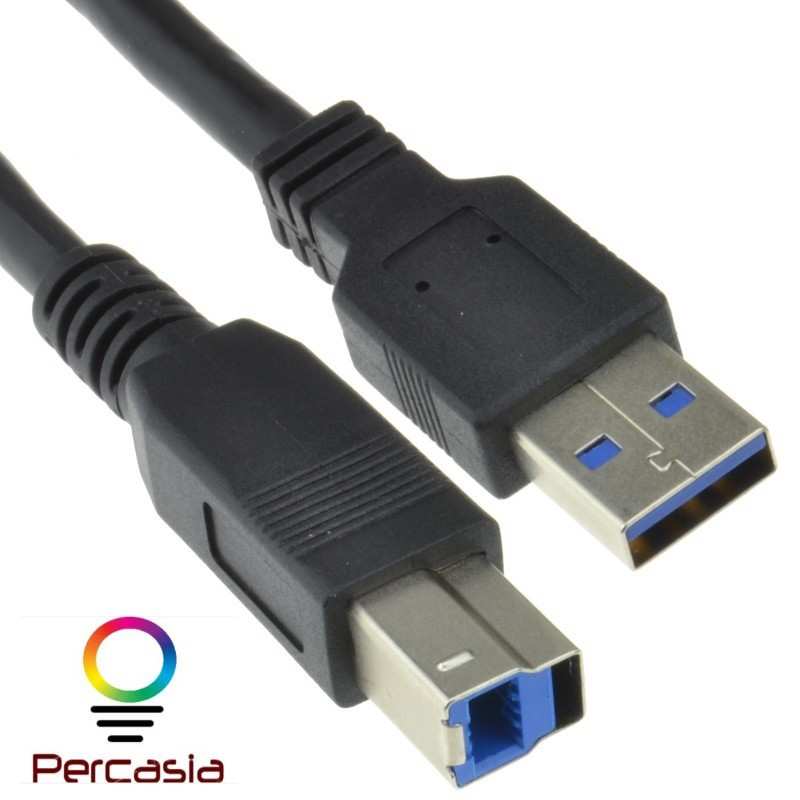
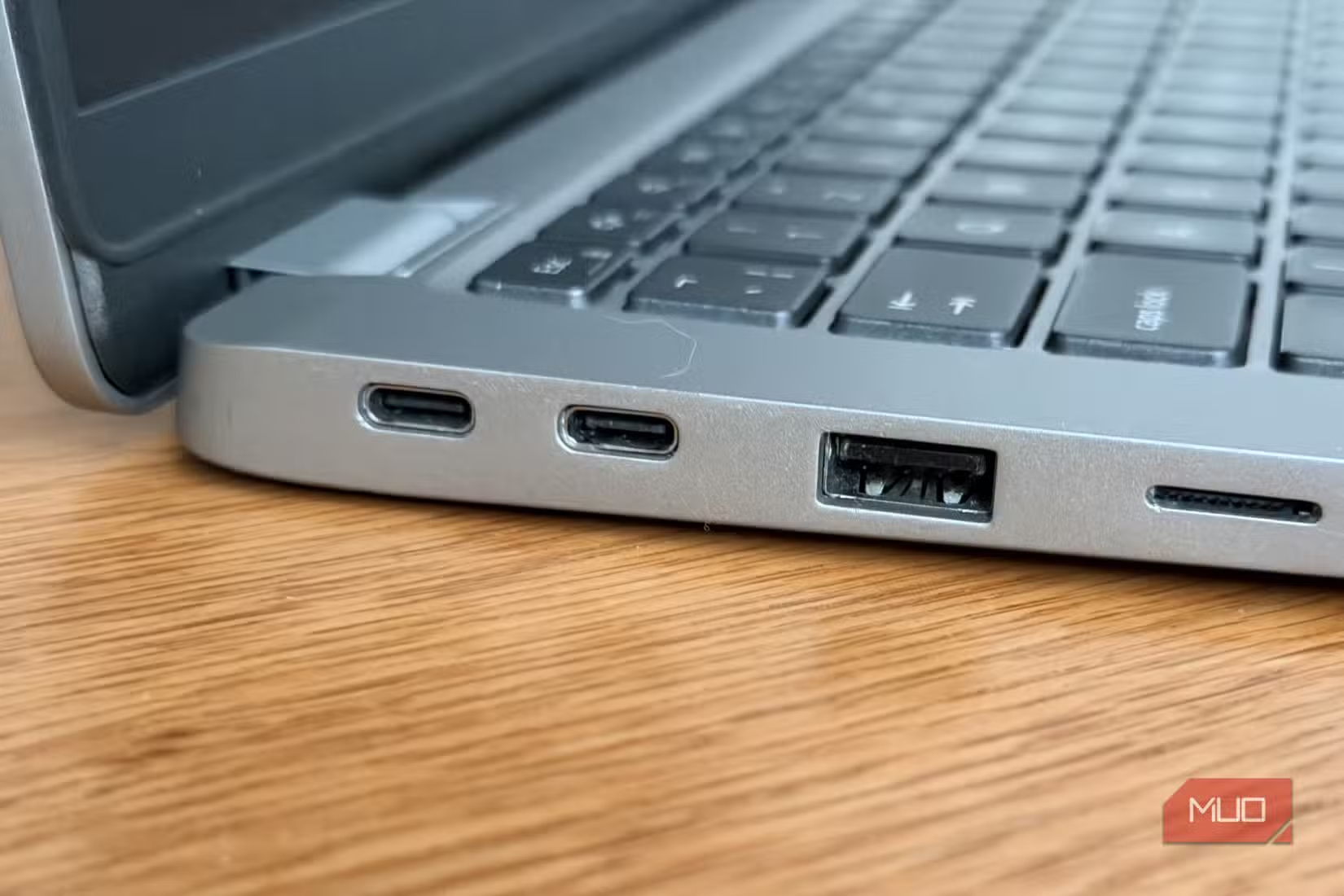
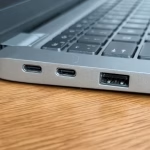
If you're using a USB-C connection and touch isn't working, the cable might only support video and power delivery. Not all USB-C cables carry data. Some are charge-only or video-only.
You need a fully-featured USB-C cable that supports USB data transfer.
Quick checklist for the upstream cable:
- Is the cable plugged into the monitor's upstream port (not a downstream USB port)?
- Is the other end plugged directly into your computer, not a hub?
- If using USB-C, does the cable explicitly support data (not just video/charging)?
- Did you try a different USB port on your computer?
How Touch Actually Works on an External Monitor
Understanding what's happening behind the scenes makes troubleshooting way easier. Your touchscreen monitor isn't magic. It's two devices pretending to be one.
Video cables carry picture. Touch needs a separate data path.
When you connect an HDMI or DisplayPort cable, you're only establishing a video link. The monitor receives a signal and displays it. That's it.
No touch data flows through HDMI or DisplayPort.
Touch input works through a completely separate controller built into the monitor. This controller communicates with your computer as a USB HID (Human Interface Device). It's essentially the same protocol your mouse or keyboard uses.
The touch controller senses finger contact on the capacitive surface, translates it into coordinate data, and sends that data over USB to your operating system.
This is why the USB upstream cable matters so much. It's not optional. It's the only way touch data reaches your computer.
USB-C can do both — but only if everything supports it.
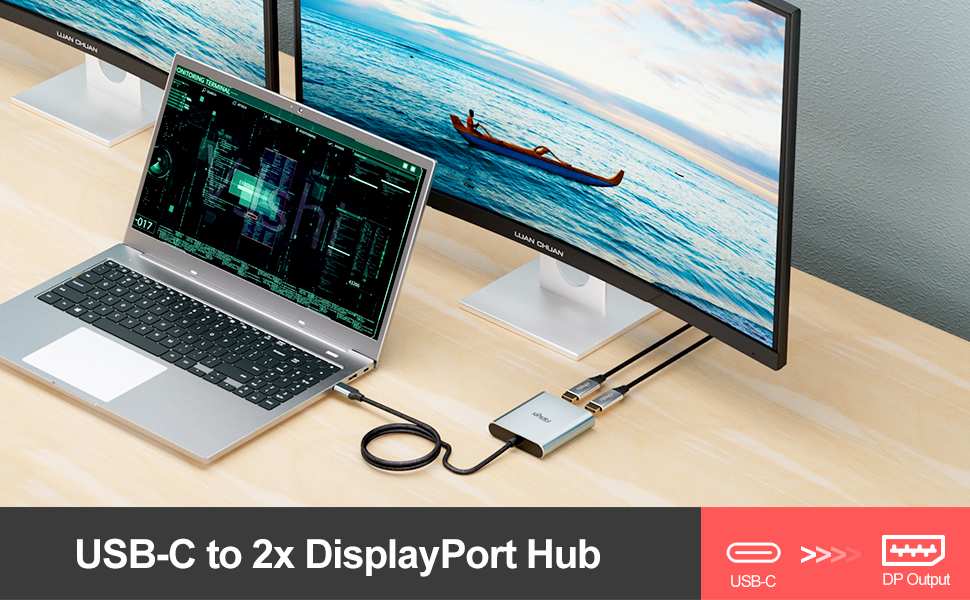
USB-C is different. A single USB-C cable can carry video (via DisplayPort Alt Mode), power, and USB data simultaneously. This means you might only need one cable for everything.
But there are conditions. Your monitor must support DisplayPort Alt Mode over USB-C. Your computer's USB-C port must support it too.
And the cable itself must be rated for full-featured USB-C data transfer.
If any one of those three pieces doesn't support it, you'll get video but no touch. In that case, you'd still need a separate USB cable for the touch data path.
Dual-cable vs. single-cable setup:
| Setup Type | Cables Needed | Touch Data Path | Best For |
|---|---|---|---|
| HDMI + USB upstream | 2 cables | USB-A to USB-B | Most desktop setups |
| DisplayPort + USB upstream | 2 cables | USB-A to USB-B | Higher refresh rate monitors |
| USB-C (full-featured) | 1 cable | Embedded in USB-C | Laptops with USB-C/Thunderbolt |
| USB-C (video only) + USB upstream | 2 cables | USB-A to USB-B or USB-C | Monitors with limited USB-C support |
Step-by-Step: How to Enable Touch on Your Touchscreen Monitor
Let's get your touch working. Follow these steps in order. If touch starts working at any point, you're done.
Step 1: Confirm your monitor actually has touch hardware
This sounds obvious, but it's worth checking. Some monitor models come in both touch and non-touch variants. The product listing or box might say "touch" but you could have the non-touch SKU.
Check the model number on the back of the monitor. Look it up on the manufacturer's website. Confirm the specs list "PCAP touch" or "projected capacitive touch." If your model doesn't have touch hardware, no amount of cable swapping will enable it.
Also check the monitor's OSD (On-Screen Display) menu. Most touch-capable monitors have a touch-related setting in the menu, like a touch on/off toggle or touch calibration option. If you see that, the hardware is there.
Step 2: Connect the video cable (HDMI, DisplayPort, or USB-C)
Get your display working first. Connect your video cable of choice from the monitor to your computer. Confirm you're getting a picture.
This verifies the basic display connection is solid.
If you're using USB-C for both video and data, connect that cable now and skip to Step 4 to check if touch is already working. If it's not, you may still need a separate USB upstream cable.
Step 3: Connect the USB upstream cable for touch data
This is the step most people skip. Find the USB cable that came with your monitor. It's usually a Type-A to Type-B cable.
The Type-B end (the squarish one) goes into the monitor's upstream USB port. The Type-A end goes into your computer.
Plug it into a USB port directly on your computer. Avoid USB hubs for now. Some monitors have the upstream port labeled clearly.
Others just have a specific USB-B port among several. Check your manual if you're unsure which port is upstream versus downstream.
Step 4: Check if your computer recognizes the touch controller
Once the USB upstream cable is connected, your computer should detect a new device. On Windows, open Device Manager and look under "Human Interface Devices." You should see an entry like "HID-compliant touch screen."
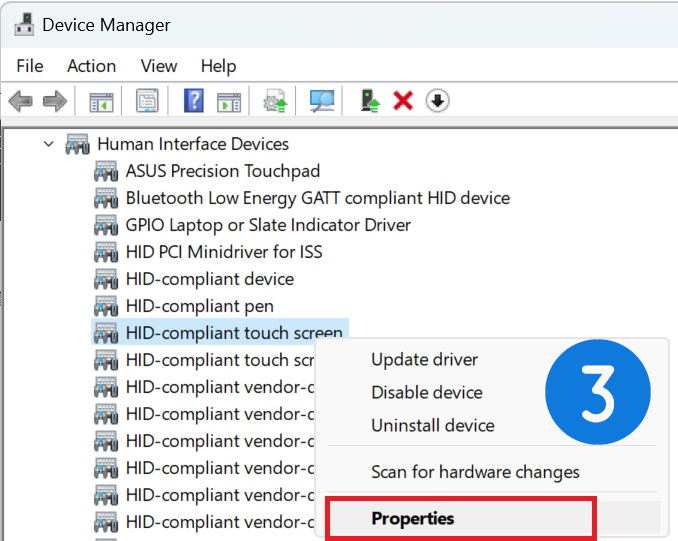
If you see it, great. Touch should already be working. Try tapping the screen.
If it responds, you're done. If the entry has a yellow warning triangle, you likely need a driver.
If you don't see any touch screen entry at all, the USB connection isn't working. Try a different USB port. Try a different cable if you have one.
Make sure you're using the upstream port on the monitor, not a downstream port.
Step 5: Install or update the touch driver
Windows 10 and Windows 11 include generic HID touch drivers that work with most capacitive touchscreens. But some monitors need a specific driver from the manufacturer for full functionality, especially multi-touch gestures.
Visit the support page for your monitor model. Look for a touch driver download. Common touch controller manufacturers include EETI, Elan, and Goodix.
The driver package might be listed under "Touch Driver," "Pen and Touch," or "HID Driver."
Install the driver. Restart your computer if prompted. Then check Device Manager again to confirm the touch screen is listed without errors.
Step 6: Calibrate touch input if needed
If touch is working but feels off, your taps registering slightly away from where your finger actually touches, you need to calibrate.
On Windows, search for "Calibrate the screen for pen or touch input" in the Control Panel. Follow the calibration prompts. You'll tap a series of crosshairs at different positions on the screen.
This maps the touch coordinates to the display coordinates accurately.
Some monitors include their own calibration utility in the OSD or as a downloadable tool. Check the manufacturer's support page if the Windows calibration doesn't fix it.
What to Do When Touch Still Doesn't Work
You've connected everything. The upstream cable is plugged in. But touch is still dead.
Don't panic. The problem is usually one of a handful of specific issues, and each one has a clear fix.
Touch works in BIOS but not in Windows
This is a classic driver issue. If you can touch the BIOS or UEFI screen when you boot up, the hardware is fine. The connection is fine.
Windows just doesn't have the right driver loaded.
Boot into your BIOS and test touch there. If it works, boot back into Windows and check Device Manager. Look for any devices with yellow warning triangles.
Install the manufacturer's touch driver from their support page. Restart. This fixes the problem in most cases.
Touch works on one USB port but not another
Not all USB ports are created equal. Some ports don't provide enough power for the touch controller. Others might be USB 2.0 ports that have bandwidth conflicts with other devices.
Try a different port. Preferably a USB 3.0 port directly on your motherboard (the ones on the back of a desktop). Avoid front-panel USB ports and USB hubs during testing.
If touch starts working on a different port, the original port was the problem.
Ghost touches or phantom inputs after setup
If your screen registers touches you're not making, or the cursor jumps around on its own, you might have a grounding issue or a defective touch controller.
Check that your monitor is plugged into a grounded outlet. Try a different power outlet. If the problem persists, update the monitor's firmware if the manufacturer provides a firmware update tool.
Ghost touches can also happen with low-quality or damaged USB cables. Swap the upstream cable.
Touch not working on macOS
Here's a big one. macOS does not natively support external touchscreen monitors. Windows and Linux have built-in HID touch drivers. macOS does not.
If you're trying to use a touchscreen monitor with a Mac, you'll need third-party software. Some touch controller manufacturers provide macOS drivers. Elan, for example, has offered macOS drivers for some of their controllers.
Check your monitor's support page for macOS compatibility before you buy if this matters to you.
Some users have reported success with third-party tools that inject touch input into macOS. But results vary widely. If you need touch on a Mac, verify compatibility first.
Don't assume it'll work just because it works on Windows.
Touch Cable Setup: Dual-Cable vs. Single USB-C — Which Do You Have?
Your setup determines how many cables you need and what can go wrong. Let's break down the two most common configurations.
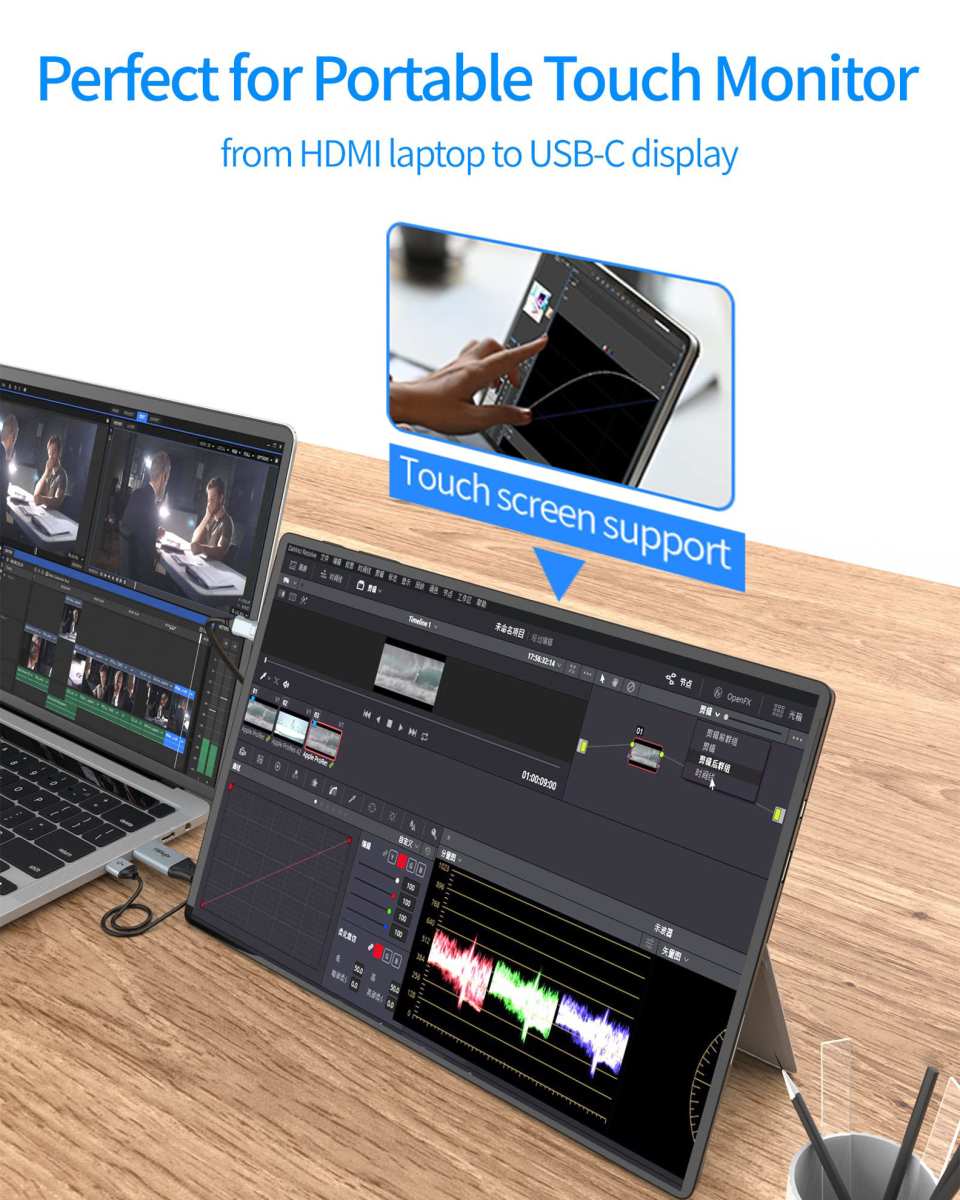
Dual-cable setup (HDMI/DisplayPort + USB upstream)
This is the most common configuration. You connect one cable for video and a separate USB cable for touch data. It works with virtually any computer that has a USB port.
The downside is cable clutter. Two cables running from your monitor to your computer. But it's reliable.
Video and touch are on separate paths, so there's no bandwidth contention.
Single-cable setup (USB-C with DisplayPort Alt Mode)
One cable handles video, touch data, and sometimes power delivery. It's cleaner. It's simpler.
But it only works if every link in the chain supports it.
Your monitor needs USB-C input with DisplayPort Alt Mode. Your computer's USB-C port needs to support DisplayPort Alt Mode output. And the cable needs to be a full-featured USB-C cable that carries both video and data.
If any one of those three pieces is missing, you'll get video but no touch. In that case, you'll still need a separate USB cable for touch data.
How to tell which setup you have:
- Check your monitor's input ports. If it has a USB-C input labeled with a DP icon or "USB-C (DP Alt Mode)," it supports single-cable touch.
- Check your computer's USB-C port. Look for a DP icon next to it, or check your laptop's specs for "DisplayPort over USB-C."
- If you're unsure, just connect both cables. There's no harm in running a dual-cable setup even if your monitor supports USB-C touch.
Common Mistakes That Kill Touch Functionality
After reviewing support forums and manufacturer documentation, these are the mistakes that come up again and again.
Plugging the USB cable into a downstream port instead of the upstream port. Monitors often have both. Downstream ports are for connecting peripherals to the monitor's built-in USB hub. The upstream port is the one that connects to your computer. They look different (usually Type-B for upstream, Type-A for downstream), but people mix them up.
Using a USB-C cable that only supports video. Not all USB-C cables are equal. Some are designed for charging only. Some support video but not data. You need a cable that explicitly supports USB data transfer. Check the cable's specifications before you use it.
Connecting through a USB hub. Some USB hubs don't provide enough power or bandwidth for the touch controller. Connect directly to your computer during setup. Once touch is working, you can test if your hub supports it.
Skipping the driver installation. Windows often installs a generic driver that works. But some monitors need the manufacturer's specific driver for full touch functionality, especially multi-touch gestures. If touch feels off or limited, install the driver from the support page.
Assuming touch should work on macOS. It doesn't, not natively. If you're on a Mac, check for third-party driver availability before you expect touch to work.
Not checking the monitor's OSD settings. Some monitors have a touch on/off toggle in the on-screen display menu. If someone turned it off previously, plugging in cables won't help. Check the OSD.
Quick Specs: What Matters for Touchscreen Monitor Setup
Here's a reference table of the key specs and requirements for getting touch working on an external monitor.
| Spec | What You Need | Notes |
|---|---|---|
| USB upstream cable | USB 2.0 Type-A to Type-B (or USB-C) | USB 2.0 is sufficient; touch data uses minimal bandwidth |
| Touch controller | EETI, Elan, Goodix, or Ilitek | Check which controller your monitor uses for driver compatibility |
| Touch points | 10-point standard | Higher-end monitors support 20 or 40 points |
| Touch latency | 5–20ms typical | Lower is better for drawing or stylus use |
| Driver requirement | Windows 10/11: usually plug-and-play; some need manufacturer driver | macOS: third-party driver required |
| USB-C Alt Mode | Required for single-cable touch setup | Must be supported by monitor, computer, and cable |
| Power for touch | Provided via USB (5V) | No external power needed for the touch controller |
| Calibration | Windows built-in or manufacturer utility | Needed if touch input is offset from finger position |
Real-World Scenarios: How Different Users Hit This Problem
The designer who bought the wrong SKU
A common situation: someone orders a 27-inch monitor from an online retailer. The listing mentions touch in the product description. But the specific SKU they ordered doesn't include the touch module.
Some monitor models have multiple variants, and the touch version costs more. Always verify the exact model number on the back of the unit against the manufacturer's specs page.
The office worker with a USB-C cable that only carries video
A user connects their laptop to a touchscreen monitor using a USB-C cable. The display works perfectly. But touch doesn't respond.
The cable they're using is a video-only USB-C cable that came with a different monitor. It supports DisplayPort Alt Mode and power delivery, but not USB data. They need a full-featured USB-C cable or a separate USB upstream cable.
The macOS user surprised by the lack of native touch support
A designer switches from Windows to Mac and expects their touchscreen monitor to work the same way. It doesn't. macOS has no native HID touch support for external displays. They'll need to find a third-party driver from their touch controller manufacturer, or accept that touch won't work on their Mac setup.
Frequently Asked Questions
How long does touchscreen monitor setup take?
Usually under five minutes. Connect the video cable, plug in the USB upstream cable, and check Device Manager. If a driver is needed, add two more minutes for download and install.
Can I use touch on a monitor that didn't come with touch built in?
No. You can't add touch capability to a non-touch monitor through software alone. You'd need an external USB touch overlay, which attaches to the front of your display and connects via USB.
That's a separate product category.
Does touch work through a USB hub?
Sometimes. A powered USB 3.0 hub usually works fine. Unpowered hubs or daisy-chained hubs can cause issues.
For initial setup, connect directly to your computer to eliminate the hub as a variable.
Why does my touch work on Windows but not macOS?
macOS lacks native support for external touchscreen HID devices. Windows and Linux have built-in drivers. Mac users need third-party drivers from their touch controller manufacturer, and availability varies.
Do I need to install a driver for touch to work?
On Windows 10 and 11, most capacitive touchscreens work with the built-in generic HID driver. But some monitors need the manufacturer's specific driver for full multi-touch support. Check your monitor's support page to be sure.
Can I use a wireless connection for touch?
No. Touch data requires a physical USB connection. There's no wireless protocol for transmitting HID touch input from a monitor to a computer.
The USB upstream cable is mandatory.

Similar Posts