Can You Get Budget Ultrawide Monitors
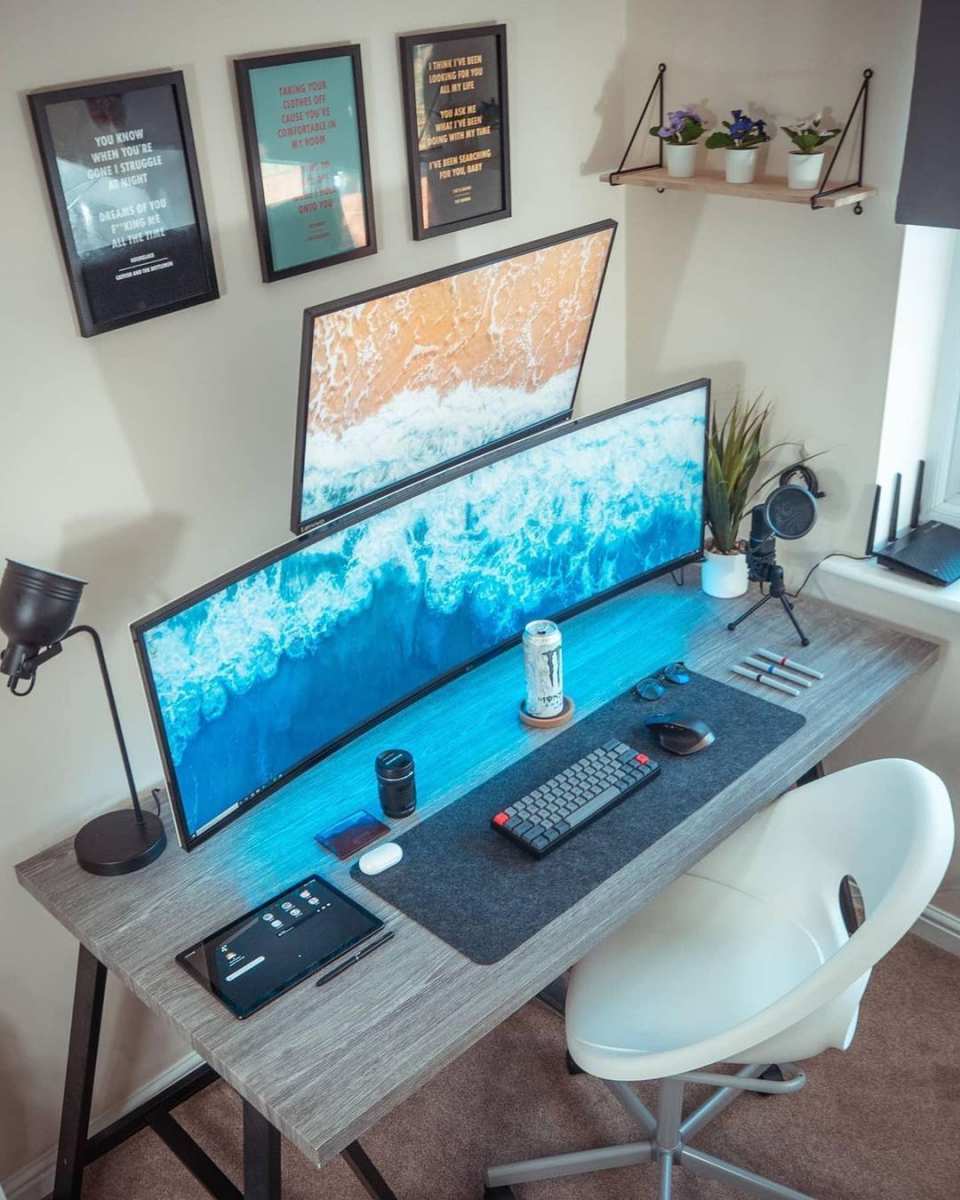
Yes, you absolutely can, and the options are genuinely good now. A few years ago, "budget ultrawide" meant a compromised mediocrity. In 2026, you can land a 34-inch 3440×1440 IPS panel with solid colour accuracy, high refresh rate, and adaptive sync for $270 to $350. That's remarkable.
But here's where it gets tricky. Not every cheap ultrawide delivers the same experience. Panel type, resolution relative to screen size, and build quality vary wildly at this price. This directly compares with our findings on whether you get curved budget monitors.
Manufacturer specs don't always tell the full story either. Let's break down what actually matters so you don't waste money.
Bing / Web (fair-use with source credit)
The Short Answer
Yes, budget ultrawide monitors exist and perform well now.
- You can buy a 34-inch 3440×1440 IPS ultrawide for $270 to $350.
- You can buy a 2560×1080 ultrawide for $150 to $200.
- Panel quality at this price has improved significantly since 2022.
- You will trade off colour accuracy, HDR, and build quality versus premium models.
- Some budget models use VA panels, which have weaknesses for fast motion.
What "Budget Ultrawide" Actually Means in 2024–2025
The definition of "budget" in the ultrawide space has shifted. Before 2022, a budget ultrawide meant a $400 to $500 TN panel with washed-out colours and 60Hz. That's no longer the case.
Price compression from Chinese manufacturers like KTC and a competitive market have pushed quality upward while dragging prices down. To see how this holds up against alternate models, explore whether oled monitors get hot.
The three real price tiers you'll encounter
Entry level ($150 to $250): 34-inch 2560×1080 VA panels dominate here. Decent for general productivity and casual gaming. Text quality can feel soft due to low pixel density (~81 PPI).
These panels typically offer 75Hz to 100Hz refresh rates with FreeSync support.
Mid-budget ($250 to $400): This is the sweet spot. You'll find 34-inch 3440×1440 IPS panels from brands like Gigabyte, LG, and AOC. Pixel density jumps to ~109 PPI, which is the threshold where text looks crisp and gaming feels sharp.
Refresh rates typically run 144Hz to 180Hz. Adaptive sync works with both NVIDIA and AMD GPUs.
Upper budget ($400 to $600): 38-inch panels, 3840×1600 resolution, or early OLED options start appearing. Colour accuracy out of the box improves noticeably. Build quality, stand adjustability, and connectivity options (USB-C with power delivery, full HDMI 2.1) also step up.
What changed in the last two years that makes this a good time to buy
Two things converged. First, Chinese panel manufacturers like BOE and KTC began flooding the market with competitively specced monitors at aggressive prices. Second, DisplayPort 1.4 with DSC (Display Stream Compression) became standard, meaning even mid-range monitors can push high resolution and refresh rate over a single cable.
The Specs That Matter (and the Ones That're Just Marketing)
Not every spec printed on the box reflects real-world performance. Let's separate the meaningful ones from the fluff.
Resolution vs. screen size: the PPI problem nobody talks about
Pixels per inch (PPI) determines how sharp everything looks. At 34 inches and 2560×1080 resolution, you get roughly 81 PPI. That's noticeably soft for text, fine details, and anything where clarity matters.
At 34 inches and 3440×1440, you jump to about 109 PPI, which is the sweet spot for most people.
Rule of thumb: Don't buy a 34-inch ultrawide at 2560×1080 if you do any text work. The lower resolution is fine at 29 to 32 inches, but at 34 inches the pixel structure becomes visible.
Panel type at this price: IPS vs. VA vs. the rare OLED
Panel technology matters more than any single spec number. Each type brings trade-offs that affect your daily experience.
Bing / Web (fair-use with source credit)
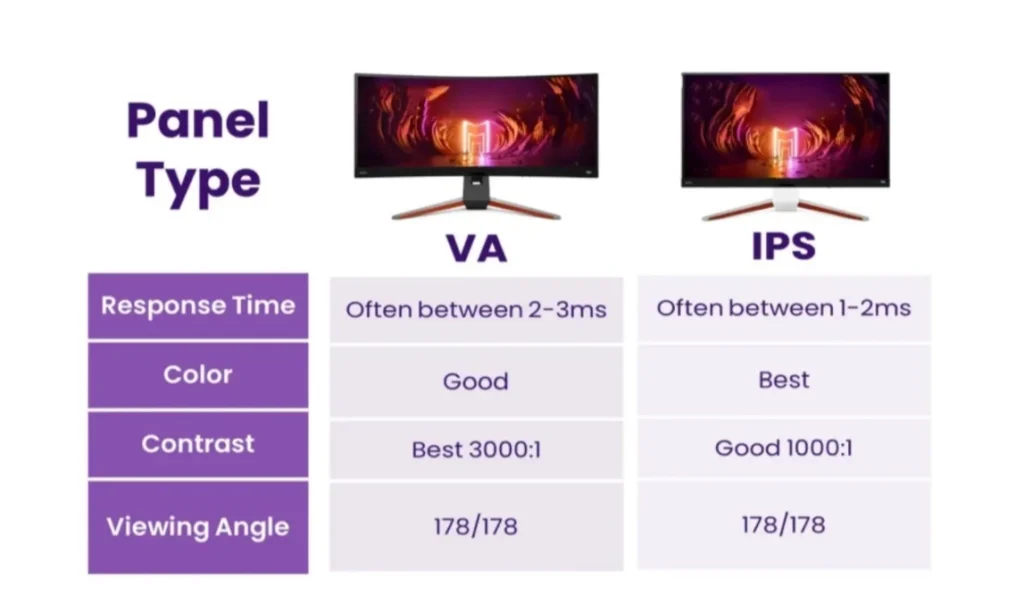
IPS (In-Plane Switching): Best all-rounder for budget ultrawides in 2025. You'll get consistent colours, wide viewing angles, and decent response times. Look for IPS at 34-inch 3440×1440 configurations.
Weaknesses include IPS glow in dark scenes and typically lower contrast ratios (1000:1 to 1300:1).
VA (Vertical Alignment): Higher contrast ratios (3000:1 or better), which means deeper blacks. Entry-level and some mid-budget ultrawides use VA panels. The catch is black smearing, where dark pixels transition slowly and create trail-like artefacts in games and video.
Productivity users rarely notice this. Gamers will.
OLED: Starting to appear near the $500 mark from brands like LG (34GS95UE, sometimes discounted). Perfect blacks, infinite contrast, near-instant response times. Risk of burn-in remains, though modern OLED monitors include mitigation features.
| Factor | IPS (Budget) | VA (Budget) | OLED (Entry) |
|---|---|---|---|
| Contrast ratio | 1000:1–1300:1 | 2500:1–4000:1 | 1,500,000:1 |
| Response time (GtG) | 4–7 ms | 5–10 ms (dark transitions worse) | 0.03 ms |
| Viewing angles | Excellent | Moderate | Excellent |
| Black uniformity | IPS glow common | Glow at corners | Perfect |
| Price range | $250–$400 | $170–$300 | $480–$700 |
| Best for | Mixed use, media | Movies, dark rooms | Gaming, HDR content |
HDR on a budget: why DisplayHDR 400 isn't real HDR
VESA's DisplayHDR certification gives us a standardised way to compare HDR capability. At the budget level, you'll see DisplayHDR 400 most often. This certification requires 400 nits peak brightness and no local dimming.
The result is an HDR mode that looks no better than SDR, and sometimes worse due to poor tone mapping.
True HDR starts around DisplayHDR 600 with frame-dimming, or DisplayHDR 1000 with full-array local dimming. These require more expensive panels and backlight systems. If HDR matters to you, budget ultrawides won't deliver.
Save that expectation for the $600+ range.
Refresh rate reality check: 144Hz claims vs. actual performance
A "144Hz" label on a budget monitor doesn't guarantee the experience you'd expect from a dedicated gaming monitor. Many budget ultrawides achieve their rated refresh rate only at specific resolutions or require DisplayPort instead of HDMI. Some VA panels advertise 144Hz but exhibit enough motion blur at that speed that 100Hz actually looks cleaner.
Check the response time specification carefully. A 1ms MPRT claim is marketing. Look for GtG (grey-to-grey) figures if the manufacturer lists them.
Under 5ms GtG at 3440×1440 is solid for this price range in 2025.
The Best Budget Ultrawide Monitors Right Now
Let's get to the models worth your money. These picks reflect the current market as of early 2026 and the price brackets where budget ultrawides actually make sense.
Best overall budget ultrawide: 34" 3440×1440 IPS
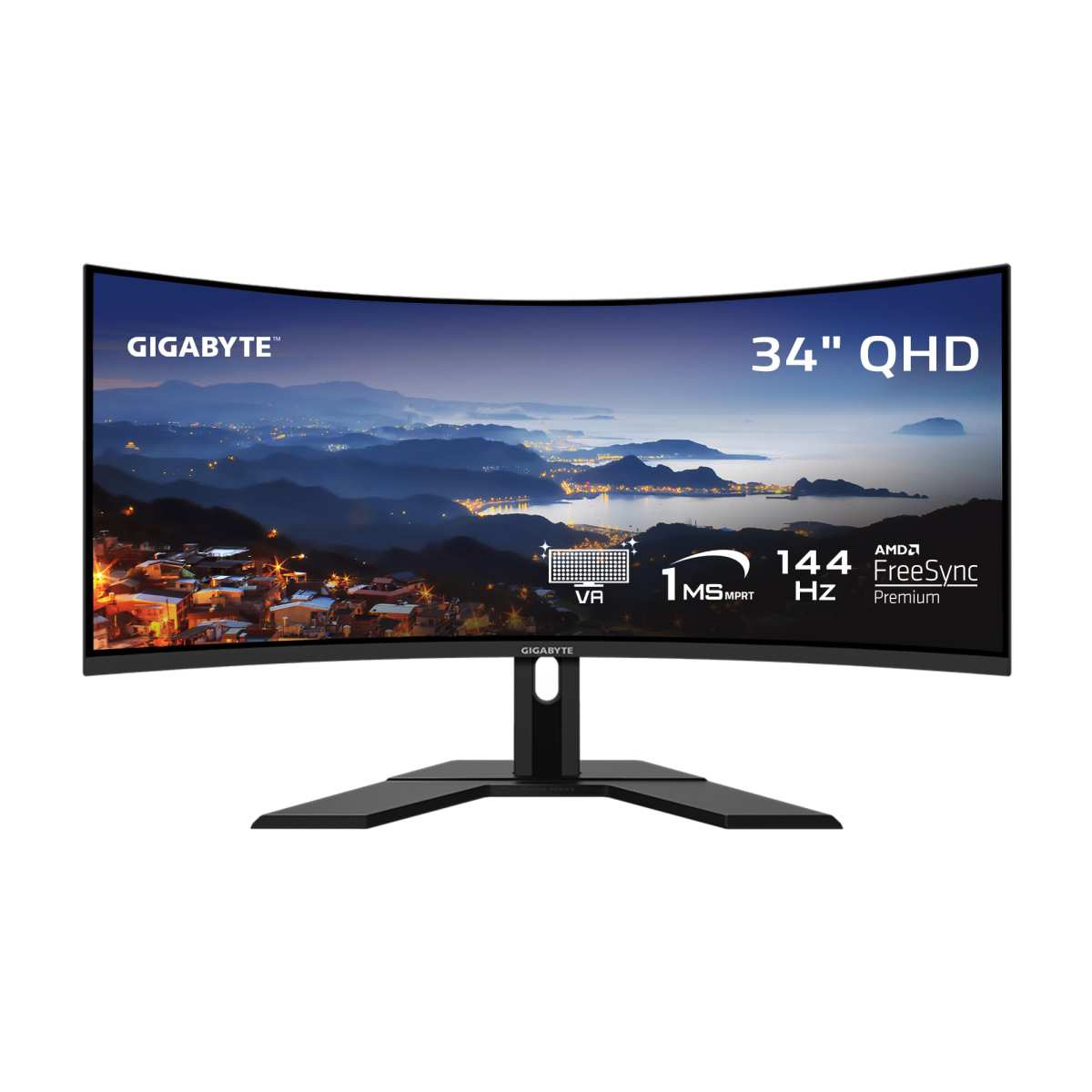
The Gigabyte G34WQC A tops our list for most people. It runs a 34-inch VA panel with 3440×1440 resolution, 144Hz refresh rate, and FreeSync Premium. Curvature sits at 1500R, which feels natural at typical desk distances.
Street price hovers around $260 to $290 as of early 2026.
I'd be upfront: this is a VA panel, so you'll see some black smearing in dark game scenes. But the contrast ratio is excellent for the price, colour accuracy out of the box is reasonable (roughly 95% sRGB), and the 144Hz refresh rate works over DisplayPort without fuss.
For an IPS alternative, the LG 34GN850-B (or its refreshed variant) occasionally drops to $350 or below. You get IPS viewing angles, faster pixel response, and factory calibration that hits under 2.0 Delta E on most units.
Bing / Web (fair-use with source credit)
Best budget ultrawide for gaming: high-refresh options under $350
Gamers should prioritise response time and adaptive sync reliability. The KTC M34P10 has been making waves as a 34-inch 3440×1440 mini-LED option that occasionally dips near $350. Mini-LED backlighting means better HDR performance and more uniform brightness across the screen.
KTC is a Chinese brand, so warranty support outside China can be limited.
A safer bet with wider availability: the AOC CU34G2X. It's a 34-inch 3440×1440 VA panel at 144Hz, usually priced under $250. Again, VA smearing is present, but the price-to-performance ratio is hard to beat for casual gaming.
Best budget ultrawide for productivity: colour accuracy and connectivity picks
If you're doing photo editing, design work, or anything colour-critical, the LG 34WN60C-B offers a 34-inch IPS panel with USB-C connectivity (60W power delivery) and solid factory calibration. No high refresh rate here, it's 60Hz only, but for productivity that barely matters. Price typically runs $300 to $340.
For a dual-input workflow, look for monitors with Picture-by-Picture support. This lets you run two sources side by side, essentially getting dual-monitor functionality from a single ultrawide. The Philips 34M2C8600 supports this and uses a Quantum Dot IPS panel for wider gamut coverage (typically 97% DCI-P3).
Best super-ultrawide on a budget: 32:9 options that don't break the bank
The 32:9 format replaces a full dual-monitor array with one display. Budget options exist, but the pickings are thinner. The KTC H49P5 and Xiaomi Curved Gaming Monitor 49-inch both offer 5120×1440 VA panels at 120Hz to 144Hz, with prices in the $380 to $450 range when on sale.
These work well for productivity and immersive gaming. The downsides are significant: you need a deep desk, GPU power to drive 5120×1440 at high refresh rates, and some games don't natively support 32:9 without workarounds.
The Chinese-brand wildcard: KTC, Xiaomi, and others
Brands like KTC, Xiaomi, CRUA, and Innocn have disrupted the budget market. You often get better specs per dollar compared to established names. The risks?
Limited or no local warranty support, inconsistent quality control (panel lottery is real), and OSD software that sometimes feels like it was translated through three languages.
If you're comfortable with a potential return process through Amazon rather than manufacturer warranty support, the value proposition is strong. If you want a three-year warranty you can actually use without shipping a monitor overseas, stick with Gigabyte, LG, or Philips.
Side-by-Side Comparison: Budget Ultrawide vs. the Alternatives
A budget ultrawide isn't the only way to get a wide display setup. Let's compare the realistic alternatives so you can decide what actually fits your situation.
Budget ultrawide vs. dual 27" 1440p monitors
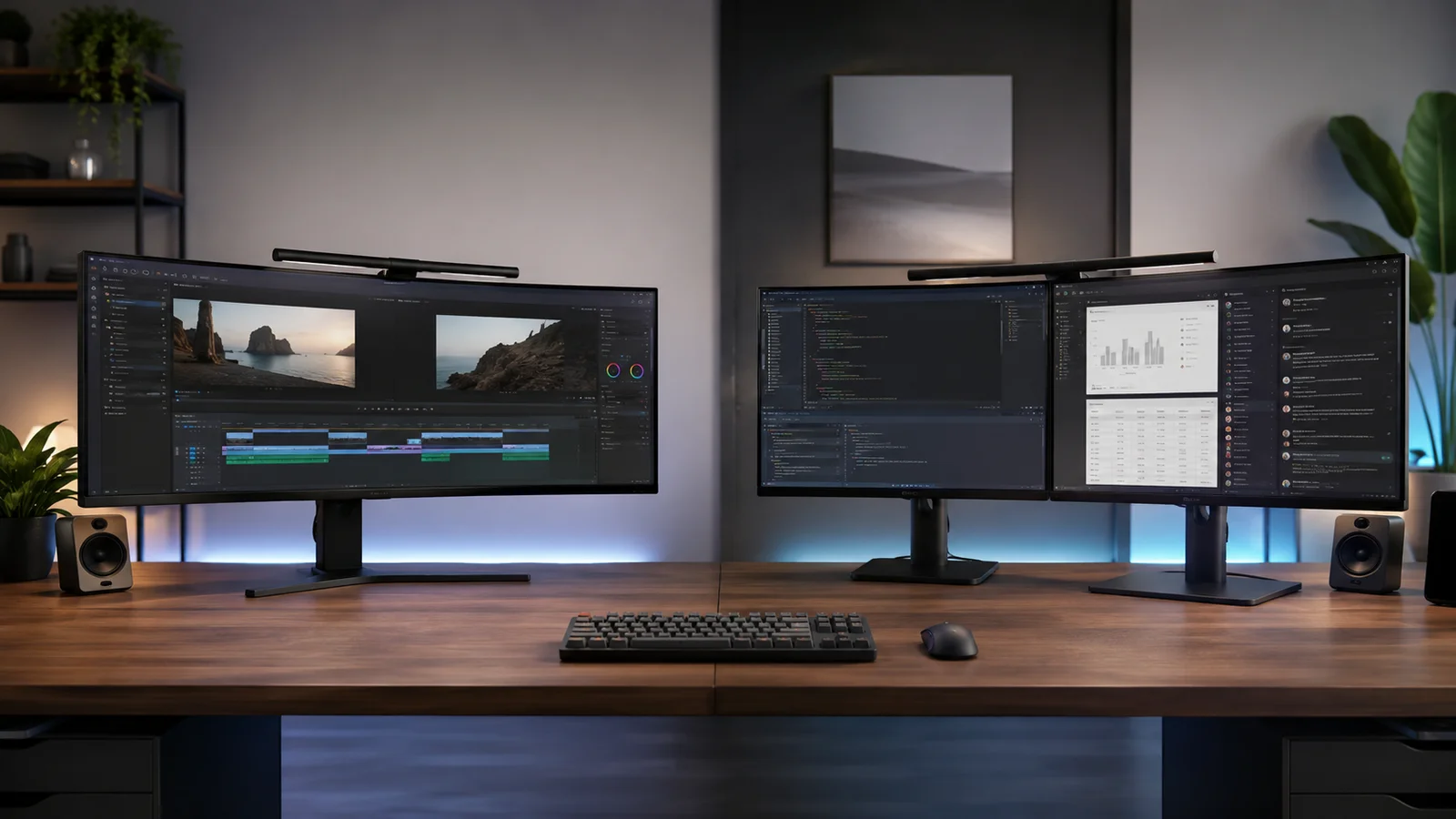
Two 27-inch 2560×1440 monitors give you 5120×1440 total resolution, the same as a 34-inch 3440×1440 ultrawide plus extra vertical pixels. You also get the flexibility to orient one monitor vertically. The downside is the bezel gap right in front of you, two sets of cables, and the desk space two stands consume.
Bing / Web (fair-use with source credit)
A single ultrawide wins for immersion and simplicity. Dual monitors win for multitasking flexibility and the ability to full-screen one app on each display without window management tricks.
Budget ultrawide vs. a single 4K 27" or 32" display
A 27-inch 4K monitor gives you 163 PPI, far sharper than any budget ultrawide. Text rendering is noticeably crisper. You also get more vertical workspace.
The trade-off is horizontal space. A 21:9 ultrawide feels wider and more immersive for games, movies, and timeline-based editing work.
At 32 inches, 4K gives you roughly 138 PPI with a more traditional 16:9 aspect ratio. This works well if you prioritise sharpness over width. Many people find 32-inch 4K the better daily driver for mixed productivity and media.
Budget ultrawide vs. saving up for a premium model
If you're looking at a $300 budget ultrawide versus saving $600 to $800 for something like the LG 38WN95C-W or Samsung Odyssey G9, the question becomes whether the premium features justify the wait. Premium ultrawides offer better colour accuracy, higher brightness, superior HDR, and more robust build quality.
For most people who aren't doing professional colour work, a budget ultrawide at $300 delivers 80% of the experience. The jump from $300 to $800 is real, but it's not proportional. If you need the monitor now, buy the budget option.
You can always upgrade later and repurpose the cheaper display as a secondary screen.
Who Should Actually Buy a Budget Ultrawide (and Who Shouldn't)
Not everyone benefits from an ultrawide. The form factor solves specific problems and creates others.
Great fit: the use cases where budget ultrawides shine
- Software developers who want code, documentation, and a browser visible simultaneously without window juggling.
- Video editors who benefit from a long timeline across the bottom of the screen with preview and effects panels above.
- Racing and flight sim gamers who want peripheral vision immersion without a triple-monitor array.
- Day traders and financial analysts who need multiple charts, data feeds, and news windows open at once.
- Remote workers replacing a dual-monitor office setup with a single display for a cleaner home desk.
Poor fit: the situations where you'll regret it
- Competitive FPS gamers who need the fastest possible response times and prefer 24-inch 240Hz+ TN or IPS panels.
- Colour-critical professionals (photographers, print designers) who need factory-calibrated wide-gamut panels with Delta E under 1.0.
- People with shallow desks. A 34-inch 1500R curved monitor needs about 28 to 32 inches of viewing distance to feel comfortable. Closer than that, you'll be turning your head.
- Anyone who relies on full-screen applications that don't handle 21:9 well. Some older enterprise software and certain games either stretch, crop, or letterbox awkwardly.
The Gotchas: Common Complaints and Quality Control Issues
Budget monitors save money somewhere. Knowing where helps you decide what you can live with.
The panel lottery problem
This is the biggest complaint across budget ultrawide reviews. Two people buy the same model. One gets a perfect panel.
The other gets noticeable backlight bleed, a cluster of dead pixels, or uneven colour uniformity. This happens because manufacturers at this price tier source panels from multiple suppliers and bin them less rigorously.
Buying from a retailer with a solid return policy (Amazon, B&H Photo) matters more than the brand name here. Check your panel within the first week. Look for dead pixels, excessive IPS glow, and colour tinting at the edges.
Dead pixel policies and warranty gaps
Most manufacturers require a minimum number of dead pixels before they'll accept a return. This threshold varies. Some require three or more bright pixels, others require five or more.
Check the dead pixel policy before you buy. A single dead pixel in the centre of the screen can be maddening.
Chinese brands like KTC and Xiaomi often require you to ship the monitor back to China for warranty service. That shipping cost can eat up most of what you saved buying the monitor in the first place.
Text clarity and subpixel rendering issues
VA panels at 34 inches and 2560×1080 resolution have a subpixel layout that can make text look slightly fringed or soft, especially at small font sizes. Windows ClearType helps but doesn't fully fix it. This is another reason to prioritise 3440×1440 resolution at 34 inches.
IPS panels handle text better at the same resolution. If text clarity is your top priority, IPS is the safer choice even if the contrast isn't as deep.
Build quality and stand limitations
Budget stands often lack height adjustment, swivel, or tilt range. Some only offer tilt. If you need ergonomic adjustment, budget a separate VESA monitor arm ($30 to $50 for a decent gas-spring arm).
The money you save on the monitor can cover it.
Panel coating matters too. Some budget monitors use aggressive anti-glare coatings that give the image a grainy or sparkly appearance, especially on solid light colours. This is sometimes called "coating uniformity" or "sparkle effect." Reviews from RTINGS or user feedback on forums will call this out for specific models.
How to Set Up a Budget Ultrawide So It Actually Performs Well
A budget monitor properly set up can outperform a premium monitor with default settings. Here's what to do.
Cable selection for full resolution and refresh rate
Use DisplayPort 1.4 for 3440×1440 at 144Hz or higher. HDMI 2.0 caps at 3440×1440 100Hz on most budget monitors without DSC. HDMI 2.1 supports full spec but not all budget monitors implement it fully.
Check your monitor's manual for the specific cable and port requirements at your desired resolution and refresh rate.
A quality DisplayPort 1.4 cable (VESA certified) costs $8 to $12. Don't use the thin cable that came in the box if you're experiencing flickering or resolution caps.
Calibration steps that make a noticeable difference
- Set your monitor to its "sRGB" or "Standard" picture mode. Avoid "Game" or "Vivid" modes that oversaturate.
- Adjust brightness to around 120 cd/m² for a lit room. Most budget monitors ship at maximum brightness, which is eye-straining.
- Use Windows ClearType tuner (search "ClearType" in Start) to optimise text rendering for your specific panel.
- If your monitor has a gamma setting, set it to 2.2. Most budget panels default to around 2.0 or 2.4, which makes the image look washed out or too dark.
- For colour-critical work, a hardware calibration tool (like a Calibrite ColorChecker Display) makes a visible difference. Budget around $130 for one.
Adaptive sync setup (NVIDIA and AMD)
For NVIDIA GPUs, open the NVIDIA Control Panel, navigate to "Set up G-Sync," and enable it. Most budget FreeSync monitors work as "G-Sync Compatible" but you need to enable it manually. Not all monitors pass NVIDIA's validation, so check the G-Sync Compatible list.
For AMD GPUs, enable FreeSync in the AMD Software app under the Display tab. It usually works out of the box on budget monitors that advertise FreeSync support.
One common issue: screen flickering when adaptive sync engages on menus or loading screens. This is normal behaviour on budget monitors with limited VRR (Variable Refresh Rate) range. If it bothers you, cap your frame rate a few FPS below the monitor's maximum refresh rate.
Ergonomic positioning for curved panels
A 1500R curve means the panel forms a circle with a 1500mm radius. Position the monitor so your eyes are roughly 28 to 34 inches from the screen. The centre of the display should be at or slightly below eye level.
If the stand doesn't raise the monitor high enough, a simple riser shelf or VESA arm solves it. Your neck shouldn't be tilting up or down to see the edges of the screen comfortably.
Frequently Asked Questions
Is a budget ultrawide good for gaming?
Yes, for casual and mid-tier gaming. You get immersion and a high refresh rate at a fraction of the cost. Competitive players should still prefer a dedicated 24-inch or 27-inch high-refresh monitor with faster response times.
What's the cheapest ultrawide that's actually worth buying?
Around $250 to $270 gets you a 34-inch 3440×1440 IPS or VA panel that's genuinely usable. Below $200, you're looking at 2560×1080 resolution with noticeable softness at 34 inches.
Do budget ultrawides support NVIDIA G-Sync?
Most budget FreeSync monitors work with NVIDIA GPUs under the "G-Sync Compatible" label. You need to enable it manually in the NVIDIA Control Panel. Some monitors work flawlessly.
Others may exhibit flickering in certain scenarios.
How do I check for dead pixels on a new monitor?
Display a full-screen solid colour image (red, green, blue, white, and black) and inspect the panel at normal viewing distance. Free online tools like EIZO Monitor Test or Dead Pixel Buddy make this straightforward. Do this within your return window.
Can I use a budget ultrawide with a laptop?
Yes, if your laptop has a DisplayPort over USB-C output or an HDMI port that supports the monitor's resolution and refresh rate. Many modern laptops support 3440×1440 output without issues. Check your laptop's GPU capabilities first, especially for high refresh rates.
Is VA or IPS better for a budget ultrawide?
IPS is the safer general-purpose choice. It offers better viewing angles, faster pixel response, and sharper text. VA gives you deeper contrast for movies and dark-room gaming but suffers from black smearing that's visible in fast motion.

Similar Posts





















