Can Touchscreen Monitors Support Multi Touch
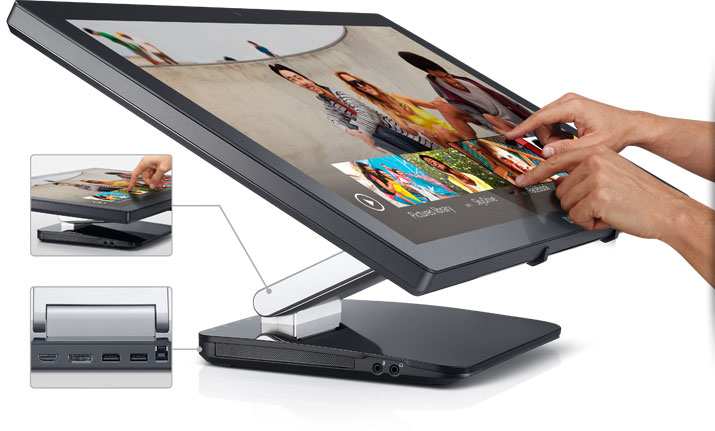
The Short Answer
Can touchscreen monitors support multi touch? Yes, but only if three distinct things line up. The touch panel hardware has to support multiple simultaneous touch points.
The touch controller chip has to be wired to report more than one finger at a time. And your operating system has to recognize and process those inputs correctly. If you are exploring similar hardware setups, see our detailed guide on whether touchscreen monitors support windows 11 gestures.
Most mid-range touchscreen monitors as of 2026 do ship with 10-point capacitive touch. Plenty of buyers never get multi-touch working anyway. The reason is almost always the same: they plugged in the video cable and forgot the USB touch cable, or the monitor's controller was single-touch all along.
This guide walks you through how to tell which situation you're in and how to fix it.
Quick Answer
Yes, many external touchscreen monitors support multi-touch. The touch panel, controller chip, and USB data connection all have to support it. Most 10-point and higher capacitive monitors do support multi-touch. Readers evaluating this setup should also consider whether touchscreen monitors support stylus for comparative benchmarks.
Single-point touch monitors cannot register more than one finger at once. Always verify the touch controller spec before assuming multi-touch works.
What Makes a Touchscreen Monitor Actually Support Multi-Touch
A touchscreen monitor is really two products fused into one display. There's the LCD or OLED panel that handles the picture. And there's the touch digitizer layer plus its controller that handles your fingers.
Both have to be designed for multi-touch from the start. One without the other leaves you stuck with a single-point touch screen regardless of what the marketing says.
The Touch Controller Is the Real Boss
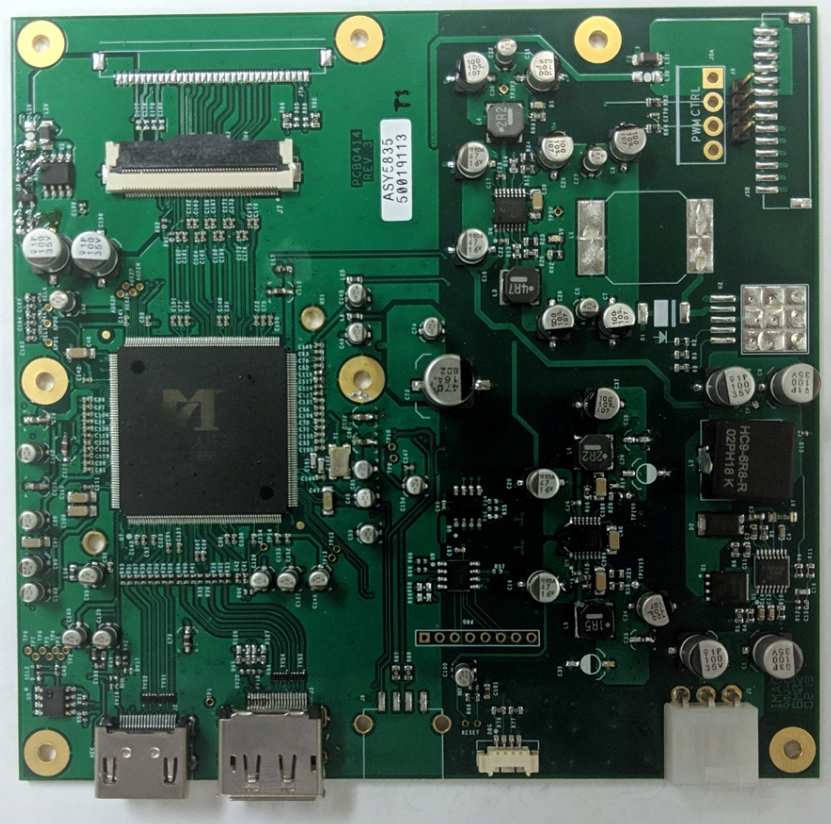
The touch controller IC is the small processor sitting on a circuit board behind the glass. It's the deciding factor. This chip reads the raw signals from the touch sensor and translates them into usable data your computer can understand.
If that controller is a single-touch model, it physically cannot report two fingers at once, no matter what the glass layer is capable of.
Major controller manufacturers include Elo Touch Solutions, ILI Technology, Goodix, and FocalTech. Industrial-grade controllers from Elo routinely support 32-point or even 40-point touch. Budget consumer monitors often use simpler controller chips that cap out at 2-point or lack multi-touch entirely.
Manufacturer specs will list the touch controller model number if you dig into the technical datasheet. If the box or product page says "PCAP touch" or "projected capacitive," that's a good sign. However, PCAP hardware can still be paired with a single-touch controller to cut costs.
Always confirm the specific touch point count.
Touch Technology Types and What They Support
The underlying touch sensor technology sets the ceiling. Here's how the main types break down:
| Technology | Typical Touch Points | Common In |
|---|---|---|
| Projected Capacitive (PCAP) | 2 to 40+ | Consumer monitors, kiosks, POS |
| Resistive (analog) | 1 (some dual-touch) | Legacy industrial, ATMs |
| Optical / Infrared Grid | 2 to 100+ | Large displays, digital signage |
| Surface Acoustic Wave (SAW) | 1 to 2 | Niche retail, older kiosks |
PCAP dominates the consumer and pro monitor space. A properly implemented PCAP system with a good controller gives you reliable 10-point touch. Resistive screens, which work by pressing two flexible layers together, are almost always single-touch.
If someone hands you a touchscreen monitor and the spec sheet says resistive, set your expectations accordingly.
Large-format interactive displays and touch tables typically use infrared grids. Those can track dozens of simultaneous touches. That's how collaborative whiteboards and museum exhibits work.
The USB Touch Connection Most People Miss
Here's where most setups quietly fail. A touchscreen monitor carries two separate signals. Video travels over HDMI, DisplayPort, or USB-C through the display alt mode.
Touch data travels over a separate USB connection, either through a dedicated USB-B or micro-USB port on the monitor or multiplexed through a USB-C cable that handles both.
If you only plug in the video cable, you get a picture. The touch layer might work as a basic single-touch pointer. But the full multi-touch data path requires that USB connection to be active and recognized by your operating system as a HID-compliant touch device.
Check the back of your monitor. If you see a USB-B port labeled "touch" or "upstream," you need a cable running from there to your computer. Monitors that support USB-C alt mode can carry both signals over one cable, but the host device has to support USB-C with power delivery and data, not just DisplayPort passthrough.
Per the USB-IF HID specification, a properly compliant multi-touch device should enumerate on your system as a HID-digitizer class device describing its touch point capabilities. Device Manager in Windows or lsusb on Linux makes this verifiable.
How to Check If YOUR Monitor Supports Multi-Touch
Before you buy or troubleshoot, run through these checks in order. Each step eliminates a different failure point.
Step 1: Check the Spec Sheet (What to Look For)
Look for these exact phrases on the manufacturer's product page or datasheet:
- "10-point touch" or "10-point PCAP"
- "Multi-touch supported"
- Touch controller model number (cross-reference it on the manufacturer's site)
- HID-compliant digitizer (USB interface)
Be skeptical of vague phrasing like "touch-enabled" or "supports touch input." That can mean anything. If the spec sheet lists a concrete number of touch points, you have a reliable answer.
Step 2: Verify the Hardware Connection
With the monitor powered on and connected:
- Open Device Manager on Windows. Look under "Human Interface Devices."
- Look for an entry like "HID-compliant touch screen."
- If it's missing, check that the USB touch cable is connected.
- On a Mac, go to System Information and look under USB or Hardware for the touch device.

No touch device showing up means the OS doesn't see the touch controller at all. That's either a missing cable, a dead controller, or an unsupported connection type.
Step 3: Test It in Your Operating System
Once the touch device is detected, test its capabilities.
Windows:
Settings > Bluetooth & devices > Touch. Windows 11 shows touch input options and pointer events. You can also use the free Touch Test app from the Microsoft Store to visualize each touch point on screen.
macOS:
External touchscreen multi-touch gesture support is limited. Third-party tools like BetterTouchTool can map custom gestures, but Apple's native multi-touch gesture support for external displays is not built in the same way as on built-in trackpads.
Linux:
Run xinput list to find the touch device, then xinput test <device-id> to watch raw touch events in the terminal. Multiple touch IDs appearing simultaneously confirms multi-touch kernel support.
Step 4: Test With Real Gestures
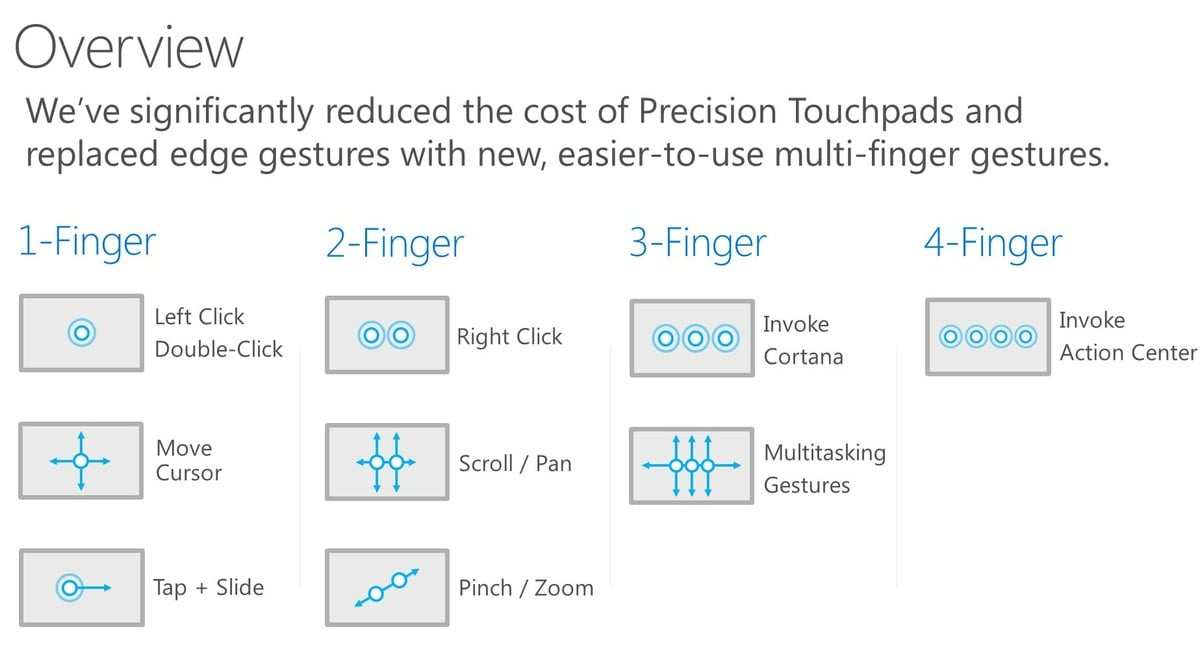
Theory confirmed by gesture software means nothing in daily use. Load a photo viewer. Try a two-finger pinch to zoom.
If the image zooms, your multi-touch is working. Try a two-finger rotate in an image editor. That gesture needs the OS to distinguish two independent touch points simultaneously.
If nothing happens, go back to Step 1.
Why Your Touchscreen Monitor Might Only Register One Finger
You've got a touchscreen monitor. The spec sheet says "touch-enabled." But when you try to pinch-zoom, nothing happens. The most common culprit is a missing USB data connection.
The second most common is a single-touch controller hidden behind capacitive glass. Both are easy to miss and easy to fix once you know what to look for.
Missing USB Touch Cable
This is the number one reason multi-touch fails in real-world setups. People plug in HDMI or DisplayPort, see the picture come up, and assume the touch layer is working too. It often is, but only as a basic single-point pointer.
The full multi-touch data path needs that separate USB connection carrying HID reports from the controller to the host.
Check the back panel. If you see a USB-B port, a micro-USB port, or a USB-C port labeled "upstream" or "touch," you need a cable from there to your computer. Without it, the OS never sees the digitizer as a multi-touch capable device.
Wrong Touch Controller (Single-Touch Hardware)
Some manufacturers use projected capacitive glass because it feels premium. Then they pair it with a budget single-touch controller IC to hit a price point. The glass could theoretically detect ten fingers.
The controller only reports one. This is more common than you'd think in the sub-$250 monitor range.
The only reliable way to confirm is to find the touch controller model number. Check the technical datasheet, not the marketing page. If the manufacturer won't disclose it, search the monitor's teardown photos or service manual.
Controller chips from FocalTech, ILI Technology, and Goodix each have publicly available datasheets listing their touch point capabilities.
Driver or OS Limitations
Even with the right hardware, the software layer can block multi-touch. Windows 10 and 11 handle multi-touch well through the built-in HID-digitizer driver stack. macOS has almost no native multi-touch gesture support for external touchscreens. You'll get basic pointer input, but pinch, rotate, and swipe gestures require third-party software like BetterTouchTool.
Linux support varies by distribution and desktop environment. GNOME and KDE Plasma handle multi-touch through libinput. Lightweight window managers may not process multi-touch events at all.
If you're running Linux, verify that your touch device shows multiple touch IDs in xinput test output.
macOS and Linux Gotchas
macOS users face a particular frustration. Apple's ecosystem is built around trackpads and built-in touch surfaces. External touchscreen monitors are second-class citizens.
You'll get single-point touch input out of the box. Multi-finger gestures need third-party tools, and even then, app support is inconsistent.
Linux users need to check their libinput version. Older kernels (pre-5.10) had spotty multi-touch protocol support. If your distribution ships an older kernel, update it.
Then run libinput list-devices to confirm the touch device reports multi-touch capabilities.
Multi-Touch Support by Use Case
Not every situation demands the same touch capability. Matching the touch spec to the actual use case saves money and avoids frustration.
Consumer Touch Monitors (Home Office, Creative Work)
Most consumer touch monitors in the $250 to $600 range ship with 10-point PCAP touch. That covers pinch, zoom, two-finger scroll, and basic three-finger gestures. For photo editing, document navigation, and general productivity, 10-point is plenty.
Brands like Dell (P-series touch models), ASUS (VT-series), and ViewSonic (TD-series) typically publish their touch point counts clearly. Look for "10-point capacitive" in the spec sheet. Avoid monitors that only say "touch-enabled" without specifying the point count.
Commercial and Industrial Touch Displays
Point-of-sale systems, kiosks, and industrial control panels need reliability over gesture variety. Many commercial touch displays from Elo Touch and 3M support 2-point or 4-point touch. That's enough for basic pinch and zoom in a POS application.
It also keeps the controller cheaper and more durable.
Industrial environments often prioritize gloved-hand operation over multi-touch. Resistive or enhanced PCAP controllers that work with thick gloves may only support single-touch. If you're specifying a display for a factory floor, confirm the glove-touch requirement before assuming multi-touch is available.
Large-Format Interactive Displays
Digital signage, interactive whiteboards, and collaboration displays in the 55-inch and above range often use infrared touch grids. These support 20-point, 40-point, or even 100-point touch. That's how conference room displays let multiple people interact with the same screen simultaneously.
Products like the Samsung Flip, Microsoft Surface Hub, and Google Jamboard all use IR-based multi-touch. If you need multi-user simultaneous input, look for displays specifically rated for high touch-point counts. Standard PCAP monitors top out around 10 to 32 points.
Single-Touch vs. Multi-Touch Monitors: What's Actually Different
The difference isn't just marketing. It's hardware, controller capability, and cost.
| Feature | Single-Touch | Multi-Touch |
|---|---|---|
| Touch points | 1 (some limited 2) | 2 to 100+ |
| Controller IC | Simmer single-channel | Multi-channel with ID tracking |
| Gesture support | Tap, drag, basic pointer | Pinch, zoom, rotate, multi-finger swipe |
| Typical technology | Resistive or basic PCAP | PCAP or IR grid |
| Price range | $150 to $400 | $250 to $3,000+ |
| Common use | POS, ATMs, basic kiosks | Creative work, collaboration, education |
| USB HID descriptor | Limited digitizer report | Full multi-touch HID descriptor |
Single-touch monitors work fine for tapping buttons and dragging windows. They're cheaper and often more durable in harsh environments. Multi-touch monitors unlock gesture-based navigation and collaborative interaction.
They cost more because the controller is more complex and the firmware has to track multiple touch IDs simultaneously.
If your workflow is just "tap to select, drag to move," single-touch gets the job done. If you're editing photos, running design reviews, or building an interactive kiosk, multi-touch is worth the premium.
Common Mistakes People Make With Touch Monitors
These are the errors that come up again and again in user reviews and support forums.
- Assuming video cable carries touch data. HDMI and DisplayPort carry video only. Touch data needs a separate USB connection unless you're on a fully-featured USB-C implementation.
- Ignoring the spec sheet fine print. "Touch-enabled" without a point count is a red flag. Always look for the specific number.
- Forgetting to install drivers. Most modern touch monitors are HID-compliant and work plug-and-play. Some industrial and older models need a specific driver from the manufacturer's website.
- Testing with the wrong software. A web browser that doesn't support pinch-zoom won't prove anything. Use a photo viewer or the OS built-in touch diagnostics.
- Not calibrating after setup. Touch alignment can drift, especially on larger screens. Run the calibration utility in Windows or the manufacturer's tool after initial setup.
- Using a USB hub that doesn't support HID properly. Some cheap USB hubs drop or corrupt HID reports. Connect the touch cable directly to a motherboard USB port if you're troubleshooting.
- Expecting macOS gesture support. Apple doesn't natively support multi-finger gestures on external touchscreens. Third-party tools are required, and results vary by application.
What You'll Pay for Multi-Touch
Price varies by screen size, touch technology, and build quality. Here's what the market looks like as of 2026.
| Category | Screen Size | Touch Points | Price Range |
|---|---|---|---|
| Budget consumer | 15" to 24" | 10-point PCAP | $200 to $450 |
| Mid-range consumer | 24" to 27" | 10-point PCAP | $400 to $700 |
| Professional creative | 27" to 32" | 10-point PCAP | $600 to $1,200 |
| Commercial POS/kiosk | 15" to 22" | 2 to 10-point | $500 to $1,500 |
| Large-format interactive | 55" to 86" | 20 to 100-point IR | $2,000 to $8,000+ |
The jump from single-touch to 10-point multi-touch adds roughly $50 to $150 to the bill of materials. That shows up in the retail price. Commercial and industrial displays cost more because they're built for 24/7 operation, have higher brightness, and often carry IP65 ingress protection ratings.
If you're buying for a specific project, match the touch spec to the actual need. A classroom whiteboard needs 20-point touch. A home office monitor needs 10.
A drive-through kiosk probably only needs one.
The Decision Guide: Do You Actually Need Multi-Touch?
Answer these questions honestly. They'll point you to the right hardware.
Do you need pinch, zoom, or rotate gestures? Yes, get a 10-point PCAP monitor. Single-touch won't cut it.
Is this for a kiosk or POS where users only tap buttons? Single-touch or 2-point is fine. Save the money.
Are multiple people touching the screen at once? You need a large-format IR display with 20+ point touch.
Are you on a Mac? External multi-touch gesture support is limited. Budget for third-party software or reconsider the touch monitor entirely.
Is the monitor spec sheet vague about touch points? Contact the manufacturer and ask for the touch controller model number. If they won't provide it, walk away.
Frequently Asked Questions
Does HDMI carry touch data to the monitor?
No. HDMI and DisplayPort carry video and audio only. Touch data travels over a separate USB connection.
USB-C can carry both if the monitor and host support USB-C with DisplayPort alt mode and USB data.
Can I add multi-touch to a monitor that only has single-touch?
Not practically. The touch controller IC determines the touch point capability. You'd need to replace the entire touch digitizer assembly, which costs more than buying a new multi-touch monitor.
Do touchscreen monitors work with stylus pens?
Some do. Look for monitors that specifically list active pen support, such as those compatible with Microsoft Pen Protocol or Wacom EMR. Finger-touch and pen-input often use different digitizer layers laminated together.
How many touch points do I actually need?
For most productivity and creative work, 10 points is the sweet spot. Two fingers for pinch and zoom, three for OS-level gestures, and the rest as headroom. More than 10 matters mainly for collaborative or multi-user scenarios.
Why does my touch monitor stop working after sleep?
This is a known USB power management issue. Windows may suspend the USB port during sleep. Disable USB selective suspend in Power Options, or update the touch controller firmware from the manufacturer's website.
Are touchscreen monitors good for gaming?
Touch-based games work fine on multi-touch monitors. However, the touch layer adds slight latency compared to a non-touch display. Competitive gamers should stick to standard low-latency monitors and use touch only for casual titles.

Similar Posts





















