Can Mini LED Monitor Connect to Ps5
So you just picked up a mini LED monitor and you're wondering if it'll work with your PlayStation 5. The short answer is yes, you can connect a mini LED monitor to a PS5, but whether it's plug-and-play depends entirely on what input ports your specific monitor has. Let's break down exactly what you need to check before you start.
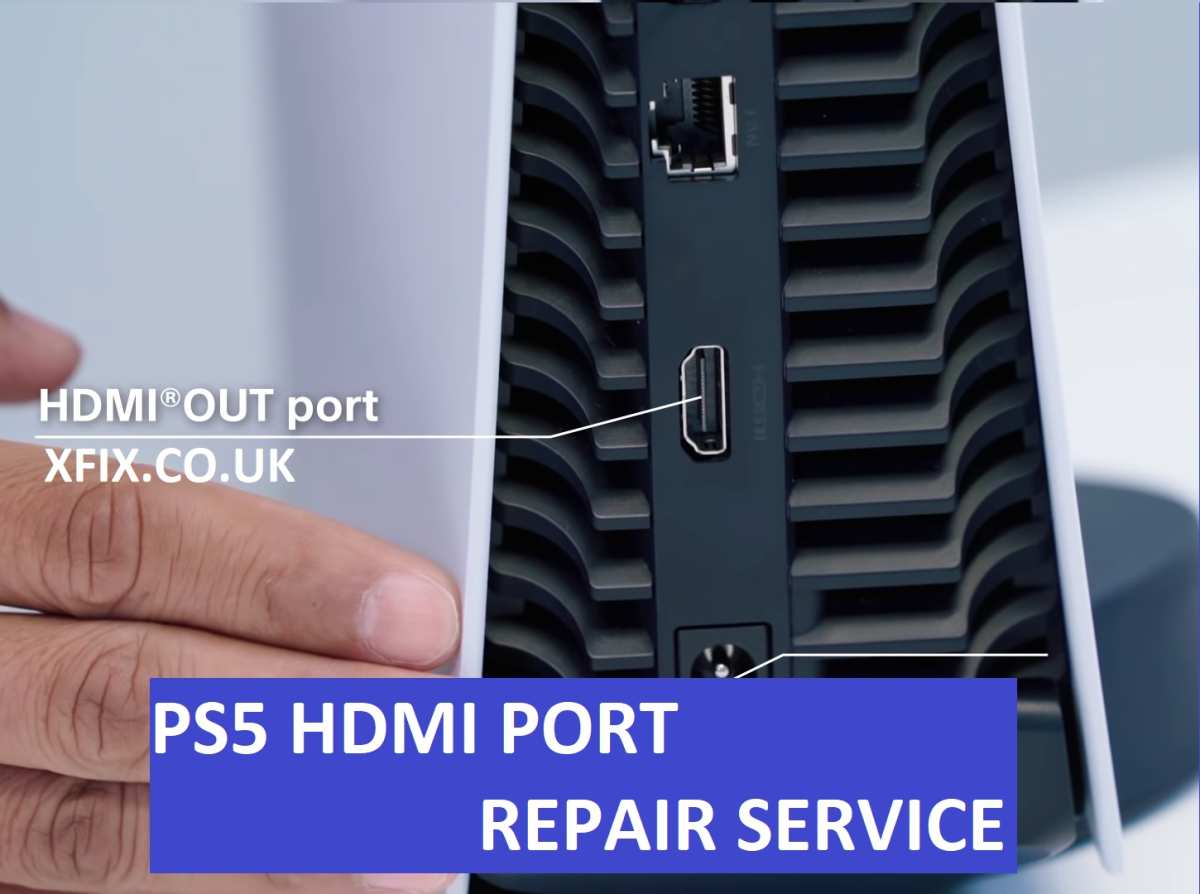
The PS5 outputs video through its HDMI 2.1 port, which supports up to 4K resolution at 120Hz. That's the baseline. Your monitor needs to accept that signal somehow, either through a native HDMI input or through an adapter. Readers comparing various configurations should also examine whether mini led monitor good for gaming.
The good news is that mini LED technology itself has nothing to do with compatibility. It's all about the ports on the back of your screen.
Quick Answer
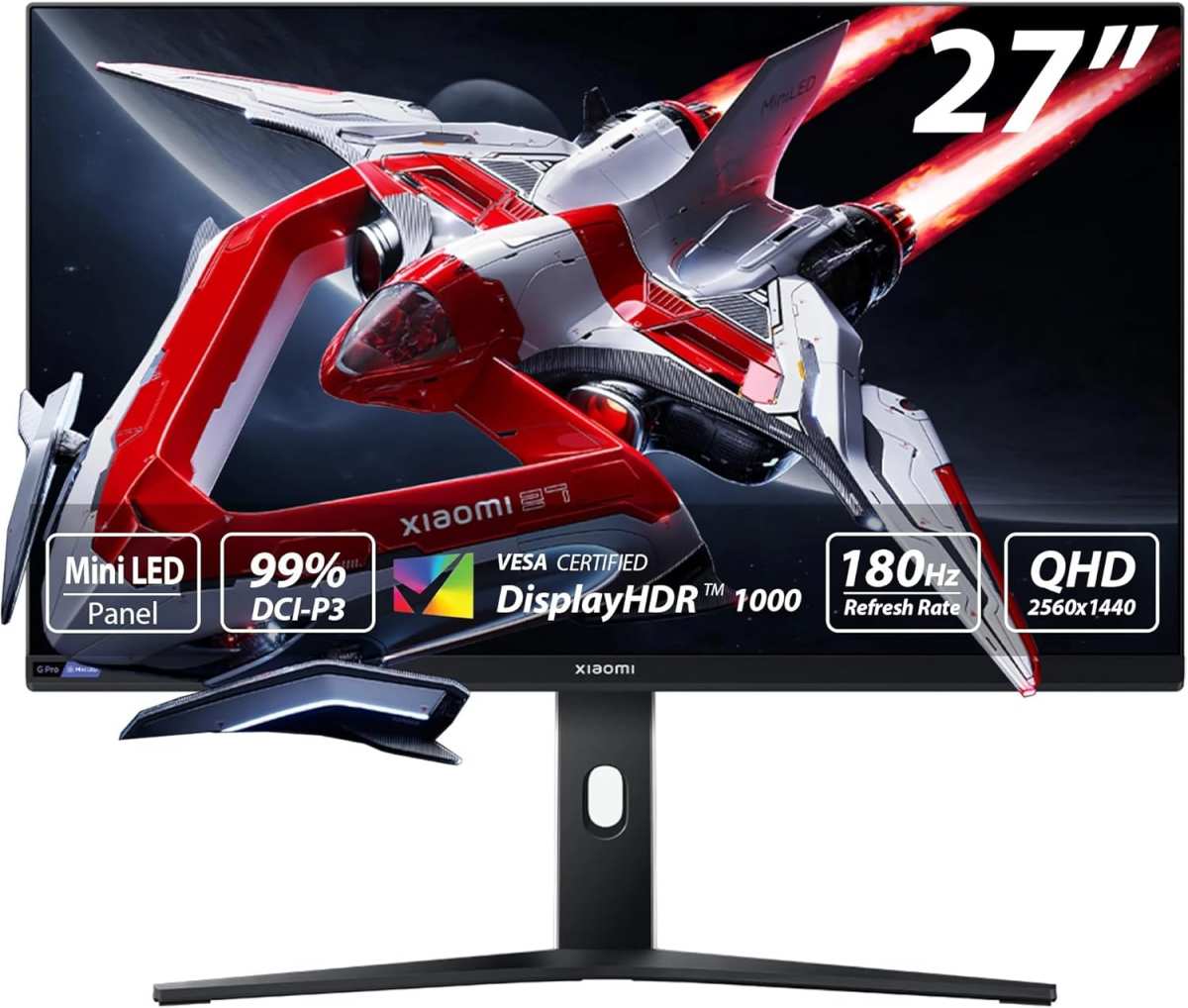
Yes, a mini LED monitor can connect to a PS5. The monitor needs an HDMI input port for direct connection. USB-C-only monitors require an active adapter.
Not all adapters support 4K or HDR properly. Check your monitor's input ports first. You can also reference our testing on how to connect usb c monitor to ps5 when configuring your display.
Why Some Mini LED Monitors Won't Work With Your PS5
Here's where people get tripped up. Mini LED refers to the backlighting technology behind the screen. It has nothing to do with what inputs the monitor supports.
You could have the best mini LED panel on the market with perfect HDR and 200 local dimming zones, and it still won't display a single pixel from your PS5 if it doesn't have the right input.
The most common issue we see is with portable mini LED monitors. A lot of the popular portable models, especially the 15.6-inch and 17.3-inch ones marketed for laptops and cameras, only include USB-C inputs. They're designed to receive a DisplayPort Alt Mode signal from a laptop, not an HDMI signal from a console.
The PS5 doesn't output DisplayPort. It outputs HDMI. That's the fundamental mismatch.
Some monitors include both HDMI and USB-C, but the HDMI port might be a Mini HDMI or Micro HDMI rather than a full-size HDMI. That's not a dealbreaker, but it means you need the right cable. We'll cover that in the setup section.
The other issue is HDCP. The PS5 uses HDCP 2.2 for protected content, including streaming apps and some game content. If your monitor or adapter doesn't support HDCP 2.2, you'll get a black screen when trying to watch Netflix or Disney+ through your console.
Games usually work fine without it, but you'll hit a wall with media apps.
The One Thing That Actually Matters: Input Ports
Forget the panel type for a moment. Forget the HDR specs and the refresh rate claims. The only thing that determines whether your mini LED monitor will work with a PS5 is what's on the input panel.
Let's walk through the three scenarios you're likely dealing with.
Scenario 1: Your Monitor Has a Full-Size HDMI Input
This is the ideal situation. If your mini LED monitor has a standard HDMI port, you can connect directly using the HDMI cable that came with your PS5. Plug one end into the console, plug the other into the monitor, and you should get a picture immediately.
The PS5's HDMI 2.1 output is backward compatible with HDMI 2.0 inputs, so even if your monitor only supports 4K at 60Hz, it'll still work. You just won't get 120Hz.
Scenario 2: Your Monitor Has USB-C Only
This is the trickiest scenario and the one that causes the most confusion. Many portable mini LED monitors, like some models from Arzopa, Innocn, and KYY, only have USB-C inputs that support DisplayPort Alt Mode. The PS5 outputs HDMI, not DisplayPort.
You can't use a simple passive cable to convert between the two. You need an active adapter that converts the HDMI signal from the PS5 into a DisplayPort signal the monitor can understand.
Here's the problem. Most cheap USB-C adapters are designed to go the other direction, from a laptop's USB-C out to an HDMI display. They don't work in reverse.
You specifically need an HDMI-to-USB-C active adapter that's designed to accept an HDMI source and output to a USB-C DisplayPort Alt Mode display. These exist, but they're less common and more expensive.
Scenario 3: Your Monitor Has Mini HDMI or Micro HDMI
Some compact monitors use smaller HDMI connectors to save space. Mini HDMI (Type-C) and Micro HDMI (Type-D) are electrically identical to full-size HDMI, just in a smaller form factor. You'll need a cable or adapter that goes from the PS5's full-size HDMI output to the smaller connector on your monitor.
A simple Micro HDMI to HDMI cable works perfectly here and costs around $8 to $12.
What You Need If Your Monitor Doesn't Have HDMI
If your mini LED monitor lacks a native HDMI input, you'll need some additional hardware. Let's go through your options and what to watch out for.

Active HDMI to USB-C Adapter
This is what you need for USB-C-only monitors. Look for an adapter specifically labeled as "HDMI to USB-C" with support for DisplayPort Alt Mode input. The key specs to check are:
- 4K at 60Hz support minimum
- HDCP 2.2 passthrough
- Active signal conversion (not passive)
These adapters typically cost between $25 and $50. Cheaper options often cap at 1080p or don't handle HDR correctly. Some users report that certain adapters introduce a frame or two of input lag, which matters for competitive gaming but is fine for single-player experiences.
What to Avoid
Don't buy a standard USB-C hub with an HDMI output port. Those are designed to send signal from a laptop to an HDMI display. They won't accept an HDMI signal from the PS5 and route it to a USB-C monitor.
The signal direction is wrong.
Also avoid HDMI to DisplayPort cables that are just wired passively. HDMI and DisplayPort use different signaling protocols. A passive cable won't convert between them.
You need an active adapter with a built-in chip that handles the protocol conversion.
Recommended Setup for USB-C Only Monitors
Here's the cleanest setup we've found for USB-C-only mini LED monitors:
- PS5 HDMI output
- HDMI cable (use the included one or a certified Ultra High Speed HDMI cable)
- Active HDMI to USB-C adapter
- USB-C cable to monitor (usually included with the monitor)
Keep the adapter close to the monitor rather than near the PS5. Shorter cable runs on the USB-C side reduce the chance of signal issues.
Setting Up Your PS5 Once You're Connected
You've got the physical connection sorted. Now let's make sure the PS5 is outputting the right signal for your monitor. The console should auto-detect most monitors and output a compatible signal, but there are a few settings worth checking manually.
Resolution
Go to Settings > Screen and Video > Video Output > Resolution. The PS5 will default to automatic, which usually picks the highest resolution your monitor supports. If you're getting a blank screen or the image looks wrong, try manually setting it to 1080p first, then work your way up.
Some monitors have EDID issues that confuse the auto-detection.
Refresh Rate
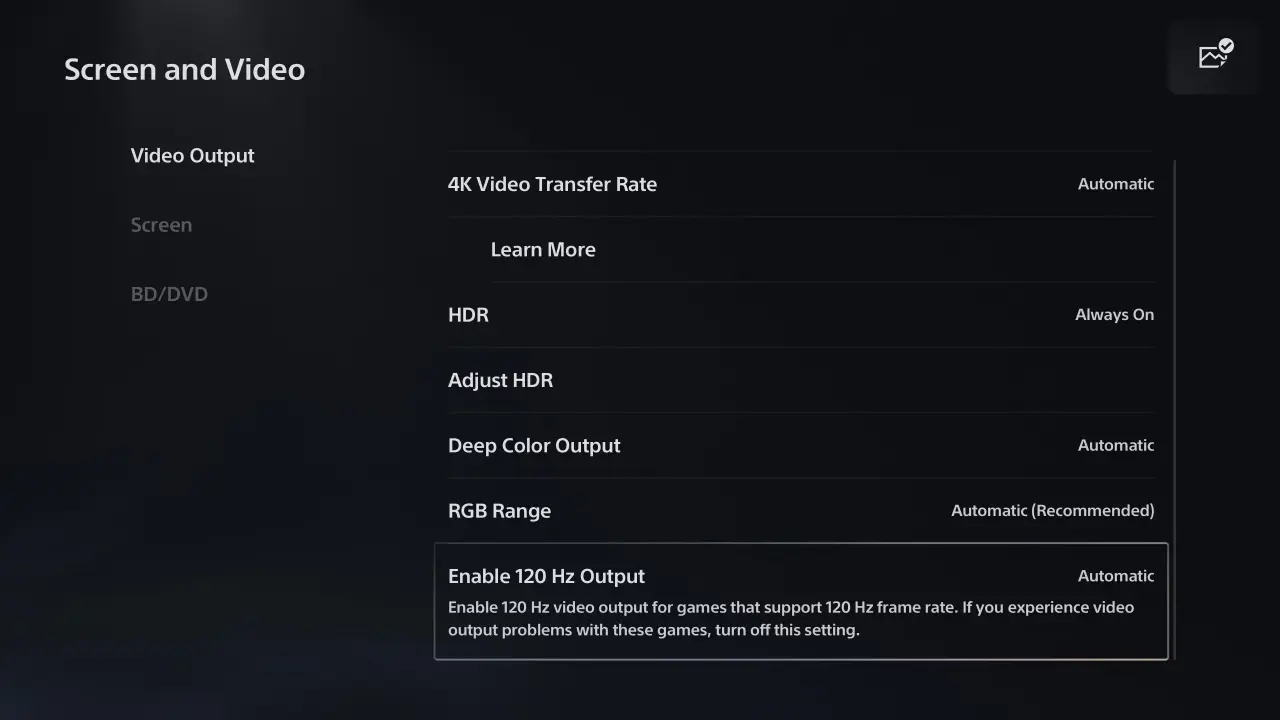
The PS5 supports 120Hz output, but only if your monitor and connection support it. If your monitor is 60Hz, there's nothing to enable here. If it's 120Hz or higher and connected via HDMI 2.1, you'll see the option under Video Output > 120Hz Output.
Set it to automatic to let the console decide per game.
HDR
HDR can be finicky with monitors compared to TVs. Go to Settings > Screen and Video > Video Output > HDR. If your mini LED monitor supports HDR10 (most do), set this to On When Supported.
If you're seeing washed-out colors, your monitor might need its own HDR mode enabled in its on-screen display menu. Check the monitor's settings for an HDR toggle.
RGB Range
This one catches people off guard. Go to Settings > Screen and Video > Video Output > RGB Range. If your monitor looks crushed (blacks are too dark, losing detail in shadows), set this to Limited.
If it looks washed out, set it to Full. Monitors typically expect Full range, while TVs expect Limited. Getting this wrong makes the image look terrible even though everything else is working fine.
Fixing "No Signal" Issues
If you're getting no signal after connecting everything, try this sequence:
- Power off the PS5 completely (not rest mode)
- Disconnect the HDMI cable from both ends
- Reconnect firmly
- Power on the monitor first
- Power on the PS5
The PS5 performs an HDMI handshake at boot. If the monitor isn't powered on and ready to receive when the PS5 starts up, the handshake can fail. Powering on the monitor first usually resolves this.
Common Problems and How to Fix Them
Even with the right ports and cables, things don't always work on the console side. Here are the most common issues aggregate user reviews report, along with what actually fixes them.
Black Screen or No Signal
This is the number one complaint. You've connected everything, the monitor shows "no input" or stays black. The fix is almost always the HDMI handshake issue mentioned earlier.
Power everything off. Turn the monitor on first, then the PS5. The console needs to see a display during boot.
If that doesn't work, try booting the PS5 in safe mode. Hold the power button for about seven seconds until you hear a second beep. This forces the console to output at 60Hz with HDCP disabled, which almost any display will recognize.
Once you're in safe mode, you can change the output settings to match your monitor.
Washed Out Colors or Crushed Blacks
This is the RGB range mismatch. Go to your PS5's Video Output settings and toggle between Full and Limited RGB. If your image looks like everything is gray and faded, you're on the wrong setting.
Monitors want Full, TVs want Limited. It's a simple switch but it changes everything.
HDR Looks Terrible
HDR on monitors is a mixed bag. If enabling HDR makes the image look dimmer or more washed out than SDR, your monitor probably doesn't have the peak brightness to do HDR justice. Many portable mini LED monitors claim HDR support but only hit 300 to 400 nits.
True HDR needs at least 600 nits, ideally 1000 or more.
Turn HDR off in the PS5 settings if it looks worse. You'll still get the excellent contrast of the mini LED panel in SDR. That alone is a massive upgrade over standard edge-lit monitors.
Sound Not Working
Most portable monitors have either terrible speakers or no speakers at all. The PS5 will default to outputting audio through the display if it detects one. If you get no sound, go to Settings > Sound > Audio Output and manually select HDMI orOptical, depending on your setup.
You can also plug headphones directly into the controller's 3.5mm jack if you want the simplest solution.
Adapter Causing Lag
If you're using an active HDMI to USB-C adapter and you notice input lag in fast-paced games, the adapter might be the bottleneck. Cheap adapters can add one to three frames of latency. Look for adapters specifically marketed as "low latency" or "gaming grade." They cost a bit more, around $40 to $60, but the difference is noticeable in shooters and fighting games.
Mini LED Benefits Worth Using With Your PS5
So why go through all this trouble? Because mini LED monitors offer something most standard monitors and even many TVs can't match, especially at their typical price points.
Real HDR with Local Dimming
The standout feature is local dimming. Unlike standard LED backlights that light the entire panel uniformly, mini LED monitors have hundreds or even thousands of small dimming zones. Each zone can dim independently.
This means you get actual deep blacks right next to bright highlights in the same frame. Games like Ratchet and Clank: Rift Apart and Demon's Souls look dramatically better with local dimming enabled versus a standard LED monitor.
The number of zones matters. Budget portable monitors might have 16 to 32 zones, which helps but can cause blooming around bright objects on dark backgrounds. Better models offer 115 to 576 zones, and the difference is visible.
More zones means tighter, more accurate dimming.
High Brightness Without Burn-In Risk
Mini LED panels can push high peak brightness, often 600 to 1000 nits or more on the better models. That's bright enough to make HDR content pop without the burn-in risk that comes with OLED panels. If you play games with static HUD elements for hours, like health bars and minimaps, you don't have to worry about those elements getting permanently etched into the screen.
Better Contrast Than Standard LED
Even without HDR content, the improved native contrast ratio of a mini LED panel makes standard content look better. Dark scenes in games like Resident Evil Village or Alan Wake 2 have more depth and detail. You're not just getting brighter highlights.
You're getting a more three-dimensional image overall.
Who Should Actually Do This (And Who Shouldn't)
Not everyone needs a mini LED monitor for their PS5. Let's break down who benefits most and who should probably look elsewhere.
Portable Gaming Setup
If you travel frequently or move between locations, a portable mini LED monitor paired with a PS5 is a solid setup. You get a high-quality display that fits in a backpack. The PS5 is portable enough to carry in a padded bag.
Together they give you a proper gaming setup in hotel rooms or temporary spaces where a TV isn't available.
Dorm Room or Small Space
Dorm rooms and small apartments often don't have space for a large TV. A 15.6-inch or 17.3-inch mini LED monitor on a desk gives you a great gaming experience without dominating the room. You can use it for everything, gaming, streaming, and schoolwork or work work.
Travel Gaming
Similar to the portable setup but more focused on people who want to game during long trips. Some users set up a PS5 in a car or hotel with a portable monitor. The mini LED panel's better contrast makes it usable in varied lighting conditions where a standard IPS panel might look washed out.
Who Should Skip It
If you already have a good 4K TV with low input lag and proper HDR, a portable mini LED monitor is a sidegrade at best. The screen size alone is a downgrade from a 55-inch or larger TV. Also, if your monitor requires an active adapter and you're sensitive to input lag, the adapter might negate the monitor's gaming advantages.
In that case, a standard gaming monitor with a native HDMI input is the better choice.
Frequently Asked Questions
Can I use any mini LED monitor with PS5?
Any mini LED monitor with an HDMI input works directly with the PS5. USB-C-only monitors need an active adapter. Check your monitor's input ports before buying anything.
Does the PS5 support 1440p on mini LED monitors?
Yes. The PS5 added 1440p support in a 2022 system update. If your mini LED monitor is 1440p, the console will output at that resolution natively.
You'll get a sharper image than 1080p without the performance cost of 4K.
Will I get 120Hz on a mini LED monitor?
Only if the monitor supports 120Hz and has an HDMI 2.1 input. Most portable mini LED monitors are 60Hz. Full-size mini LED gaming monitors with HDMI 2.1 support 120Hz.
Check the specs before assuming.
Do I need a special HDMI cable for the PS5?
The included HDMI cable is an Ultra High Speed HDMI cable rated for 48 Gbps. It handles 4K at 120Hz and HDR without issues. You don't need to buy a separate cable unless you need a longer run.
Can I use a mini LED monitor for PS5 and PC at the same time?
Not at the same time on the same monitor unless the monitor has multiple inputs and you switch between them. Most portable monitors have one or two inputs. You can connect both devices if the monitor has multiple ports, but you'll need to switch the input source manually.
Is HDR worth it on a portable mini LED monitor?
It depends on the monitor's peak brightness. If it hits 600 nits or higher, HDR looks good. Below that, you might prefer SDR.
Test it yourself and trust your eyes over the spec sheet claims.
Final Decision Guide: Should You Connect a Mini LED Monitor to PS5?
Here's the bottom line. If your mini LED monitor has an HDMI input, connect it. It's straightforward and you'll get a great picture.
If it only has USB-C, you can still make it work with an active adapter, but factor in the extra cost and potential for minor input lag.
The mini LED panel technology itself is a genuine upgrade over standard LED monitors for gaming. Better contrast, better HDR, and higher brightness make games look better. The connection method is just a technical hurdle, not a dealbreaker.
Before you buy anything, check your monitor's input ports. That single piece of information determines your entire setup path. Everything else is just configuration.
Let me check the TOC against what's been written so far.

Similar Posts





















