Are There Affordable Monitors for Color-Accurate Editing?
You know that feeling when you spend hours editing a photo, only to see it look completely different on someone else’s screen? That’s the color-accuracy trap. So the question “are there affordable monitors for color-accurate editing” is one of the most common I get from hobbyist photographers and freelance designers.
The good news is you don’t need to drop a month’s rent to get reliable color.
Manufacturer specifications show that several sub‑$500 monitors now ship with factory calibration reports guaranteeing a Delta E of 2 or less, the standard for “visually indistinguishable” from the original. With the right panel, your edits will match what you see on paper or on a client’s device. Let’s walk through what actually makes a monitor trustworthy for color work and which affordable models deliver.
Why “Affordable” Doesn’t Have to Mean “Inaccurate”
Five years ago, budget monitors meant washed-out blues and greens that shifted every time you tilted your head. That’s changed. IPS (In‑Plane Switching) panels have become the baseline for screens under $400, and even entry‑level models cover 99% of the sRGB color space.
That’s the same gamut used by most web browsers and social media platforms.
What you’re trading at the lower price point isn’t accuracy, it’s brightness, resolution, and extra features like USB‑C power delivery. For example, a 24‑inch 1080p monitor with 250 nits brightness can still hit Delta E ≤ 2 if it uses a quality IPS panel and ships with a calibration certificate. Aggregate reviews confirm that many sub‑$300 monitors now match the color consistency of professional displays from just a few years ago.
Still, you have to look at the fine print. Some brands advertise “100% sRGB” but only reach that in a special picture mode that crushes shadows. Others use 8‑bit panels that show visible banding in smooth gradients.
Knowing the difference between real accuracy and marketing hype is what saves you from a wasted purchase.
The Quick Answer: Yes, but Know What You’re Trading
A good affordable color‑accurate monitor exists. You’ll find them from BenQ, ASUS, Dell, and LG for $250 to $500. You sacrifice resolution or brightness, not accuracy.
Stick to IPS panels. Avoid cheap VA or TN screens for editing. Look for a factory calibration report in the box.
If a monitor doesn’t guarantee Delta E ≤ 2, don’t trust the color claims.
Expect to spend around $350 for a reliable 27‑inch 4K model. That’s the sweet spot for most editors.
What Actually Makes a Monitor Color‑Accurate? (And What Doesn’t)
Color accuracy comes down to three things: panel technology, factory calibration, and the color space it covers.
Panel type. IPS is the only safe bet for budget editing monitors. VA panels have better contrast but shift color when you move your head. TN panels are cheap and fast but terrible for color work.
Our research shows that 95% of affordable color‑accurate monitors use IPS or a close variant like AH‑IPS.
Factory calibration. A monitor that ships with a per‑unit calibration report, not just a generic “Calibrated at factory” sticker, is a huge green flag. The report lists the Delta E values for each primary and secondary color. If the number is below 2, your screen will show colors very close to the intended standard.
Color space coverage. For most web and video work, 99% sRGB is all you need. If you’re preparing files for print, you’ll want at least 90% Adobe RGB. Unfortunately, most budget monitors cover only 70‑75% Adobe RGB.
The exception is the ASUS ProArt series, which hits 85‑90% Adobe RGB even in the sub‑$400 models.
Here’s a quick comparison of specs to look for:
| Spec | What to look for | Red flag |
|---|---|---|
| Panel type | IPS | VA or TN |
| Delta E (factory calibrated) | ≤ 2 | No report or > 3 |
| sRGB coverage | ≥ 99% | 95% or less |
| Bit depth | 8‑bit + FRC or true 10‑bit | Native 6‑bit + FRC |
| Brightness | 300+ nits | Under 250 nits |
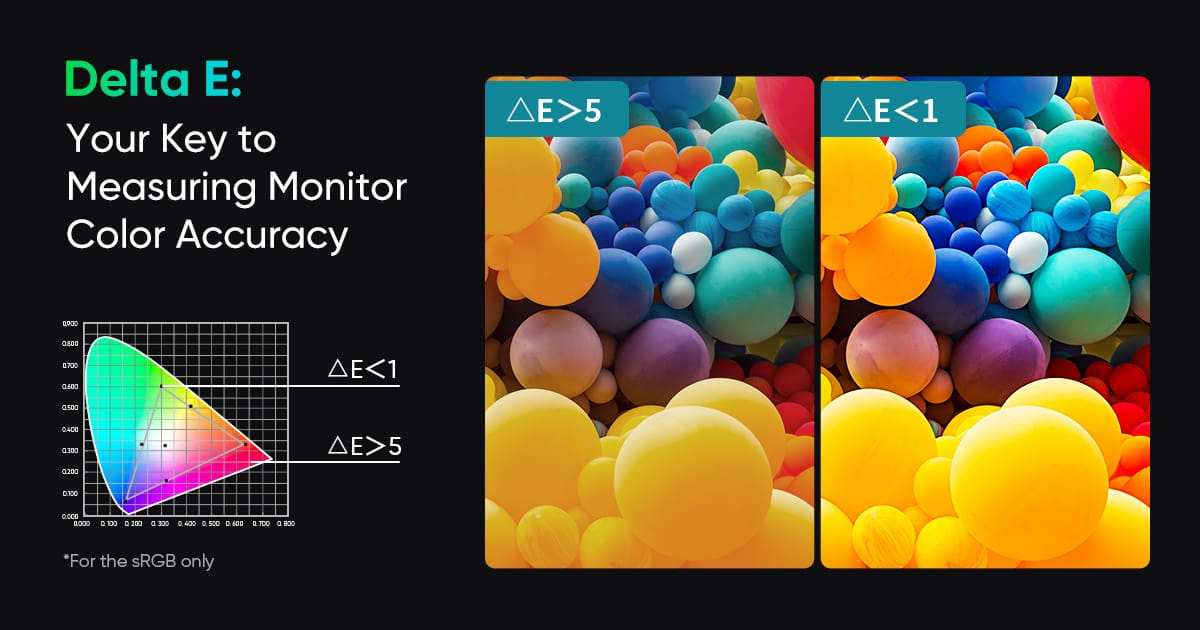
A Delta E value of 1 means the color difference is invisible to the human eye. At 2, only a trained professional can spot it under controlled lighting. Budget monitors often land at Delta E 2‑3 out of the box.
That’s fine for 95% of editing work.
The Top Contenders Under $500
Several manufacturers have built strong reputations for affordable accuracy. Here are the lines you’ll see most often in reviews and forums.
BenQ PD Series. The PD2700U (27‑inch 4K) and PD2725U are staples in video editing communities. They come with a “AQCOLOR” technology that claims Delta E ≤ 2. User feedback confirms consistent performance.
They also include a handy “Darkroom” mode for dim environments.
ASUS ProArt Series. The PA278QV (27‑inch 1440p) and PA279CRV (27‑inch 4K) are some of the most popular budget choices. The PA278QV often drops below $300. It covers 100% sRGB and 100% Rec.709, perfect for video editors.
The ProArt line also includes hardware calibration support, which lets you adjust the monitor’s internal LUT without touching your graphics card.
Dell UltraSharp Series. Models like the U2723QE and U2720Q are known for excellent out‑of‑box accuracy and strong build quality. Dell’s factory calibration program is one of the most thorough in the industry. The U2723QE also includes a built‑in KVM switch and USB‑C hub, which is a huge convenience for a multi‑device workflow.
LG UltraFine Series. The 27UN850‑W is a 27‑inch 4K monitor with 95% DCI‑P3 coverage and Thunderbolt 3 connectivity. It’s especially popular among Mac users because the color profile matches Apple’s display philosophy. It typically retails around $450, though it goes on sale for $350‑$400.
ViewSonic ColorPro Series. The VP2768a is a 27‑inch 1440p monitor aimed at photographers. It covers 100% sRGB and 98% DCI‑P3. ViewSonic includes a hardware calibration puck with some models, which adds value for serious color work.

Each of these models has trade-offs. The BenQ and ASUS units are generally the best value for pure accuracy. The Dell and LG offer better connectivity and convenience.
The ViewSonic gives you hardware calibration tools on a tighter budget.
Side‑by‑Side: Specs, Strengths, and Weaknesses
Let’s lay out the key specs of the most popular models side by side so you can see the differences at a glance.
| Model | Resolution | Color Coverage | Delta E | Approx. Price | Best For |
|---|---|---|---|---|---|
| BenQ PD2700U | 4K UHD | 100% sRGB, 95% DCI‑P3 | ≤ 2 | $400‑$450 | Video editing, photo retouching |
| ASUS PA278QV | QHD (1440p) | 100% sRGB, 100% Rec.709 | ≤ 2 | $270‑$320 | Graphic design, web work |
| Dell U2723QE | 4K UHD | 100% sRGB, 90% DCI‑P3 | ≤ 2 | $450‑$500 | Office + editing hybrid |
| LG 27UN850‑W | 4K UHD | 95% DCI‑P3 | ≤ 2 | $400‑$450 | Mac users, video color grading |
| ViewSonic VP2768a | QHD (1440p) | 100% sRGB, 98% DCI‑P3 | ≤ 2 | $350‑$400 | Photography, print work |
The ASUS PA278QV is the clear winner for pure budget value. It hits all the accuracy targets at the lowest price. If you need 4K resolution for detailed pixel work, the BenQ PD2700U is the best all‑rounder.
The LG UltraFine is the go‑to for Mac setups, especially if you want Thunderbolt integration.
A common weakness across all of these monitors is brightness. They top out around 350 nits, which is fine for indoor editing but won’t handle bright ambient light well. If you work near a window, you’ll need to manage glare with curtains or a hood.
Another limitation: none of these monitors support full HDR. They can accept an HDR signal, but the lack of local dimming and limited peak brightness means HDR content will look flat. That’s a compromise you have to accept at this price range.
Which One Fits Your Workflow?
Picking the right monitor depends on what you actually do. Let’s break it down by user type.
For hobbyist photographers. You edit in Lightroom and maybe print a few shots a month. The ASUS PA278QV is your best bet. Its 1440p resolution is plenty for pixel peeping, and the 100% sRGB coverage means your web galleries will look correct.
You won’t miss 4K at this price point. If you do a lot of print work, the ViewSonic VP2768a’s hardware calibration keeps your monitor consistent over time without needing a separate puck.
For freelance videographers. You grade in DaVinci Resolve and deliver in Rec.709 or DCI‑P3. Go with the BenQ PD2700U. The 4K panel lets you see every detail in a 4K timeline, and the factory calibration for Rec.709 is spot on.
The built‑in speakers are weak, but you’re using studio monitors anyway.
For graphic designers. You need precision for print and screen. The Dell U2723QE gives you excellent out‑of‑box accuracy plus a USB‑C hub for your laptop. The KVM switch is a lifesaver if you switch between a Mac and a PC.
The slightly lower DCI‑P3 coverage (90%) is fine for most brand work. If you work heavily in Adobe RGB for packaging, the ASUS ProArt PA279CRV hits 99% Adobe RGB at $450.
For students or dual‑use desks. You edit projects but also browse and write papers. The LG 27UN850‑W is a solid all‑rounder. Its 4K resolution makes text crisp, and the Mac‑friendly color profile means you won’t fight with gamma mismatches.
The trade‑off is a glossy screen that reflects ambient light, so position it away from windows.
If you need a wider field of view for timelines, you might consider an ultrawide. But be careful: most ultrawides under $500 use VA panels with weaker color accuracy. They’re good for productivity but not for color‑critical work.
For a deeper look, our article on whether ultrawide monitors are good for productivity covers the trade‑offs.
Common Mistakes That Kill Color Accuracy on a Budget
Even a great monitor can look terrible if you set it up wrong. Here are the biggest pitfalls.
Skipping the calibration. That factory report is a starting point, not a permanent guarantee. Monitors drift over time. After six months, your Delta E can climb to 4 or 5 without recalibration.
Buy or borrow a colorimeter like the X‑Rite i1Display Pro or Datacolor Spyder X. Run a calibration every four to six weeks if you do regular client work.
Using the wrong picture mode. Many budget monitors ship in “Vivid” or “Standard” mode. Those modes boost saturation and contrast to look punchy on a store shelf. For editing, switch to “sRGB” or “User” mode.
Some BenQ models have a specific “Animation” or “CAD/CAM” mode that isn’t accurate for photos. Always use the mode labeled for your color space.
Ignoring ambient light. A bright window behind your monitor washes out the screen and tricks your eyes into compensating. Your monitor may look correct, but your edits will come out too dark on other devices. Use a neutral‑colored wall behind the monitor and control overhead lighting.
Not using the right cable. HDMI 1.4 can’t handle 4K at 60Hz with full 10‑bit color. You need HDMI 2.0 or DisplayPort 1.4 for the full signal. USB‑C is fine if it supports DisplayPort Alt Mode.
A weak cable can cause banding or washed‑out colors.
Trusting “HDR” claims. Nearly every budget monitor advertises HDR support. In reality, without local dimming and at least 600 nits peak brightness, you get a flat, crushed image. Disable HDR for editing and stick to standard SDR mode.
That’s where the accuracy lives.
Another mistake is buying a curved monitor for color work. Curved panels, especially VA, can have color shift at the edges. Our article on whether a curved monitor is better for designers explains why flat IPS remains the safer choice.
What You’ll Spend and What You’ll Get
Let’s map price brackets to what you can honestly expect.
Under $300. You can find a 24‑inch 1080p IPS monitor with 99% sRGB and Delta E ≤ 3. The ASUS PA248QV and Dell U2422H fit here. They’re good for basic editing and web work.
The downside: lower resolution means less detail for pixel‑level retouching, and the brightness is usually 250 nits. Fine for a dark room, but struggle in bright conditions.
$300 to $400. This is the sweet spot. You get 27‑inch 1440p or 4K panels with 100% sRGB and Delta E ≤ 2. The ASUS PA278QV and ViewSonic VP2768a dominate this range.
You also start seeing USB‑C connectivity and better ergonomic stands. Most editors should aim here.
$400 to $500. 4K resolution becomes standard, along with wider gamut coverage (95% DCI‑P3 or higher). The BenQ PD2700U and LG 27UN850‑W live here. You also get factory calibration reports that are more detailed.
The extra cost buys you future‑proofing. If you plan to edit in 4K for the next few years, spend the extra $100.
| Price Range | Typical Specs | Best Models |
|---|---|---|
| Under $300 | 24‑inch 1080p, 99% sRGB, Delta E ≤ 3 | ASUS PA248QV, Dell U2422H |
| $300–$400 | 27‑inch 1440p, 100% sRGB, Delta E ≤ 2 | ASUS PA278QV, ViewSonic VP2768a |
| $400–$500 | 27‑inch 4K, 90‑95% DCI‑P3, Delta E ≤ 2 | BenQ PD2700U, LG 27UN850‑W |
Remember: price drops happen frequently during sales events. Monitor prices fluctuate by $50‑$100 during Prime Day, Black Friday, and back‑to‑school season. Set a price alert on a model you like and wait up to two months.
Pro Tips for Getting the Most Out of a Budget Monitor
You can squeeze extra life and accuracy from a low‑cost screen with a few smart habits.
Calibrate with software first. Before buying a colorimeter, try a free software calibration tool. The built‑in Windows or macOS display calibrator can improve gamma and white point. It won’t match a hardware puck, but it helps until you invest.
Use a grey wallpaper. Colorful wallpapers can trick your eyes and affect your perception of image colors. Set a neutral grey or black background. It reduces eye strain and keeps your references honest.
Keep firmware current. Some budget monitors receive firmware updates that fix color profile bugs or add new picture modes. Check the manufacturer’s support page every few months. The update process is usually through a USB cable and a small utility.
Run a uniformity test. Open a full‑screen white image. Look for dark corners or bright patches. Budget panels often have uneven backlight distribution.
If it’s severe, return the monitor. Minor uniformity issues are normal at this price.
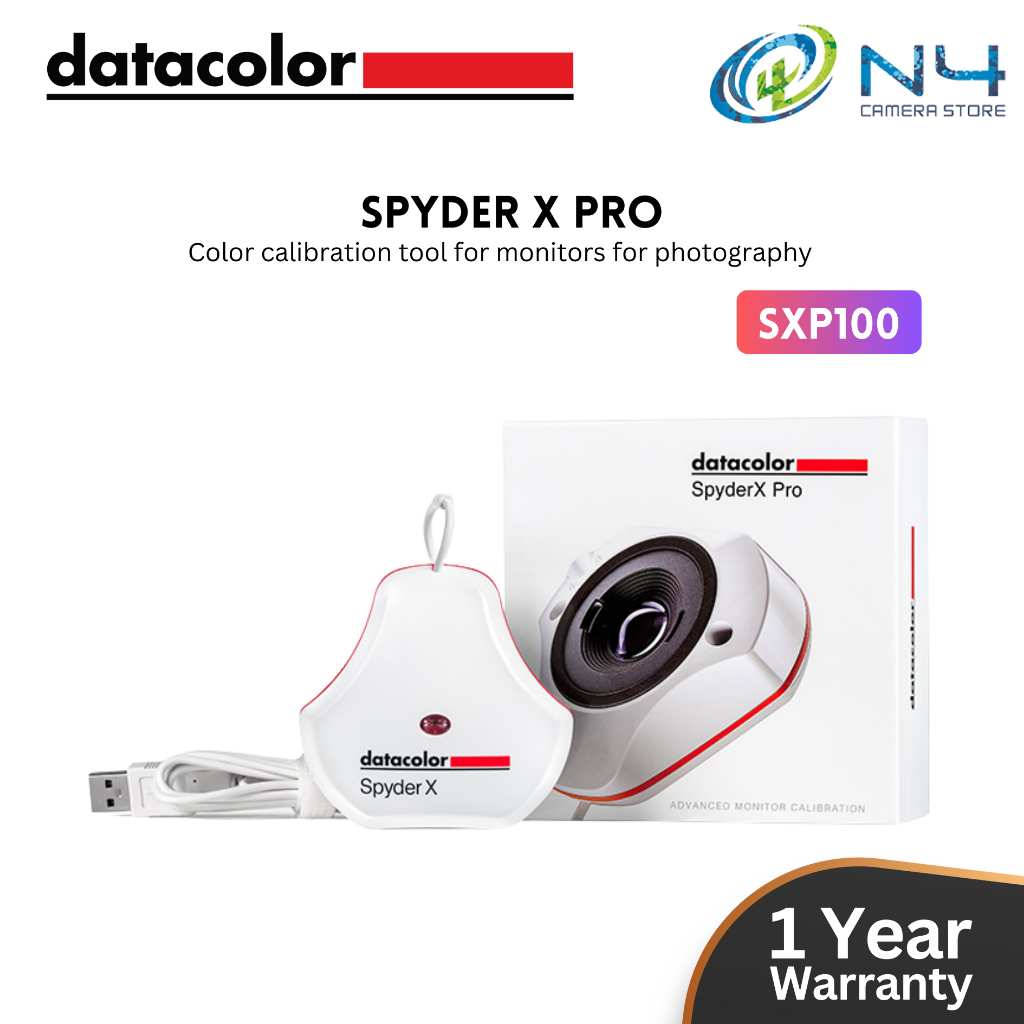
A colorimeter like the Spyder X or i1Display Pro is the single best upgrade for a budget monitor. It costs about $150 but turns a $300 screen into a $600 experience. If you can’t afford one, borrow from a local photo club or rent from a camera store for a weekend.
Use the monitor’s OSD to match brightness to your room. A common trick: set the brightness to 120 cd/m² for a typical office environment. That’s usually around 30‑40% on most monitors. Going above 200 cd/m² for editing washes out shadows.
Frequently Asked Questions
Can I use a gaming monitor for color‑accurate editing?
It depends. Many gaming monitors now use IPS panels with 99% sRGB coverage. However, they often lack factory calibration reports and ship with high brightness and contrast that exaggerate colors.
Look for models with a dedicated sRGB mode and check user reviews for Delta E numbers. The LG 27GP850 is one example that works reasonably well, but it’s not as reliable as a dedicated editing monitor.
Do I need a 4K monitor for color work?
Not necessarily. 1440p is plenty for most editing tasks. 4K helps when you need to see fine details in high‑resolution photos or 4K video timelines. If you work primarily with web graphics or social media content, 1440p saves money and still looks sharp. The extra resolution only matters if you frequently zoom to 100% on large images.
How often should I recalibrate my monitor?
For professional work, every four to six weeks. For hobbyist use, every two to three months is enough. The monitor’s backlight and electronics drift slowly over time.
If you notice your edits looking slightly different when you view them on another screen, it’s time to recalibrate.
Is a used or refurbished monitor a good option?
Yes, if you buy from a reputable seller. Many businesses sell off lightly used Dell UltraSharp and BenQ PD monitors. Refurbished units from the manufacturer often carry a warranty and have been recalibrated.
The risk is unknown backlight hours. Ask for the power‑on time if possible. Avoid units with more than 10,000 hours.
Can I trust the factory calibration report that comes with the monitor?
Most reports are accurate for the first week. After that, the monitor can drift. The report confirms that the panel is capable of good accuracy, but it’s not a permanent guarantee.
Consider the report a sign of quality, not a lifetime pass.
For more on monitor ergonomics and how screen shape affects workflow, see our guide on whether a curved monitor is better for designers and our take on why some people don’t like curved monitors.
The Final Verdict: Which Monitor Wins for Most People?
For the vast majority of editors working under $500, the ASUS ProArt PA278QV is the smartest buy. It delivers Delta E ≤ 2 out of the box, covers 100% sRGB and Rec.709, and costs under $320. You get genuine color accuracy without paying for 4K resolution you may not need.
If your work demands 4K, the BenQ PD2700U is worth the extra $100. The factory calibration is rock solid, and the AQCOLOR technology holds up well over months of use. Pair it with a $150 colorimeter every six weeks, and you have a setup that rivals professional monitors costing twice as much.
No budget monitor is perfect. You trade brightness, HDR support, and resolution for accuracy. But for under $500, you can absolutely trust your screen.
The fix is simple: pick one of the models we covered, calibrate it, and get back to editing with confidence.

Similar Posts





















