Why Do OLED Monitors Dim Automatically
You're working on something, the room lighting hasn't changed, and then your OLED monitor just… dims. No warning, no obvious reason. It's one of the most common complaints from new OLED monitor owners, and it can feel like the display is broken when it's actually doing exactly what it was designed to do.
Understanding why OLED monitors dim automatically comes down to five distinct mechanisms, each with a different trigger and a different fix. Some you can turn off. Some you shouldn't.
Let's walk through all of them so you can figure out what's happening on your screen and what to do about it.

Quick Answer
OLED monitors dim automatically due to built-in protective features. The Automatic Brightness Limiter (ABL) reduces full-screen brightness to manage power and heat. Auto Brightness Control (ABC) adjusts output based on your room's ambient light.
Static content dimming protects against burn-in. HDR tone mapping and thermal protection also cause temporary dimming. Most of these can be adjusted or disabled in your monitor's settings.
Why Your OLED Monitor Keeps Dimming (And How to Fix It)
Here's the thing about OLED technology that catches people off guard. Unlike an IPS or VA panel that pushes a constant backlight through a liquid crystal layer, every single pixel on an OLED panel generates its own light. That's what gives you those perfect blacks and infinite contrast.
But it also means the panel is managing hundreds of thousands of tiny light sources individually, and that creates engineering challenges an LCD simply doesn't have.
Manufacturers build in multiple layers of automatic brightness management to protect the panel, manage power draw, and extend the display's usable life. The problem is these systems often kick in without any obvious notification, so you're left staring at a dimmer screen wondering what changed.
The five mechanisms we'll cover are:
- Automatic Brightness Limiter (ABL), reduces brightness based on how much of the screen is displaying bright content
- Auto Brightness Control (ABC), adjusts brightness based on ambient light sensor readings
- Static content dimming, dims areas of the screen that haven't changed for a while
- HDR peak brightness throttling, limits sustained HDR brightness to prevent overheating
- Thermal protection, reduces output when internal panel temperature gets too high
Each one behaves differently, triggers under different conditions, and has a different fix. Let's break them down one at a time.
The 5 Reasons Your OLED Monitor Dims Automatically
Before diving into each mechanism individually, it helps to understand the big picture. Your OLED monitor is constantly making decisions about brightness based on what's on screen, what the room around you looks like, how hot the panel is running, and how long static elements have been displayed. These aren't bugs.
They're deliberate engineering choices made by LG Display, Samsung Display, and the monitor brands that use their panels.
That said, not all dimming behavior is equally useful. Some of it genuinely protects your investment. Some of it gets in the way of actual work.
Knowing the difference is what we're after here.
Reason 1: Automatic Brightness Limiter (ABL) — The Big One
ABL is the single most common cause of unexpected dimming on OLED monitors, and it's also the one people have the hardest time diagnosing because it's tied to what's actually on screen.
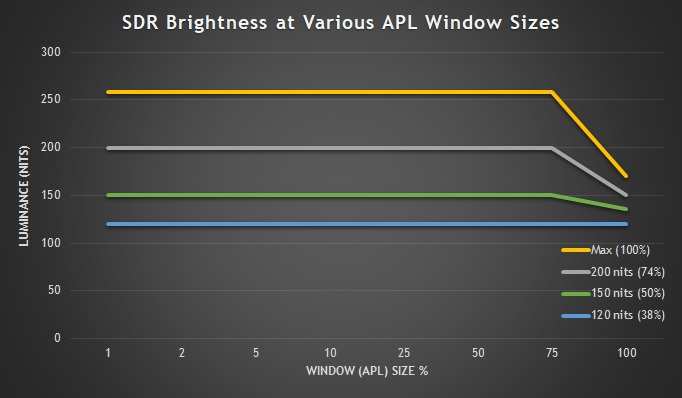
Here's how it works. An OLED panel can only pull so much power and generate so much heat before it risks damaging the organic compounds in the pixels. When you display a small bright window on a dark background, the panel can push those pixels to their maximum rated brightness, often hitting 800 to 1000 nits on current QD-OLED and WOLED panels.
But when you fill the entire screen with that same bright content, the total power draw and heat generation would exceed safe limits. So the ABL circuit kicks in and reduces overall brightness across the panel.
The technical term for what ABL responds to is Average Picture Level, or APL. APL measures what percentage of the screen is displaying bright content versus black. A black screen with a small white cursor has a very low APL.
A full-page white document has an APL near 100%. ABL typically starts engaging meaningfully above 25-30% APL on most current OLED monitor panels.
This is why you'll notice your monitor looks significantly dimmer when you open a full-white webpage compared to watching a movie with letterboxing. Same monitor, same settings, completely different brightness output based purely on content.
What ABL looks like in practice:
- Opening a full-screen spreadsheet and noticing the screen dims after a moment
- Watching a bright scene in a game, then the brightness drops when you open a menu overlay that fills more of the screen
- Switching from a dark IDE theme to a light theme and feeling like the monitor got "worse"
- HDR content that looks stunning in a small window but dim when you go fullscreen
Can you turn ABL off? On most consumer OLED monitors, no. ABL is baked into the panel's power management at a hardware or firmware level. Some professional reference monitors used in color grading suites offer reduced ABL behavior, but they're in a completely different price category.
For mainstream monitors from LG, Samsung, Dell Alienware, ASUS, MSI, and Corsair, ABL is always active.
What you can do about it:
- Use dark mode interfaces wherever possible to keep APL low
- Avoid full-screen bright white backgrounds during color-critical work
- Understand that this is normal and not a defect
- If you need consistent full-screen brightness for professional work, consider whether an OLED panel is the right tool for that specific task
Reason 2: Auto Brightness Control (ABC) and the Ambient Light Sensor
ABC is a separate system from ABL, and unlike ABL, you can almost always turn this one off.
Many modern OLED monitors include an ambient light sensor, usually a small photodiode built into the bezel or behind the panel glass. This sensor measures the light level in your room and adjusts the monitor's brightness accordingly. The idea is the same as your phone's auto-brightness feature.
In a dark room, the screen dims to reduce eye strain. In a bright room, it boosts to stay visible.
The problem is the sensor doesn't always make the right call. If you've got a desk lamp that shifts position, clouds passing outside your window, or even a bright shirt you're wearing reflecting light toward the sensor, your monitor's brightness can fluctuate in ways that feel random and distracting.
What ABC looks like in practice:
- Your monitor dims when you turn off a desk lamp, even though you want it at a fixed brightness
- Brightness creeps up during the day and down at night without you touching anything
- The screen seems to "breathe" in brightness as clouds pass or room lighting shifts
- You move something on your desk and the brightness changes because it altered what the sensor sees
How to check if ABC is active:
Look through your monitor's OSD menu for settings labeled "Auto Brightness," "Eco Mode," "Smart Energy Saving," "Ambient Light Sensor," or similar. On LG monitors, it's often under Picture settings. On Dell Alienware models, look in the Display section.
On ASUS ROG OLED monitors, check the System Setup menu.
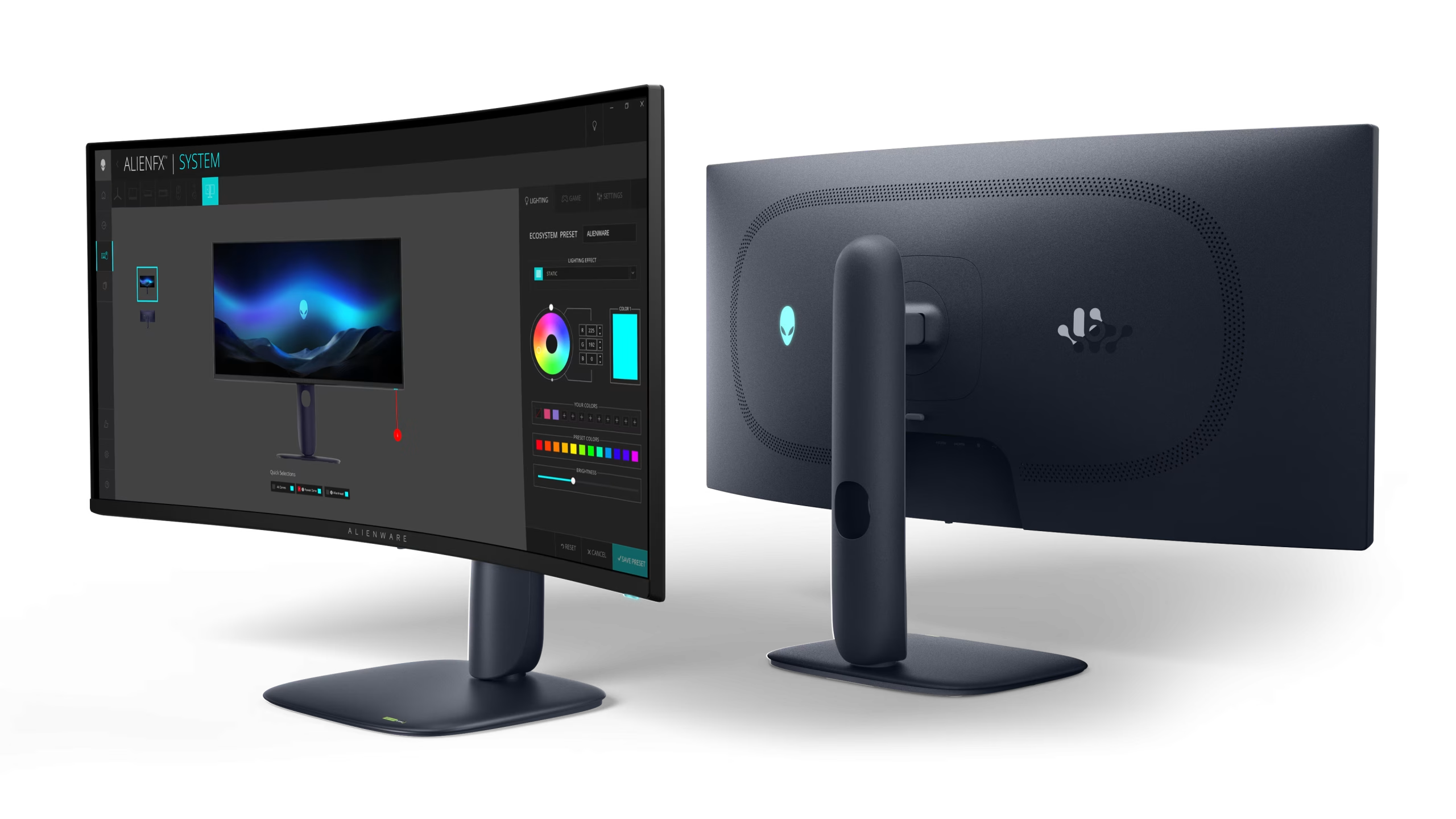
The fix is straightforward. Turn off the ambient light sensor or auto brightness feature in your OSD, then set your brightness manually to whatever level works for your room. You'll get consistent output regardless of what's happening around you.
One thing worth noting. Some monitors tie other power-saving features to the same Eco Mode setting. So when you disable auto brightness, you might also be disabling aggressive standby timers or other behaviors you actually want.
Check what else is bundled into that setting before you toggle it.
Reason 3: Static Content Dimming — Your Monitor Is Protecting Itself
This one is specifically about burn-in prevention, and it's more targeted than ABL. Instead of dimming the whole screen based on overall brightness, static content dimming identifies areas of the display that haven't changed for an extended period and reduces their brightness locally.
Think about what a typical workday looks like on a monitor. Your taskbar sits at the bottom. Your browser tabs sit at the top.
Maybe you've got a dock on one side. These elements are literally the same pixels, displaying the same colors, for hours at a time. Meanwhile, the center of your screen changes constantly as you work.
Over months and years, those static elements can age faster than the rest of the panel, leading to visible burn-in.
Static content dimming fights this by subtly reducing the brightness of areas that haven't changed. The effect is usually gradual enough that you don't notice it happening in real time, but if you open a full-screen uniform color, you might see faint "shadows" where your taskbar or tabs usually sit.
What static content dimming looks like in practice:
- Faint outlines of your taskbar or dock visible when viewing full-screen solid colors
- A monitor that seems slightly dimmer in the same areas where you always have static UI elements
- Brightness that recovers in those areas once you move content over them
- The effect is more noticeable after months of use, not right out of the box
Related features you'll find alongside static content dimming:
- Pixel shift, the entire image moves by a few pixels periodically, so static elements don't always hit the exact same subpixels
- Pixel refresh, a compensation cycle that runs automatically after a set number of hours or manually on demand, usually taking 5-10 minutes
- Logo dimming, specifically targets static logos or UI elements and reduces their brightness
Most of these features are enabled by default and should stay that way unless you have a specific reason to disable them. They're your primary defense against permanent burn-in, which is the one failure mode that LCD panels simply don't have to worry about.
Reason 4: HDR Peak Brightness Throttling
HDR on OLED is a bit of a balancing act. Current OLED panels can hit impressive peak brightness numbers, but only in small windows and only for short durations. A QD-OLED panel might hit 1000 nits on a 10% white window, but sustain only 250 nits or so across a full white screen.
WOLED panels from LG Display follow a similar pattern, though the exact numbers vary by generation and implementation.
When you're watching HDR content or playing an HDR game, the monitor is constantly tone-mapping the signal to what the panel can actually deliver. Bright highlights get punched up. Full-screen bright scenes get pulled back.
The result is that HDR content can feel inconsistent in brightness, especially if you're coming from a high-end Mini-LED LCD that can sustain higher full-screen brightness.
What HDR throttling looks like in practice:
- A bright explosion in a game looks stunning, then the overall scene dims as the bright area expands
- HDR movies that look punchy in letterboxed format seem dimmer when the image fills the whole screen
- The monitor seems to "pump" brightness up and down during HDR content
- SDR content at the same brightness setting looks more consistent than HDR
This is largely by design. The VESA DisplayHDR specifications that manufacturers test against account for this behavior. A monitor can be certified as DisplayHDR True Black 400 or True Black 600 while still having significant ABL and HDR throttling. The certification measures peak capability, not sustained full-screen output.
If HDR brightness inconsistency bothers you, try these adjustments:
- Use the monitor's HDR tone mapping setting if available, which can smooth out the transitions
- Some monitors offer an "HDR Brightness" or "Peak Brightness" setting that changes how aggressively the panel pushes highlights
- Consider whether you actually prefer SDR for desktop use and only enable HDR for specific content
- Check if your monitor's firmware has been updated, as manufacturers sometimes refine HDR behavior over time
Reason 5: Thermal Protection and Firmware Behavior
This is the least common cause but the one that tends to worry people the most because it can feel like the monitor is malfunctioning.
OLED panels generate heat. The organic materials are less efficient at converting electricity to light than you might expect, and a significant portion of that energy becomes heat. Most OLED monitors include temperature sensors that monitor panel temperature in real time.
If the temperature approaches a threshold the manufacturer considers safe, the firmware will reduce brightness to bring it back down.
Thermal throttling is more likely in certain situations:
- Poor ventilation behind the monitor
- High ambient room temperature
- Extended use at maximum brightness
- Enclosed spaces like monitor arms pressed against walls
- Summer months without air conditioning
What thermal protection looks like in practice:
- The monitor dims after extended use, even with the same content on screen
- Brightness recovers after the monitor has been off for a while
- The dimming is more pronounced in warmer rooms
- The back of the monitor feels noticeably hot to the touch
Firmware can also cause unexpected dimming. Some monitor firmware versions have bugs that cause incorrect brightness behavior. This is more common in the first few months after a new model launches. Manufacturers typically address these through firmware updates, which you can apply via USB or through the monitor's built-in update function if it supports one.
If you suspect thermal throttling or a firmware issue:
- Make sure the monitor has adequate ventilation on all sides
- Check the manufacturer's support site for firmware updates
- Note whether the dimming correlates with room temperature or usage duration
- Contact support if the behavior is severe or happens under normal conditions
How to Figure Out Which One Is Happening to You
Now that you know the five mechanisms, the next step is identifying which one is actually affecting your monitor. Here's a practical diagnostic approach.
Step 1: Note when the dimming happens. Is it tied to specific content on screen? That's likely ABL. Does it correlate with room lighting changes?
That's probably ABC. Does it happen after the monitor has been on for a while? That could be thermal.
Step 2: Check your OSD settings. Go through the menu and look for any auto-brightness, eco mode, or ambient light sensor settings. Disable them one at a time and see if the behavior changes.
Step 3: Test with different content. Open a full-white webpage, then a mostly black image, then a mixed-content document. If brightness changes dramatically based on content, ABL is the culprit.
Step 4: Check for firmware updates. Visit your monitor manufacturer's support page and see if there's a newer firmware version available. Read the release notes to see if brightness behavior was addressed.
Step 5: Rule out cable and signal issues. A failing DisplayPort or HDMI cable can cause handshake problems that mimic dimming. Try a different cable, a different port, or a different source device.
Step-by-Step Fixes for Each Dimming Type
Here's a quick reference for what to do once you've identified the cause.
For ABL-related dimming:
- Switch to dark mode in your OS and applications
- Reduce the brightness of static UI elements where possible
- Accept that full-screen brightness will always be lower than small-window brightness on OLED
- Consider a monitor with a less aggressive ABL implementation if this is a dealbreaker
For ABC-related dimming:
- Disable the ambient light sensor in your monitor's OSD
- Turn off Eco Mode or Smart Energy Saving features
- Set brightness manually to a fixed value
- If your monitor doesn't have an ABC sensor, check your operating system for similar features
For static content dimming:
- Keep pixel shift and logo dimming enabled for panel protection
- Use auto-hide for taskbars and docks
- Vary your content periodically if you're doing long sessions with static layouts
- Run the manual pixel refresh if available and if you notice uneven brightness
For HDR throttling:
- Experiment with your monitor's HDR tone mapping settings
- Try both HDR and SDR modes to see which you prefer for different content
- Update firmware to the latest version
- Adjust the HDR brightness or peak luminance setting if your monitor offers one
For thermal protection:
- Improve ventilation around the monitor
- Reduce room temperature if possible
- Lower the brightness setting to reduce heat generation
- Update firmware and contact support if the issue persists under normal conditions
Settings to Check in Your Monitor OSD Right Now
Your monitor's on-screen display is where most of these features live. Here's what to look for, though exact menu names vary by brand.
Common OSD settings that affect automatic dimming:
| Setting Name | What It Does | Recommended Action |
|---|---|---|
| Auto Brightness / ABC | Adjusts brightness based on room light | Disable if you want consistent output |
| Eco Mode / Smart Energy Saving | Reduces brightness to save power | Disable for consistent performance |
| Pixel Shift | Moves image slightly to prevent burn-in | Keep enabled |
| Logo Dimming | Reduces brightness of static logos | Keep enabled |
| Panel Refresh / Pixel Refresh | Compensation cycle for pixel aging | Run when prompted or manually every few weeks |
| HDR Tone Mapping | Controls how HDR content is displayed | Adjust to preference |
| Peak Brightness / OLED Luminance | Sets maximum panel brightness | Set to your preference, higher = more heat |
| Screen Saver / Auto Off | Dims or turns off screen after inactivity | Set to your preference |
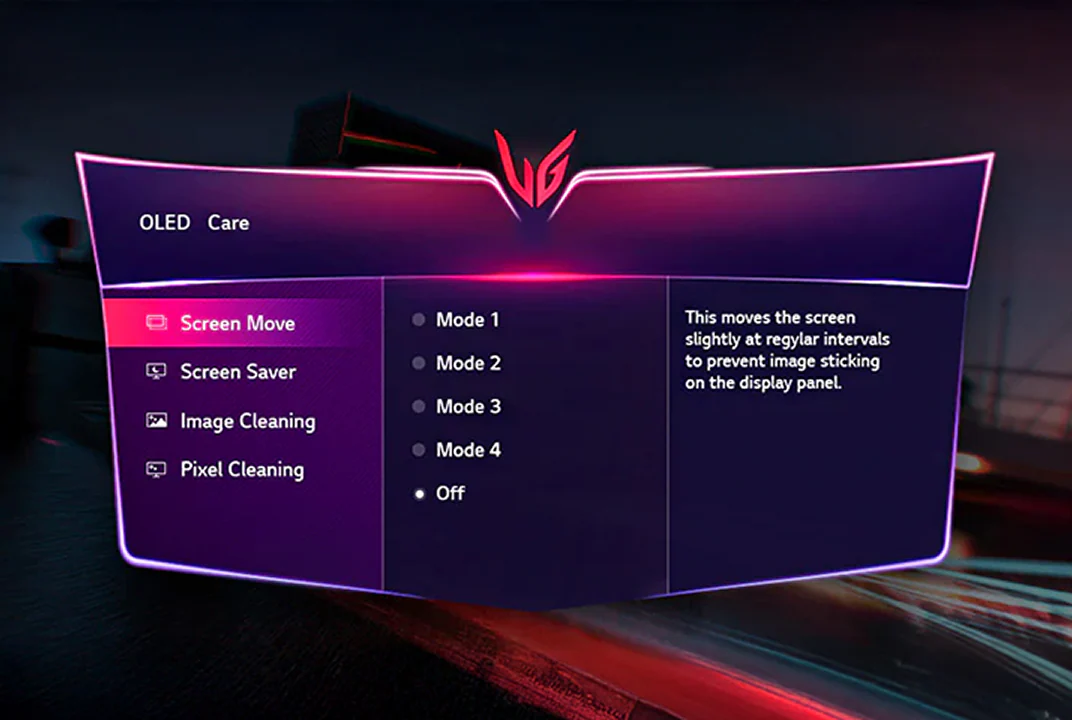
Spend five minutes going through your OSD menu with this list in hand. You'll likely find at least one setting that's causing behavior you didn't want.
Windows and Mac Settings That Make It Worse
Your operating system can add its own layer of automatic brightness management on top of what the monitor is already doing. This creates a double-dimming effect that can be really frustrating.
On Windows:
- Adaptive brightness uses the ambient light sensor if your monitor has one. Go to Settings > System > Display and look for "Change brightness automatically when lighting changes." Turn it off if you've already disabled ABC in the monitor OSD.
- HDR brightness in Windows has its own slider separate from SDR brightness. When you enable HDR in Windows display settings, a separate brightness control appears. Many people don't realize this exists and wonder why HDR content looks dim.
- Night Light reduces blue light but can also make the display appear dimmer and warmer. It's not true dimming, but it changes the perceived brightness.
- Content Adaptive Brightness Control (CABC) is a Windows feature that adjusts brightness based on content. It's more common on laptops but can affect external displays in some configurations. You can disable it in the Intel or AMD graphics control panel.
On Mac:
- Auto-brightness in System Settings > Displays works similarly to Windows adaptive brightness. Turn it off if you want manual control.
- True Tone adjusts color temperature based on ambient light. It doesn't change brightness directly, but the warmer tone can make the display feel less bright.
- HDR behavior on macOS varies by model. Some Macs with external OLED displays handle HDR differently than others, and the brightness behavior can shift between SDR and HDR modes in ways that feel inconsistent.
The general rule is to disable OS-level auto-brightness features once you've set your monitor's brightness manually. Letting both the OS and the monitor fight over brightness control is a recipe for frustration.
When It's Not a Feature — Cable, Handshake, and Hardware Issues
Sometimes dimming isn't a protective feature at all. It's a hardware or signal problem masquerading as one.
Cable issues are more common than people think. A damaged or low-quality DisplayPort or HDMI cable can cause intermittent signal problems that manifest as brightness changes, flickering, or brief blackouts. If your dimming is accompanied by any flickering, color shifts, or momentary signal loss, try a different cable first.
EDID handshake problems happen when your graphics card and monitor don't communicate properly about supported resolutions, refresh rates, and color formats. This can cause the monitor to switch between different brightness or color modes unexpectedly. Updating your GPU drivers and monitor firmware often resolves this.
GPU driver settings can also interfere. Both NVIDIA and AMD control panels have color and brightness settings that can conflict with the monitor's own settings. If you've adjusted digital vibrance, contrast, or gamma in your GPU control panel, try resetting those to default and see if the dimming behavior changes.
Power delivery issues matter too, especially with USB-C connected monitors. If your laptop isn't delivering enough power over USB-C, the monitor might reduce brightness to stay within its power budget. Check that you're using a cable and port that support the full power delivery specification your monitor needs.
What You Can't Turn Off (And Why That's Actually Good)
Let's be honest about the limitations. ABL is not going away on consumer OLED monitors. It's a fundamental consequence of the physics involved in driving millions of organic light-emitting diodes simultaneously.
The panels simply cannot sustain peak brightness across the full screen without exceeding safe thermal and power limits.
Thermal protection is also non-negotiable. Running an OLED panel at unsafe temperatures accelerates pixel degradation and can cause permanent damage. If your monitor is throttling due to heat, that's the system working correctly.
Static content dimming and pixel shift are your primary defenses against burn-in, and disabling them to gain a small brightness boost is a tradeoff that will cost you in the long run. Burn-in on OLED is cumulative and permanent. Once those pixels have aged unevenly, there's no fixing it.
The features you can and should control are ABC, eco mode, and OS-level adaptive brightness. These are convenience features, not protective ones, and turning them off gives you the consistent, predictable brightness output most people want.
Real-World Examples: What Dimming Looks Like in Different Scenarios
The spreadsheet worker. You open Excel with a white background and the screen dims noticeably after a few seconds. That's ABL responding to the high APL of a full-screen white document. Switch to a dark theme in Excel and the brightness recovers immediately.
The gamer. You're playing a game with a bright HUD on a dark scene. The overall image looks punchy. You open your inventory screen, which is a bright overlay covering most of the screen, and everything dims.
That's ABL again, triggered by the sudden increase in bright pixels.
The video editor. You're working in DaVinci Resolve with panels all around the edges and a small preview window in the center. After an hour, you notice faint outlines of your panel layout when you view a full-screen color bar test pattern. That's static content dimming doing its job, protecting the pixels that have been displaying the same UI elements for hours.
The mixed-use home office user. Your monitor dims in the afternoon when sunlight hits the ambient light sensor. You didn't even know the sensor was there. You disable ABC in the OSD and the problem disappears.
The HDR movie watcher. You start a 4K HDR movie and the opening scene looks stunning. As the movie progresses and brighter scenes fill more of the screen, the overall image seems to lose some punch. That's HDR tone mapping and ABL working together to keep the panel within its sustained output limits.
Frequently Asked Questions
Is automatic dimming a defect in my OLED monitor?
No. Automatic dimming is a normal behavior built into every OLED monitor. The Automatic Brightness Limiter, static content dimming, and thermal protection are all intentional design features that protect the panel and extend its lifespan.
If the dimming is extreme or happens under unusual conditions, contact the manufacturer's support team.
Can I completely disable ABL on my OLED monitor?
On consumer OLED monitors, ABL cannot be fully disabled. It's managed at the firmware or hardware level to protect the panel from exceeding safe power and thermal limits. Professional reference monitors used in broadcast and color grading sometimes offer reduced ABL behavior, but they cost significantly more.
Why does my OLED monitor dim when I open a white webpage?
This is ABL responding to the high Average Picture Level of a full-white screen. When most pixels are displaying bright content, the panel must reduce overall brightness to stay within safe power and darken limits. Switching to a dark theme or reducing the amount of bright content on screen will restore higher brightness levels.
Does disabling auto brightness hurt my OLED panel?
Disabling auto brightness (ABC) does not harm the panel. ABC is a convenience feature that adjusts brightness based on ambient light, not a protective mechanism. Features like ABL, pixel shift, and static content dimming are the ones that actually protect against burn-in and should remain enabled.
How do I stop my OLED monitor from dimming during HDR content?
You can't fully prevent HDR brightness variation on OLED, but you can minimize it. Update your monitor's firmware, experiment with the HDR tone mapping setting in your OSD, and make sure Windows or macOS HDR brightness is set appropriately. Some variation is inherent to how OLED panels manage power during HDR playback.
Will my OLED monitor get dimmer over time?
All OLED panels experience gradual luminance decay over thousands of hours of use. This is normal organic material aging, not a defect. Current OLED monitor panels are rated for roughly 30,000 to 50,000 hours of use before reaching half-brightness under normal conditions.
The protective dimming features we've discussed are separate from this long-term aging process.
The Bottom Line: What to Do First
If your OLED monitor is dimming and it's driving you crazy, start with the easy fixes. Go into your OSD and disable any auto-brightness or eco mode settings. Turn off adaptive brightness in Windows or macOS.
Set your brightness manually and leave it there.
If the dimming is content-dependent, that's ABL, and you'll need to work around it by using dark interfaces and accepting that full-screen brightness will always be lower than small-window brightness on OLED.
If the dimming is thermal, improve ventilation and consider whether your room temperature is contributing.
And if none of those explain what you're seeing, check for firmware updates and try a different cable. Most "my OLED monitor is broken" complaints turn out to be one of these five mechanisms doing exactly what it was designed to do.
Settings to Check in Your Monitor OSD Right Now
Your monitor's on-screen display is where most of these features live. Here's what to look for, though exact menu names vary by brand.
Common OSD settings that affect automatic dimming:
| Setting Name | What It Does | Recommended Action |
|---|---|---|
| Auto Brightness / ABC | Adjusts brightness based on room light | Disable if you want consistent output |
| Eco Mode / Smart Energy Saving | Reduces brightness to save power | Disable for consistent performance |
| Pixel Shift | Moves image slightly to prevent burn-in | Keep enabled |
| Logo Dimming | Reduces brightness of static logos | Keep enabled |
| Panel Refresh / Pixel Refresh | Compensation cycle for pixel aging | Run when prompted or manually every few weeks |
| HDR Tone Mapping | Controls how HDR content is displayed | Adjust to preference |
| Peak Brightness / OLED Luminance | Sets maximum panel brightness | Set to your preference, higher = more heat |
| Screen Saver / Auto Off | Dims or turns off screen after inactivity | Set to your preference |
Spend five minutes going through your OSD menu with this list in hand. You'll likely find at least one setting that's causing behavior you didn't want.
Windows and Mac Settings That Make It Worse
Your operating system can add its own layer of automatic brightness management on top of what the monitor is already doing. This creates a double-dimming effect that can be really frustrating.
On Windows:
- Adaptive brightness uses the ambient light sensor if your monitor has one. Go to Settings > System > Display and look for "Change brightness automatically when lighting changes." Turn it off if you've already disabled ABC in the monitor OSD.
- HDR brightness in Windows has its own slider separate from SDR brightness. When you enable HDR in Windows display settings, a separate brightness control appears. Many people don't realize this exists and wonder why HDR content looks dim.
- Night Light reduces blue light but can also make the display appear dimmer and warmer. It's not true dimming, but it changes the perceived brightness.
- Content Adaptive Brightness Control (CABC) is a Windows feature that adjusts brightness based on content. It's more common on laptops but can affect external displays in some configurations. You can disable it in the Intel or AMD graphics control panel.
On Mac:
- Auto-brightness in System Settings > Displays works similarly to Windows adaptive brightness. Turn it off if you want manual control.
- True Tone adjusts color temperature based on ambient light. It doesn't change brightness directly, but the warmer tone can make the display feel less bright.
- HDR behavior on macOS varies by model. Some Macs with external OLED displays handle HDR differently than others, and the brightness behavior can shift between SDR and HDR modes in ways that feel inconsistent.
The general rule is to disable OS-level auto-brightness features once you've set your monitor's brightness manually. Letting both the OS and the monitor fight over brightness control is a recipe for frustration.
When It's Not a Feature — Cable, Handshake, and Hardware Issues
Sometimes dimming isn't a protective feature at all. It's a hardware or signal problem masquerading as one.
Cable issues are more common than people think. A damaged or low-quality DisplayPort or HDMI cable can cause intermittent signal problems that manifest as brightness changes, flickering, or brief blackouts. If your dimming is accompanied by any flickering, color shifts, or momentary signal loss, try a different cable first.
EDID handshake problems happen when your graphics card and monitor don't communicate properly about supported resolutions, refresh rates, and color formats. This can cause the monitor to switch between different brightness or color modes unexpectedly. Updating your GPU drivers and monitor firmware often resolves this.
GPU driver settings can also interfere. Both NVIDIA and AMD control panels have color and brightness settings that can conflict with the monitor's own settings. If you've adjusted digital vibrance, contrast, or gamma in your GPU control panel, try resetting those to default and see if the dimming behavior changes.
Power delivery issues matter too, especially with USB-C connected monitors. If your laptop isn't delivering enough power over USB-C, the monitor might reduce brightness to stay within its power budget. Check that you're using a cable and port that support the full power delivery specification your monitor needs.
What You Can't Turn Off (And Why That's Actually Good)
Let's be honest about the limitations. ABL is not going away on consumer OLED monitors. It's a fundamental consequence of the physics involved in driving millions of organic light-emitting diodes simultaneously.
The panels simply cannot sustain peak brightness across the full screen without exceeding safe thermal and power limits.
Thermal protection is also non-negotiable. Running an OLED panel at unsafe temperatures accelerates pixel degradation and can cause permanent damage. If your monitor is throttling due to heat, that's the system working correctly.
Static content dimming and pixel shift are your primary defenses against burn-in, and disabling them to gain a small brightness boost is a tradeoff that will cost you in the long run. Burn-in on OLED is cumulative and permanent. Once those pixels have aged unevenly, there's no fixing it.
The features you can and should control are ABC, eco mode, and OS-level adaptive brightness. These are convenience features, not protective ones, and turning them off gives you the consistent, predictable brightness output most people want.
Real-World Examples: What Dimming Looks Like in Different Scenarios
The spreadsheet worker. You open Excel with a white background and the screen dims noticeably after a few seconds. That's ABL responding to the high APL of a full-screen white document. Switch to a dark theme in Excel and the brightness recovers immediately.
The gamer. You're playing a game with a bright HUD on a dark scene. The overall image looks punchy. You open your inventory screen, which is a bright overlay covering most of the screen, and everything dims.
That's ABL again, triggered by the sudden increase in bright pixels.
The video editor. You're working in DaVinci Resolve with panels all around the edges and a small preview window in the center. After an hour, you notice faint outlines of your panel layout when you view a full-screen color bar test pattern. That's static content dimming doing its job, protecting the pixels that have been displaying the same UI elements for hours.
The mixed-use home office user. Your monitor dims in the afternoon when sunlight hits the ambient light sensor. You didn't even know the sensor was there. You disable ABC in the OSD and the problem disappears.
The HDR movie watcher. You start a 4K HDR movie and the opening scene looks stunning. As the movie progresses and brighter scenes fill more of the screen, the overall image seems to lose some punch. That's HDR tone mapping and ABL working together to keep the panel within its sustained output limits.
Frequently Asked Questions
Is automatic dimming a defect in my OLED monitor?
No. Automatic dimming is a normal behavior built into every OLED monitor. The Automatic Brightness Limiter, static content dimming, and thermal protection are all intentional design features that protect the panel and extend its lifespan.
If the dimming is extreme or happens under unusual conditions, contact the manufacturer's support team.
Can I completely disable ABL on my OLED monitor?
On consumer OLED monitors, ABL cannot be fully disabled. It's managed at the firmware or hardware level to protect the panel from exceeding safe power and thermal limits. Professional reference monitors used in broadcast and color grading sometimes offer reduced ABL behavior, but they cost significantly more.
Why does my OLED monitor dim when I open a white webpage?
This is ABL responding to the high Average Picture Level of a full-white screen. When most pixels are displaying bright content, the panel must reduce overall brightness to stay within safe power limits. Switching to a dark theme or reducing the amount of bright content on screen will restore higher brightness levels.
Does disabling auto brightness hurt my OLED panel?
Disabling auto brightness (ABC) does not harm the panel. ABC is a convenience feature that adjusts brightness based on ambient light, not a protective mechanism. Features like ABL, pixel shift, and static content dimming are the ones that actually protect against burn-in and should remain enabled.
How do I stop my OLED monitor from dimming during HDR content?
You can't fully prevent HDR brightness variation on OLED, but you can minimize it. Update your monitor's firmware, experiment with the HDR tone mapping setting in your OSD, and make sure Windows or macOS HDR brightness is set appropriately. Some variation is inherent to how OLED panels manage power during HDR playback.
Will my OLED monitor get dimmer over time?
All OLED panels experience gradual luminance decay over thousands of hours of use. This is normal organic material aging, not a defect. Current OLED monitor panels are rated for roughly 30,000 to 50,000 hours of use before reaching half-brightness under normal conditions.
The protective dimming features we've discussed are separate from this long-term aging process.
The Bottom Line: What to Do First
If your OLED monitor is dimming and it's driving you crazy, start with the easy fixes. Go into your OSD and disable any auto-brightness or eco mode settings. Turn off adaptive brightness in Windows or macOS.
Set your brightness manually and leave it there.
If the dimming is content-dependent, that's ABL, and you'll need to work around it by using dark interfaces and accepting that full-screen brightness will always be lower than small-window brightness on OLED.
If the dimming is thermal, improve ventilation and consider whether your room temperature is contributing.
And if none of those explain what you're seeing, check for firmware updates and try a different cable. Most "my OLED monitor is broken" complaints turn out to be one of these five mechanisms doing exactly what it was designed to do.
Frequently Asked Questions
Is automatic dimming a defect in my OLED monitor?
No. Automatic dimming is a normal behavior built into every OLED monitor. The Automatic Brightness Limiter, static content dimming, and thermal protection are all intentional design features that protect the panel and extend its lifespan.
If the dimming is extreme or happens under unusual conditions, contact the manufacturer's support team.
Can I completely disable ABL on my OLED monitor?
On consumer OLED monitors, ABL cannot be fully disabled. It's managed at the firmware or hardware level to protect the panel from exceeding safe power and thermal limits. Professional reference monitors used in broadcast and color grading sometimes offer reduced ABL behavior, but they cost significantly more.
Why does my OLED monitor dim when I open a white webpage?
This is ABL responding to the high Average Picture Level of a full-white screen. When most pixels are displaying bright content, the panel must reduce overall brightness to stay within safe power limits. Switching to a dark theme or reducing the amount of bright content on screen will restore higher brightness levels.
Does disabling auto brightness hurt my OLED panel?
Disabling auto brightness (ABC) does not harm the panel. ABC is a convenience feature that adjusts brightness based on ambient light, not a protective mechanism. Features like ABL, pixel shift, and static content dimming are the ones that actually protect against burn-in and should remain enabled.
How do I stop my OLED monitor from dimming during HDR content?
You can't fully prevent HDR brightness variation on OLED, but you can minimize it. Update your monitor's firmware, experiment with the HDR tone mapping setting in your OSD, and make sure Windows or macOS HDR brightness is set appropriately. Some variation is inherent to how OLED panels manage power during HDR playback.
Will my OLED monitor get dimmer over time?
All OLED panels experience gradual luminance decay over thousands of hours of use. This is normal organic material aging, not a defect. Current OLED monitor panels are rated for roughly 30,000 to 50,000 hours of use before reaching half-brightness under normal conditions.
The protective dimming features we've discussed are separate from this long-term aging process.
The Bottom Line: What to Do First
If your OLED monitor is dimming and it's driving you crazy, start with the easy fixes. Go into your OSD and disable any auto-brightness or eco mode settings. Turn off adaptive brightness in Windows or macOS.
Set your brightness manually and leave it there.
If the dimming is content-dependent, that's ABL, and you'll need to work around it by using dark interfaces and accepting that full-screen brightness will always be lower than small-window brightness on OLED.
If the dimming is thermal, improve ventilation and consider whether your room temperature is contributing.
And if none of those explain what you're seeing, check for firmware updates and try a different cable. Most "my OLED monitor is broken" complaints turn out to be one of these five mechanisms doing exactly what it was designed to do.
 ✓
✓Chris Nolan
Senior Hardware & Tech Editor · Lead Benchmark SpecialistChris Nolan leads consumer electronics benchmarking and hardware diagnostics at TechBink. With over 15 years of laboratory stress-testing experience across mobile silicon, PC computing architectures, and cutting-edge gadgetry, Chris provides objective, data-backed hardware reviews and teardowns.

Similar Posts