What Is 144Hz Monitor
So you're looking at monitors and keep seeing "144Hz" plastered across every product page. You want to know if it actually matters or if it's just another spec designed to separate you from your money.
Here's the short version: a 144Hz monitor refreshes the image on screen 144 times per second, which is a massive jump over the standard 60Hz. That difference shows up as smoother motion, less blur, and lower input lag, but whether you'll personally care about it depends on what you're actually doing with your screen. Let's break it all down so you can decide for yourself.
")
Quick Answer
A 144Hz monitor displays 144 frames per second. That is 2.4 times faster than a standard 60Hz display. It makes motion look smoother and feel more responsive.
You will notice the difference most in fast-paced games and quick cursor movement.
The 60Hz vs. 144Hz Difference You Can Actually See
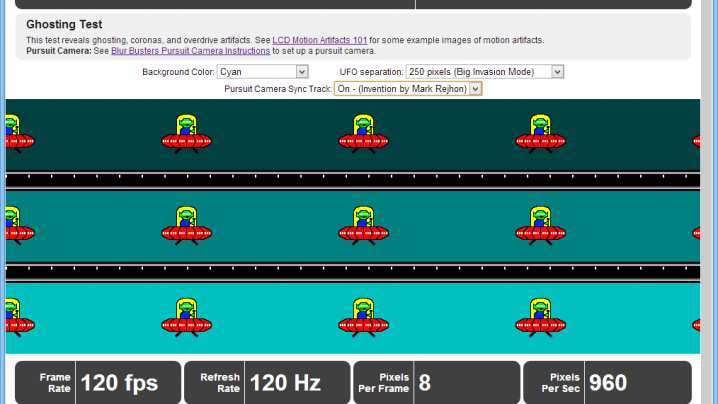
Most people can perceive the jump from 60Hz to 144Hz immediately. It is one of the few upgrades you do not need to squint at to appreciate.
On a standard 60Hz panel, the screen updates every 16.67 milliseconds. At 144Hz, that drops to roughly 6.94 milliseconds per refresh. That means the display is pulling in new visual information more than twice as often.
The result is smoother motion, less visible ghosting behind fast-moving objects, and a general sense that everything on screen feels "tighter" and more connected to your inputs.
This is most noticeable in:
- First-person shooters where you are flicking the camera around quickly
- Racing games during high-speed panning
- Scrolling through web pages and documents (yes, even that feels different)
- Moving windows around on the desktop
Here is something important though. You only benefit from a 144Hz monitor if your system is actually producing close to 144 frames per second. If your GPU is only pushing 50 FPS in a heavy game, you are not getting the full advantage of that refresh rate.
The monitor will still display 144 times per second, but many of those refreshes will show the same frame.
PerBlur Busters' widely referenced testing methodology, the perceptibility curve flattens significantly above 144Hz for most users. That is why 144Hz has become the industry sweet spot, it is the point where most people get the vast majority of the smoothness benefit without paying premium prices for diminishing returns.
")
What 144Hz Really Means (And Why the Marketing Oversimplifies It)
Refresh rate refers to how many times per second the display draws a new image. That sounds simple enough. But the spec sheet hides some nuances that actually matter in real-world use.
A monitor labeled "144Hz" can technically refresh at that rate, but the quality of that experience depends on several other factors working in tandem. Response time, overdrive tuning, backlight strobing, and adaptive sync all interact with refresh rate to determine how good motion actually looks. A poorly tuned 144Hz monitor with a 5ms gray-to-gray response time can look worse at motion than a well-tuned 60Hz panel with faster pixel transitions.
refresh rate tells you how often the screen updates.
Response time tells you how quickly each pixel can change color.
Both matter, and they are not the same thing.
There is also the distinction between how the manufacturer measures response time. Some quote MPRT (Moving Picture Response Time), which is a blur-based measurement and tends to look better on paper. Others quote GtG (Gray-to-Gray), which is more representative of actual real-world transitions.
If a spec sheet just says "1ms" without clarifying which measurement, take it with a grain of salt.
Another wrinkle: some budget panels achieve their 144Hz rating by overclocking the controller chip slightly. They can hit that number, but they may introduce artifacts or minor flickering to do so. This is not inherently dangerous or broken, it just means you are operating at the edge of the panel's rated capability.
Reputable brands tend to use panels that natively support 144Hz without aggressive overclocking.
Response Time Type | What It Measures | What It Means in Practice | TPand MPRT |
—————–|——————|—————————|———–|
Gray-to-Gray (GtG) | Pixel color transition speed | How fast pixels actually change between shades | More realistic, often 4ms, 5ms on budget panels |
Moving Picture Response Time (MPRT) | Perceived motion blur duration | How sharp moving objects appear during motion | Lower numbers look better on paper, often "1ms" |
Input Lag | Delay between signal and display | How "connected" the screen feels to your mouse/keyboard | Under 4ms is excellent for competitive play |
The refresh rate number also says nothing about tear or stutter. A monitor running 144Hz without adaptive sync can still tear if your frame rate does not line up evenly with that refresh cycle. That is where technologies like NVIDIA G-Sync and AMD FreeSync come into play, and we will get into those shortly.
For now, the takeaway is this: 144Hz is a solid, meaningful spec. But the number alone does not guarantee a good experience. Panel quality, response time tuning, and adaptive sync support all shape what you actually see on screen.
The Three Things That Actually Change at 144Hz
When you move from 60Hz to 144Hz, three specific aspects of the experience shift. Understanding these helps you decide which ones matter for your situation.
Motion Clarity
Fast-moving objects on screen look sharper and more defined. Think of a player sprinting across your peripheral vision in a shooter, or a camera whip during a racing game. At 60Hz, that motion will smear across several frames.
At 144Hz, the shorter gap between refreshes means each individual frame shows the object in a more precise position. The smear shrinks. The image snaps into focus more cleanly.
This is what most people mean when they say a 144Hz monitor "looks smoother." It is not that the animation is more fluid in some vague, subjective sense. It is that there is physically less blur between one position and the next.
Input Responsiveness
Your mouse and keyboard inputs feel more immediate. This is because the display is checking for new information from your system more frequently. The signal chain from click to screen update gets shorter by a meaningful margin.
Going from 16.67ms between refreshes to 6.94ms between refreshes means there is less waiting.
Competitive players care about this a lot. In a game where reaction time separates a win from a loss, shaving even a few milliseconds off input delay can matter. It is not going to turn a casual player into a pro overnight, but the difference is real and measurable.
Reduced Eye Strain (For Some Users)
This one is more subjective, and it does not apply to everyone. But some users report less eye fatigue when using higher refresh rates for extended periods. The theory is that smoother motion requires less effort for your eyes to track, especially during fast scrolling or rapid camera movement.
There is no definitive peer-reviewed consensus on this specific claim, but it is a commonly reported experience across user forums and long-term reviews.
What is well-documented is that flicker-free backlighting (marketed as "Eye Care" or "Flicker-Free" by most manufacturers) reduces eye strain independently of refresh rate. Many 144Hz monitors include both features, which can make it hard to separate the two effects. If eye strain is a primary concern, look for both a high refresh rate and a certified flicker-free backlight.
144Hz vs. Other Refresh Rates: Where It Sits in the Lineup
144Hz is not the only option on the table. It sits in a specific position in the refresh rate hierarchy, and understanding that context helps you figure out if it is the right target for you.
| Refresh Rate | Frame Time | Best For | Typical Price Range (2026) | Who Should Consider It |
|---|---|---|---|---|
| 60Hz | 16.67ms | Office work, media, casual gaming | $100–$200 | General users, budget builds |
| 75Hz | 13.33ms | Light gaming, improved desktop feel | $120–$220 | Budget-conscious users wanting a small bump |
| 144Hz | 6.94ms | Competitive gaming, smooth general use | $150–$400 | Most gamers, the sweet spot |
| 240Hz | 4.17ms | Hardcore competitive FPS players | $300–$600 | Esports-focused players with high-end GPUs |
| 360Hz | 2.78ms | Professional esports, diminishing returns | $500–$900 | Top-tier competitive players only |
The jump from 60Hz to 144Hz is dramatic. Almost everyone can perceive it. The jump from 144Hz to 240Hz is noticeable but smaller.
The jump from 240Hz to 360Hz is subtle enough that many people struggle to identify it in blind tests.
This is why 144Hz has become the default recommendation for most gamers as of 2026. It delivers the largest perceptible improvement for the least amount of money. Going higher is a luxury, not a necessity, unless you are specifically competing at a high level in fast-paced titles.
There is also a practical ceiling imposed by your hardware. Pushing 240 FPS consistently at 1440p or 4K requires a high-end GPU. Pushing 360 FPS is extremely demanding even on top-tier hardware in most modern titles.
A 144Hz monitor paired with a mid-range GPU is a much more realistic and balanced combination for the majority of buyers.
One more thing worth noting: console gamers should be aware that the PlayStation 5 and Xbox Series X are capped at 120Hz output. A 144Hz monitor will work fine with these consoles, but you will never actually see 144 frames per second from them. A 120Hz display would technically be a perfect match, though the difference between 120Hz and 144Hz in that scenario is negligible.


Similar Posts





















