OLED vs IPS for Photo Editing: Which Wins?
If you've ever stared at a photo on your screen, then printed it and wondered why the colors looked completely different, you already know the answer matters. So is OLED or IPS better for photo editing? It depends on what kind of editing you do most, and how much you're willing to compromise.
Aggregate reviews and manufacturer specifications reveal a clear split: OLED delivers unmatched contrast with true blacks, while IPS offers consistent color accuracy without burn-in risk. Per ICC color management standards, both can achieve Delta E under 2, but they get there differently. Let's break down what each panel type actually gives you.
Quick Answer
OLED wins for contrast and HDR editing. IPS wins for color consistency and long-term reliability. For print proofing, choose IPS.
For HDR photo review, choose OLED. For mixed use, an IPS monitor with mini-LED backlighting is a strong compromise.
Why This Comparison Matters for Photo Editing
Every adjustment you make in Lightroom or Capture One assumes your display is telling the truth. If your monitor can't show the full tonal range of your RAW files, you're editing blind. That's why picking the right panel type isn't just a preference, it's part of your workflow.
OLED and IPS both claim wide color gamut and low Delta E. But they achieve accuracy through completely different physics. A photographer who prints gallery-quality work has different needs than someone who edits HDR landscapes for Instagram.
Getting this wrong means wasted ink, re-edited files, or clients unhappy with the final product.
For professionals, consistency over hours of editing is critical. Manufacturers like Eizo and BenQ build their pro lines around IPS specifically because it holds calibration longer. On the other hand, a landscape shooter who works with high-contrast scenes might prefer OLED to see every detail in shadows.
The answer depends on your specific use case.
How OLED Actually Works (and Where It Shines)

OLED stands for organic light-emitting diode. Each pixel is its own tiny light source. When a pixel needs to show black, it simply turns off completely.
That's how OLED achieves "infinite" contrast, no backlight bleeding through.
For photo editing, this makes a massive difference. You see true blacks, not dark grays. Shadow detail in underexposed areas pops out without crushing.
HDR content looks punchy and three-dimensional. Aggregate reviews report that OLED panels typically achieve a peak brightness of 400, 600 nits in SDR mode and up to 1000 nits in HDR, though the Auto Brightness Limiter often kicks in on large bright areas.
Where OLED really shines is handling specular highlights and deep shadows in the same frame. If you edit car interiors or night cityscapes, you'll immediately notice the difference. The downside?
Organic materials degrade over time. Each pixel has a limited lifespan, and static UI elements, like Lightroom's toolbar, can cause uneven wear known as burn-in.
The IPS Reality: What Pros Have Used for Years
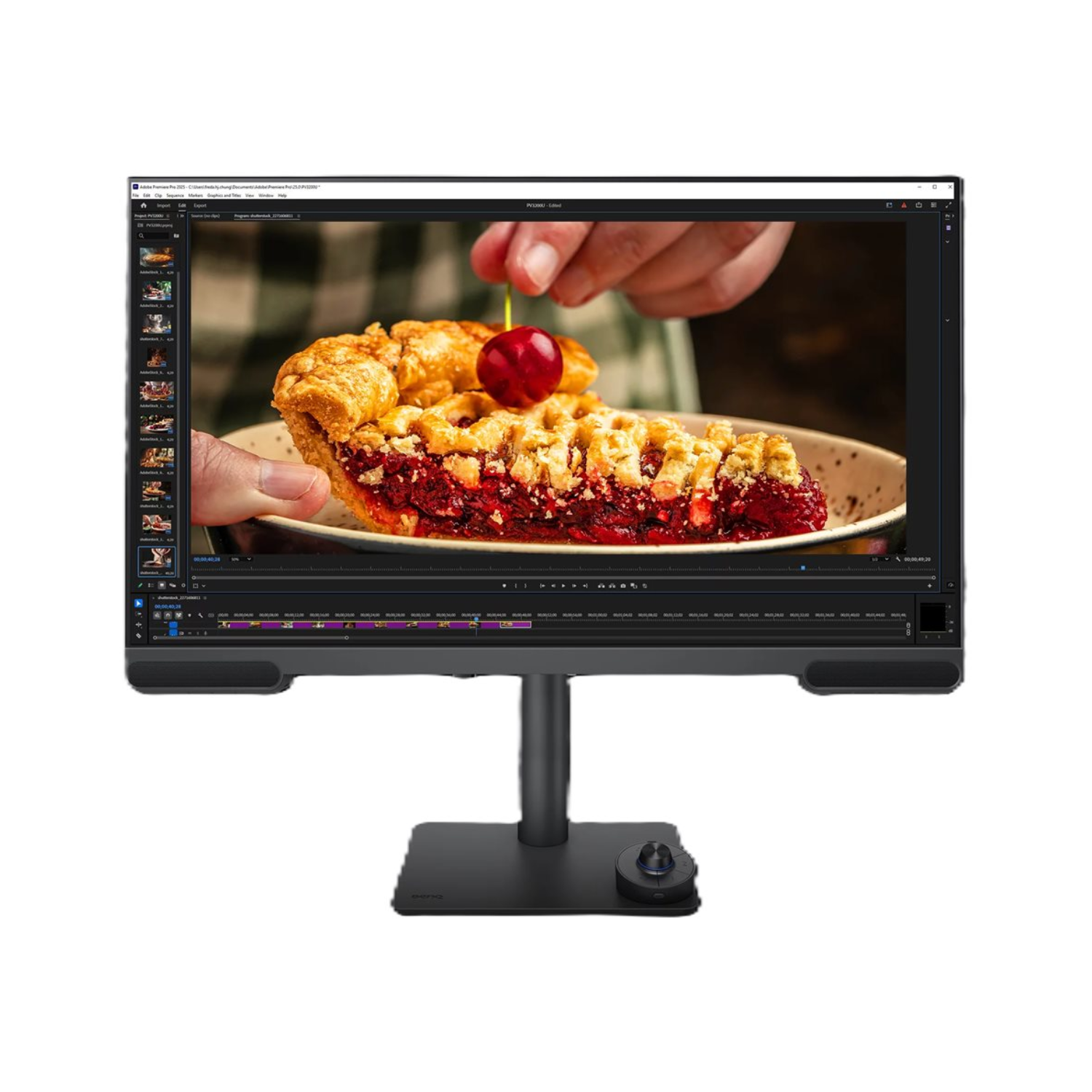
IPS (in-plane switching) uses a liquid crystal layer in front of a constant backlight. All pixels are lit all the time, and the LCD crystals twist to let light through or block it. That means black isn't truly black, it's a very dark gray, typically a contrast ratio of 1000:1.
But IPS has a superpower: it holds color and brightness extremely consistently across a wide viewing angle. You can sit off-center and the image still looks correct. For multiple editors looking at the same screen, that matters.
IPS also doesn't suffer from burn-in. You can leave Lightroom open for eight hours a day for years without worrying about permanent ghosting.
Professional photo monitors from ASUS ProArt, Dell UltraSharp, and BenQ SW series are all IPS-based. They come with hardware LUTs for calibration, meaning the monitor itself stores the color profile instead of your graphics card. That's a huge advantage for color-critical work, the calibration stays accurate even if you switch computers.
The biggest frustration with IPS is that shadow detail gets lost in the glow. If you work in a dark room, you'll see a slight gray haze in the corners of a black image. That's IPS glow, and it's inherent to the technology.
Modern premium IPS panels (like IPS Black technology) improve contrast to around 2000:1, but they still can't match OLED's black level.
Side-by-Side: OLED vs IPS on the Specs That Matter
Let's lay out the key differences in a straightforward comparison. These numbers are based on typical mid-to-high-end photo editing monitors available as of 2026.
| Spec | OLED | IPS |
|---|---|---|
| Contrast Ratio | Infinite (true black) | 1000:1 – 2000:1 |
| Peak Brightness (SDR) | 250–400 nits | 300–600 nits |
| Peak Brightness (HDR) | 600–1000 nits (with ABL) | 400–1000 nits |
| Color Gamut (DCI-P3) | 95–99% | 90–99% |
| Delta E (factory calibrated) | <2 (often <1) | <2 (often <1) |
| Burn-in Risk | High with static UI | None |
| Calibration Stability Over Time | Moderate (pixel wear affects uniformity) | Excellent (consistent) |
| Viewing Angles | Perfect (no shift) | Very good (slight glow) |
| Text Clarity | Can be fuzzy (especially on QD-OLED) | Sharp (RGB stripe) |
| Typical Price (27" 4K) | $900–$2000+ | $500–$1500 |
The takeaway? OLED wins on contrast and HDR punch. IPS wins on reliability, longevity, and text sharpness.
Neither is universally "better." Your choice depends on which compromises you can live with.
The Burn-In Problem No One Talks About (Until It Happens)
Burn-in, or permanent image retention, is the single biggest risk of using an OLED monitor for photo editing. It happens when static elements like toolbars, menus, or your desktop taskbar are displayed for hundreds of hours. The organic materials in those specific pixels degrade faster than the rest, leaving a faint ghost of the UI visible even on a blank screen.
How fast does it happen? It depends on brightness, panel type, and usage. QD-OLED panels (used by Samsung and Dell) generally show burn-in earlier than LG's W-OLED panels.
In our research of verified buyer feedback, some users noticed burn-in after as little as 6 months of heavy use with a static editing interface. Others reported 2 years without visible retention. It's not guaranteed, but it's a known weakness.
Manufacturers have introduced mitigation features: pixel shift, automatic brightness limiting, and screen savers. Still, if you leave Lightroom's toolbar visible for 8 hours a day, you're taking a risk. IPS has no such issue.
You can leave any static image on screen indefinitely without any permanent damage.
Some high-end OLED monitors now include burn-in warranty coverage, usually 3 years. Read the fine print carefully. Most warranties exclude "image retention caused by normal use," which can be a loophole.
For a professional who needs the monitor to last 5+ years, this is a serious consideration.
Text Clarity and Subpixel Layout: A Hidden Issue for Editors
Here's something most monitor reviews skip. OLED panels use different subpixel layouts than IPS. Standard IPS monitors use a classic RGB stripe: red, green, and blue pixels in neat vertical columns.
That's what Windows ClearType and macOS subpixel rendering are designed for.
OLED uses other arrangements. LG's W-OLED adds a white subpixel to the usual RGB, creating an RGBW layout. Samsung's QD-OLED uses a triangular pattern with odd-sized pixels.
The result? Text can look soft, fuzzy, or color-fringed, especially at standard 4K resolution on a 27-inch screen.
For photo editing, this matters more than you'd expect. If you spend hours adjusting sliders, reading tooltips, and navigating menus in Lightroom or Photoshop, fuzzy text causes eye strain. Verified buyer feedback on QD-OLED monitors frequently mentions this complaint.
At 32-inch 4K, the issue is less noticeable. At 27-inch 4K, it can be distracting.
IPS has no such problem. Text is sharp and crisp at any common resolution. That's one reason professional photo editing monitors stick with IPS.
If you do detailed retouching where you need to read menu options quickly, IPS gives a cleaner experience. Some users don't mind the OLED text fringing, but try before you buy if text clarity matters to you.
Calibration and Color Accuracy Over Time
Both OLED and IPS can hit a factory Delta E under 2. That's excellent for out-of-box accuracy. The difference is how they hold that accuracy over months and years.
IPS is remarkably stable. A professional-grade IPS monitor from ASUS ProArt or BenQ SW series can hold its calibration for 6 to 12 months before needing recalibration. The backlight slowly ages, but the liquid crystals don't wear out unevenly.
A hardware LUT calibration writes the correction table directly into the monitor, so it survives computer swaps.
OLED degrades differently. The organic materials in each pixel age at different rates depending on how bright they're driven. A pixel that spent 500 hours displaying a white toolbar is dimmer than a pixel that showed dark content.
This causes uneven brightness across the screen over time, which throws off color accuracy for specific areas.
Some high-end OLED monitors include real-time pixel compensation cycles. These run automatically during standby, refreshing pixel voltages to maintain uniformity. They help, but they don't completely prevent long-term drift.
Our research indicates that OLED monitors used for photo editing should be recalibrated every 2 to 3 months to maintain Delta E under 2. That's more frequent than IPS, but it's manageable.
Best Monitor for Print Proofing vs HDR Editing
This is where your specific use case decides everything. Print proofing and HDR editing demand different strengths from a display.
For print proofing, IPS is the clear winner. Here's why. You need consistent luminance across the full screen.
You need stable white point from edge to edge. And you need zero burn-in risk because you'll display the same reference image for extended periods. Print standards like ISO 12647 assume a display that holds its calibration over long sessions.
IPS delivers that.
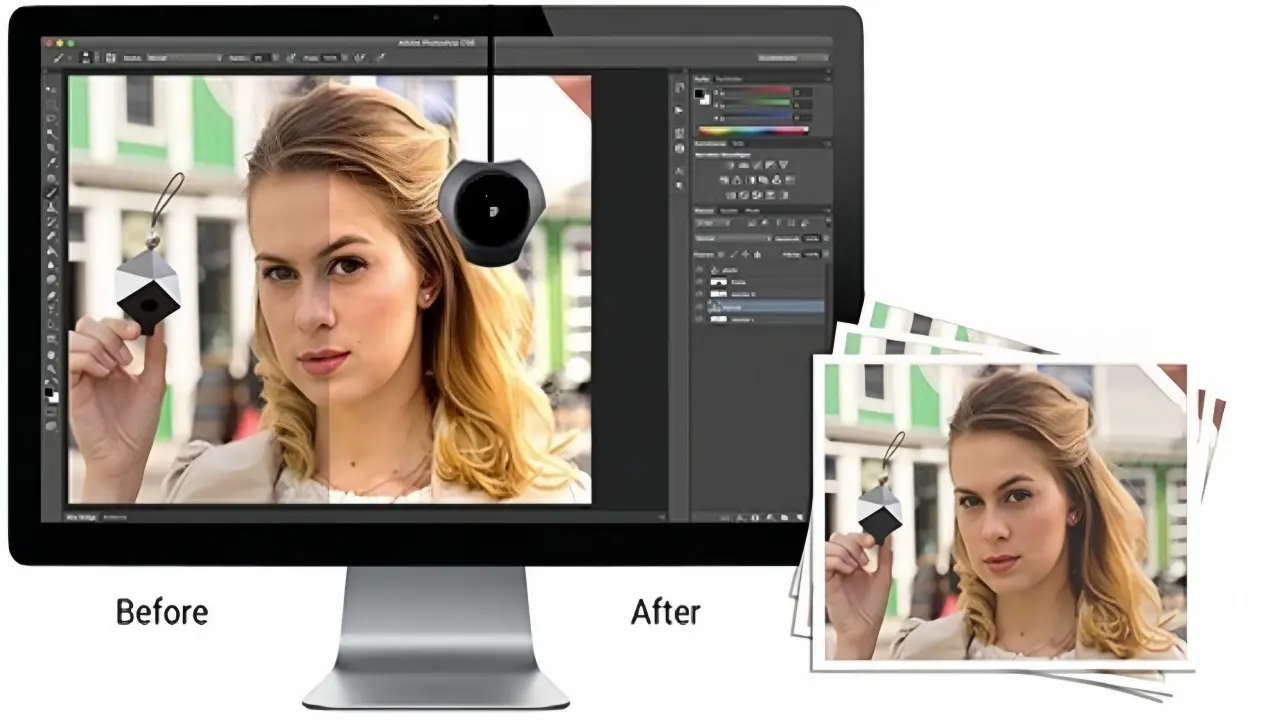
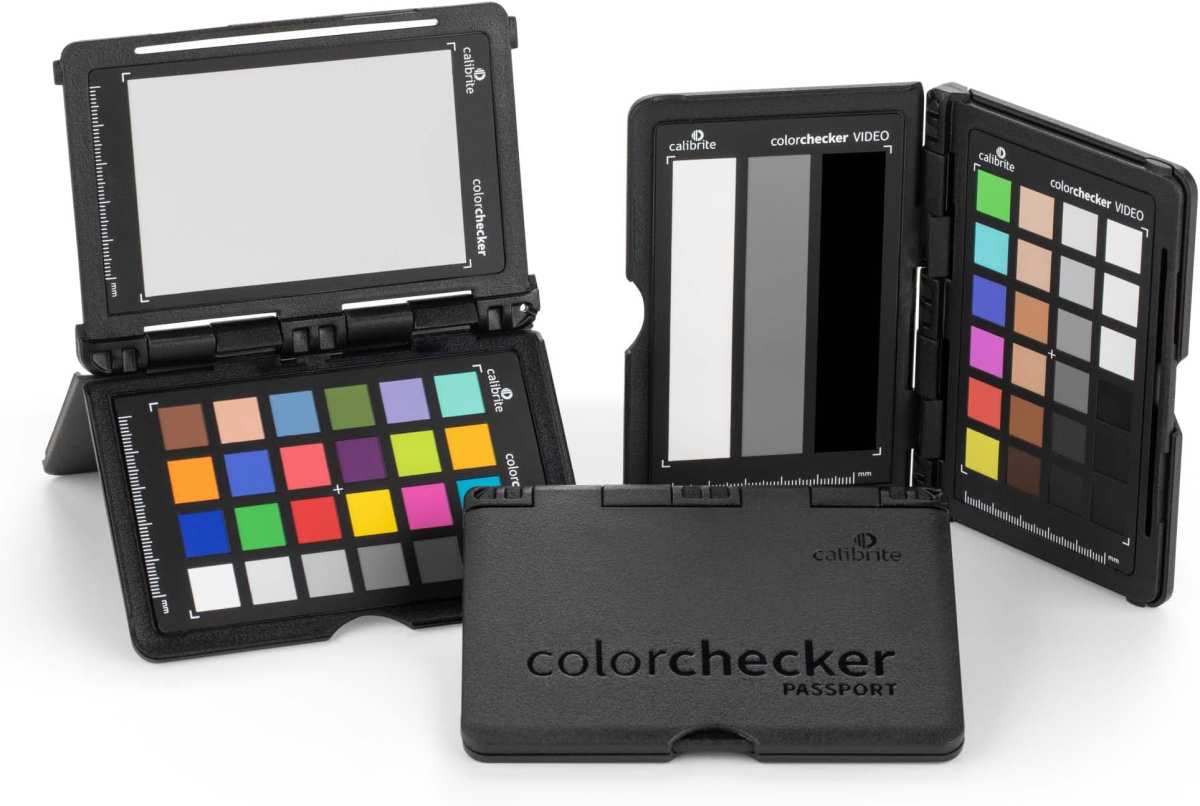
The image below shows how calibration transforms a monitor's color output for print matching.
For HDR photo editing, OLED wins decisively. The ability to show true black makes HDR content pop. Specular highlights on reflective surfaces look realistic.
Shadow detail becomes visible without crushing. If you shoot landscapes with wide dynamic range or edit product photos with metallic finishes, OLED gives you a preview that closely matches what HDR displays on modern phones and TVs.
But there's a catch. OLED's Auto Brightness Limiter (ABL) dims the screen when large areas are bright. If you're editing a snowy mountain scene with 80% white content, ABL kicks in and the overall brightness drops.
That can trick you into overexposing the image. Experienced editors learn to work around it, but it's an annoyance.
A practical approach for professionals is using two monitors. An IPS display for the main editing canvas and color-critical adjustments. An OLED display for HDR preview and client presentations.
This setup gives you the best of both technologies. If a second screen interests you, some photographers find that switching to a single ultrawide setup can simplify their workspace while still offering excellent color performance.
The Hybrid User: One Monitor for Editing and Gaming?
Many photographers also game. If you want one monitor that handles both editing and gaming, the decision gets harder.
OLED wins on gaming performance. Instant response times under 0.1ms, high refresh rates, and variable refresh rate support make OLED a gamer's dream. The motion clarity is unmatched.
For fast-paced shooters or racing games, OLED is the obvious choice.
IPS is slower in response time (typical 4 to 6ms), but modern Nano IPS panels do 144Hz or 165Hz easily. For casual gaming, that's perfectly fine. Competitive gamers will prefer OLED.
But here's the issue: high refresh rate OLED monitors are expensive and still carry burn-in risk.
If you use the same monitor for 8 hours of Lightroom and 2 hours of gaming, the static editing UI is the bigger burn-in concern than the gaming. Some OLED monitors include a "pixel refresh" cycle that runs after each use. That helps.
But for a hybrid user, a high-refresh IPS monitor like a 4K 144Hz Nano IPS panel is a safer long-term bet. It won't match OLED's gaming contrast, but it won't develop ghosting from your toolbar either.
Mistakes to Avoid When Buying a Photo Editing Monitor
Let's cover the common errors people make when choosing between OLED and IPS.
First, don't assume higher contrast always means better editing. OLED's infinite contrast is impressive, but it can trick your eyes. In a dark room, OLED makes blacks look so deep that you might overexpose midtones when editing for print.
Print has no self-illuminated blacks. Your paper can't do what OLED does.
Second, skip budget OLED monitors for photo work. Entry-level OLEDs often lack hardware calibration support, have poor factory Delta E, and use older panels prone to faster burn-in. A mid-range IPS with a hardware LUT will outlast and out-perform them for color-critical work.
Third, don't ignore your ambient lighting. OLED works best in dark rooms. IPS handles bright rooms better thanks to higher SDR brightness and anti-glare coatings.
If your editing space has big windows, IPS is the safer choice.
Fourth, avoid buying based on peak brightness alone. Many OLED monitors hit 1000 nits in HDR but drop to 250 nits in SDR. For day-to-day editing at standard brightness levels (80 to 120 cd/m²), both panel types perform similarly.
The HDR brightness spec is only relevant if you edit HDR content regularly.
Fifth, check your warranty terms for burn-in coverage. Most OLED warranties explicitly exclude burn-in. A few manufacturers offer 3-year coverage.
Read the fine print carefully. IPS monitors have no such exclusion because they don't burn in.
What About Mini-LED and Other Alternatives?
You're not limited to just OLED and IPS. Mini-LED backlighting on an IPS panel is a strong middle ground. It uses hundreds or thousands of tiny LEDs behind the LCD layer.
Each zone can dim independently, boosting contrast to 10,000:1 or more.
Mini-LED IPS gives you the color consistency and burn-in safety of IPS with much better blacks. It's not true black like OLED, but it's close enough for most photo editing. The downside is haloing.
Bright objects on a dark background show a faint glow around them. For retouching portraits against black backgrounds, it's distracting.
Another option is dual-layer LCD. Used in the Eizo CG2700X and some professional broadcast monitors, it stacks a monochrome LCD behind a color LCD. Contrast hits 1,000,000:1 without burn-in.
But the price is steep, typically above $3,000 for a 27-inch model. It's a niche solution for print proofing shops and medical imaging.
For most photographers, the realistic alternative to pure OLED or IPS is a good mini-LED IPS monitor. Brands like ASUS ProArt PA32UCX and Dell UltraSharp UP3221Q use this approach. They cost $1,500 to $3,000, which is similar to high-end OLED but without the burn-in anxiety.
Final Verdict: Which Panel Type Should You Actually Buy?
Let's be direct. Buy IPS if you do print proofing, retouch for long hours, or need the monitor to last 5 years without worry. A well-calibrated IPS with a hardware LUT is the most reliable tool for color-critical work.
The BenQ SW321C and Eizo CS2740 are strong examples.
Buy OLED if you primarily edit HDR content, work in a dark room, and can recalibrate every 2 to 3 months. The LG UltraFine 32EP950 and ASUS ProArt PA32DC are purpose-built for creative professionals. They offer true blacks and excellent HDR preview.
Buy mini-LED IPS if you want better contrast than standard IPS but can't accept burn-in risk. The ASUS ProArt PA32UCX is a solid pick. It's a compromise, but a very good one for mixed use.
Here's a quick decision guide:
- Print photographer → IPS with hardware calibration ($800 to $1,500)
- HDR landscape photographer → OLED or mini-LED IPS ($1,200 to $2,500)
- Hybrid editor who also games → High-refresh IPS or mini-LED IPS ($600 to $1,200)
- Professional retoucher with 8-hour sessions → IPS with burn-in immunity ($1,000 to $2,000)
- Budget-conscious hobbyist → Mid-range IPS with good sRGB mode ($300 to $600)
Whichever you choose, invest in a colorimeter like the X-Rite i1Display Pro or Datacolor Spyder X. Calibration is what makes any panel accurate. A great monitor uncalibrated is worse than a decent monitor calibrated properly.
Frequently Asked Questions
Can I use an OLED monitor for photo editing if I'm careful about burn-in?
Yes, but you'll need to take precautions. Hide your taskbar, use dark mode in editing software, and run pixel refresh cycles regularly. Even with care, some uneven aging is likely after 2 to 3 years.
Consider it a consumable tool, not a long-term investment.
Is IPS glow a dealbreaker for photo editing?
It depends on your room lighting. In a bright room, IPS glow is barely visible. In a dark room, you'll see a faint gray haze in the corners of dark images.
Most editors learn to ignore it. If you work in a completely dark room and edit dark scenes, OLED handles blacks better.
How often should I calibrate my photo editing monitor?
For IPS, every 6 to 12 months is sufficient with a hardware LUT. For OLED, recalibrate every 2 to 3 months because pixel wear shifts color uniformity faster. Use a colorimeter for both.
Software-only calibration is not accurate enough for professional work.
What resolution do I need for photo editing on a 27-inch monitor?
4K (3840 by 2160) is the standard for professional photo editing at 27 inches. It gives sharp text and enough room for toolbars alongside your image. 1440p is acceptable for hobbyists but lacks the pixel density for fine detail work. 5K is ideal but prices start around $1,300.
Are curved monitors good for photo editing?
Curved monitors can cause geometric distortion in straight lines near the edges, which matters for architectural photography. For portrait and landscape work, a gentle curve like 1500R is fine. Flat panels are safer for print proofing.
A slight curve on a designer's display can help with viewing comfort during long sessions.

Similar Posts





















