Effective Tips For Managing Iphone Setting Passcode

Understanding and Setting Your iPhone Passcode
When you buy a new iPhone, one of the first steps you should take is setting up a passcode. This small code helps keep your personal information safe from others who might try to access your device. Whether you’re new to iPhone or just need a quick reminder, knowing how to set, change, or reset your passcode is essential. Let’s explore everything about the iPhone setting passcode, including why it’s important, how to choose a good one, and how to manage it effectively.Why Is a Passcode Important for Your iPhone?
Your iPhone contains a lot of personal data — photos, contacts, emails, messages, and even banking details. Without a passcode, anyone who gets hold of your phone can potentially access this information. Here’s why setting a passcode makes a big difference:- Protects Your Privacy: Your messages, photos, and app data stay private, even if your phone is lost or stolen.
- Prevents Unauthorized Access: Only you can access your apps and personal information when your passcode is active.
- Additional Security Features: With a passcode, you can enable other security options like Face ID and Touch ID, making your device even safer.
- App and Data Security: Many apps, especially banking and payment apps, require your device to be secured with a passcode.
How to Set Up Your iPhone Passcode
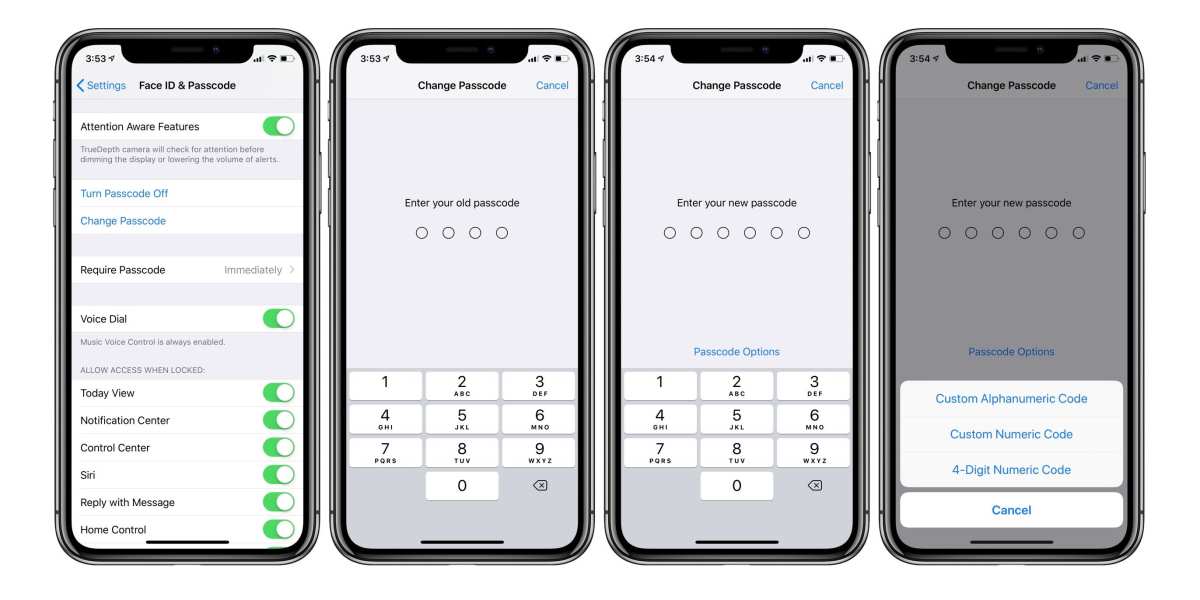
Setting a passcode on your iPhone is straightforward. Here’s a step-by-step guide to help you do it quickly:- Open the Settings app on your iPhone.
- Scroll down and tap on Face ID & Passcode (or Touch ID & Passcode, depending on your device).
- Tap Turn Passcode On.
- Enter a 4-digit or 6-digit passcode — or choose Passcode Options to select a custom alphanumeric code for extra security.
- Re-enter your chosen passcode to confirm.
Choosing a Strong and Easy-to-Remember Passcode
While it may seem tempting to use simple codes like 1234 or 0000, these are among the easiest for someone to guess. Here are tips for picking a good passcode:- Use a unique combination: Avoid common patterns or repeated numbers.
- Pick longer codes: If possible, select a 6-digit passcode for more security.
- Consider alphanumeric codes: Adding letters or symbols increases complexity.
- Memorize your code: Don’t write it down where others can see it.
Managing Your Passcode
Once you have a passcode set, it’s good to know how to manage it conveniently:Changing Your Passcode
If you want to update your passcode, follow these steps:- Go to Settings >Face ID & Passcode.
- Enter your current passcode.
- Tap Change Passcode.
- Enter a new passcode, then re-enter it to confirm.
Disabling Your Passcode
While not recommended, there might be situations where you want to turn off the passcode temporarily:- Access Settings >Face ID & Passcode.
- Enter your passcode.
- Tap Turn Off Passcode.
- Confirm your choice.
Resetting Your Passcode If You Forget It
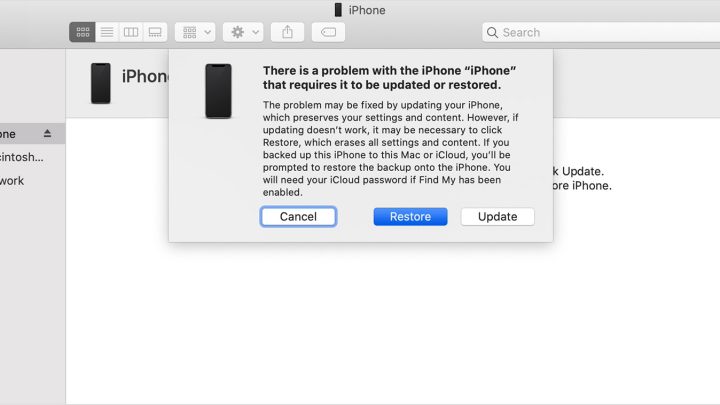
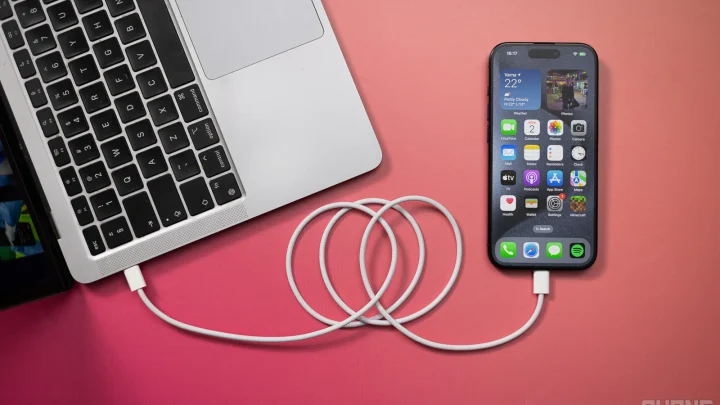
If you forget your passcode, you’ll need to reset your device, which may lead to losing data if you haven’t backed it up. Here’s what to do:- Connect your iPhone to a computer with iTunes or Finder.
- Put your device into recovery mode:
- For iPhone 8 or later: Press and quickly release the volume up button, then the volume down button. Then press and hold the side button until the recovery mode screen appears.
- For iPhone 7 and 7 Plus: Press and hold both the side button and the volume down button until the recovery screen appears.
- For iPhone 6s or earlier: Press and hold both the home button and the side (or top) button until recovery mode appears.
- In iTunes or Finder, choose Restore.
- Set up your device anew and create a new passcode.
Security Tips for Your iPhone Passcode
To keep your device safe, follow these best practices:- Avoid simple codes: Don’t use predictable patterns or common codes.
- Update your passcode regularly: Change it periodically for extra security.
- Enable Face ID or Touch ID: Use biometric security to complement your passcode.
- Be careful in public: Enter your passcode discreetly, especially in crowded places.
- Use two-factor authentication: Enable this feature for your Apple ID and other apps for added protection.
Common Questions About iPhone Passcodes
While this guide covers everything, you might still have some questions. Here are a few common ones:- Can I change my passcode to a longer one? Yes, when selecting Passcode Options, you can create a custom alphanumeric code.
- What happens if I enter the wrong passcode too many times? Your iPhone will disable temporarily, or you may need to erase it if too many attempts are made.
- Is it safe to use a simple passcode for convenience? While easier to remember, simple passcodes are less secure. Balance convenience with the need for protection.
- Can I use Face ID or Touch ID instead of a passcode? Yes! These features provide quick access but still require a passcode for some actions or after restarting the device.
Frequently Asked Questions
What should I do if I forget my iPhone passcode?
If you forget your iPhone passcode, you need to erase your device and set it up again. To do this, connect your iPhone to a computer with iTunes or Finder, put the device into recovery mode, and then restore it. Keep in mind that restoring the device will delete all data, so it’s important to have a backup beforehand.
How can I change my current passcode on my iPhone?
To change your existing passcode, navigate to Settings, then Face ID & Passcode or Touch ID & Passcode. Enter your current passcode, select “Change Passcode,” and follow the prompts to set a new one. Choose a passcode that is easy for you to remember but difficult for others to guess.
Is it possible to disable the passcode on my iPhone?
Yes, you can disable the passcode by going to Settings, then Face ID & Passcode or Touch ID & Passcode. Enter your current passcode, then tap “Turn Off Passcode.” Confirm your choice when prompted. However, keep in mind that disabling the passcode reduces your device’s security.
What security measures protect my passcode from unauthorized access?
Your iPhone employs multiple security features to safeguard your passcode. It limits the number of incorrect attempts and temporarily disables the device after several failed entries. If you enable Face ID or Touch ID, these biometric methods provide additional layers of security that work alongside your passcode.
Can I set a longer or more complex passcode on my device?
Yes, iPhones allow you to create a more complex passcode for enhanced security. In Settings, go to Face ID & Passcode or Touch ID & Passcode, then select “Change Passcode” and choose “Passcode Options.” Here, you can set a custom alphanumeric code or a longer numeric code for better protection.
Final Thoughts
Setting a passcode on your iPhone enhances your device’s security by preventing unauthorized access. The ‘iphone setting passcode’ option allows you to choose a code that only you know, providing peace of mind. Regularly updating this passcode adds an extra layer of protection. Ultimately, securing your device with the right settings ensures your data remains safe and private.
Similar Posts