How To Set Wallpaper On Iphone: Step-By-Step Guide

Setting your iPhone wallpaper is quick and straightforward. **You simply choose an image in the Settings app and set it as your background.** To do this, go to the ‘Wallpaper’ section, select your preferred picture, and tap ‘Set’.
It’s a simple way to personalize your device and refresh your phone’s look. Whether you prefer a stunning photo or a minimalist design, customizing your wallpaper takes just moments. Get ready to make your iPhone truly yours.

Setting Wallpaper on iPhone: Your Complete Guide to Personalizing Your Device
When it comes to making your iPhone truly yours, setting a wallpaper is one of the easiest and most fun ways to do so. Whether you want a stunning photo, a simple color, or a trendy pattern, your wallpaper speaks about your style and mood. This guide walks you through every step of setting a wallpaper on iPhone, helps you explore different types of wallpapers, and offers tips to make your home and lock screens look just right.
Understanding how to set wallpapers properly can also help you improve your phone’s overall appearance and even make it easier to navigate. From selecting your favorite images to customizing wallpapers for different screens, we’ve got you covered with detailed instructions and helpful advice.
How to Set a Wallpaper on Your iPhone
Setting a wallpaper on your iPhone might seem straightforward, but knowing the little tips can make the process even smoother. Here’s a step-by-step guide to help you get started:
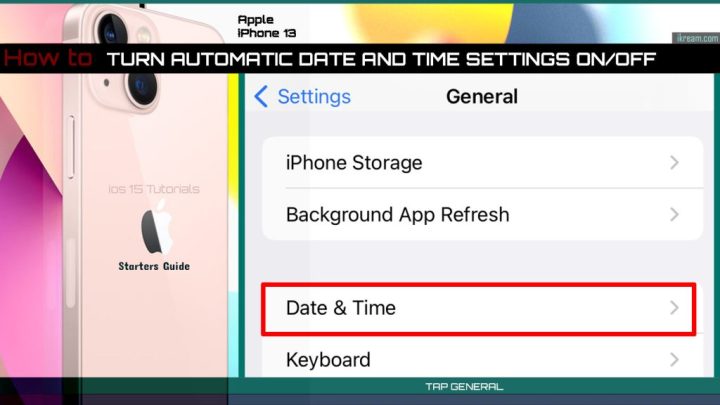
- Open the Settings app on your iPhone. This is the gear icon usually found on your home screen.
- Scroll down and tap on Wallpaper. This opens the wallpaper settings where you can choose, change, or customize your background.
- Tap on Choose a New Wallpaper. Here, you will see several options including Apple’s default wallpapers, your own photos, and dynamic or live wallpapers.
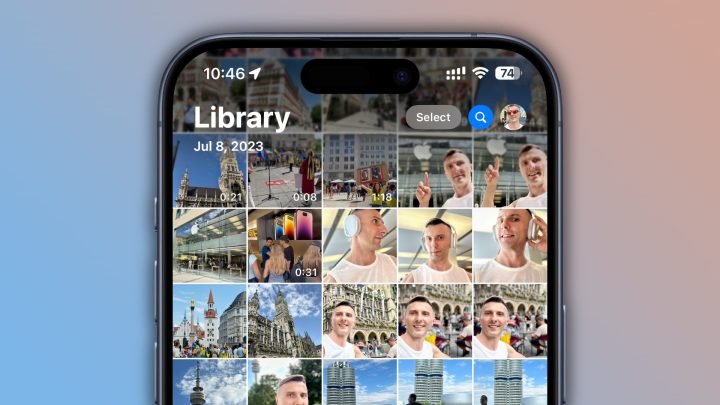
- Browse through the available wallpapers or select a photo from your albums by tapping on All Photos.
- Tap on the wallpaper image you’d like to use. You can move or scale the image to fit your screen as desired.
- Decide if you want to set the wallpaper for your Lock Screen, Home Screen, or both. Tap the corresponding option.
- Finally, tap Set, and your new wallpaper will be applied.
This process takes just a few moments and allows you full control over what appears behind your apps and on your locking screen.
Choosing the Perfect Wallpaper
The wallpaper you select influences the overall look of your iPhone. When choosing the perfect wallpaper, consider the following factors:
Image Resolution and Quality
– Select images with high resolution for clear, crisp visuals.
– Avoid blurry or pixelated pictures because they can look distracting or unprofessional.
– For most iPhones, a resolution of at least 1170 x 2532 pixels (like the iPhone 13 and 14 models) works well.
Color and Contrast
– Bright and colorful images add vibrancy, but make sure they don’t clash with your app icons or text.
– Dark wallpapers can make your icons stand out and reduce eye strain, especially in low-light conditions.
– Consider using wallpapers that complement your wallpaper style and personal taste.
Personal Photos vs. Default Wallpapers
– Personal photos add a touch of your life to your device, making it feel more intimate.
– Default wallpapers often come with cool patterns or abstract art that can be trendy or soothing.
– You can also use images from your favorite apps or websites for a unique look.
Popular Types of Wallpapers for iPhone
There are several categories of wallpapers to explore, each bringing a different vibe to your device:
Nature and Scenery
– Pictures of mountains, beaches, forests, or sunsets provide a calming and beautiful background.
– These images work well with most themes and help create a peaceful atmosphere.
Abstract and Artistic
– Swirls, geometric patterns, or artistic designs add a modern or creative touch.
– These work great if you prefer minimalistic or contemporary looks.
Minimalist Design
– Wallpapers with simple colors, shapes, or single images offer a clean, uncluttered look.
– They help your app icons stand out more and can improve readability.
Favorite Photos and Memories
– Use photos of loved ones, pets, or meaningful moments.
– Personal images bring joy and personalization every time you unlock your iPhone.
Dynamic and Live Wallpapers
– Dynamic wallpapers change subtly as you use your phone, creating a lively background.
– Live wallpapers animate when you press and hold the lock screen.
– Keep in mind that these may slightly affect battery life.
Creating Custom Wallpapers for Your iPhone
If you want to go beyond just choosing images, creating custom wallpapers can give your iPhone a highly personalized touch. Here are some ideas:
Editing Photos to Make Unique Wallpapers
– Use editing apps like Photos, Canva, or Snapseed to enhance or crop your images.
– Add filters, text, or overlays to match your style.
– Resize images specifically for your iPhone’s screen resolution to avoid stretching or pixelation.
Designing Wallpapers with Apps
– Apps like Adobe Spark or Walli let you create wallpapers from scratch or combine multiple images.
– Many apps offer templates and design tools suitable for all skill levels.
Using Wallpapers from the Web
– Search for websites dedicated to free wallpapers tailored for iPhone.
– Always ensure the images are high quality and properly sized for your device.
Tips for Managing Multiple Wallpapers
Having several wallpapers is a fun way to change the look of your iPhone often. Here’s how to organize and switch between them smoothly:
Create a Wallpaper Album
– Save all your favorite wallpapers in a dedicated album in your Photos app.
– This makes it easier to find and select new backgrounds without scrolling through all your images.
Use Shortcuts for Quick Changes
– Use the Shortcuts app to create automation for changing wallpapers at specific times or locations.
– This feature allows you to have a different wallpaper for work, home, or special occasions.
Alternate Between Themes
– Decide on themes like nature, pets, or motivational quotes.
– Change your wallpaper regularly to keep your device fresh and inspiring.
Troubleshooting Common Wallpaper Problems
Sometimes, setting or changing wallpapers might come with minor issues. Here’s what to do:
Wallpaper Looks Blurry or Pixelated
– Make sure your image resolution matches your iPhone model.
– Resize or select higher-quality images if needed.
Wallpaper Doesn’t Fit or Looks Cropped
– Use the preview tools to adjust the position or zoom level.
– Try different images with the correct aspect ratio.
Dynamic or Live Wallpapers Not Working
– Check if your device supports live wallpapers (iPhone 6s and later).
– Enable Live Photos in the Photos app before setting as wallpaper.
– Remember that Live wallpapers only animate on the lock screen and not on the home screen.
Enhancing Your iPhone Experience with Beautiful Wallpapers
A good wallpaper can boost your mood and make your phone feel more inviting. To enhance your experience:
Coordinate Wallpapers with App Themes
– Match your wallpaper with your app icon styles and themes for a cohesive look.
– Use wallpaper colors that complement or contrast your icons for visual balance.
Utilize Night Mode and Dark Wallpapers
– Switch your wallpaper to darker tones when using dark mode to reduce eye strain.
– This also helps conserve battery life on OLED screens.
Experiment and Have Fun
– Regularly test new wallpapers to see what feels right.
– Mix and match different styles for variety and refresh your device’s look.
Setting a wallpaper on your iPhone is a simple yet powerful way to reflect who you are and make your device more personal. Whether you choose a breathtaking landscape, a minimalistic design, or a favorite photo, your wallpaper sets the tone for your entire experience. Remember to select high-quality images, align them with your style, and explore various categories to keep your device looking fresh. With a little creativity and some helpful tips, your iPhone can become an extension of your personality, making every unlock a bit more special.
Frequently Asked Questions
How do I set a live photo as my wallpaper on the iPhone?
Open the Photos app and select the live photo you want to use. Tap the share icon, then choose “Use as Wallpaper.” Ensure the “Live Photo” option is enabled, and set it as your wallpaper by tapping “Set” and selecting whether you want it on the lock screen, home screen, or both. Keep in mind that live wallpapers work only on compatible devices and when pressing firmly on the lock screen.
Can I change my wallpaper automatically at different times of the day?
Yes, you can automate wallpaper changes using the Shortcuts app. Create a new shortcut that sets your wallpaper, then schedule it to run at specific times with the automation feature. This way, your wallpaper updates automatically without manual adjustments, giving your device a fresh look throughout the day.
What should I do if the wallpaper I select does not display correctly?
If your wallpaper appears blurry or doesn’t fit properly, try selecting a high-resolution image that matches your screen’s aspect ratio. Crop or resize the image using the Photos app before setting it as your wallpaper. Additionally, ensure you haven’t enabled any zoom options that may affect how the image fits on your screen.
Is it possible to use a live wallpaper on my iPhone’s home screen?
While you can set a live photo as a wallpaper for the home screen, it won’t animate unless you press and hold the screen. To use the live photo effectively, set it as your lock screen wallpaper and make sure the “Live Photo” toggle is on when setting it. Keep in mind, live wallpapers are limited to lock screens on iPhones.
How do I adjust the position of a wallpaper to fit my screen better?
After selecting an image for your wallpaper, you can drag to reposition it and pinch to zoom in or out. Use the preview to find the best fit before confirming. This allows you to ensure the main elements of your image align perfectly with your screen’s layout, providing a personalized look.
Final Thoughts
Setting your wallpaper on an iPhone enhances your device’s personal touch. The process is simple and quick, allowing you to customize your background effortlessly. Just navigate to Settings, select Wallpaper, and choose your preferred image.
Once you select the desired wallpaper, you can adjust its position and set it as your lock or home screen. This easy step makes your device uniquely yours.
In conclusion, understanding the steps for iPhone setting wallpaper helps you personalize your device efficiently. This simple customization adds a fresh feel to your iPhone and reflects your style.

Similar Posts