How To Set An Alarm Clock On Your Iphone
To set an alarm on your iPhone, simply open the Clock app and tap the “+” icon. **iPhone setting alarm clock is straightforward and quick.** You can choose your time, repeat options, and even set a custom tone to wake you up refreshed. Navigating these features becomes effortless once you know the basic steps. With just a few taps, you’ll ensure you’re always on schedule without any hassle.

How to Set and Use the Alarm Clock on Your iPhone
Setting an alarm on your iPhone might seem simple, but there are many little tricks and features that can make your alarm experience better. Whether you want to wake up on time, stay reminded of important events, or set multiple alarms for different needs, the iPhone offers a range of options to customize your alarm clock. In this section, we will explore all the details about how to set, manage, and personalize alarms on your iPhone.
Getting Started with the iPhone Alarm App
The first step to using your iPhone alarm clock is locating the built-in Clock app. This app is pre-installed on all iPhones and is very easy to find.
- Open the home screen of your iPhone.
- Look for the blue clock icon named “Clock”.
- Tap on it to open the app.
Once the app is open, you will see several options at the bottom, including Alarm, World Clock, Bedtime, Stopwatch, and Timer. To set alarms, tap on the Alarm tab.
Adding a New Alarm on Your iPhone
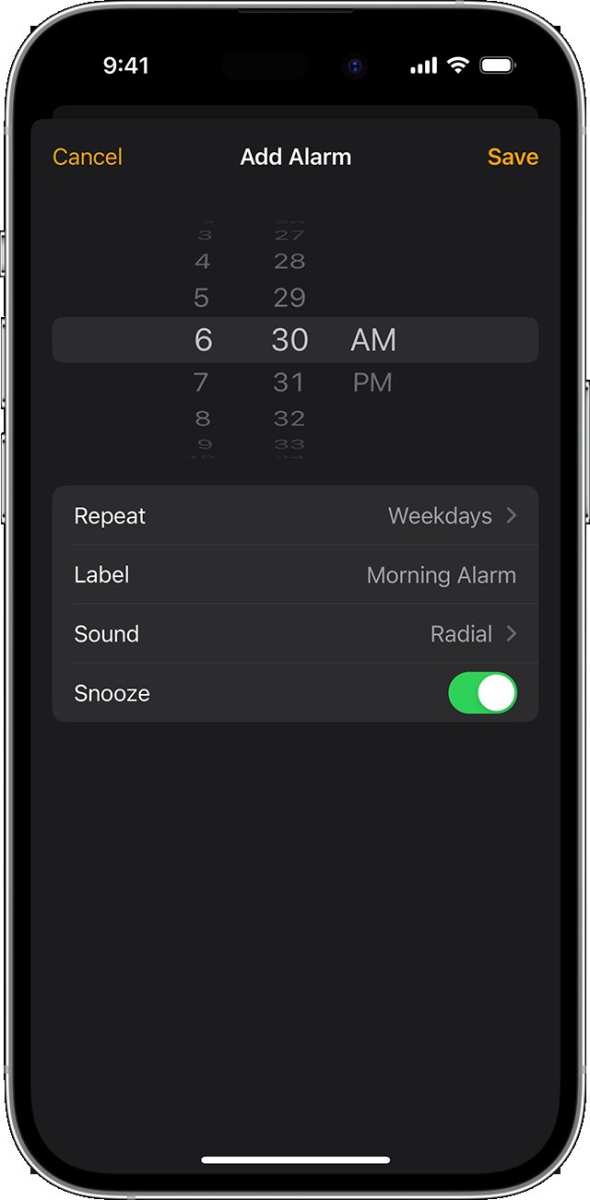
Adding a new alarm is straightforward. Follow these simple steps:
- Tap the Add Alarm button, usually represented by a plus sign (+).
- Set the desired time by scrolling through the hours and minutes.
- Choose whether you want the alarm to repeat on specific days by tapping on Repeat.
- Label your alarm with a name, such as “Morning Workout” or “Meeting Reminder”.
- Select a sound—that is, the tone that plays when the alarm goes off. You can choose from default sounds or your own music.
- Decide if you want the alarm to snooze when dismissed. You can turn snooze on or off.
- Once all settings are in place, tap Save.
Your alarm now appears in the list of alarms. You can turn it on or off by toggling the switch next to it.
Customizing Alarm Sounds and Volumes
Personalizing your alarm sound helps make mornings less boring and more effective. Here’s how to change and customize alarm sounds.
Choosing Your Alarm Tone
- In the Alarm tab, tap Edit or select an existing alarm.
- Tap on Sound.
- Scroll through the list of available tones. You can preview any sound by tapping on it.
- If you prefer your own music, choose the Pick a song option (available on newer iOS versions).
Adjusting Alarm Volume
Your alarm volume is linked to your device’s overall volume. To make sure your alarm is loud enough:
- Open the Settings app.
- Go to Sounds & Haptics.
- Adjust the Ringer and Alerts slider to increase or decrease volume.
- Ensure the Change with Buttons switch is turned on if you want to modify the volume using the side volume buttons.
Remember, setting the right volume ensures you wake up on time without disturbing others unnecessarily.
Managing Multiple Alarms and Schedules
If you need to wake up at different times or have reminders throughout the day, setting multiple alarms can help keep you organized.
Creating and Editing Multiple Alarms
- Repeat the process of adding a new alarm for each different time.
- You can have various alarms for different days or one-time alarms.
- To edit an existing alarm, tap on it and change the settings as needed.
- To delete an alarm, swipe left on the alarm in the list and tap Delete.
Using Alarm Repeat and Customization
Use the Repeat feature for alarms that go off regularly, such as every weekday.
- Tap on an alarm.
- Select the days you want the alarm to repeat (e.g., Monday to Friday).
- This is especially useful for morning routines or recurring appointments.
By customizing these options, you can make sure your alarm system fits your daily schedule perfectly.
Using Snooze and Alarm Management
The snooze feature can help you get a few extra minutes of sleep, but it’s important to manage it wisely.
How Snooze Works
- When the alarm sounds, tap Snooze to turn it off temporarily.
- The alarm then rings again after a set snooze duration, typically nine minutes.
- You can keep snoozing as many times as you want, but setting it to go off too many times might make you late.
Adjusting Snooze Duration
Currently, iPhone does not allow changing snooze length directly. However, you can work around this by:
- Turning off the default snooze feature in the alarm settings.
- Using third-party apps that allow customizable snooze times.
Using the Bedtime Feature for Better Sleep Routines
The Bedtime feature helps you establish regular sleep routines and wake-up times. It also tracks your sleep patterns.
Setting Up Bedtime
- Open the Clock app and go to the Bedtime tab.
- Tap Get Started and follow the prompts to set your desired sleep and wake-up times.
- Choose your preferred wake-up sound.
- You can also enable a sleep goal, like getting at least seven hours of sleep.
This feature not only helps you wake up but encourages healthier sleep habits by reminding you when it’s time to go to bed.
Troubleshooting Common Alarm Issues
Sometimes, alarms may not go off as scheduled. Here are some quick solutions:
- Ensure your volume is turned up enough to hear alarms.
- Check that the alarm is turned on and not toggled off.
- Make sure your device isn’t on silent mode.
- Verify that your alarm’s time and days are correct.
- Update your iOS software if bugs are causing issues.
Regularly checking your alarm settings ensures you wake up when you need to.
Using Accessibility Features for Better Alarm Management
If you have specific needs, iPhone offers accessibility options that make alarm management easier.
- Enable features like VoiceOver for spoken alerts.
- Use visual alerts if you’re deaf or hard of hearing.
- Adjust vibration patterns for additional wake-up signals.
These features help ensure your alarms are effective regardless of your preferences or needs.
By understanding and utilizing all the features available for setting and managing alarms, you can create a personalized and reliable waking routine that suits your lifestyle. From simple one-time alarms to complex recurring schedules, your iPhone’s alarm clock offers the flexibility to keep your day on track.
Frequently Asked Questions
How can I set a recurring alarm on my iPhone?
To set a recurring alarm, open the Clock app and tap on the “Alarm” tab. Tap the “+” button to create a new alarm. Set the desired time, then tap on “Repeat” and select the days you want the alarm to go off regularly. Save your settings, and the alarm will ring on those chosen days at the specified time.
Can I change the alarm sound on my iPhone?
Yes, you can customize the alarm sound. In the Clock app, create or edit an existing alarm by tapping on it. Tap on “Sound” to browse through available tones. Select your preferred sound, then tap “Back” or “Save” to apply the change. Your alarm will now ring with the new selected tone.
Is it possible to set multiple alarms on my iPhone?
Absolutely. You can set multiple alarms by tapping the “+” button in the Alarm tab of the Clock app each time. Customize each alarm with different times and settings. All alarms will sound independently so you can manage multiple wake-up or reminder alerts efficiently.
How do I delete an alarm on my iPhone?
To remove an alarm, go to the Alarm tab in the Clock app and find the alarm you want to delete. Swipe left on the alarm or tap “Edit” in the top corner, then press the delete icon (red minus sign) or tap “Delete” next to the alarm. Confirm your action, and the alarm will be removed from your list.
Can I set a vibrate-only alarm on my iPhone?
Yes, you can create an alarm that only vibrates by selecting a sound that has no audio or setting the volume to zero. Additionally, turn on “Vibration” in the Sounds & Haptics settings. When you set an alarm with these options, your iPhone will vibrate without producing any sound at the alarm time.
Final Thoughts
In summary, setting your alarm on the iPhone is straightforward. The iPhone setting alarm clock feature offers quick access to manage your wake-up schedule efficiently. By customizing your alarm tones and labels, you personalize your experience easily. Remember, a well-set alarm ensures you never miss important moments, making your mornings smoother.

Similar Posts