Guide To Wifi Calling Iphone Setting For Better Connectivity

If your goal is to enable clearer calls even when cellular signals are weak, **turning on WiFi calling on your iPhone** is the solution. The process is straightforward and can be completed within minutes.
The wifi calling iphone setting allows you to make calls over WiFi, reducing dropped calls and improving call quality.
To start, go to your iPhone settings, select “Phone,” then tap “Wi-Fi Calling,” and toggle it on. A simple setup can make a big difference in your communication experience.

Understanding and Setting Up WiFi Calling on Your iPhone
When you think about making calls on your iPhone, you probably imagine using your cellular network. But what if you’re in an area with weak cell service? That’s where WiFi calling comes into play. WiFi calling allows you to make and receive calls using your WiFi connection instead of relying solely on cellular signal. This feature can be a real lifesaver, especially in places where cell coverage is spotty or unavailable. In this section, we’ll explore everything you need to know about WiFi calling on your iPhone, including what it is, how it works, and why it benefits you.
What Is WiFi Calling on iPhone?
WiFi calling is a feature that lets your iPhone use an internet connection to make calls, send texts, and even receive voicemail. It’s like having an extra way to connect, aside from your cellular network. When you enable WiFi calling, your phone uses your WiFi network to communicate with the phone carrier’s servers, ensuring your calls are clear and reliable even when your cellular signal drops. This is especially useful if you live in a rural area, travel abroad, or visit buildings with poor cell reception.
Benefits of Using WiFi Calling on Your iPhone
Using WiFi calling offers multiple advantages:
- Better call quality: WiFi networks often provide clearer sound, reducing dropped calls or static.
- Coverage in weak signal areas: Places with poor cellular signals, like basements or remote locations, become better connected.
- Cost savings on international calls: Some carriers include WiFi calling in their plans, making international calling cheaper or free.
- No extra apps needed: Your iPhone handles WiFi calls seamlessly through the built-in feature, no third-party app required.
- Simplifies communication: You can focus on your conversation without worrying about network issues.
How WiFi Calling Works on Your iPhone
WiFi calling works by routing your voice calls through an internet connection instead of traditional cellular towers. Here’s a simple explanation of its process:
- You dial a number or answer an incoming call as usual.
- Your iPhone detects whether WiFi calling is enabled and available.
- It then switches your call over to WiFi if the cellular signal is weak or unavailable.
- The call data travels through your WiFi network to your carrier’s servers, then to the recipient.
- When the call ends, the connection is torn down, just like a normal call.
This process is smooth and typically invisible to the user, providing a natural calling experience.
Checking Compatibility and Requirements for WiFi Calling
Before you dive into setting up WiFi calling, make sure your device, carrier, and plan support this feature.
Device Compatibility
Most recent iPhone models support WiFi calling, including:
- iPhone 5c and later models
- iPhone SE (1st generation and newer)
- iPhone 12, iPhone 13, iPhone 14, and their variants
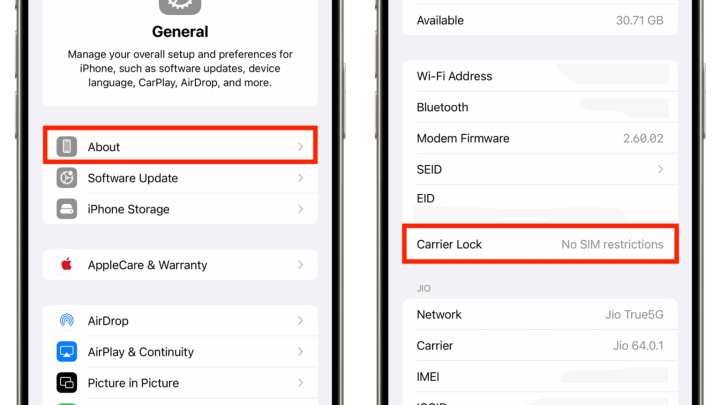
Check your device’s software version by going to Settings > General > About. Ensure it runs iOS 11 or later for the best experience.
Carrier Support
Not all carriers support WiFi calling everywhere. Contact your carrier or visit their website to confirm if WiFi calling is available for your plan and region. Most major carriers support it, but availability can vary.
Plan and Service Requirements
Some plans include WiFi calling automatically. Others may require you to enable it or choose a specific plan. Verify if your plan offers these features and check for any additional charges.
Enabling WiFi Calling on Your iPhone
Turning on WiFi calling on your iPhone is simple. Follow these step-by-step instructions to activate the feature and start enjoying clearer calls.
Step-by-step Guide to Activation
- Open the Settings app on your iPhone.
- Scroll down and tap on Phone.
- Select WiFi Calling.
- Toggle the switch next to WiFi Calling on This iPhone to ON.
- You may see a prompt to agree to terms and provide additional emergency address info. Fill in the required details for emergency services, especially if you’re in a country where WiFi calling is supported.
Once enabled, your iPhone will automatically use WiFi calling when cellular coverage is weak or unavailable.
Additional Settings to Consider
After turning on WiFi calling, you might want to review a few options:
- Emergency Address: For emergency calls made via WiFi, your carrier might need your current location. Keep this info updated in Settings > Phone > Emergency Addresses.
- Enable WiFi Calling for International Calls: Check if your carrier supports making international calls over WiFi and if you need to activate this feature.
- Switching Between Cellular and WiFi: Your iPhone chooses the best network automatically, but you can manually toggle WiFi calling off if needed.
Troubleshooting WiFi Calling Issues
Sometimes, WiFi calling might not work as expected. Here are common issues and how to fix them:
WiFi Calling Not Showing Up
– Ensure your carrier supports WiFi calling and your plan qualifies.
– Confirm that your iPhone software is up to date.
– Restart your device.
– Check your WiFi connection; ensure it is strong and stable.
Calls Dropping or Poor Quality
– Move closer to your WiFi router.
– Restart your WiFi router.
– Reduce network congestion by disconnecting unnecessary devices.
– Switch WiFi calling off and back on in Settings.
Emergency Calling Problems
– Make sure you have provided accurate emergency address info.
– Test emergency calls in a safe way to verify setup.
– Contact your carrier for specific emergency service requirements.
Managing WiFi Calling Settings for Optimal Use
To get the best experience from WiFi calling, consider these tips:
– Keep your iPhone’s software updated.
– Use a reliable WiFi network with good signal strength.
– Disable WiFi Assist if you prefer to avoid switching to cellular data automatically.
– Regularly review emergency address settings for compliance.
Comparing WiFi Calling with Other Communication Options
WiFi calling is a practical alternative to traditional calling and messaging apps. Here’s how it stacks up:
| Feature | WiFi Calling | VoIP Apps (e.g., WhatsApp, Skype) |
|---|---|---|
| Integration | Built-in on iPhone, no additional apps needed | Requires downloading and account setup |
| Cost | Usually included in plan, free for calls over WiFi | Often free, but depends on internet data |
| Quality | Generally high if WiFi is good | Varies based on app and internet connection |
| Emergency Calls | Supported with location info | Usually not supported |
Choosing WiFi calling can simplify your communication by integrating seamlessly with your device, providing a reliable option especially during weak cellular coverage.
Knowing how to enable and use WiFi calling on your iPhone enhances your ability to stay connected no matter where you are. It offers clearer calls, better coverage in tricky areas, and more options for staying in touch. With just a few simple steps, you can set up WiFi calling, troubleshoot common issues, and customize your settings to suit your needs. As more networks and plans support this feature, it becomes an invaluable tool for everyday communication.
Remember, always check with your carrier regarding specific features, charges, and emergency requirements. Make sure your iPhone software is current and your WiFi connection is strong to enjoy seamless calling experiences. WiFi calling is a straightforward way to improve your communication quality, making your phone more versatile and reliable in all situations.
Frequently Asked Questions
How can I verify if Wi-Fi calling is enabled on my iPhone?
To confirm if Wi-Fi calling is active on your iPhone, go to Settings, then tap on Phone. Select Wi-Fi Calling and check if the toggle is turned on. If it’s enabled, your device is set up for Wi-Fi calling.
What steps should I follow to set up Wi-Fi calling on an iPhone with a new carrier?
Begin by ensuring your iPhone supports Wi-Fi calling. Open Settings and tap on Phone, then select Wi-Fi Calling. Enter your emergency address if prompted, and toggle on Wi-Fi Calling. Your carrier may require additional activation steps, so consult their support if needed.
Is it necessary to connect to a specific Wi-Fi network for Wi-Fi calling to work?
No, you don’t need to connect to a particular Wi-Fi network. As long as your iPhone is connected to any Wi-Fi network and Wi-Fi calling is enabled, your device can utilize the Wi-Fi network for calls in areas with poor cellular service.
How can I troubleshoot issues with Wi-Fi calling on my iPhone?
If Wi-Fi calling isn’t functioning properly, first verify that the feature is enabled in Settings. Restart your iPhone and ensure you’re connected to a stable Wi-Fi network. Confirm with your carrier that Wi-Fi calling is supported and active on your account. Updating your iOS software can also resolve potential bugs.
Can I make international calls using Wi-Fi calling on my iPhone?
Yes, Wi-Fi calling generally allows you to make international calls at domestic rates, depending on your carrier’s policies. Check with your carrier to understand any additional charges or restrictions associated with international Wi-Fi calls.
Final Thoughts
In summary, setting up wifi calling iphone setting enhances your calling experience by providing clearer sound and better coverage. By enabling this feature, you ensure you stay connected even in areas with weak cellular signals. Making the process simple, it offers convenience and improves communication. Incorporate wifi calling into your iPhone today for reliable and seamless connectivity.

Similar Posts