Best Tips For Using The Iphone Setting App Effectively
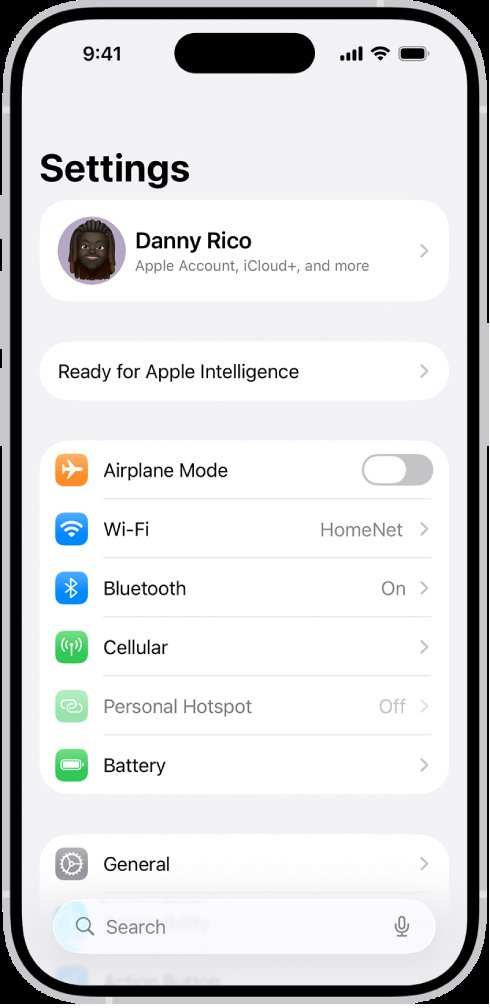
If you want to customize your iPhone experience, the solution lies in the iPhone setting app. **It allows quick adjustments to everything from notifications to privacy.** Navigating this app might seem complex at first, but once you get familiar, it becomes a powerful tool for personalizing your device.
Each tap within the iPhone setting app helps you fine-tune your phone effortlessly, making daily tasks easier. With a bit of exploration, you’ll find many options to suit your preferences perfectly.

Understanding the iPhone Setting App: Your Guide to Customizing and Managing Your Device
The iPhone setting app is an essential tool that helps you personalize your iPhone, control its functions, and ensure everything runs smoothly. Whether you’re new to iPhone or a seasoned user, knowing how to navigate and utilize the settings app makes a big difference in your everyday experience. In this detailed guide, we’ll walk through all the important parts of the setting app, explaining what each section does and how you can use it to improve your device use.
Getting Started with the iPhone Settings App
When you turn on your iPhone, you’ll find a gray gear icon labeled “Settings.” Tapping this icon opens the settings menu, which is divided into sections. These sections are organized to help you find what you’re looking for quickly. From Wi-Fi connections to privacy controls, the settings app covers almost every aspect of your device.
Understanding how to navigate this app can help you troubleshoot issues, optimize performance, and make your iPhone use more comfortable. Let’s start with the basics of opening and navigating the settings app.
How to Open the Settings App
- Find the Settings icon on the home screen. It’s usually a gray gear symbol.
- Tap the icon once to open the app.
- Scroll through the list or use the search bar at the top to find specific settings.
Using the Search Bar
The search bar helps you quickly locate a specific setting. Just tap on the bar at the top and type keywords like “Wi-Fi,” “Display,” or “Battery.” As you type, suggestions will appear, and you can select the right option swiftly.
Exploring Main Settings Categories
The settings app is organized into several key sections. Understanding what each one does helps you customize your iPhone effectively. Here’s a breakdown of the main categories:
- Wi-Fi & Network: Manage your internet connections and cellular data options.
- Display & Brightness: Adjust screen brightness, text size, and wallpapers.
- Sound & Haptics: Set ringtones, notification sounds, and vibration patterns.
- Privacy & Security: Control location services, app permissions, and security features like Face ID or Touch ID.
- Battery: Monitor battery health and view usage statistics.
- Apps & Notifications: Manage how apps alert you and permissions they have.
- General: Contains options for software updates, storage management, and device information.
- Accessibility: Customizes device features to assist users with different needs.
- Privacy & Data: Manage data sharing, analytics, and permissions related to privacy.
Connecting to Wi-Fi and Managing Network Settings
One of the most common uses of the settings app is connecting to Wi-Fi networks. Proper management of network settings ensures a stable internet connection, which is vital for browsing, streaming, and using apps.
Connecting to a Wi-Fi Network
- Open the Settings app and tap on “Wi-Fi.”
- Ensure Wi-Fi is turned on by toggling the switch to the right.
- A list of available networks appears. Tap the one you want to join.
- If required, enter the password and tap “Join.”
Managing Network Settings
Beyond connecting, you’ll find options to manage network preferences, such as:
- Forget a Network: If you want your iPhone to stop connecting automatically, tap “i” next to a network and select “Forget this Network.”
- Enable Auto-Join: Turn on or off the feature that automatically connects to known networks.
- Configure IP Settings: For advanced users, change from DHCP to static IP addresses for specific network setups.
Customizing Display and Brightness Settings
Your device’s display is central to how you interact with your iPhone. Adjusting display settings can improve readability, reduce eye strain, and personalize your device’s look.
Adjusting Brightness and Auto-Brightness
- Navigate to “Display & Brightness” in the settings menu.
- Use the slider to manually adjust the screen brightness.
- Toggle “True Tone” to automatically adjust display colors based on ambient lighting.
- Enable or disable “Auto-Brightness” so your iPhone adjusts brightness based on your environment.
Changing Display Settings
Other options include:
- Text Size: Increase or decrease font size for better readability.
- Bold Text: Make text appear bolder for easier reading.
- Display Zoom: Choose “Standard” or “Zoomed” to modify how content appears on your screen.
- Wallpaper: Change the background image by going to “Wallpaper” in Settings.
Managing Sound and Notification Settings
Sound alerts and notifications keep you informed but can also be intrusive if not set correctly. Managing these settings allows for a balanced experience.
Setting Ringtones and Notification Sounds
- Open “Sound & Haptics” in Settings.
- Tap “Ringtone” to select your preferred alert sound from the list.
- Scroll down to “Sound and Vibration Patterns” to customize other alerts.
Controlling Notification Preferences
Manage which apps can send you notifications and how they appear:
- Go to “Notifications.”
- Select an app to adjust its notification style.
- Choose alert types: Lock Screen, Notification Center, Banners.
- Enable or disable sounds and badges as needed.
Enhancing Privacy and Security
Protecting your personal information is important. The settings app offers tools to control app permissions, location services, and security features like Face ID or Touch ID.
Managing Location Services
- Tap “Privacy & Security” in Settings.
- Select “Location Services.”
- Toggle the feature on or off.
- Choose specific apps and decide if they can access your location Always, While Using the App, or Never.
Using Face ID and Touch ID
Set up biometric security to unlock your device and authorize purchases:
- Go to “Face ID & Passcode” or “Touch ID & Passcode.”
- Follow prompts to set up biometric recognition.
- Enable features like iPhone unlocking, Apple Pay, and App Store purchases using biometrics.
Monitoring Battery Life
Battery health and usage are crucial for keeping your iPhone running smoothly. The settings app provides detailed insights and management options.
Checking Battery Usage
- Navigate to “Battery.”
- Tap “Battery Usage” to see which apps consume the most power.
- Identify apps draining your battery and adjust their permissions or usage habits.
Optimizing Battery Health
- Enable “Low Power Mode” to extend battery life when needed.
- Check your battery health status; if it’s significantly degraded, consider replacing the battery.
Managing Apps and Notifications
The “Apps & Notifications” section helps you control how individual apps appear and behave on your device. This management can improve performance and prevent unwanted interruptions.
Controlling App Permissions
- Open “Privacy & Security.”
- Tap “App Permissions.”
- Review permissions like Camera, Microphone, Photos, and more.
- Disable permissions for apps you don’t want to access certain features.
Adjusting Notification Settings Per App
Select specific apps to customize alerts and notification styles, ensuring you’re only disturbed when necessary.
Updating Your iPhone and Managing Storage
Keeping your device updated enhances security and introduces new features. The “General” section in Settings manages updates and storage.
Installing Software Updates
- Go to “General.”
- Tap “Software Update.”
- If an update is available, follow instructions to download and install it.
Managing Storage
- Within “General,” select “iPhone Storage.”
- View a breakdown of what’s taking up space.
- Delete unnecessary apps, photos, or files to free space.
- Enable “Offload Unused Apps” to automatically remove seldom-used apps while keeping their data.
Adjusting Accessibility Features
Users with special needs can tailor their device to better suit their requirements. Accessibility options include features like VoiceOver, Magnifier, and Display accommodations.
Enabling Accessibility Features
- Tap “Accessibility” in Settings.
- Explore options such as “VoiceOver,” “Magnifier,” “Display & Text Size,” and more.
- Turn on features that assist your specific needs.
Personalizing Accessibility Settings
- Adjust speech feedback, visual aids, or touch controls.
- Set up shortcut options for quick access to accessibility features.
Mastering the iPhone setting app allows you to make your device truly yours. Whether adjusting display brightness, managing privacy, or controlling notifications, the settings app puts powerful tools at your fingertips. Take the time to explore each section, and you’ll enjoy a smoother, more personalized iPhone experience every day.
Frequently Asked Questions
How can I customize notification alerts on my iPhone?
To customize notification alerts, go to the Settings app and tap on Notifications. Select the specific app you want to modify. From there, you can choose alert styles, sounds, badge icons, and whether to show notifications on the lock screen or as banners. Adjust these settings to ensure you receive alerts in a way that suits your preferences.
What steps should I follow to enable or disable location services on my iPhone?
Open the Settings app and tap on Privacy, then select Location Services. To enable location services, toggle the switch to On. To disable it, switch it to Off. You can also set specific apps to Always, While Using the App, or Never, giving you control over when your location is shared.
How do I manage app permissions within the Settings app?
Navigate to the Settings app and scroll down to find the list of installed applications. Tap on an app to view its permissions, such as access to camera, microphone, or contacts. From there, you can toggle permissions on or off, ensuring you control which app features have access to your personal data.
Can I reset all settings on my iPhone from the Settings app?
Yes, you can reset all settings by opening the Settings app, tapping General, then selecting Reset. Choose “Reset All Settings” from the options. This process resets system settings like Wi-Fi passwords, wallpaper, and privacy preferences without deleting your data. It helps resolve configuration issues while preserving your personal information.
How do I update the software on my iPhone using the Settings app?
Open the Settings app and tap on General. Select Software Update to check for available updates. If an update appears, tap Download and Install. Keep your device connected to Wi-Fi and ensure it has sufficient battery life during the process. Updating your software helps enhance security and introduces new features.
Final Thoughts
The iPhone setting app offers essential tools for customizing your device effortlessly. It allows quick access to preferences, making everyday adjustments simple and efficient. By exploring this app, users can enhance their overall experience and personalize their phone to suit their needs. In summary, the iPhone setting app provides a straightforward way to optimize your device’s performance and usability.

Similar Posts































