How To Use Universal Clipboard Between Macbook And Iphone
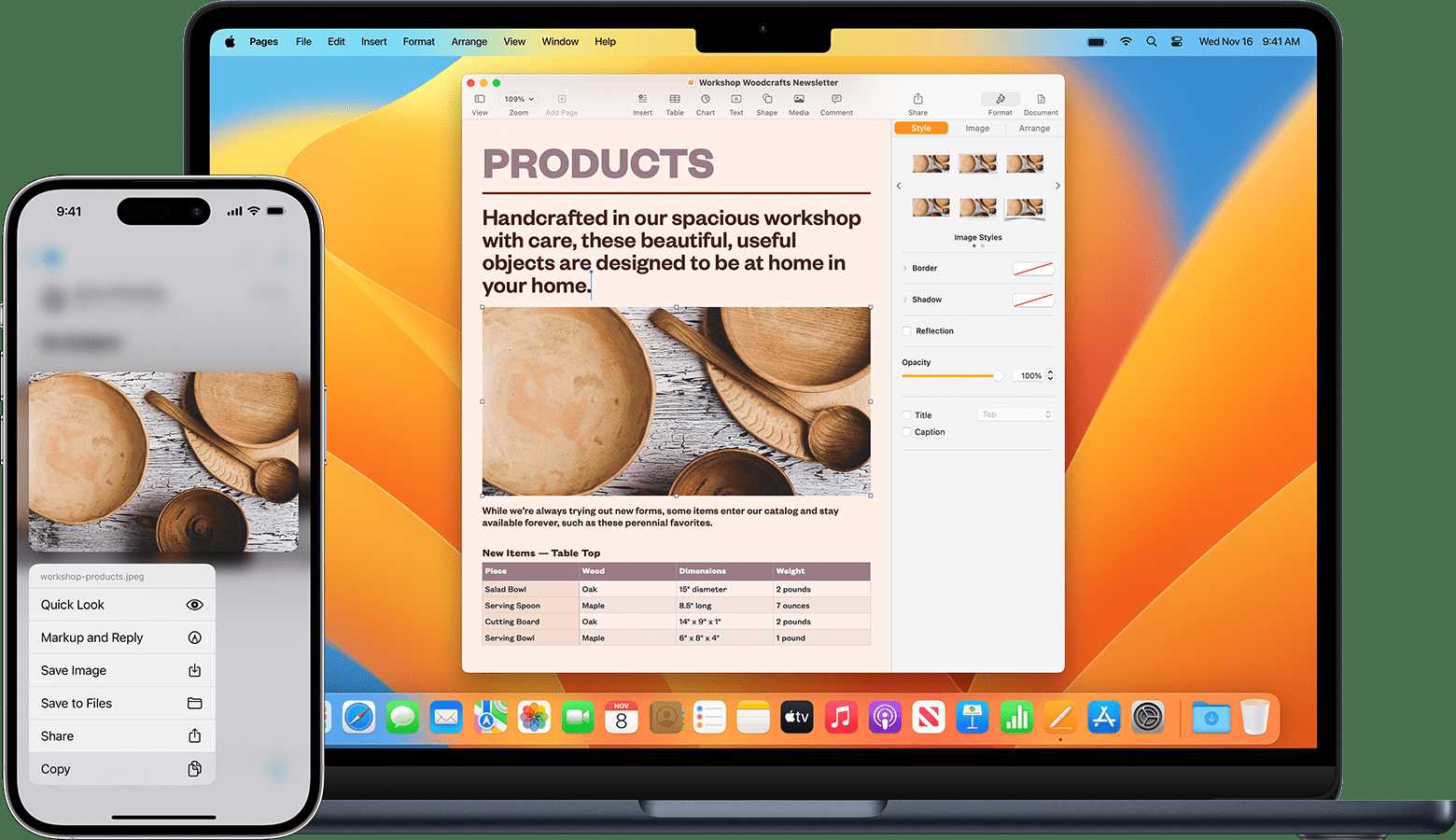

How to use Universal Clipboard between MacBook and iPhone
Understanding the Basics of Universal Clipboard
Universal Clipboard is a feature that allows you to copy content on one Apple device and paste it seamlessly on another. It works smoothly between MacBook and iPhone, making your workflow more efficient. This feature is part of Apple’s Continuity suite, designed to connect your Apple ecosystem effortlessly.Prerequisites for Using Universal Clipboard
Before you can start using Universal Clipboard, ensure that your devices meet certain requirements. Your MacBook should run macOS Sierra or later, and your iPhone needs iOS 10 or newer. Both devices must be signed in with the same Apple ID and have Bluetooth, Wi-Fi, and Handoff enabled.Ensure Both Devices Are Compatible and Updated
Check that your MacBook and iPhone are compatible with Universal Clipboard. Newer models are generally compatible, but always verify your device specifications. Keep both devices updated to the latest software versions to avoid any connectivity issues.Activate Bluetooth, Wi-Fi, and Handoff
For Universal Clipboard to work, Bluetooth and Wi-Fi must be active on both devices. Go to Settings > Bluetooth and Settings > Wi-Fi to turn these on. Also, enable Handoff by navigating to Settings > General > AirPlay & Handoff on your iPhone and System Preferences > General on your MacBook.Sign In to iCloud with the Same Apple ID
Make sure you’re signed into iCloud with the same Apple ID on both devices. This is essential for syncing clipboard data across your iPhone and MacBook. You can check this in Settings > Apple ID on your iPhone and System Preferences > Apple ID on your MacBook.How to Use Universal Clipboard: Step-by-Step
Once all prerequisites are satisfied, copying and pasting content becomes straightforward.Copy Content on Your MacBook
Select the text, image, or other content you wish to copy. Use Command + C or right-click and choose Copy. The copied content is now stored temporarily in your MacBook’s clipboard.Paste Content on Your iPhone
Navigate to the app where you want to paste the content. Tap and hold in the text field to bring up the Paste option. Tap Paste, and your content will appear almost instantly.Copy from Your iPhone and Paste on Your MacBook
Similarly, copy content on your iPhone by selecting and choosing Copy. Move to your MacBook, right-click or use Command + V to paste. The universal clipboard recognizes the source device automatically.Tips to Ensure Smooth Functioning
To keep Universal Clipboard working without interruptions, make sure both devices stay close to each other. Wireless interference can disrupt Bluetooth or Wi-Fi signals. Also, keep your devices awake and unlocked during the copying process.Troubleshooting Common Issues
If copying or pasting isn’t working, try turning Bluetooth, Wi-Fi, and Handoff off and on again. Restart both devices if necessary. Logging out and back into your iCloud account can also resolve sync problems.Best Practices for Using Universal Clipboard
Use Universal Clipboard for quick transfers of text snippets, images, and links. Avoid copying very large files to prevent delays. Remember, clipboard data is temporary and expires after a short period.Security and Privacy Considerations
Universal Clipboard data is encrypted and only available temporarily on your devices. Avoid copying sensitive information unless necessary. Always keep your devices secure with passcodes and biometric authentication.Additional Features Complementing Universal Clipboard
Universal Clipboard works well with other Continuity features like Handoff, AirDrop, and Instant Hotspot. Combining these features can make multitasking across Apple devices more convenient and seamless.Using AirDrop for Larger Files
For files larger than typical clipboard content, AirDrop is a faster alternative. Enable AirDrop via Control Center or Finder and select your Mac or iPhone to transfer files securely without cables.Integrating with Siri and Spotlight
Use Siri to copy or find content quickly. Spotlight Search helps locate files or data you want to copy and transfer across your devices efficiently.Related Topics
Explore other features that enhance your Apple ecosystem experience, such as Universal Control, Sidecar, and Continuity Camera, which work alongside Universal Clipboard to create a cohesive workflow.Final Tips for Using Universal Clipboard Effectively
Stay updated with the latest software releases, regularly check your device settings, and keep your devices close for the best experience. Using Universal Clipboard can save time and make copying between your MacBook and iPhone effortless. This comprehensive guide should help you use Universal Clipboard confidently, making your device connection smooth and productive. Remember, a few simple setups ensure your Apple devices work together perfectly, allowing you to move content back and forth with just a few taps or keystrokes.Copy and Paste Between Your Macs and Other Apple Devices
Frequently Asked Questions
What steps should I follow to set up Universal Clipboard between my MacBook and iPhone?
To set up Universal Clipboard, ensure your MacBook and iPhone are signed into the same Apple ID. Enable Bluetooth and Wi-Fi on both devices. Turn on Handoff on both devices through Settings > General > AirPlay & Handoff. Keep the devices close to each other, and after completing these steps, you can copy content on one device and paste it directly on the other.
Is there any specific iOS or macOS version requirement for using Universal Clipboard?
Yes, both devices need to run compatible versions of their operating systems. Your MacBook should have macOS Yosemite or later, and your iPhone needs iOS 10 or later. Using the latest OS updates guarantees better compatibility and smoother experience with Universal Clipboard.
Why isn’t the clipboard sharing working even after enabling the necessary settings?
If Universal Clipboard doesn’t work, verify that Bluetooth and Wi-Fi are active on both devices and they are within close range. Check that Handoff is enabled in the correct settings, and ensure both devices are signed into the same Apple ID. Restarting both devices can also resolve temporary connectivity issues.
How do I copy and paste content seamlessly between MacBook and iPhone using Universal Clipboard?
Copy the content on one device as usual. Wait a moment to allow the content to transfer. Then, go to the destination device, select where you want to paste, and use the paste command. The content should appear instantly, making it easy to move information back and forth without manual file transfers.
Are there any limitations on the type of content I can share via Universal Clipboard?
Universal Clipboard supports most text, images, and media that you can copy and paste. However, some specialized or protected content, such as content in certain apps or encrypted files, may not transfer properly. It’s best suited for standard text snippets, images, and simple media files.
Final Thoughts
How to use Universal Clipboard between MacBook and iPhone allows seamless copying and pasting. Ensure Bluetooth and Wi-Fi are on, and both devices are signed into the same Apple ID. Turn on Handoff in Settings on both devices. Once set up, copy content on one device, then paste on the other. This quick process keeps your workflow smooth and efficient. Using Universal Clipboard makes transferring text, images, or links effortless.
Similar Posts