How To Speed Up Startup By Managing Login Items Efficiently

How to Speed Up Startup by Managing Login Items
Understanding Login Items and Their Role in Startup Speed
Login items are applications or services that automatically launch when you start your computer. While some are essential, many are unnecessary and can slow down your startup process. Managing these items helps your system load faster and run more smoothly.Why Do Login Items Affect Startup Time?
Every application set to open at startup consumes system resources. Multiple login items can cause your device to take longer to become fully operational. Removing unwanted apps reduces the workload during boot, leading to quicker startup times.How to Check Which Login Items Are Set to Launch
Knowing what is set to run at startup is the first step. On most computers, you can find this information in system preferences or settings. Access the list to identify programs that start automatically.For Windows Users
- Press Ctrl + Shift + Esc to open Task Manager.
- Click on the ‘Startup’ tab.
- Review the list of applications with their status.
For Mac Users
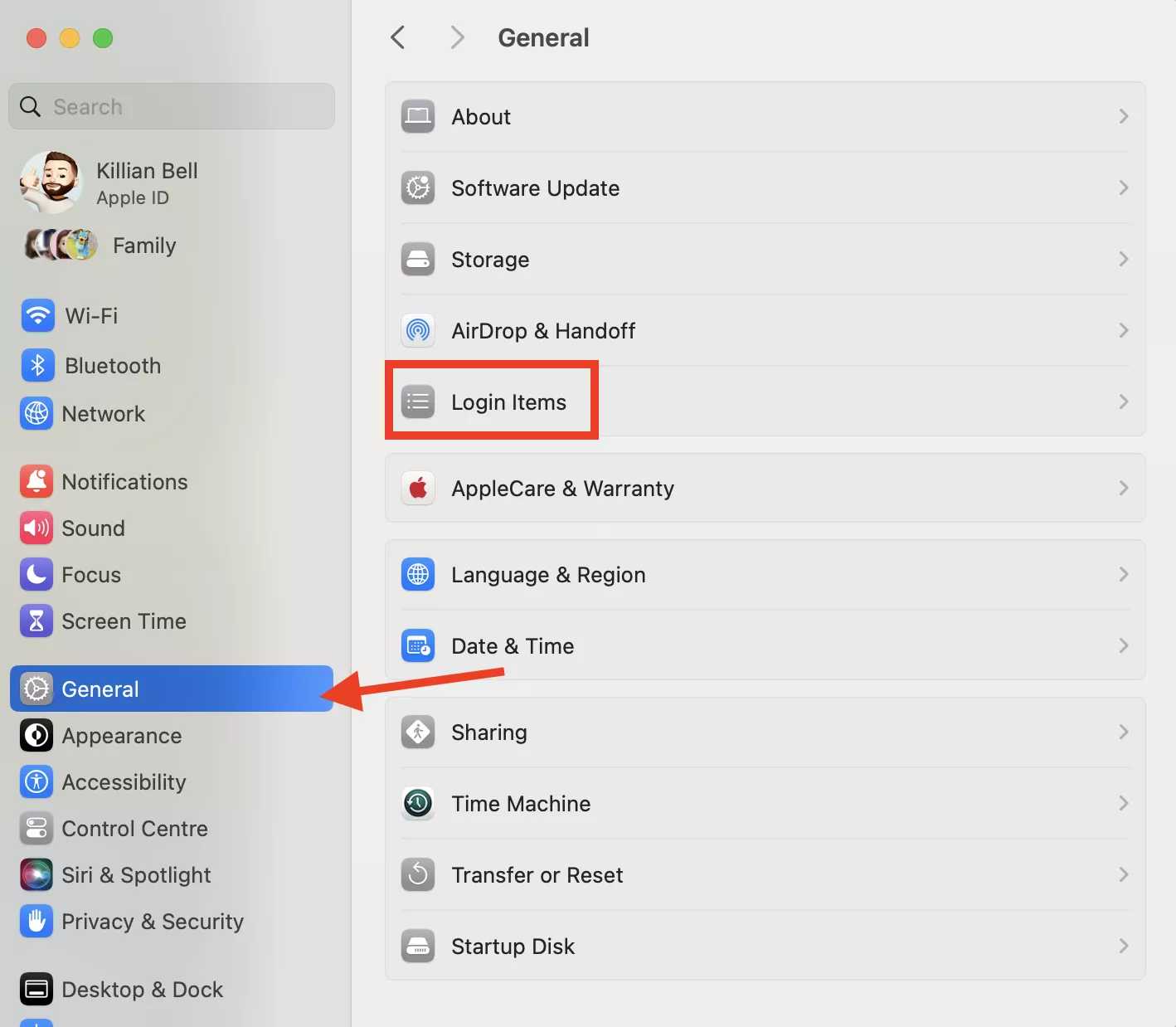
- Open System Preferences.
- Select ‘Users & Groups.’
- Click on your user account and go to the ‘Login Items’ tab.
- See a list of apps set to launch at login.
How to Disable Unnecessary Login Items
Disabling unnecessary applications helps your system start faster. The process varies slightly depending on your operating system.Disabling Login Items on Windows
- Open Task Manager and navigate to the ‘Startup’ tab.
- Select the application you want to disable.
- Click ‘Disable’ at the bottom right corner.
Disabling Login Items on Mac
- In ‘Users & Groups,’ select your user account.
- In the ‘Login Items’ list, select the application to remove.
- Click the ‘-‘ button below the list to remove it.
Best Practices for Managing Login Items
Not all login items should be disabled. Focus on removing those that are non-essential or rarely used. Keep critical applications that improve your workflow or security.Identify Critical Applications
Programs like antivirus software or system utilities often need to run at startup. Do not disable these to prevent security issues or system malfunctions.Evaluate Less Important Applications
Review applications such as chat apps, cloud storage services, or updater tools. Decide if they need to launch automatically or can be started manually when required.Using Built-in Tools to Optimize Startup
Many operating systems offer tools for managing startup items more efficiently.On Windows
- Make use of the Task Manager’s ‘Startup Impact’ column to gauge how much each item affects startup speed.
- Select high-impact applications and disable those unnecessary during startup.
On Mac
- Leverage ‘Login Items’ for quick access to manage startup programs.
- Use ‘Safe Mode’ by restarting your Mac and holding the Shift key to perform maintenance and check startup performance.
Advanced Methods to Improve Startup Speed
For more technical users, additional steps can further streamline startup times.Adjust Startup Settings with System Utilities
Some systems allow you to set startup priorities or modify launch parameters for specific applications through advanced settings or third-party utilities.Clean Up Startup Folder or Registry Entries
Manually removing leftover startup scripts or entries in registry files can prevent unnecessary apps from launching.Regular System Maintenance
Maintain your machine by keeping software up-to-date, removing unused apps, and performing disk cleanup. These steps ensure your system runs efficiently, reducing startup delays caused by background clutter.Monitoring and Testing Your Startup Performance
Track your startup times before and after managing login items. Use built-in tools or third-party applications to measure system boot speed. Consistent testing helps you gauge the effectiveness of your optimization efforts.Additional Tips for Faster Startup
Besides managing login items, consider these tips to improve startup speed further.- Upgrade to an SSD for faster data access.
- Increase RAM if your device struggles during startup.
- Disable visual effects that can prolong boot time.
- Perform regular system updates for stability and performance improvements.
Summary: Keep Your Startup Fast and Smooth
Managing login items is a simple yet effective way to speed up your device’s startup process. Regularly reviewing and disabling unnecessary applications ensures your system boots quickly and runs efficiently. Combine this approach with other maintenance practices for optimal performance.Speed Up a Slow PC in 15 Seconds: Best Performance
Frequently Asked Questions
What steps can I take to prevent unnecessary applications from starting automatically?
To prevent unnecessary applications from launching at startup, identify them in your login items list and disable or remove them. On most operating systems, you can access system preferences or settings, locate the login items or startup programs section, and uncheck or delete applications that do not need to start automatically. Doing this reduces startup load and speeds up your device’s boot time.
How can I prioritize essential programs to load first during startup?
You can organize startup programs by adjusting their launch order or settings within your system preferences. Focus on keeping critical applications enabled while disabling those that are less important. Some systems allow setting specific startup priorities or delaying the launch of non-essential apps, which can help your device become ready more quickly for your primary tasks.
Are there tools or utilities that can help manage login items more effectively?
Yes, many operating systems include built-in tools or third-party utilities to manage login items efficiently. These tools provide options to enable, disable, or delay the launch of applications at startup. Using such utilities helps you fine-tune your startup process, ensuring only necessary programs run immediately, thereby reducing boot time and improving performance.
What are some best practices for maintaining a fast startup over time?
Regularly review your login items and remove unnecessary applications. Keep your system updated to ensure optimal performance. Additionally, clear cache files and monitor startup programs for any recent additions that may slow down boot times. Consistent maintenance helps keep your startup process lean and responsive.
Final Thoughts
Managing login items effectively can significantly speed up startup times. Review your login items regularly and disable unnecessary applications that launch at startup. This reduces the load on your system during boot. Focus only on essential programs to improve boot speed and overall performance. Regularly cleaning up login items ensures your device starts faster and runs smoothly. Remember, how to speed up startup by managing login items is a straightforward way to boost productivity and device efficiency.
Similar Posts