Iphone Setting For Elderly: Simple Tips For Better Usage
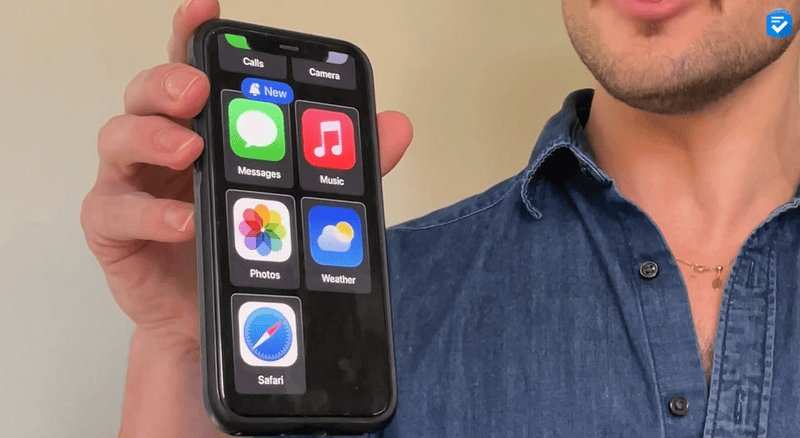
**Adjusting the settings on an iPhone for elderly users is simple and effective.** Many older adults find small icons and confusing menus challenging, but customizing the iPhone can make it much easier to navigate. Simply enabling larger text, turning on voice commands, and activating accessibility options create a more user-friendly experience. The key is to tailor the iPhone setting for elderly users, making it less daunting and more accessible for everyday use. With a few adjustments, seniors can enjoy their smartphones with confidence and independence.

iPhone Settings for Elderly: A Complete Guide to Easy and Safe Use
As more seniors turn to smartphones to stay connected with loved ones, access important information, and enjoy entertainment, it becomes crucial to tailor the iPhone’s settings for ease and safety. Setting up an iPhone for elderly users involves making adjustments that reduce complexity, enhance visibility, and minimize accidental operations. In this guide, we’ll explore various settings and features that can help older adults use their iPhone confidently and comfortably.
Adjusting Display and Text Size for Better Visibility
Many seniors experience declining vision, making it hard to read small text or distinguish colors. Adjusting display settings can greatly improve visibility.
Increasing Text Size and Display Zoom
– Navigate to Settings Display & Brightness.
– Tap on Text Size.
– Use the slider to make the font larger.
– Return to Settings and select Display & Brightness >Display Zoom.
– Choose View and select Zoomed for larger icons and easier tapping.
Enabling Bold Text
– In Display & Brightness, find Bold Text.
– Turn it on to make text thicker and easier to read.
– Restart your iPhone if prompted to apply changes.
Adjusting Brightness and Contrast
– Go to Settings Accessibility >Display & Text Size.
– Enable Increase Contrast to improve color differentiation.
– Adjust brightness via Settings > Display & Brightness for optimal visibility.
Using Accessibility Features for Simplicity and Safety
Apple offers numerous accessibility features designed specifically to assist elderly users in navigating their devices more easily and safely.
Setting Up VoiceOver
– Go to Settings Accessibility >VoiceOver.
– Turn it on to enable screen reading.
– Customize the speaking rate and voice if needed.
– VoiceOver reads aloud what’s on the screen, reducing the need for visual focus.
Enabling Magnifier
– Navigate to Settings Accessibility >Magnifier.
– Turn it on.
– Use the side button triple-click to quickly activate Magnifier.
– Magnifier allows zooming in on real-world objects and text with the camera.
Implementing AssistiveTouch
– Access Settings Accessibility >Touch >AssistiveTouch.
– Turn on AssistiveTouch.
– This feature provides a virtual Home button that makes tapping easier.
– Customize top-level menu options for quick access to common functions.
Enabling Speech Control and Siri
– Speech Control allows users to operate the iPhone using voice commands.
– Siri can set reminders, make calls, or send messages just by speaking.
– Enable these features in Settings Accessibility >Speech and Siri & Search.
Simplifying Navigation with Home Screen and Apps
Cluttered screens and multiple apps can overwhelm elderly users. Simplification makes the device more user-friendly.
Organizing Apps into Folders
– Long-press any app icon to activate the jiggle mode.
– Drag and drop apps into folders for easier access.
– Name folders with clear labels like “Contacts” or “Messaging”.
Adding Only Essential Apps to Home Screen
– Remove apps that aren’t needed frequently.
– Keep only essential apps on the first page, such as Phone, Messages, and Photos.
– Place favorite or most-used apps within easy reach.
Using the App Library for Organization
– Swipe left past all home screens to access the App Library.
– Store rarely used apps here to keep the main screen uncluttered.
– Search quickly for apps using the search bar at the top of the App Library.
Adjusting Sound and Notification Settings for Clarity
Hearing and alerting issues are common with age. Proper sound and notification settings help stay informed.
Customizing Ringtone and Alert Volumes
– Go to Settings Sounds & Haptics.
– Adjust the volume slider for ringtone and alerts.
– Turn on Change with Buttons for easy volume adjustment.
Enabling Vibrations and Flash Alerts
– In Accessibility >Touch, activate Vibration.
– For visual alerts, go to Settings Accessibility >Audio/Visual.
– Turn on Flash Alerts to get visual notifications when you receive calls or alerts.
Setting Up Custom Notifications
– Use the Settings >Notifications menu.
– Enable notifications for essential apps, making sure alerts are loud and clear.
– Turn off non-essential notifications to reduce distractions.
Making Calls and Messaging Easier
Clear communication remains key. Adjusting calling and messaging settings ensures that elderly users can reach family and friends effortlessly.
Setting Up Favorites and Speed Dial
– Open the Phone app and navigate to the Favorites tab.
– Tap + to add contacts.
– Use the Contacts app to assign favorites for quick dialing.
Using Emergency and Medical ID
– Set up Emergency SOS by going to Settings Emergency SOS.
– Enable Call with Side Button for quick emergency dialing.
– Add critical medical information in the Medical ID section in Health app for quick access during emergencies.
Adjusting Messages for Simplicity
– Use the Messages app’s features like pinning important conversations.
– Enable features like Read Receipts and Send Read Receipts to keep track of messages.
– Use voice-to-text to make composing messages easier.
Protecting Privacy and Security
Older adults may benefit from increased security features to prevent accidental or malicious actions.
Setting Up Face ID or Touch ID
– Activate biometric security in Settings Face ID & Passcode or Touch ID & Passcode.
– Use biometrics for quick, secure unlocking and authentication.
Enabling Find My iPhone
– Ensure the device is linked to a strong Apple ID.
– Use the Find My app to locate the device if lost or stolen.
– Share location with trusted family members for added safety.
Controlling App Permissions
– Regularly review app permissions in Settings Privacy.
– Limit access to location, microphone, and camera to only necessary apps.
Keeping the iPhone Updated and Maintaining Security
Regular updates help protect against vulnerabilities and improve overall performance.
Updating iOS Software
– Navigate to Settings General >Software Update.
– Download and install new updates promptly.
Backing Up Data
– Use iCloud or iTunes to back up information regularly.
– Ensure important contacts, photos, and documents are safe.
Managing Storage
– Check storage in Settings General >iPhone Storage.
– Delete unnecessary apps or media to keep the device running smoothly.
Providing Step-by-Step Guidance and Support
Educating elderly users on basic settings and daily use boosts their confidence.
Creating Easy-to-Follow Instructions
– Write down simple steps for common tasks like making a call or adjusting volume.
– Keep instructions handy for quick reference.
Using Visual Aids and Demonstrations
– Show how to access important features visually.
– Practice together to build familiarity and reduce anxiety.
Encouraging Regular Practice
– Suggest routine checks of settings.
– Encourage exploring new features gradually to avoid feeling overwhelmed.
Addressing the specific needs of elderly users means designing the iPhone’s settings and features in ways that foster confidence, security, and independence. By customizing display, simplifying navigation, and emphasizing safety features, we ensure that seniors enjoy their device without frustration. Regular updates and ongoing support complete the picture, helping older adults stay connected and safe throughout their smartphone journey.
Frequently Asked Questions
How can I make the icons and text easier to see on an iPhone for elderly users?
You can increase the size of icons and text by adjusting the display settings. Go to Settings, then tap on Display & Brightness. Select Text Size and slide to make the text larger. You can also enable Bold Text for better clarity. Additionally, turning on Display Zoom will enlarge all interface elements, making navigation more straightforward.
What features help reduce accidental taps on an iPhone for seniors?
Enabling features like AssistiveTouch provides a virtual home button that reduces the need to press physical buttons. You can find this option under Settings > Accessibility > Touch > AssistiveTouch. Also, activating Hold to Speak or customizing tap gestures helps prevent unintended actions. These tools make it easier to control the device without risking accidental screen taps.
How can I simplify notifications to avoid overwhelming an elderly user?
Customize notifications to show only essential alerts by going to Settings > Notifications. Turn off notifications for apps that are unnecessary. You can also set Notification Style to Show Previews Only When Unlocked or turn off banners entirely. This approach keeps the screen less cluttered and helps elderly users focus on important updates without confusion.
What are the best ways to improve voice commands for elderly users?
Ensure Siri is enabled and personalized for easier use. Go to Settings > Siri & Search, then turn on Listen for “Hey Siri” and Allow Siri When Locked. Teach the user simple commands and speak clearly when giving instructions. Adjust Siri’s voice feedback to be more natural and set the language preferences to match their comfort, making voice control more effective and user-friendly.
How can I set up emergency contacts and accessible safety features on an iPhone?
Set up Medical ID in the Health app to include emergency contacts and vital health information. To do this, open the Health app, tap your profile, then Medical ID. Fill in the necessary details and select Show When Locked. You can also enable features like Emergency SOS, which allows quick access to emergency services by pressing the side button multiple times. These features provide peace of mind and quick access in urgent situations.
Final Thoughts
In summary, optimizing the iPhone settings for elderly users enhances their overall experience. Focus on increasing text size and enabling larger icons for better visibility. Simplify navigation by customizing the Home Screen and turning on accessibility features.
Adjusting these settings ensures seniors can use their devices comfortably and confidently. The right iPhone setting for elderly individuals supports independence and ease of use. Implement these adjustments to make technology more accessible and enjoyable for seniors.

Similar Posts































