Iphone Setting Up Hotspot: Easy Steps To Connect Your Device

Setting Up Your iPhone Hotspot: A Complete Guide
When your Wi-Fi or internet connection isn’t available, your iPhone can come to the rescue by acting as a portable hotspot. This feature allows your other devices—like laptops, tablets, or even other smartphones—to connect to the internet through your iPhone’s cellular data. Setting up an iPhone hotspot might seem a little tricky at first, but once you understand the steps, it becomes a simple process that you can do anytime you need it. In this guide, we’ll walk through all the details to help you set up your iPhone hotspot efficiently and securely.Understanding the iPhone Hotspot Feature
Before jumping into setup instructions, it’s helpful to understand what an iPhone hotspot is and how it works. Your iPhone acts like a mini Wi-Fi router that shares its cellular data connection with other devices via Wi-Fi, Bluetooth, or USB. This feature is useful when you’re on the go and don’t have access to traditional Wi-Fi networks, but you do have cellular service. **Key Benefits of Using Your iPhone Hotspot:**- Stay connected when Wi-Fi isn’t available.
- Share your internet connection with multiple devices.
- Easy to turn on and off as needed.
- Secure connection options prevent unauthorized access.
- Using your hotspot consumes cellular data, so monitor your data plan to avoid extra charges.
- Battery life may decrease faster when the hotspot feature is active, so keep your iPhone charged.
- Not all cellular plans include hotspot data, so check with your carrier.
Preparing Your iPhone for Hotspot Setup
Before enabling your hotspot, ensure that your iPhone is ready for the task. **Check Cellular Data Availability**- Open the Settings app on your iPhone.
- Tap on Cellular or Mobile Data.
- Make sure cellular data is turned on.
- Verify that your plan includes hotspot usage.
- Go to Settings.
- Tap on General.
- Select Software Update.
- If an update is available, follow the prompts to install it. This ensures you have the latest features and security updates.
How to Set Up Your iPhone Hotspot
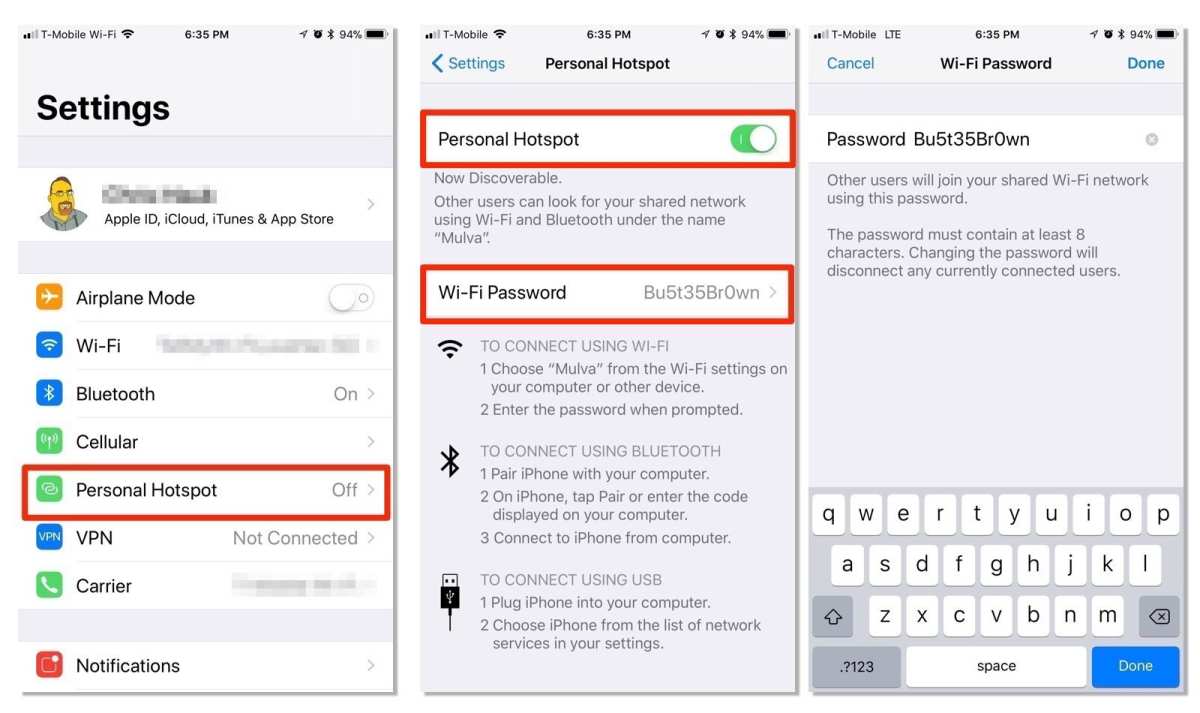
Once your device is ready, follow these straightforward steps to set up your hotspot connection. **Activate the Hotspot**- Open the Settings app on your iPhone.
- Tap on Personal Hotspot or, if you don’t see this option, tap on Cellular, then Personal Hotspot.
- Toggle the switch next to Allow Others to Join to turn on the hotspot feature.
- In the Personal Hotspot menu, you’ll see the default network name and password.
- Change the Wi-Fi password to a secure one. Make sure it’s strong but easy enough for you to remember.
- It’s recommended to use a mix of uppercase, lowercase, numbers, and symbols for security.
- On the device you want to connect, go to its Wi-Fi settings.
- Find the Wi-Fi network matching your iPhone’s device name.
- Enter the password if prompted.
- Once connected, your device will be online through your iPhone’s cellular data.
Managing and Troubleshooting Hotspot Connection
Sometimes, you might face challenges with your hotspot connection. Here’s how you can troubleshoot common issues. **Check for Signal or Data Issues**- Ensure your iPhone has cellular data enabled and isn’t in Airplane Mode.
- Verify that your cellular plan supports hotspot use.
- Check if your data plan has enough remaining data for hotspot activity.
- Turn off your iPhone and the device trying to connect.
- Wait a few seconds and turn them back on. This can resolve temporary glitches.
- Navigate to Settings.
- Tap on General.
- Choose Transfer or Reset iPhone.
- Select Reset, then tap on Reset Network Settings.
- Note: This will erase saved Wi-Fi networks and passwords, so be prepared to re-enter them.
- In Settings, tap General.
- Tap About.
- If an update is available, a prompt will appear. Follow the instructions to update your carrier settings.
Securing Your Hotspot Connection
Because your iPhone hotspot can be accessed by anyone within range, security is important. **Use a Strong Password**- Always choose a password that is hard to guess. Avoid simple words or common patterns.
- Change your password regularly, especially if you suspect unauthorized access.
- Turn off the hotspot feature when you don’t need it. This prevents accidental sharing or data drain.
- Keep track of how many devices are connected to avoid overloading your data plan or reducing connection quality.
Understanding Data Usage and Costs
Using your iPhone as a hotspot can quickly consume your data plan. Here are some tips to stay in control. **Monitor Your Data Usage**- Go to Settings.
- Tap on Cellular.
- Scroll down to see your data usage, including hotspot data.
- If you notice high data consumption, consider upgrading your plan or limiting hotspot use.
- Some carriers offer unlimited hotspot data, but confirm the details with your provider.
- Many carriers allow you to set alerts when you reach a certain data threshold. Use these alerts to prevent unexpected charges.
Battery Management When Using Hotspot
Using your iPhone as a hotspot drains battery quickly. To extend usage:- Connect your iPhone to a charger while using the hotspot if possible.
- Turn off unnecessary features like Bluetooth or location services to conserve power.
- Lower screen brightness and disable background app refresh for additional savings.
Alternatives and Additional Tips
If using your iPhone hotspot isn’t ideal for your needs, consider these options:- Use a dedicated mobile hotspot device that’s designed specifically for sharing internet.
- Check if your Wi-Fi provider offers portable Wi-Fi routers or plans that suit your needs.
- Connect your device directly via USB if possible, which is often more stable and consumes less battery.
Frequently Asked Questions
How do I ensure my iPhone hotspot settings are secure?
To keep your hotspot secure, choose a strong, unique password that isn’t easy to guess. Avoid using default passwords or common words. Additionally, turn off the hotspot when you’re not using it to prevent unauthorized access. You can also set your device to only accept connections from devices you recognize by managing connected devices in your settings.
What should I do if my iPhone’s hotspot isn’t connecting to other devices?
First, make sure your hotspot is turned on and that you have cellular data enabled. Restart your iPhone and the device you’re trying to connect. Check that you’re within range and that the hotspot’s Wi-Fi name and password are correct. If issues persist, reset your network settings or update your iPhone to the latest iOS version to fix any software glitches.
Can I customize the name of my iPhone hotspot?
Yes, you can change the name of your device, which also updates your hotspot name. To do this, go to Settings > General > About > Name. Enter a new name, and your hotspot’s network name will reflect this change, making it easier to identify on other devices.
Is there a way to limit the number of devices that connect to my hotspot?
While iPhone settings do not directly allow you to restrict the number of connected devices, you can monitor connected devices through Settings > Personal Hotspot. To control access, disable the hotspot when not needed or change the password periodically to prevent unwanted connections.
How can I save battery life when using my iPhone as a hotspot?
Using your iPhone as a hotspot consumes significant battery power. To conserve energy, keep the hotspot active only when necessary, lower the screen brightness, and disable notifications. If possible, connect to power sources or turn off the hotspot when you no longer need it to extend your device’s battery life.
Final Thoughts
In summary, setting up a hotspot on your iPhone is straightforward and quick. Follow the simple steps to activate the feature and connect your devices seamlessly. Whether for work or entertainment, the iPhone setting up hotspot provides reliable internet access. Keep your device updated for the best experience, and enjoy staying connected wherever you go.
Similar Posts































