How To Copy And Paste Across Apple Devices Seamlessly
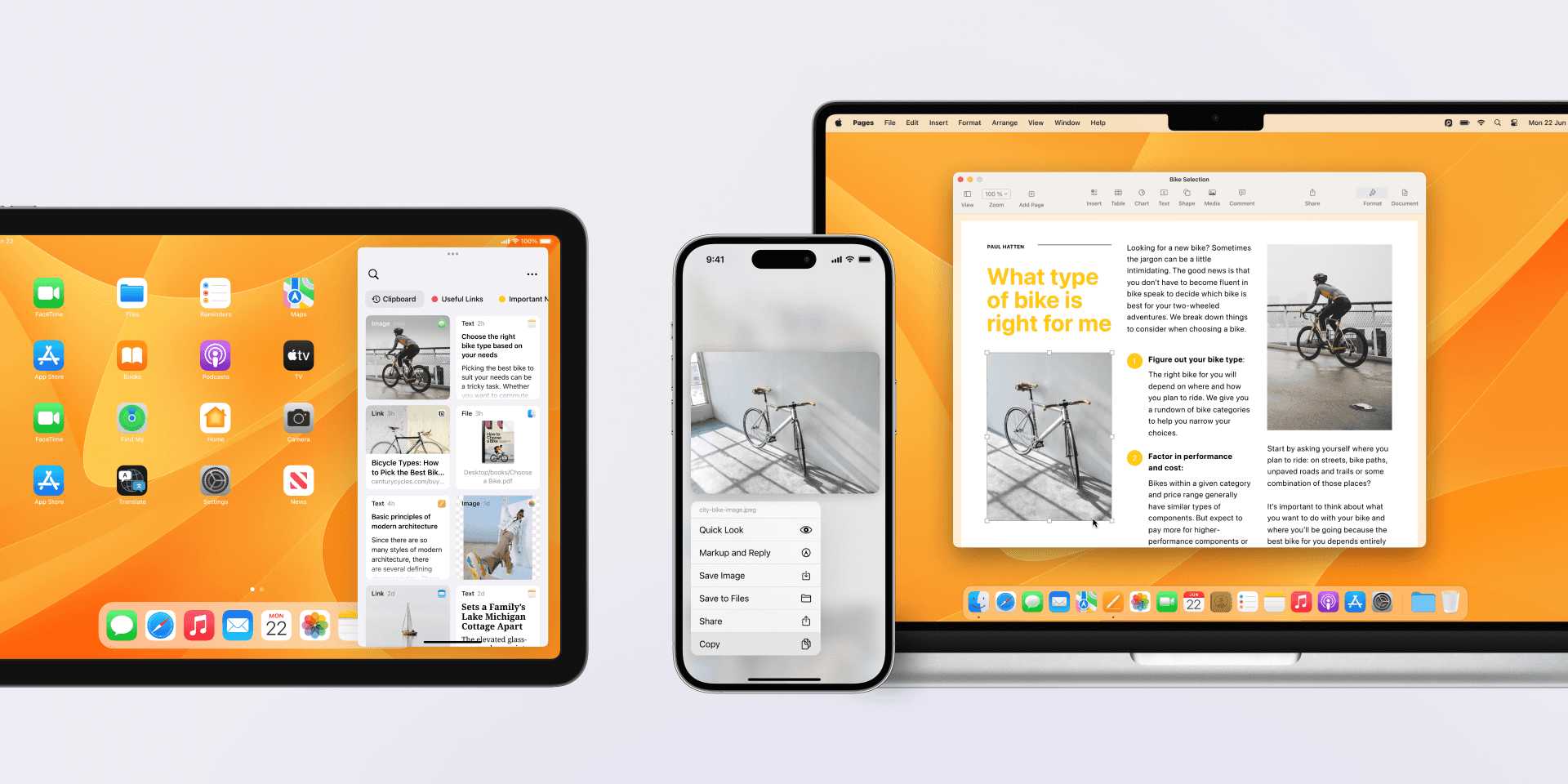

How to copy and paste across Apple devices seamlessly
Understanding the Continuity and Universal Clipboard features
Apple offers a feature called Continuity, which allows devices like iPhone, iPad, and Mac to work together smoothly. One key part of this is the Universal Clipboard, enabling you to copy on one device and paste on another instantly. To use this, all devices must be signed in with the same Apple ID and have Bluetooth and Wi-Fi turned on.Requirements for seamless copying and pasting
Ensure your devices meet these prerequisites:- Signed into the same Apple ID
- Bluetooth turned on
- Wi-Fi connected on all devices
- Handoff enabled in Settings
Enabling Handoff on your devices
Handoff is essential for Universal Clipboard to work. To activate it:- Go to Settings on iPhone or iPad
- Select General, then Handoff
- Toggle Handoff to ON
- On Mac, open System Preferences
- Click on General
- Check the box for “Allow Handoff between this Mac and your iCloud devices”
Using Universal Clipboard on Apple devices
Copy content on one device by selecting it and choosing ‘Copy’. Then, switch to another device nearby:- Paste the content as you normally would by selecting ‘Paste’
- The content appears instantly if all conditions are met
Tips to enhance copying and pasting experience
For smoother use:- Keep devices close to each other to ensure Bluetooth and Wi-Fi connections
- Update all devices to the latest software versions
- Avoid switching networks during the process
- Use keyboard shortcuts like Command + C and Command + V for faster action on Mac
Dealing with common problems in copying and pasting
Sometimes, Bluetooth or Wi-Fi issues block the clipboard sharing. To fix this:- Turn Bluetooth off and on again
- Restart your devices
- Ensure Bluetooth and Wi-Fi are both enabled and functioning properly
- Sign out and back into your Apple ID if necessary
Third-party apps for extended clipboard sharing
If you need more advanced features, some apps extend clipboard sharing beyond the built-in options:- Paste – a clipboard manager that syncs across Apple devices
- Copied – saves multiple clips and syncs via iCloud
- Universal Clipboard apps that offer history and management features
Optimizing device settings for better performance
To make sure everything runs smoothly:- Enable Bluetooth and Wi-Fi automatically on startup
- Allow background app refresh for clipboard apps
- Keep your devices close for better connectivity
- Disable VPNs if they interfere with local device communication
Security considerations when copying data across Apple devices
Always be cautious about sensitive information:- Only copy data you trust to be shared
- Disable Universal Clipboard if you’re concerned about security in public spaces
- Keep devices secure with passwords or biometric locks
- Review Apple privacy settings regularly
Additional tips for power users
Some advanced users can further improve their experience:- Create custom shortcuts with Automator or Shortcuts app for quick actions
- Use keyboard shortcuts to copy and paste faster
- Organize frequently used clips with clipboard managers
- Set up multiple desktops or spaces for better multitasking
Summary of the key steps to copy and paste seamlessly
Finally, remember these core points:- Sign into all devices with the same Apple ID
- Enable Bluetooth, Wi-Fi, and Handoff
- Keep devices close to each other
- Use the standard copy and paste commands
Easy Trick to Copy and Paste Between Apple Devices! [iPhone & iPad]
Frequently Asked Questions
Can I copy content from my iPhone and paste it directly onto my Mac without using third-party apps?
Yes, if your iPhone and Mac meet the requirements for Universal Clipboard, you can copy content on your iPhone and immediately paste it on your Mac. Both devices need to be signed in with the same Apple ID, have Bluetooth and Wi-Fi enabled, and are within proximity. Ensure that Handoff is turned on in the system settings of both devices to enable this feature.
What steps should I follow to set up Universal Clipboard on my Apple devices?
First, sign in both your Mac and iPhone with the same Apple ID and ensure they are connected to the same Wi-Fi network. Turn on Bluetooth and Wi-Fi on both devices. Navigate to Settings > General > AirPlay & Handoff on your iPhone to activate Handoff, and go to System Preferences > General on your Mac to enable ‘Allow Handoff between this Mac and your iCloud devices.’ Once set up, you can copy and paste seamlessly across your devices.
Are there any limitations on the types of content I can copy and paste across Apple devices?
Universal Clipboard supports various content types, including text, images, and videos. However, large files or highly formatted documents might not transfer smoothly or instantly. Additionally, copying and pasting between devices works best when both are unlocked, awake, and actively connected via Bluetooth and Wi-Fi.
How can I troubleshoot issues with copying and pasting between my Apple devices?
First, confirm that both devices meet the requirements: signed into the same Apple ID, connected to the same Wi-Fi network, and with Bluetooth enabled. Turn off and restart Bluetooth and Wi-Fi if necessary. Make sure Handoff is enabled on both devices. If problems persist, sign out and back into iCloud, update your devices to the latest software versions, or reset network settings to resolve connectivity issues.
Does using Continuity features like Universal Clipboard affect my device’s battery life?
Using Continuity features, including Universal Clipboard, can slightly impact your device’s battery life because they rely on Bluetooth and Wi-Fi to maintain connections. However, when Handoff and related features are used intermittently or with devices in close proximity, the impact remains minimal. To conserve battery, turn off these features when they are not needed.
Final Thoughts
Copying and pasting across Apple devices is simple with Continuity features. Ensure Bluetooth and Wi-Fi are active on all devices and signed into the same iCloud account. Use AirDrop for quick transfers or copy content and use Handoff for seamless editing between devices. These options keep your workflow smooth and efficient. How to copy and paste across Apple devices seamlessly depends on enabling the right features. With these tools, moving content between your Apple devices becomes effortless.
Similar Posts































