How To Use Command And Option Keys Like A Pro For Mac?
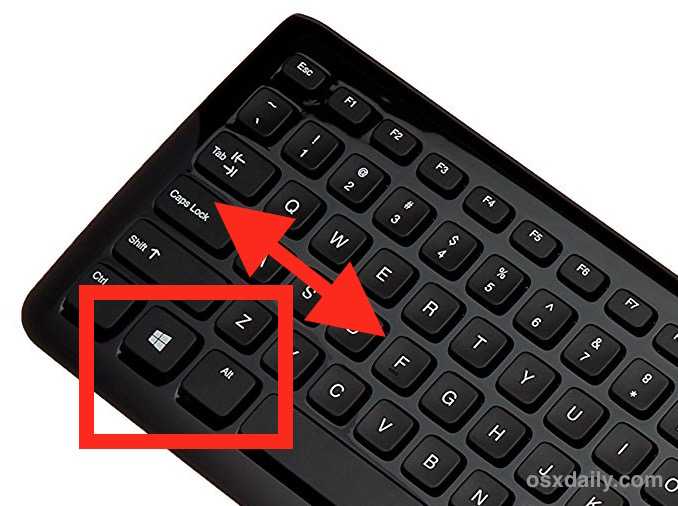
Mastering the Command and Option keys can transform your Mac experience, making tasks quicker and more efficient. Whether you’re looking to navigate faster, manage files with precision, or customize shortcuts, these keys unlock a world of productivity. The key to using them like a pro is understanding their core functions and practicing their shortcuts to perform actions seamlessly.
In essence, to use Command and Option keys like a pro, familiarize yourself with their primary shortcuts, customize your own combos, and get comfortable with combining them with other keys. With a little practice, you’ll navigate your Mac more intuitively and boost your workflow.
Getting the most out of your Mac involves more than just clicking icons—it’s about mastering hidden shortcuts and features. The Command and Option keys are powerful tools that can elevate your efficiency dramatically when used correctly. From quick navigation to advanced file management, knowing how to leverage these keys can make your daily tasks much smoother. Whether you’re a beginner or an experienced user, learning these tips will help you work faster, smarter, and more confidently.

How to use Command and Option keys like a pro
Understanding the Role of Command and Option Keys
The Command key, often labeled as Cmd or ⌘, is the main shortcut key on Macs. It allows you to quickly perform actions like copying, pasting, or opening new tabs. The Option key, labeled as ⌥, is used to access hidden features, special characters, and alternative functions.
Both keys are essential for faster navigation and efficient workflow. Knowing how to use them properly saves time and improves your overall experience with Macs. They work together with other keys to create a wide variety of shortcuts.
Common Uses of the Command Key
The Command key is at the heart of many Mac shortcuts. Here are some of the most frequently used commands:
- Copy: Command + C
- Paste: Command + V
- Cut: Command + X
- Undo: Command + Z
- Redo: Command + Shift + Z
- Save: Command + S
- Open: Command + O
- Close window: Command + W
- Quit application: Command + Q
Using these shortcuts reduces reliance on menu options and speeds up your work process.
Exploring the Power of the Option Key
The Option key helps you access hidden features and special characters. For example, holding Option while clicking the “File” menu reveals additional options. It also allows you to insert special symbols like ©, ™, or €, which aren’t readily available on the keyboard.
You can also modify shortcuts with the Option key for more control. For instance, holding Option while clicking the Wi-Fi icon shows detailed network information. This key is a shortcut to advanced functions that enhance your Mac experience.
Combining Command and Option for Advanced Shortcuts
Using Command and Option together opens a whole new world of shortcuts. For example:
- Force Quit an application: Command + Option + Escape
- Open a new finder window: Command + N, then Option + Command + N
- Show hidden files in Finder: Command + Shift + Period (.)
These combinations allow you to perform complex tasks quickly and efficiently.
Customizing Shortcuts with Command and Option
Macs let you customize shortcuts to suit your workflow. You can assign new key combinations via System Preferences. This flexibility helps you tailor the keyboard shortcuts to your specific needs.
To do this, navigate to System Preferences, select Keyboard, then Shortcuts. Here, you can modify existing shortcuts or create new ones for apps. Using Command and Option creatively here boosts your productivity.
Tips for Memorizing Command and Option Shortcuts
Memorizing shortcuts takes time, but certain strategies make it easier. Practice regularly by using shortcuts in daily tasks. Keep a cheat sheet nearby until the commands become second nature.
Grouping shortcuts by function, such as editing or navigation, helps with learning. Also, focus on the most used commands first before exploring more advanced combinations.
Using Keyboard Shortcuts in Different Applications
Most applications support standard Command and Option shortcuts. For example, in Safari, Command + T opens a new tab, while Option + Command + T reopens the last tab.
In productivity apps like Microsoft Word or Google Docs, these keys help with formatting, navigation, and editing. Knowing how to adapt shortcuts across apps makes your workflow seamless.
Best Practices for Using Command and Option Effectively
Always keep your fingers close to the Command and Option keys for quick access. Avoid overusing complex shortcuts that may slow you down initially—start simple and build from there.
Using keyboard shortcuts consistently trains your muscle memory. Remember to combine shortcuts with your workflow habits for optimal efficiency.
Additional Resources and Tools
Several apps and tools can help you learn and customize shortcuts. For example, CheatSheet displays all shortcuts for the current app when you hold the Command key.
Keyboard mapping software, like Karabiner-Elements, allows deeper customization. Online tutorials and cheat sheets are useful for expanding your knowledge of Mac shortcuts.
Comparing Mac Command and Option Keys with Windows Shortcut Keys
Understanding the differences between Mac and Windows shortcuts can ease transition or multitasking. Windows uses Ctrl instead of Command for most shortcuts.
For example, copying on Windows is Ctrl + C, while on Mac, it’s Command + C. Familiarity with both systems enhances versatility and reduces confusion when switching devices.
Summary of Essential Tips for Using Command and Option like a Pro
• Practice basic shortcuts daily to build muscle memory
• Use Command + C and Command + V for fast copying and pasting
• Access hidden features with the Option key
• Explore advanced shortcuts combining Command and Option
• Customize shortcuts in System Preferences for efficiency
• Use resources like CheatSheet to learn new commands
• Keep your hands positioned comfortably for quick access
• Apply shortcuts across different applications for a consistent workflow
Mastering Command and Option keys enhances your Mac experience significantly. By integrating these shortcuts into your daily routine, you’ll navigate your Mac faster and with less effort.
Mac Option Key Secrets 🤫
Frequently Asked Questions
What are some common shortcuts using the Command key to increase productivity?
Using the Command key to execute shortcuts like Command+C to copy, Command+V to paste, Command+Z to undo, and Command+S to save helps you perform tasks quickly. Learning and consistently applying these shortcuts allows for smoother workflow and reduces reliance on menu navigation.
How can the Option key help you access additional functions of icons and menus?
Pressing the Option key while clicking on icons or menus reveals hidden options or alternative commands. For example, holding Option while clicking the Wi-Fi icon shows detailed network information, providing quick access to advanced settings without navigating through multiple menus.
What strategies can you use to memorize Command and Option combinations effectively?
Practice using shortcuts in your daily tasks, create quick reference guides, and customize shortcuts to suit your workflow. Repetition and consistency help reinforce memory, making it easier to recall and use combinations efficiently during work sessions.
How do you combine Command and Option keys to perform complex actions?
Combine the Command key with other keys and hold the Option key to execute specific functions simultaneously. For example, pressing Command+Option+Esc opens the Force Quit Applications window, allowing you to close unresponsive apps swiftly without navigating through multiple menus.
What is the benefit of customizing your keyboard shortcuts involving Command and Option keys?
Customizing shortcuts allows you to tailor your workflow to your preferences, reducing keystrokes and saving time. It helps you perform frequent tasks faster and ensures that your environment adapts to how you work best, increasing overall efficiency.
Final Thoughts
How to use Command and Option keys like a pro is essential for efficient workflow. Practice using shortcuts regularly to build muscle memory. Remember, combining these keys with others can open new possibilities for faster navigation.
Familiarize yourself with common combos, such as Command+C to copy or Option+click for alternative options. With consistent use, these shortcuts become natural, saving time and effort.
In summary, mastering the Command and Option keys will enhance your productivity. Use these tips to operate your Mac more effectively and confidently every day.

Similar Posts































