How To Use Spotlight Search Like A Pro For Better Efficiency
To use Spotlight Search like a pro, master specific shortcuts, filters, and search operators to find what you need instantly. Customize your search settings and learn how to refine queries for faster results, making your Mac experience more efficient and effortless. Think of Spotlight as your personal assistant that responds to precise commands—once you know the tricks, you’ll never look back!
Spotlight Search is a powerful tool on Mac that can do much more than just find files. By using clever tricks like shortcuts, filtering options, and search operators, you can locate apps, emails, documents, and even perform quick calculations or look up definitions. In this guide, I’ll show you how to unlock the full potential of Spotlight so you can navigate your Mac like a true pro.
Stop wasting time scrolling and guessing—learning the tips and tricks for Spotlight Search will turn it into your go-to tool for lightning-fast searches and quick actions, saving you time and boosting your productivity.

How to use Spotlight Search like a pro
Understanding Spotlight Search and Its Benefits
Spotlight Search is a quick way to find apps, documents, emails, and even web results right from your Mac or iOS device. It saves time by giving instant access to what you need. Knowing how to use it efficiently helps you stay productive and organized.
Activating Spotlight Search
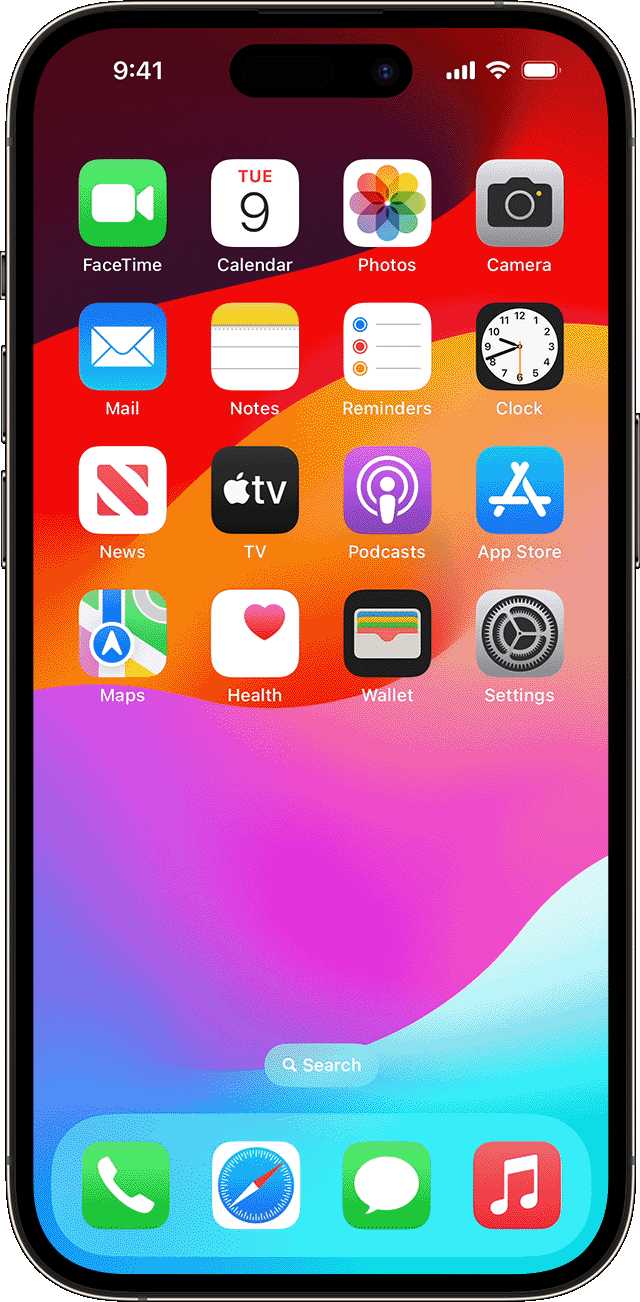
To activate Spotlight, press Command plus Spacebar on your Mac. On an iPhone or iPad, swipe down from the middle of the home screen. This simple step opens the search bar where all the magic begins. Make sure your device is updated to get the latest Spotlight features.
Using Basic Search Features
Start by typing any app, contact name, or keyword into the Spotlight bar. As you type, results appear instantly, sorted into categories like Apps, Documents, and Web. Use arrow keys or swipe to navigate through options easily. Press Enter to open the selected item quickly.
Refining Your Search with Filters and Commands
Spotlight offers filters for specific searches, like searching only for emails or documents. Type keywords such as “email” or “document” along with your search term to narrow down results. Additionally, you can use commands like “define,” “weather,” or “convert” for quick information retrieval.
Common Commands to Enhance Search Efficiency
- define [word]: Looks up the definition of a word.
- weather [city]: Shows the weather forecast.
- convert [amount] [unit]: Converts units like miles to kilometers.
- calculator [expression]: Performs quick calculations.
Searching for Files and Documents
Type the name of the file or a keyword related to the document. Spotlight searches all locations, including Desktop, Downloads, and iCloud. Use the search filters or specify locations in the search box for faster results. For example, typing “report” and selecting Documents narrows your options.
Using Spotlight for Web Results
Type your question or keyword, and Spotlight displays relevant web results from Safari or your default browser. You can open links directly from Spotlight by clicking on them. This feature helps you find online information without opening a browser manually.
Quick Actions and Siri Suggestions
Spotlight shows suggestions for apps, contacts, or recent files based on your usage patterns. Tap on these suggestions to perform actions immediately. For example, if a contact appears, tap to call or message them quickly.
Customizing Spotlight Search Settings
Go to System Preferences on Mac or Settings on iOS. Under Spotlight, you can select which categories appear for your searches. Customize the order of categories to prioritize your most-used options. Disabling unused categories keeps the search results clean.
Optimizing Search Results with Keywords
Add specific keywords to your documents or emails to improve findability. For example, tag files with relevant labels or metadata. Use consistent naming conventions for files to make searches more accurate.
Managing Search Privacy
If you prefer to keep certain files or categories private, limit Spotlight indexing. On Mac, go to Privacy in Spotlight settings and add folders you want to exclude. This way, your sensitive data remains protected during searches.
Using Spotlight on Apple Devices Efficiently
On Mac, customize shortcut keys to open Spotlight faster. On iOS devices, organize your home screen for quick access. Practice using voice commands with Siri for hands-free searches, especially when multitasking.
Integrating Spotlight with Third-Party Apps
Some third-party apps support Spotlight integration for enhanced search capabilities. Check app settings to enable this feature. This integration allows seamless searching across multiple platforms and app-specific content.
Advanced Tips for Power Users
Use complex queries by combining keywords, filters, and commands. For example, searching for “email from John last week” combines filters with keywords. Create custom Siri shortcuts to trigger specific Spotlight searches or actions.
Practicing Regularly for Better Efficiency
Consistent use of Spotlight helps you become familiar with its features. Experiment with different commands and filters to see what works best. The more you practice, the faster you’ll find what you’re looking for.
Troubleshooting Common Spotlight Issues
If Spotlight isn’t working properly, rebuild its index from System Preferences or Settings. Restart your device or reset Spotlight preferences if problems persist. Keeping your device updated also ensures optimal performance.
Keeping Spotlight Search Up to Date
Regularly update your device’s software for the latest features and improvements in Spotlight. Manufacturers often add new commands and filters with updates, enhancing your search experience.
Related Topics for Better Device Management
Explore managing notifications, organizing files, and customizing your device for smoother searches. These steps complement Spotlight use, making your overall digital experience more efficient. Remember, mastering Spotlight takes practice, but the time you invest pays off through quicker, smarter searches.
18 Tips for Spotlight on macOS Sonoma and iOS 17
Frequently Asked Questions
How can I quickly access specific files using Spotlight Search?
Type the name or part of the name of the file you’re looking for into Spotlight Search. Use accurate keywords, including file extensions or related terms, to narrow down results. You can also add filters like “kind: document” or “date: today” to refine your search and find what you need faster.
What tips help improve the accuracy of Spotlight Search results?
To get precise results, start typing with the exact name or relevant keywords related to the item you’re searching for. Make sure your files are properly named and organized. Additionally, enabling indexing for all your folders ensures Spotlight considers more locations when searching, which enhances result relevance.
How can I include third-party app data in my Spotlight Search?
Install and enable any necessary plugins or extensions that allow Spotlight to index third-party app content. Adjust your Spotlight preferences in System Preferences to include additional categories or apps. This setup ensures you can search through emails, notes, or other data stored within those third-party applications directly from Spotlight.
Are there keyboard shortcuts that can speed up using Spotlight Search?
Yes, pressing Command + Spacebar activates Spotlight Search instantly. Once open, you can navigate results with arrow keys and press Enter to open selected items. Using these shortcuts helps you search and access files more efficiently without relying on a mouse or trackpad.
How do I customize Spotlight Search to better suit my needs?
Go to System Preferences and select Spotlight. Here, you can check or uncheck categories to control what types of data appear in search results. You can also add or remove specific locations from indexing, prioritize certain categories, and set privacy restrictions to exclude sensitive folders, making your search experience more personalized and effective.
Final Thoughts
How to use Spotlight Search like a pro offers a quick way to locate files, apps, and information on your device. Use specific keywords to get accurate results faster. Utilize search operators for advanced queries, such as searching by date or file type. Practice these tips to improve your efficiency and become more confident in navigating your device seamlessly.

Similar Posts































