How To Copy On Ipad: Simple Step-By-Step Guide
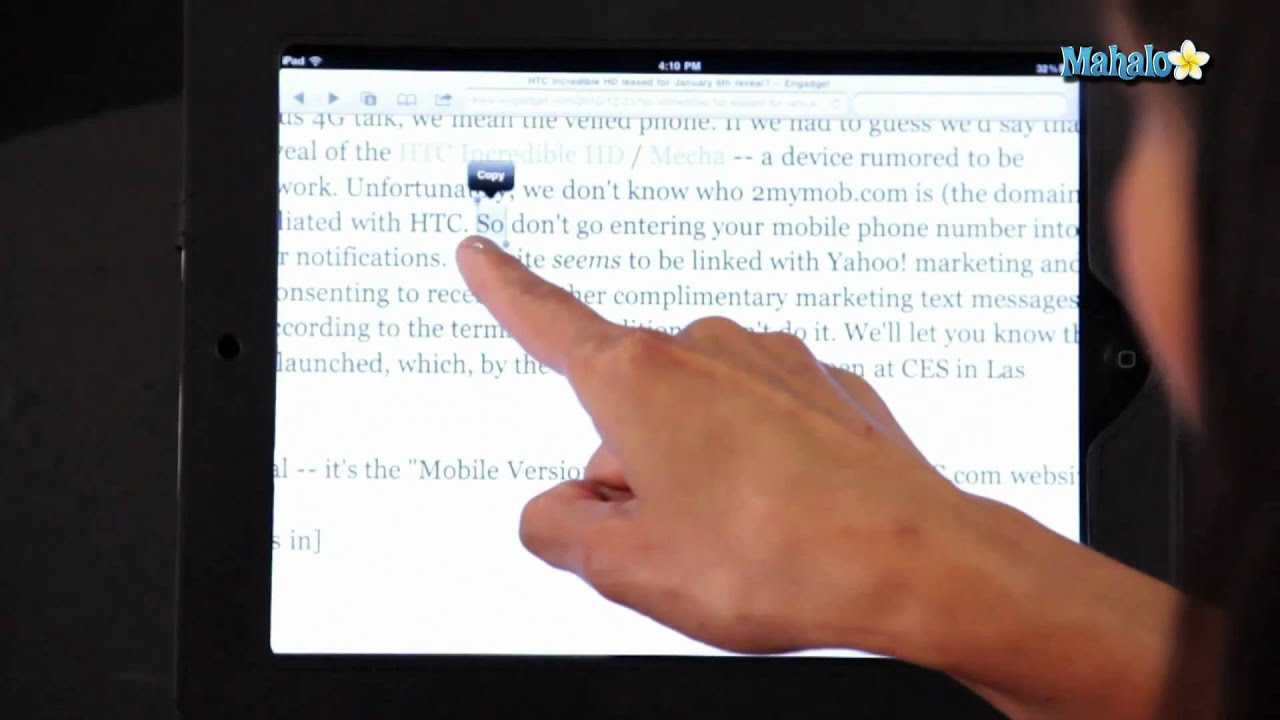

How to Copy on iPad
Copying content on an iPad is a simple process that can save you time and effort. Whether you’re copying text, images, or other data, knowing the right steps is important for a smooth experience. This guide will walk you through everything you need to know about copying on an iPad in clear, easy-to-understand steps.
Copying Text on Your iPad
Copying text is one of the most common tasks on an iPad. It works across most apps like Safari, Notes, Mail, and many others. To start, tap and hold on the text you want to copy.
Selecting the Text
Once you tap and hold, a menu will appear with options like “Copy,” “Cut,” or “Paste.” Use the blue handles to adjust your selection to encompass the exact text you want. Drag these handles to highlight more or less text as needed.
Copying the Selected Text
After selecting your desired text, tap the “Copy” button. The text is now saved to your iPad’s clipboard. You can paste it into other apps or documents anytime.
Copying Images on Your iPad
Copying images is useful when you want to reuse pictures from websites, emails, or other apps. The process is similar to copying text but with slight differences depending on the app.
Copying Images from Websites or Apps
Tap and hold on the image you want to copy. A menu will appear with options like “Copy” or “Save Image.” Tap “Copy” to store the image in your clipboard.
Copying Images from Photos App
Open your Photos app and select the picture you wish to copy. Tap the Share icon, then choose “Copy.” The image is now ready to be pasted elsewhere.
Pasting Content on iPad
Once you’ve copied text or images, you can easily paste them into different apps. To do this, open the target app or document where you want to insert your content.
How to Paste
Tap and hold in the area where you want to insert the copied content. When the menu appears, select “Paste.” Your copied text or image will appear at that location.
Using the Copy and Paste Keyboard Shortcut
If you use a connected external keyboard with your iPad, copying and pasting becomes even faster. Use the common shortcuts:
- Command + C to copy
- Command + V to paste
Copying Multiple Items Using the Files App
The Files app allows you to copy files and folders between locations on your iPad or to external drives. Here’s how:
Copying Files within Files App
Navigate to the file you want to copy. Tap and hold, then select “Copy.” Go to the destination folder, tap, and hold, then choose “Paste.” Repeat as needed to duplicate files quickly.
Copying Files to External Devices
Connect your external drive or SD card to your iPad. Use the Files app to locate your files, then copy and paste them into the external storage for backup or transfer.
Copying Text and Content in Safari
Sipping content from websites is common and straightforward. Tap and hold on to any paragraph or image, then select “Copy” once the menu appears. This method helps you gather information for reports or notes easily.
Using AssistiveTouch for Copy and Paste
If you find tapping and holding difficult, AssistiveTouch offers an alternative. Enable it in Settings under Accessibility. Use the on-screen menu to access copy and paste commands easily.
Copying Content from PDFs and Other Document Types
Opening PDFs or Word documents allows you to highlight text just like in other apps. Tap and hold to select the text, then choose “Copy.” This is great for extracting information from various document formats.
Copying Content Across Different Apps
iPad’s multitasking features make copying content across apps quick. Use Split View or Slide Over to have two apps open side-by-side. Copy from one app and paste into the other without switching back and forth manually.
Managing the Clipboard for Efficient Copying
While iPads have a simple clipboard, recent updates support multiple clipboard history. Use third-party apps to manage and access your recent copied items for more productivity.
Copying and Sharing Content Safely
Always ensure you’re copying content from trustworthy sources. Be cautious when copying sensitive or personal data, especially if you plan to share it online or via email.
Common Issues with Copying on iPad and How to Fix Them
If copying isn’t working, try restarting your device, updating iOS, or closing and reopening the app. Sometimes, clearing the clipboard or resetting settings can resolve persistent issues.
Understanding how to copy efficiently on your iPad helps you work faster and stay organized. Practice these steps regularly, and you’ll become more comfortable with managing your content across all apps.
Copy Paste Text or Photos Across iPhone, iPad, and Mac!
Frequently Asked Questions
How can I copy text from one app to another on my iPad?
To copy text between apps on your iPad, tap and hold the text you want to copy until selection handles appear. Drag the handles to highlight the desired text. Tap ‘Copy’ from the menu. Switch to the app where you want to paste the text, tap the text input area, and then tap ‘Paste’ to insert the copied content.
What steps should I follow to duplicate images on my iPad?
To duplicate an image, tap on the image to select it. Tap the ‘Share’ icon or press and hold the image until options appear. Choose ‘Copy’ from the menu. Open the app or location where you want the duplicate, tap the input area, then select ‘Paste’ to add the image copy.
How do I copy and share links from Safari on my iPad?
While browsing Safari, tap the address bar containing the URL. Hold and drag to select the entire link or tap ‘Select All.’ Tap ‘Copy’ from the menu. You can then paste the link into messages, emails, or other apps by tapping the input area and selecting ‘Paste.’
How can I copy multiple items or text snippets quickly on my iPad?
To copy multiple items, use the multitasking features or specific app functions. For text snippets, double-tap or press and hold to select the first piece, then repeat the process for additional items if supported. In some apps, you can use the split-screen or slide-over view to facilitate copying multiple contents efficiently.
What is the best way to copy content from a PDF on my iPad?
Open the PDF in your preferred app. Tap and hold the text you want to copy until selection handles appear. Drag to select the desired portion of the text. Tap ‘Copy’ from the options. You can now paste this content into other apps like Notes, emails, or messaging platforms by tapping and holding in the input area and choosing ‘Paste.’
Final Thoughts
To effectively copy on iPad, start by selecting the text you want to copy. Tap and hold until the selection handles appear, then adjust them to cover the desired content. Tap ‘Copy’ from the menu. You can then paste the content by tapping into your destination, holding, and selecting ‘Paste.’ Practice makes it quicker and more intuitive. In conclusion, learning how to copy on iPad is simple with these steps. Just select, copy, and paste to transfer content easily.
Similar Posts































