How To Solve Macbook Overheating Problems Effectively

How to Solve MacBook Overheating Problems
Overheating is a common issue for many MacBook users. When your MacBook gets too hot, it can slow down or even cause damage to internal parts. Fortunately, there are several steps you can take to fix this problem and keep your MacBook cool. Let’s explore detailed solutions to prevent and solve MacBook overheating issues.
Understanding Why MacBook Overheats
Before diving into solutions, it’s important to know why MacBooks overheat. Excess heat can come from running too many applications at once, demanding software, or environmental factors. Hardware components like the CPU and GPU generate heat during use. If cooling systems fail or are blocked, temperature rises quickly, leading to overheating.
Common Causes of Overheating
- Running intensive apps such as video editing or gaming software
- Background processes consuming lots of CPU power
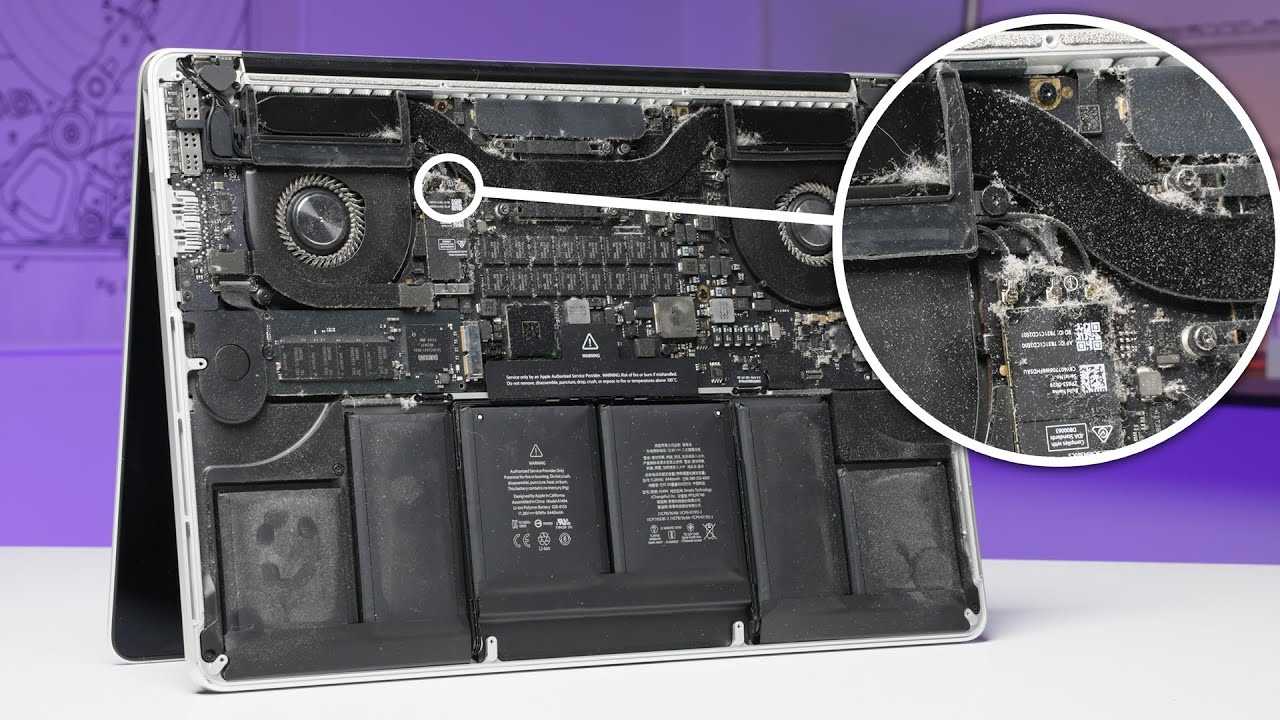
- Blocked air vents or dust accumulation
- Using MacBook on soft surfaces like beds or couches
- Malfunctioning cooling fans
- Outdated software or system bugs
Checking Your MacBook’s Temperature and Activity
Knowing your MacBook’s current temperature can help identify overheating issues early. Use diagnostic tools or built-in features to monitor performance. Also, check which applications are using the most resources.
Using Activity Monitor to Identify Resource-Heavy Apps
Open the Activity Monitor from Applications > Utilities > Activity Monitor. Look through the CPU tab to see which apps consume high CPU capacity. Closing or limiting these apps can lower your MacBook’s temperature.
Monitoring Temperature with Third-Party Apps
Apps like iStat Menus or Macs Fan Control can display real-time temperature data. These tools help you observe temperature trends and decide when cooling measures are necessary.
Basic Steps to Cool Down Your MacBook
Simple adjustments can significantly reduce heat levels. Try these easy-to-implement tips first to prevent overheating.
Keep Your MacBook on Hard, Flat Surfaces
Soft surfaces block air vents and trap heat. Always use your MacBook on a desk or stand to ensure proper airflow and cooling.
Ensure Proper Ventilation
Do not obstruct air vents. Use your MacBook in environments with good air circulation. Consider elevating the laptop slightly to improve airflow underneath.
Close Unnecessary Applications
Running many apps simultaneously increases CPU usage, generating more heat. Quit apps you are not actively using to ease the load.
Reduce Screen Brightness
Lowering display brightness decreases power consumption and heat output, helping your Mac stay cooler during extended use.
Software Solutions to Prevent Overheating
Software management plays a crucial role in controlling MacBook temperature. Keep your system optimized and up to date for best results.
Update macOS and Applications
Regularly check for software updates. Developers often release patches that improve system stability and reduce overheating issues caused by bugs.
Reset SMC (System Management Controller)
The SMC manages hardware functions like cooling fans and thermal sensors. Resetting it can fix overheating caused by hardware miscommunication.
- Shut down your MacBook
- Press and hold Shift + Control + Option keys on the left side and the power button simultaneously
- Release all keys at once, then turn on your MacBook
Reset NVRAM/PRAM
Resetting non-volatile RAM can resolve issues related to system settings affecting temperature.
- Shut down your MacBook
- Turn it on and immediately press and hold Option + Command + P + R
- Hold for about 20 seconds, then release and allow your Mac to boot normally
Hardware Maintenance and Cleaning
Physical upkeep of your MacBook can prevent overheating caused by dirt or faulty hardware components.
Cleaning Air Vents and Fans
Dust buildup blocks airflow, trapping heat. Use compressed air to gently blow out vents and fans regularly.
Checking Cooling Fans
If your MacBook has accessible fans, ensure they spin freely and are free of obstructions. Replace faulty fans if necessary.
Professional Servicing
If overheating persists despite cleaning, seek professional repair. It could be a hardware malfunction that requires expert attention.
Advanced Tips for Overheating Solutions
For persistent issues, consider advanced strategies. These can include thermal management tools or hardware upgrades.
Using Thermal Management Utilities
Apps like Macs Fan Control enable manual control over fan speeds. Increasing fan speeds can help dissipate heat faster during intensive tasks.
Consider Hardware Upgrades
If your MacBook model allows, upgrading RAM or replacing thermal paste can improve heat dissipation. Consult an authorized service provider for repairs.
Limit External Devices and Peripherals
External peripherals like external drives and chargers can add to the heat load. Disconnect unnecessary devices during heavy usage.
Environmental Factors and Usage Tips
External conditions significantly influence your MacBook’s operating temperature. Adjust your environment and usage habits for optimal cooling.
Use in Cooler Environments
Avoid hot, humid areas. Cooler rooms help your MacBook stay within safe temperature ranges during use.
Avoid Direct Sunlight
Using your MacBook in direct sunlight can cause rapid temperature rises. Keep it shaded to prevent overheating.
Manage Background Processes
Disable unnecessary background activities, such as automatic updates or syncing services, when performing resource-intensive tasks.
Implement Power Saving Modes
Enabling power saver mode reduces CPU workload, which helps lower heat generation and prolongs battery life.
Summary of Key Steps
| Action | Description |
|---|---|
| Keep vents open | Ensure proper airflow by avoiding blocking vents |
| Close unneeded applications | Reduce CPU load for less heat |
| Clean dust regularly | Remove dirt that blocks airflow |
| Update software | Fix bugs that may cause overheating |
| Use cooling apps | Control fan speed to lower temperature |
| Adjust environment | Work in cooler, shaded areas |
By following these detailed measures, you can effectively manage and prevent MacBook overheating. Regular maintenance, proper software use, and environmental awareness all play crucial roles in keeping your device cool and functioning optimally. Remember, a well-maintained MacBook not only performs better but also lasts longer.
Is your MacBook overheating? Here’s how to fix it | Asurion
Frequently Asked Questions
What steps can I take to improve my MacBook’s airflow and reduce overheating?
To improve airflow, ensure your MacBook is placed on a flat, hard surface that doesn’t block ventilation ports. Keep vents clean by periodically removing dust and debris. Avoid using your MacBook in hot environments or exposing it to direct sunlight. Utilizing a cooling pad can also help dissipate heat more effectively during intensive tasks.
How can I identify which applications are causing my MacBook to overheat?
Open the Activity Monitor from the Utilities folder to view running processes. Check CPU usage for each application; software consuming high CPU resources often generate more heat. Quit or force quit applications that are unnecessarily draining system resources to reduce overall temperature.
Are there software settings I can adjust to prevent my MacBook from overheating?
Yes, you can reduce heat accumulation by adjusting energy saver settings. Lower screen brightness, disable background processes, and turn off automatic graphics switching if possible. Using a lighter workload and minimizing multitasking can also help maintain a lower temperature during regular use.
What should I do if my MacBook continues to overheat despite basic troubleshooting?
If overheating persists, restart your MacBook and reset the System Management Controller (SMC), which manages thermal and power functions. Update your macOS to the latest version for optimized performance. If issues still occur, consider consulting an authorized Apple service provider to check for hardware problems, such as failing fans or thermal paste issues.
Final Thoughts
To solve MacBook overheating problems, start by closing unnecessary apps to reduce CPU load. Keep your MacBook in a well-ventilated area and avoid using it on soft surfaces that block airflow. Regularly update macOS and clean any dust from vents to improve cooling. Adjusting energy settings and monitoring activity with built-in tools help prevent overheating. Following these steps ensures your MacBook stays cool and performs optimally.
Similar Posts































