What To Do If Macbook Pro Is Not Charging Effectively
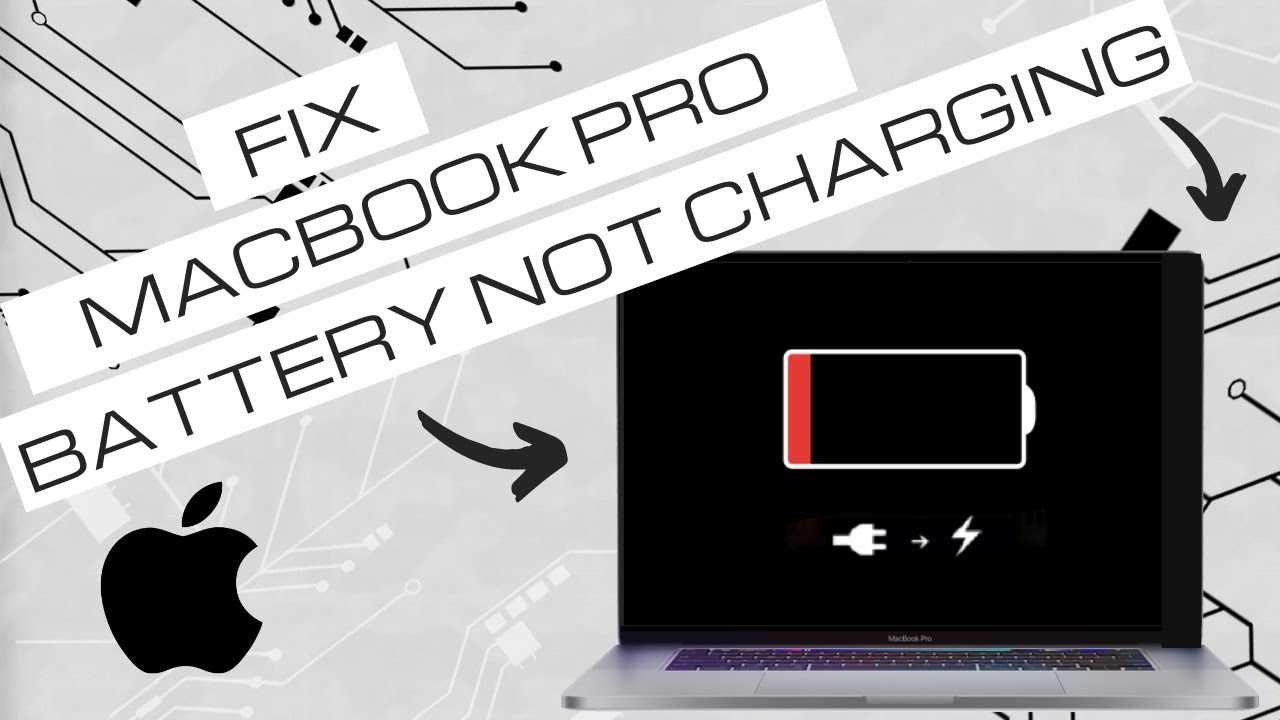

What to Do if Your MacBook Pro Is Not Charging
1. Check Your Power Source and Cable
First, ensure that the power outlet is working properly. Plug another device into the same outlet to verify power. If your outlet isn’t working, try a different one. Next, examine your charging cable and power adapter. Look for any visible signs of damage like frayed wires, bent connectors, or burnt spots. Damaged cables can prevent your MacBook from charging properly. Make sure the cable is securely connected to both the MacBook and the power adapter. Sometimes, a loose connection can be the cause of charging issues. Use the original Apple charging cable and adapter whenever possible for optimal compatibility.2. Inspect the MagSafe or USB-C Connector
Check the connection port on your MacBook Pro for dust, debris, or lint. These can block the connection between the charger and the port. Use a soft brush or compressed air to clean out dust gently. Ensure that the connector fits properly into the port. If it feels loose or tight, it may not make good contact, which causes charging problems. Look for any signs of corrosion or dirt on the connector itself. If needed, clean the connector with a lint-free cloth slightly dampened with rubbing alcohol, then dry it thoroughly before reconnecting.3. Test with a Different Charger and Cable
If possible, try using a different Apple-approved charger and cable that are compatible with your MacBook Pro model. This helps determine if the issue is with the charger or the MacBook itself. Using a known working charger can quickly identify whether the problem lies with your current charger. Always ensure the alternative charger matches your MacBook’s specifications to avoid potential damage or further issues.4. Check the Battery Status and System Settings
Click on the battery icon in the menu bar to see the battery status. If it says “Service Recommended” or “Replace Soon,” your battery may be at the end of its life. Open the Apple menu, then go to System Preferences and select Battery. From there, check the battery health details. In some cases, your MacBook may not charge because the system is protecting the battery from overcharging or overheating. Resetting system settings or calibrating the battery can help resolve this.5. Reset SMC (System Management Controller)
Resetting the SMC can fix power, battery, and charging problems. For MacBook Pro models with a T2 chip, follow these steps:- Shut down your MacBook Pro.
- Press and hold the Control and Option keys on the left side of the keyboard.
- While holding those, press and hold the Shift key on the right side.
- Hold all four keys for 7 seconds, then release them.
- Wait a few seconds, then turn on your MacBook as usual.
6. Reset NVRAM (Non-Volatile Random-Access Memory)
Resetting NVRAM can sometimes resolve hardware recognition issues related to power management. To reset NVRAM:- Turn off your MacBook Pro.
- Turn it back on and immediately press and hold the Option, Command, P, and R keys simultaneously.
- Hold these keys for about 20 seconds, during which your Mac may restart.
- Release the keys and allow your Mac to boot normally.
7. Update macOS and Firmware
An outdated macOS can cause hardware compatibility issues, including charging problems. Check for available updates by opening System Preferences and selecting Software Update. If updates are available, install them and restart your MacBook Pro. Keeping your system current ensures that your Mac has the latest firmware and bug fixes that may resolve charging issues.8. Examine Hardware Issues and Seek Professional Help
Persistent charging problems despite troubleshooting indicate potential hardware issues. These could include faulty charging ports, damaged internal components, or motherboard problems. If your MacBook is still under warranty or AppleCare, contact Apple Support or visit an authorized service provider. They can perform detailed diagnostics and repairs, ensuring your device is safe and fully functional again.9. Consider Battery Replacement
If your battery health reports show significant wear or the battery no longer holds charge, replacing the battery might be necessary. Apple offers battery replacement services which are often covered under warranty or AppleCare. Replacing an old or damaged battery can restore your MacBook’s charging ability and overall performance.10. Prevent Future Charging Problems
To avoid recurring issues, use only authentic Apple chargers and cables. Keep your charging port clean and free of dust. Avoid exposing your MacBook to extreme temperatures, which can damage the battery and charging system. Regularly check battery health and system updates to keep your MacBook running smoothly. Regular maintenance and cautious handling can extend the lifespan of your device’s battery and charging components. Ensuring proper charging habits and timely professional support are key to keeping your MacBook Pro powered up and ready whenever you need it.MacBook Pro Battery Not Charging? Quick Fix Now!
Frequently Asked Questions
Why does my MacBook Pro’s charger not seem to connect properly?
Check if the charger’s connection points are clean and free of dust or debris. Ensure that the charging port on your MacBook Pro and the connector on the charger are securely inserted. Sometimes, dirt or small particles can obstruct the connection, preventing the device from charging. Gently clean both the port and the charger tip with a soft, dry cloth. If the connection still feels loose, try using a different charging cable or adapter to see if that resolves the issue.
How can I determine if the problem lies with the power source?
Start by testing your power outlet with another device, such as a lamp or phone charger, to confirm it supplies power. If the outlet isn’t working, try plugging your MacBook Pro into a different outlet. Also, avoid extension cords or power strips that might be faulty. If you find that the outlet is active, but your MacBook still doesn’t charge, inspect nearby outlets or power sources to rule out electrical issues affecting charging.
What steps should I take if my MacBook Pro’s battery isn’t charging despite a proper connection?
First, restart your MacBook Pro, which can resolve temporary software glitches affecting charging. Check your Mac’s System Information to see if the battery health status indicates any problems. If the battery condition shows issues like “Service Recommended,” consider replacing the battery. Additionally, reset the NVRAM or SMC, as these resets sometimes fix charging problems. If issues persist, contact Apple Support or visit an authorized service provider to diagnose potential hardware failures.
What can I do if my MacBook Pro charges intermittently or very slowly?
Examine the charging cable and port for signs of damage or wear. Use a different charger compatible with your device to see if the charging improves. Avoid using your MacBook in high-performance tasks while charging, as intensive use can slow down the charging process. Make sure your MacBook’s software is up to date, because system updates include improvements for hardware management. If the problem remains, consider visiting an authorized service center for further inspection.
How do I troubleshoot software issues affecting the charging process?
Perform a software update to ensure your MacBook operates with the latest system version. Sometimes, software bugs interfere with hardware detection, including charging components. Resetting the SMC (System Management Controller) can resolve many power-related issues. To reset the SMC, turn off your MacBook, hold down specific key combinations as per your model, and then turn it back on. If software issues persist, boot your Mac into Safe Mode to see if the problem continues, which can help identify conflicting software or login items causing the issue.
Final Thoughts
If your MacBook Pro isn’t charging, start by checking the power source and ensuring the charger is plugged in properly. Inspect the charging port for debris or damage that might block the connection. Resetting the SMC can also resolve charging issues. To solve the problem, try using a different outlet or charger. If these steps don’t work, consult Apple Support for professional assistance. what to do if macbook pro is not charging involves simple troubleshooting steps that can often resolve the issue quickly. Follow these tips to keep your MacBook Pro charged and ready to use.
Similar Posts