How Can You Tell If A Macbook Pro Is Charging
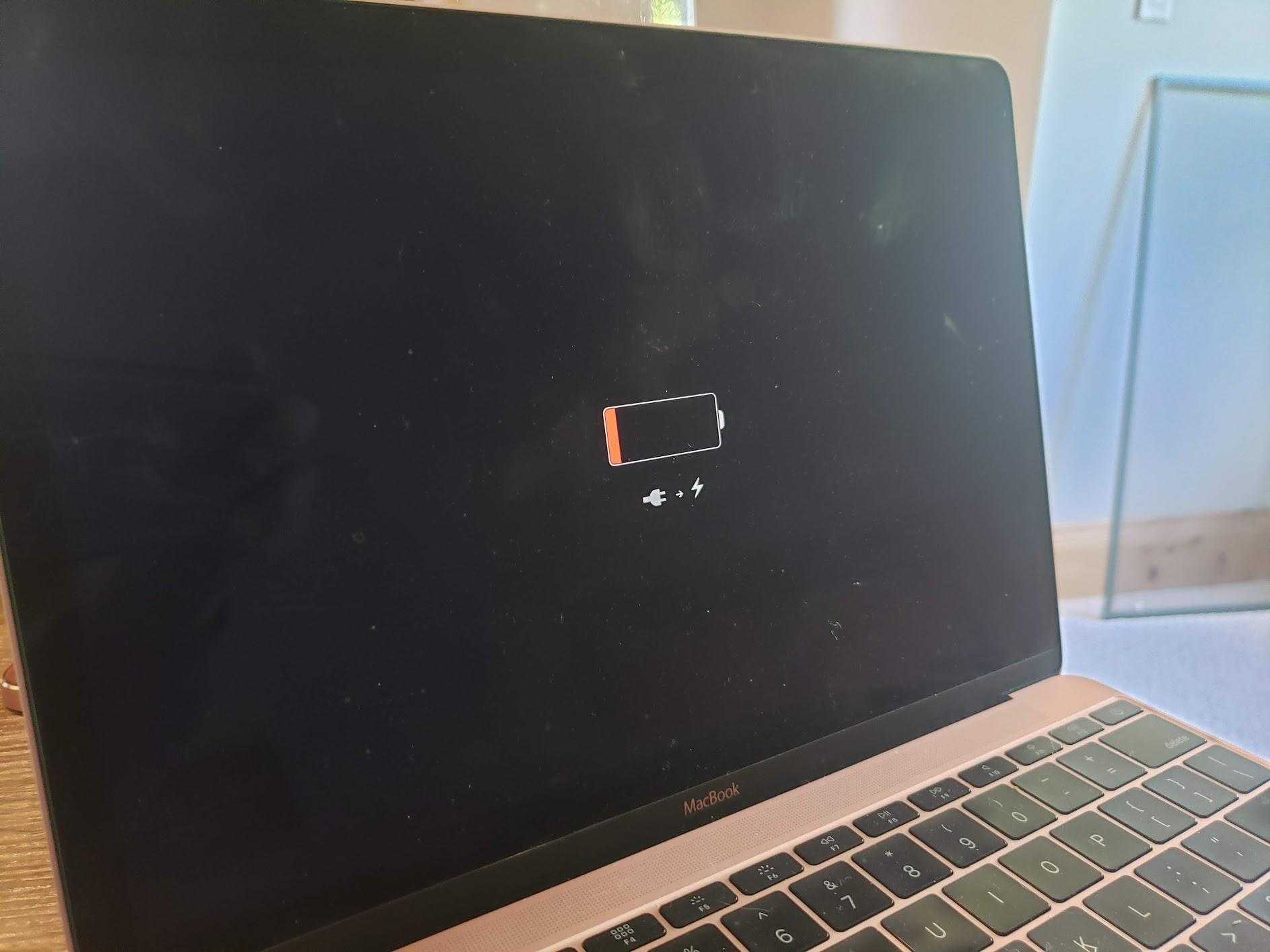

How Can You Tell If a MacBook Pro Is Charging
Knowing whether your MacBook Pro is charging is important to ensure your device stays powered and ready to use. There are several signs and indicators that can help you confirm if your MacBook Pro is receiving power from the charger. Understanding these signs can save you time and prevent your battery from unexpectedly running out.
Checking the Battery Icon on the Menu Bar
The easiest way to see if your MacBook Pro is charging is by inspecting the battery icon located in the menu bar. When connected to power, the icon typically displays a lightning bolt inside the battery symbol.
If you see a lightning bolt, it indicates that your MacBook Pro is actively charging. If the icon shows a plug instead of a lightning bolt, the device is connected to power but may not be charging presently.
Sometimes, the battery icon displays the remaining percentage. This helps you see if the battery percentage is increasing, confirming that charging is happening.
Observe the Battery Percentage and Charging Status
Hover over or click on the battery icon to get more detailed information. A pop-up window often shows the current battery percentage and the charging status. When your MacBook Pro is charging, it may say “Charging” or “Battery is charged” depending on the battery level.
Monitoring the battery percentage over time offers a clear sign. If the percentage increases while plugged in, your MacBook Pro is charging correctly.
Inspect the Physical Connection and Charging Cable
Check the connection between the MacBook Pro and the charger. A loose or partially connected cable may prevent charging or give false signs of charging.
Ensure the cable is securely plugged into both the MacBook Pro and the power adapter. Look for any visible damage or fraying on the cable, as these can affect charging performance.
Look for the Charging Light Indicators
Some MacBook Pro models have LED indicators on the MagSafe connector or the charging port. A solid light indicates a proper connection and that the MacBook is charging.
If the light is amber or orange, it signifies charging, but the battery isn’t fully charged yet. A green light indicates a full charge or that the MacBook is not charging at the moment.
Monitoring the Charging Sound and Notifications
MacBook Pro often emits a chime when connecting or disconnecting from power. This sound signals the system detects the charger and may begin charging.
You can also check for notifications in the upper-right corner of the screen. Sometimes, macOS displays messages confirming charging status or alerting you to any issues with power connection.
Using System Information to Confirm Charging Status
For a more detailed view, open “System Information” from the Utilities folder. Select “Power” from the sidebar to see battery details and power source information.
This section shows whether the MacBook is connected to AC power and provides detailed data such as battery cycle count and current charge level.
Identifying Charging Problems and Troubleshooting
If your MacBook Pro isn’t showing signs of charging despite being plugged in, check for possible issues. Restart your device and reconnect the charger to see if the status updates.
Ensure the power outlet is working by trying a different socket. Inspect the charging cable and adapter for damage or dirt that might impede connection.
Understanding Different Charging Indicators on Various Models
MacBook Pro models vary in their charging indicators. Older models with MagSafe connectors display LED lights. Modern models with USB-C ports rely on software and hardware signals to indicate charging status.
Familiarize yourself with your specific model’s indicators to accurately assess charging status and troubleshoot effectively.
Using Third-Party Apps and Tools
Several third-party applications provide real-time data about your MacBook’s battery health and charging status. These tools can offer detailed insights beyond what macOS provides natively.
Some popular options include iStat Menus or coconutBattery, which display detailed battery information and can help you diagnose charging issues.
Regular Maintenance for Optimal Charging
To keep your MacBook Pro charging efficiently, avoid constant discharging to 0% and try to keep the battery level between 20% and 80%.
Clean the charging port and make sure your software is up to date, as updates often contain improvements for battery management and hardware communication.
Confirming if your MacBook Pro is charging involves checking visual indicators, system information, and physical connections. Regularly monitoring these signs helps prevent surprises and maintains your device’s health. Understanding these signs ensures you’re always aware when your MacBook Pro is powering up and ready for use.
How To Know If MacBook Pro Is Charging
Frequently Asked Questions
What visual indicators show that my MacBook Pro is charging?
When your MacBook Pro starts charging, the battery icon in the menu bar displays a lightning bolt symbol. Additionally, the battery status light on the charging cable may turn on or change color to indicate charging status. If the screen brightness dims slightly and the battery icon in the menu bar shows a charging symbol, it’s a sign your MacBook is receiving power.
How can I verify if the battery percentage is increasing during charging?
Open the battery status menu in the menu bar and observe the percentage displayed. When your MacBook Pro charges correctly, this percentage should increase steadily over time. If the percentage remains constant, you may need to check your charging setup or battery health.
What if my MacBook Pro isn’t showing any charging symbols or indicators?
If there are no signs of charging, ensure that the charging cable and adapter are securely connected and functioning. Try disconnecting and reconnecting the charger, or test with a different cable or port. Restart your MacBook Pro as well, since software glitches can sometimes prevent the system from updating the charging status.
Does the screen display any changes when the MacBook Pro begins charging?
In some cases, the screen may briefly dim or show a notification indicating that charging has started. Modern MacBook Pros also display a brief pop-up on the display when you connect or disconnect a charger, confirming the charging status. Keep an eye out for these visual cues to verify charging activity.
Can you tell if the MacBook Pro is charging by listening for sounds?
While MacBooks don’t emit specific sounds when charging, you might notice subtle system notifications or chimes when connecting or disconnecting the charger. If your device emits a chime upon connection, it signals that the system recognizes the charger and is beginning to charge.
Final Thoughts
To tell if a MacBook Pro is charging, check the battery icon on the menu bar. If it shows a lightning bolt, your device is charging. You can also see the charging status directly on the screen when connected to power. Ensure the charging cable and port are free of debris and securely connected. If the battery icon does not indicate charging, try a different outlet or cable. In summary, how can you tell if a MacBook Pro is charging? Look for the lightning bolt symbol on the battery icon and verify the connection. These steps confirm your MacBook Pro’s charging status quickly and easily.
Similar Posts































