How To Tell If A Dead Macbook Pro Is Charging
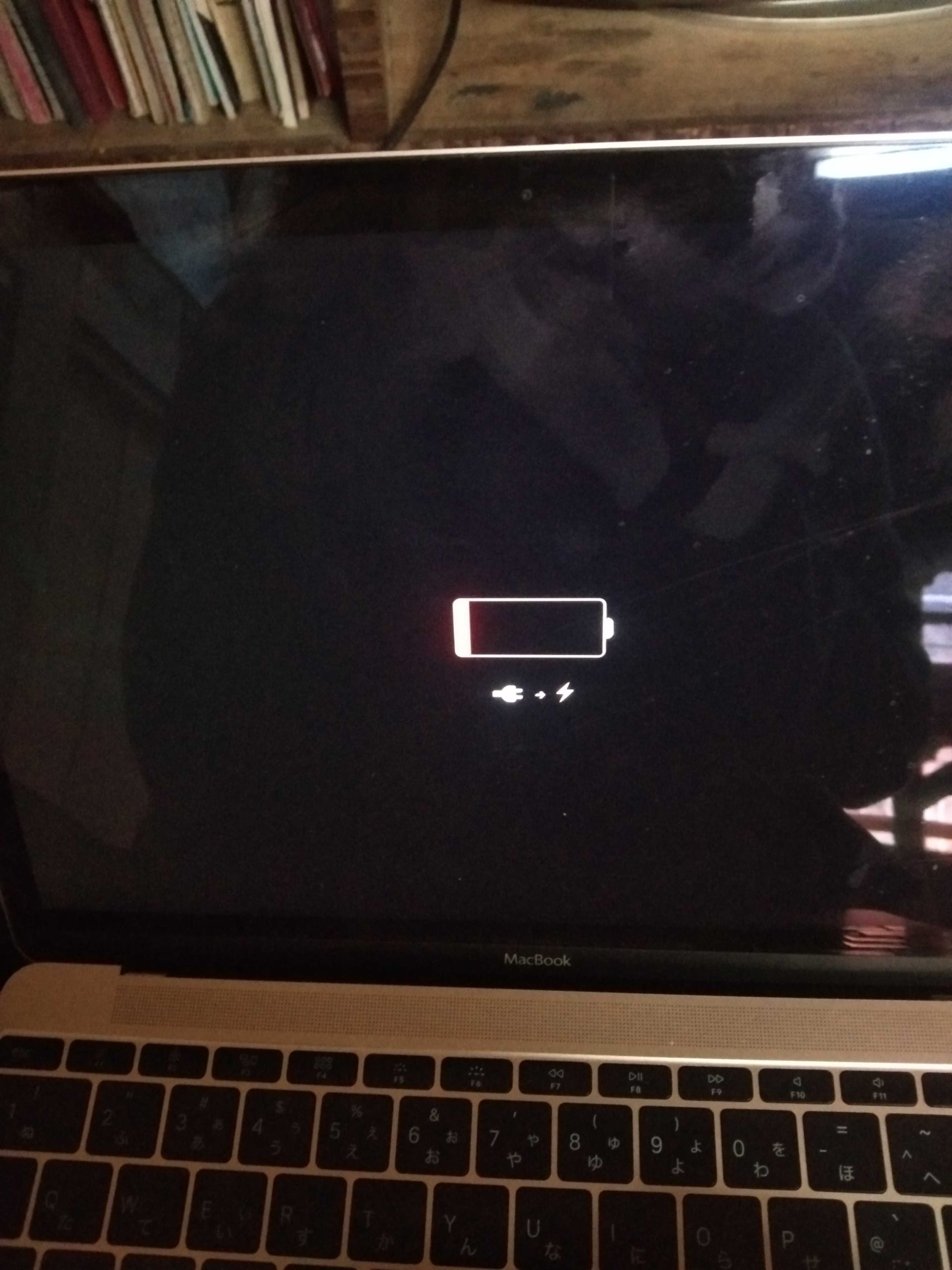

How to Tell If a Dead MacBook Pro Is Charging
Understanding the Charging Process of a MacBook Pro
Knowing how your MacBook Pro charges is the first step in figuring out if it’s dead or just not charging properly. When you connect the charger, the MacBook should begin to draw power and start charging the battery. Sometimes, the charging process isn’t obvious, so it helps to understand what normal charging looks like. Your MacBook Pro uses a MagSafe or USB-C port to connect to power. When plugged in properly, the charging indicator light on MagSafe connectors should glow. For USB-C models, you will rely on system indicators and other signs to confirm charging. Recognizing these signs helps you differentiate between a dead battery and a charging issue.Signs That Your MacBook Pro Is Charging
One of the easiest ways to tell if your MacBook Pro is charging is by observing visual cues. These include:- Charging light indicator: On MagSafe connectors, it turns green or amber when charging or fully charged. A steady amber light indicates charging, while green signifies full battery.
- Battery icon in menu bar: When plugged in, the battery icon should show a lightning bolt symbol, indicating charging is in progress.
- Screen activity: Sometimes, the display may flicker or show a faint glow if the MacBook is receiving power.
- System notifications: Recent macOS versions show prompts when charging starts or stops.
Checking the Charging Connection
Many issues stem from loose or faulty connections. To ensure the MacBook is correctly connected:Inspect the Cable and Port
Check both the charging cable and port on your MacBook for debris, dirt, or damage. Use a soft cloth to clean the connections if necessary. A damaged cable or port can prevent proper charging.Try a Different Power Outlet
Sometimes, the problem isn’t with your MacBook but with the outlet. Plug the charger into another wall socket to verify if the issue persists.Use a Different Charger
If you have access to another compatible charger, test it on your MacBook. This can help determine whether your current charger is faulty or if the issue lies elsewhere.Verifying Power Supply and Charging Hardware
Confirming that your MacBook is receiving power involves checking the hardware components responsible for charging.Check the MagSafe or USB-C Connection
Ensure the connection is snug and secure. For MagSafe, the connector should click into place easily. For USB-C, the port should be firmly inserted without wobbling.Inspect the Charging Port
Look closely for bent pins, dirt, or debris inside the port. Use a toothpick or compressed air to clean out any obstructions.Evaluate the Power Adapter
Inspect the power brick for signs of damage, scorch marks, or frayed cables. If the adapter feels excessively hot or shows damage, it may need replacement.Using macOS Indicators to Confirm Charging Status
Even if physical signs aren’t visible, software indicators can reveal if your MacBook is charging.Battery Icon in Menu Bar
Observe the battery icon in the menu bar. When connected to power, it should display a lightning bolt.System Report
Navigate to About This Mac >System Report >Power. Here, you can see detailed information about charging, such as:- Charging status
- Cycle count
- Battery condition
Performing Battery and System Diagnostics
Diagnosing hardware issues helps determine if the battery, logic board, or charging port is causing the problem.Run Apple Diagnostics
Shut down your MacBook and restart while holding the D key. Follow the on-screen instructions to run diagnostics. This test can find hardware issues related to power.Check Battery Health
Click on the battery icon while holding the Option key. It shows the battery’s condition. An “Average” or “Service Recommended” message suggests the battery may be dead or degraded.Understanding Signs of a Dead or Faulty Battery
Sometimes, even if the MacBook appears to be charging, the battery might be dead.- Rapid battery drain: The battery percentage drops quickly even when charged.
- Overdue cycle count: Batteries have a limited lifespan, measured by cycle count. If it’s too high, the battery may no longer hold a charge.
- Battery not recognized: System reports “Service Battery” or similar warnings.
Addressing Common Charging Issues
When your MacBook Pro isn’t charging, try these troubleshooting steps:Reset the SMC (System Management Controller)
Resetting the SMC can fix power and battery management problems. The process varies for different MacBook models but generally involves pressing specific keys while shutting down.Update macOS
Keeping your system up to date ensures compatibility with hardware and fixes known bugs impacting charging.Check for Software Conflicts
Certain apps or settings can interfere with charging indicators. Close unnecessary apps or reset preferences if needed.When to Seek Professional Help
If none of the above steps resolve the issue, it’s time to consult an Apple Authorized Service Provider. They can perform thorough hardware diagnostics and repairs.Warranty and Repair Options
Verify if your MacBook is under warranty or covered by AppleCare. Repairing or replacing hardware components may be necessary if the battery or charging port is defective.Replacement Batteries and Parts
In some cases, replacing the battery or other hardware parts restores proper charging function. Always use genuine components for safety and reliability.Summary of Key Tips for Confirming If Your MacBook Pro Is Charging
| Step | What to Check | Expected Result |
|---|---|---|
| Visual Indicators | Charging light, battery icon | Light glows; icon displays lightning bolt |
| Connection Security | Cable and port integrity | Secure connection without debris |
| Hardware Inspection | Charger condition, port cleanliness | No damage or dirt obstructing connection |
| System Diagnostics | Battery health, power system report | No error messages; battery healthy |
| System Indicators | Battery icon and System Report | System confirms charging or identifies issues |
MacBook Pro Battery Not Charging? Quick Fix Now!
Frequently Asked Questions
How can I tell if my MacBook Pro is receiving power from the charger?
Check for the charging indicator on the screen or the battery icon in the menu bar. If the icon shows a lightning bolt or indicates charging, your MacBook Pro is receiving power. Additionally, listen for any sounds or look for a change in the battery status when you connect the charger.
What signs indicate that my MacBook Pro is charging even if it appears dead?
If your MacBook Pro shows no signs of life initially, try connecting the charger and wait for a few minutes. Sometimes, a completely drained battery needs a little time to respond. If the battery icon appears or the LED indicator on the charger lights up, it suggests the device is charging.
How do I verify if the charging port is working properly?
Inspect the charging port for debris, dust, or damage. Then, try using a different cable or charger to see if the device responds. If your MacBook still doesn’t charge, test with another compatible charger or connect to a different power outlet to rule out external issues.
What should I do if my MacBook Pro does not respond after plugging in the charger?
Try resetting the SMC (System Management Controller) to resolve potential power management issues. Ensure the charger and cable are working correctly by testing with another compatible device. If the problem persists, consider visiting an authorized service center for further diagnosis.
Can a dead MacBook Pro show any charging activity with the right tools?
Yes, using third-party apps or monitoring tools, you can check the battery health and charging status if your MacBook turns on or responds after connecting to power. These tools can give you detailed information about whether the device is charging or if there’s an underlying hardware problem.
Final Thoughts
To tell if a dead MacBook Pro is charging, check for the charging indicator light or symbol on the screen. Connect your charger securely and observe if the light turns on or if the battery icon shows charging. If there’s no change, try a different power outlet or cable. This simple check helps you determine the charging status quickly and efficiently. Knowing how to tell if a dead MacBook Pro is charging saves time and prevents unnecessary worry about the device’s health.
Similar Posts































