Battery Is Not Charging Macbook Pro But Plugged In Fix Tips
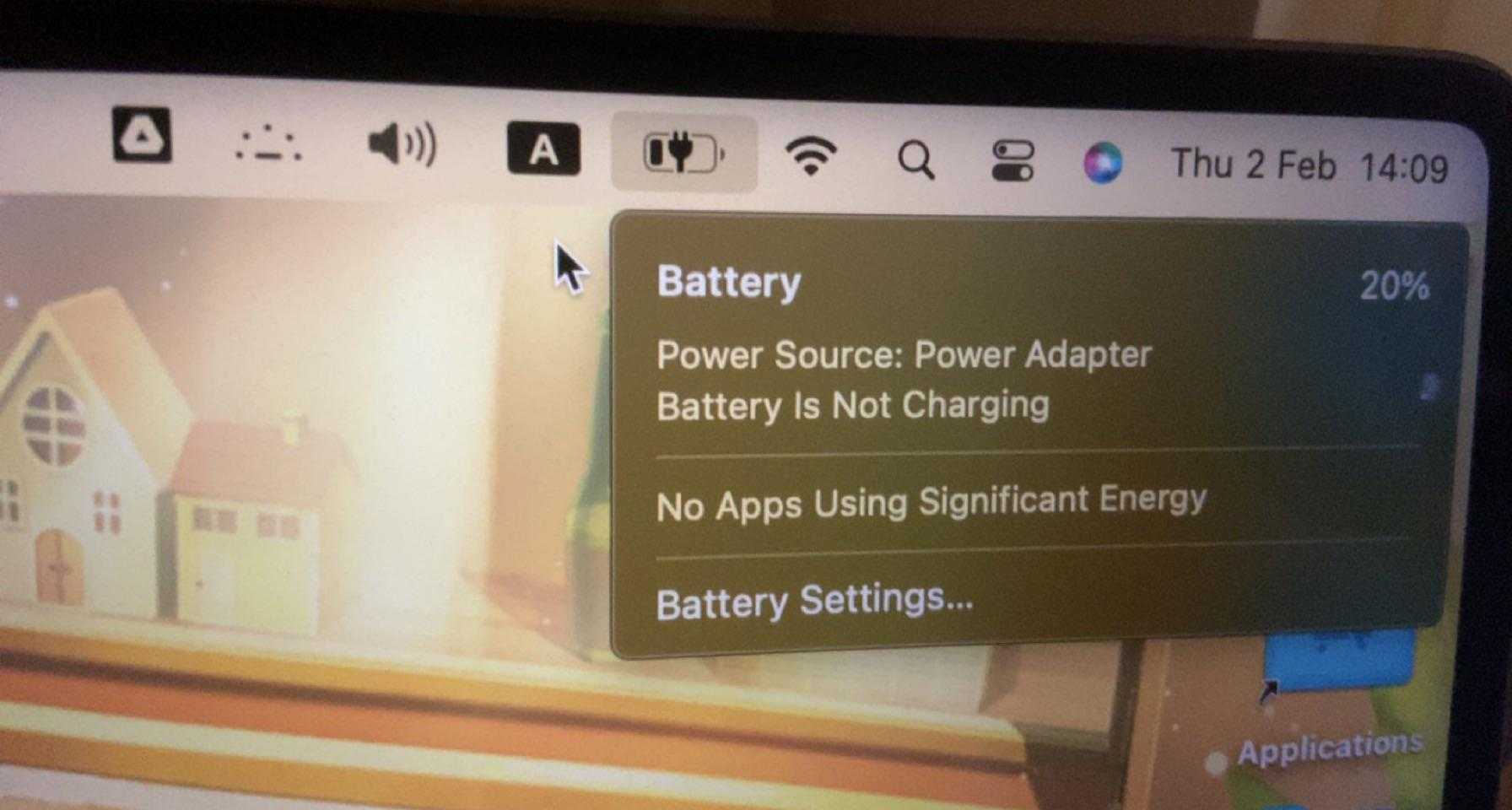

Battery is Not Charging MacBook Pro but Plugged In: How to Fix It
Understanding Why Your MacBook Pro’s Battery Won’t Charge
Many MacBook Pro users face the frustrating issue where the device is plugged in, yet the battery isn’t charging. This problem can come from various causes including hardware failures, software glitches, or settings issues. Knowing the root of the problem is the first step to fixing it quickly. Some common reasons include a faulty charger, dirty or damaged charging port, battery health problems, or system bugs. Identifying the specific cause can help you choose the right solution. Regular maintenance and awareness of warning signs can prevent this issue from worsening.Check Your Charger and Power Source
The first step to troubleshoot is to verify your charger and power source. Sometimes, the problem isn’t with the MacBook but with the outlet or charger cable.- Test the Apple charger with another compatible MacBook to confirm it works properly.
- Inspect the charging cable and adapter for visible damage like frayed wires or bent connectors.
- Try plugging the charger into a different power outlet to rule out outlet issues.
- Ensure the charging port on your MacBook is free of debris or dust, which can prevent proper contact.
Examine the Charging Port for Dirt and Damage
A dirty or damaged charging port can prevent your MacBook from charging properly, even if the charger appears fine.Use a soft brush or compressed air to gently clean the port, removing dust or lint that may block the connection. Be careful not to insert anything sharp that could damage the port. If you notice physical damage, professional repair might be necessary.
Check Battery Health and Status in macOS
Your MacBook’s battery health can impact charging performance. macOS provides tools to check the battery’s condition and cycle count.- Click on the Apple menu, then select System Preferences.
- Navigate to Battery or Power settings.
- Click on Battery Health… to see the status.
If the battery health shows as Replace Soon or Service Recommended, the battery may need replacing. A high cycle count can also signal aging components that prevent charging.
Adjust Your MacBook Settings
Incorrect settings can interfere with charging. Check your energy saver preferences to make sure nothing is configured to limit charging.- Open System Preferences >Battery.
- Review options like Optimized Battery Charging.
- Disable or enable settings to see if it influences charging behavior.
Sometimes, resetting these settings can resolve charging issues caused by software glitches.
Reset the System Management Controller (SMC)
The SMC controls hardware functions including battery management. Resetting it can often fix charging problems.How to Reset SMC on MacBook Pro with Non-Removable Battery
- Shut down your MacBook Pro.
- Press and hold the Shift + Control + Option keys on the left side, along with the power button.
- Keep all four keys for about 10 seconds.
- Release all keys and press the power button to turn on your MacBook.
This process resets the hardware controller responsible for charging. If issues persist, try the process with your specific MacBook model as instructions may vary.
Update macOS to the Latest Version
System updates include bug fixes that can resolve charging problems.- Open the Apple menu and select System Preferences.
- Click on Software Update.
- If an update is available, follow the prompts to install it.
Running the latest macOS ensures compatibility with hardware components and fixes known bugs affecting power management.
Test the Battery with Apple Diagnostics
Apple Diagnostics can identify hardware problems, including issues with the battery or charging system.- Shut down your MacBook Pro.
- Turn it back on and immediately press and hold the D key.
- Follow the on-screen instructions to run the diagnostic tests.
If problems are found, Apple Diagnostics will recommend solutions or repairs. This is a helpful step if simple troubleshooting doesn’t work.
Consider Hardware Repairs or Battery Replacement
If all software and external factors are ruled out, hardware issues may be at play.- Battery degradation over time can reduce charging ability, especially after many charge cycles.
- Damage to internal components like the charging port or logic board could prevent charging.
- Professional inspection and possible battery replacement might be necessary if your MacBook is out of warranty.
Prevent Future Charging Issues
Maintaining your MacBook’s battery health extends its lifespan and prevents charging problems.- Avoid exposing your MacBook to extreme temperatures.
- Use Apple-certified chargers and avoid cheap, counterfeit cables.
- Regularly clean the charging port and keep it free of debris.
- Monitor your battery health and replace it when it shows signs of aging.
Related Topics and Additional Tips
Beyond fixing a charging issue, understanding related topics can improve your MacBook’s overall performance.Optimize Battery Usage
Reducing background activity, lowering screen brightness, and closing unnecessary apps can help extend battery life when charging isn’t an option.Switching Power Modes
Using Power Nap and adjusting energy saver settings can help manage power efficiently, reducing strain on the battery.Alternative Charging Methods
If your charger port or cable is damaged, consider using a different charger compatible with your MacBook Pro or visiting an authorized repair center.When to Seek Professional Help
If your MacBook Pro still won’t charge after troubleshooting, it’s time to contact Apple Support or a certified technician. Persistent charging problems often need specialized repair. By understanding these possible causes and solutions, you can address the issue of your MacBook Pro not charging despite being plugged in. Proper maintenance and timely repairs ensure that your device stays reliable and performs optimally.MacBook Pro Battery Not Charging? Quick Fix Now!
Frequently Asked Questions
What could be causing my MacBook Pro to not charge despite being plugged in?
Several factors might prevent your MacBook Pro from charging even when connected to power. The issue could stem from a faulty charging cable or adapter, debris or damage on the charging port, outdated system software, or battery health problems. Examining each of these areas can help identify the specific cause.
How can I troubleshoot if my MacBook Pro isn’t recognizing the charger?
Start by inspecting the charging cable and port for any dirt, damage, or debris. Try using a different charging cable or power outlet to rule out faulty hardware. Resetting the System Management Controller (SMC) can also resolve recognition issues; you can do this by shutting down your Mac, then holding specific key combinations depending on your model, and powering it back on.
What steps should I take if my MacBook Pro battery isn’t charging even when the system recognizes the charger?
If the system detects the charger but the battery doesn’t charge, check your battery health status in the System Information or System Preferences. A degraded battery or hardware malfunction may require professional service or replacement. Additionally, ensure your macOS is up to date, as updates can fix bugs affecting charging behavior.
Is it possible that software issues affect my MacBook Pro’s ability to charge?
Yes, outdated or corrupted software can interfere with charging processes. Updating macOS to the latest version can resolve known bugs. Resetting the NVRAM or booting into Safe Mode can also help identify if software conflicts are causing charging problems.
Could environmental factors impact my MacBook Pro’s charging performance?
Extreme temperatures, humidity, or exposure to moisture may affect your MacBook’s ability to charge correctly. Keep your device in a comfortable environment and avoid using it in excessively hot or cold conditions, as these can hinder battery function and charging efficiency.
Final Thoughts
The issue where the battery is not charging MacBook Pro but plugged in can be frustrating. Often, it results from a faulty charger or a dirty charging port. Resetting the SMC or updating your macOS can resolve some problems. If these steps don’t work, check the health of your battery or seek professional repair. Identifying the root cause helps prevent further complications. In conclusion, if your battery is not charging MacBook Pro but plugged in, addressing hardware or software issues can restore normal function quickly and efficiently.
Similar Posts































