Battery Is Not Charging Macbook Pro While Plugged In
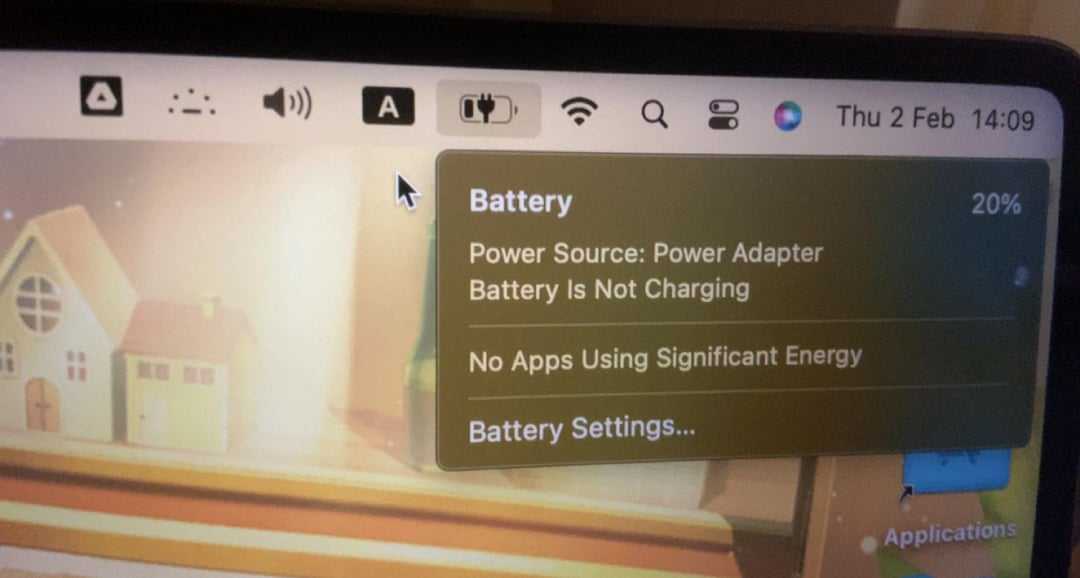
If your MacBook Pro’s battery isn’t charging even when it’s plugged in, don’t panic — this is a common issue with simple fixes. Sometimes, it’s just a matter of reconnecting the charger, resetting the SMC, or checking for software updates. In most cases, troubleshooting these basic steps can get your MacBook charging again without needing professional repairs.
A quick solution is to check your charging cable and port for debris, reset the SMC, and update your macOS system. If those don’t work, consider resetting the NVRAM or visiting an Apple Store for inspection.
When your MacBook Pro refuses to charge despite being plugged in, it can be frustrating and confusing. The problem could stem from hardware issues like faulty charging cables, port damage, or internal battery problems, or from software glitches affecting power management. This issue is surprisingly common and manageable with some straightforward troubleshooting steps. Whether it’s a simple connection issue or a more complex hardware concern, understanding the potential causes and solutions can help you get your device back to full power quickly.

Battery is Not Charging MacBook Pro While Plugged In: Causes and Solutions
Understanding the Issue: Why Your MacBook Pro Won’t Charge
Many MacBook Pro users face the frustrating problem of their laptop not charging even when it’s plugged in. This issue can be caused by numerous factors, ranging from software glitches to hardware problems. Recognizing the root cause is essential to finding the right solution quickly.
Common Reasons for Your MacBook Not Charging
- Faulty or damaged charger: Over time, charging cables or adapters can become worn out or broken, preventing proper power flow.
- Dirty or damaged charging port: Dust, dirt, or debris in the port can block connection, resulting in charging failure.
- Software issues or system settings: Incorrect power settings or outdated macOS can interfere with charging functionality.
- Battery health deterioration: Over time, batteries lose capacity, and MacBook systems may restrict charging to protect aging batteries.
- Hardware problems within the MacBook: Components like the logic board or charging circuitry might be damaged or malfunctioning.
How to Diagnose Charging Problems on Your MacBook Pro
Diagnosing the problem begins with observing certain signs and performing simple checks. Look for indicators such as the charging icon not appearing, fluctuating battery levels, or unexpected shutdowns.
Check the Charger and Cable
Inspect the charger for visible damage like fraying wires, cracks, or bent pins. Verify that the cable is securely connected to both the power outlet and your MacBook Pro.
Test with a Different Power Outlet
Sometimes, the problem is as simple as a faulty outlet. Plug the charger into a different socket to rule out power supply issues.
Examine the Charging Port
Look inside the port for dust or debris. Use a soft brush or compressed air to clean it gently. Be cautious not to damage the port.
Review Battery Status and System Reports
Go to the Apple menu and select “System Information,” then click on “Power.” Check “Cycle Count” and “Battery Condition.” A high cycle count or “Replace Soon” status indicates battery aging.
Basic Troubleshooting Steps to Fix Charging Issues
Many charging problems can be fixed with straightforward steps. Follow these systematically before seeking professional help.
Restart Your MacBook Pro
A simple restart can resolve minor software glitches affecting charging. Click the Apple menu and select “Restart.”
Reset the System Management Controller (SMC)
The SMC controls hardware functions like battery management. Resetting it often resolves charging issues. The process varies depending on your MacBook model:
- For MacBooks with T2 chip: Shut down, press and hold the power button for ten seconds, then release. Turn on the Mac.
- For other models: Shut down, then press Shift + Control + Option on the left side and the power button simultaneously for ten seconds. Release and turn on your Mac.
Reset NVRAM/PRAM
This resets system settings related to power and hardware. Restart your Mac and immediately hold Option + Command + P + R for about twenty seconds.
Update macOS
Ensure your operating system is current, as updates might include fixes for charging glitches. Go to System Preferences and click “Software Update” to check.
Advanced Solutions for Persistent Charging Problems
If basic troubleshooting doesn’t work, consider more in-depth steps or professional repair.
Check Battery Health and Calibrate
If your battery condition is poor, replacing it may be necessary. Use the Battery Health Management feature in macOS to extend battery life and accuracy.
Replace Damaged Hardware Components
Damaged charging ports, batteries, or internal circuitry might require replacing parts. Visiting an authorized Apple service provider is recommended for repairs.
Inspect and Repair Logic Board or Charging Circuitry
In cases where internal components are faulty, professional diagnostics and repairs are essential. Symptoms include no response to charger connection or irregular charging behavior.
Preventative Tips to Maintain Your MacBook Pro’s Charging System
Keeping your MacBook’s charging system healthy prevents future issues.
- Always use genuine Apple chargers and cables.
- Keep the charging port clean and free of debris.
- Avoid exposing your MacBook to extreme temperatures.
- Perform regular software updates to fix bugs and glitches.
- Cycle your battery periodically by charging it fully and discharging it without interruptions.
When to Seek Professional Help
If you’ve tried all the above steps and your MacBook still refuses to charge, it’s time to contact Apple support or visit an authorized service center. Professional technicians can diagnose internal issues that are not visible or fixable by end-users.
Additional Factors That May Affect Charging
Apart from hardware and software issues, other factors could influence your MacBook’s charging performance.
Power Source Quality
Using unstable or substandard power outlets can cause charging problems.
Third-Party Accessories
Uncertified chargers or adapters may not deliver the proper voltage or current, leading to charging failures.
Environmental Conditions
Extreme heat or cold can affect battery function and charging capabilities. Always operate your MacBook within recommended temperature ranges.
Related Topics to Explore
To enhance understanding, consider exploring related areas such as:
- Replacing MacBook Pro batteries
- Understanding macOS battery management
- How to extend MacBook battery life
- Best practices for Apple charger maintenance
Summary of Key Information
In sum, facing a MacBook Pro that won’t charge while plugged in can be caused by hardware failures, software issues, or external factors. Methodically examining each potential cause helps identify the right fix. Regular maintenance, proper use of authorized accessories, and timely diagnostics can prevent many charging problems. If issues persist despite troubleshooting, seeking professional repair ensures your MacBook receives proper care and repairs.
MacBook Pro Battery Not Charging? Quick Fix Now!
Frequently Asked Questions
Why does my MacBook Pro’s battery not charge even when it’s plugged in?
Several factors could cause your MacBook Pro’s battery to not charge despite being connected to power. It might be an issue with the charging cable or adapter, a problem with the power outlet, or a software glitch. It’s important to check all physical connections first and verify that the charger is functioning correctly. Additionally, ensure that your MacBook’s firmware and macOS are up to date, as software issues can sometimes prevent proper charging.
What should I do if my MacBook Pro shows the charger is connected but battery not charging?
If your MacBook Pro indicates that the charger is connected but the battery isn’t charging, try disconnecting and then reconnecting the charger. Restart your MacBook to resolve temporary glitches. Inspect the charging port, cable, and adapter for any damage or debris. If problems persist, test the charger with another compatible device or try a different charger with your MacBook. Resetting the System Management Controller (SMC) can also resolve power-related issues.
Can software issues cause my MacBook Pro’s battery not to charge?
Yes, software-related problems can interfere with the charging process. Outdated macOS or incompatible third-party applications might impact battery management. Updating your system to the latest macOS version can address known bugs affecting power management. Additionally, resetting the NVRAM or SMC can fix glitches related to hardware control, including charging issues.
Is there a way to check if my MacBook Pro’s battery is faulty?
You can check your battery’s health status through the System Information utility. Click on the Apple menu, select “About This Mac,” then choose “System Report,” and navigate to the “Power” section. Here, you will find details on cycle count and condition. If the battery condition shows as “Service Recommended” or the cycle count is near or exceeds the limit for your model, it indicates that the battery may need replacement.
What hardware problems could prevent my MacBook Pro from charging properly?
Hardware issues such as a damaged charging port, faulty charging cable or power adapter, or problems with the internal logic board can prevent proper charging. For instance, debris or corrosion in the port can block connections, while a damaged cable might not deliver power effectively. If hardware damage is suspected, visiting an authorized service provider for diagnosis and repair ensures your MacBook receives the proper fix.
Final Thoughts
In summary, if your battery is not charging your MacBook Pro while plugged in, check the charging cable and port for damage or debris. Resetting the SMC can often resolve power issues. If problems persist, update your macOS or seek professional help. Addressing these steps promptly ensures your device stays powered and functional.

Similar Posts