How To Turn Off Optimized Battery Charging Macbook Pro
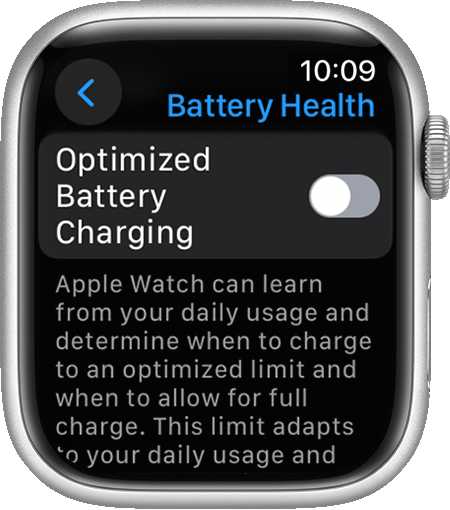
To turn off optimized battery charging on your MacBook Pro, simply go to System Preferences, select Battery, and then uncheck the Optimized Battery Charging option. This quick adjustment can help if you want your MacBook to charge normally without delay, especially when you’re working on important tasks or need a full battery quickly.
In short, to disable optimized battery charging, navigation through System Preferences is key. This feature is designed to extend your battery’s lifespan by reducing charging time, but there are times when you might prefer to turn it off. Knowing how to do this quickly ensures your MacBook Pro charges at your preferred pace, whether you’re preparing for an important presentation or troubleshooting battery issues. Let’s walk through the simple steps to disable this feature so you can manage your Mac’s charging behavior more effectively.

How to Turn Off Optimized Battery Charging MacBook Pro
Many MacBook Pro users rely on the optimized battery charging feature to extend their battery lifespan. However, there are times when you may want to disable this feature temporarily or permanently. In this guide, we will walk you through the steps to turn off optimized battery charging on your MacBook Pro. We’ll also discuss why this feature exists, how it works, and what you should consider before disabling it.
Understanding What Optimized Battery Charging Is
Optimized battery charging is a feature introduced by Apple to help prolong battery health. It learns your daily charging habits and pauses charging past 80% until you need to use your MacBook. This reduces battery aging and keeps your battery healthy over time.
When this feature is enabled, your MacBook charges normally but holds at around 80%. It then finishes charging to 100% just before you usually start using it again. This way, your battery isn’t constantly at full charge, which can degrade its capacity over time.
Reasons to Disable Optimized Battery Charging
- You need to fully charge your MacBook without delays.
- You are troubleshooting battery-related issues.
- You want the battery to be at 100% all the time for specific tasks.
- You use your MacBook in a way that doesn’t align with learning your daily habits.
Note that disabling this feature might cause your battery to wear out faster over time, so do it only if necessary.
How to Turn Off Optimized Battery Charging on MacBook Pro
Step 1: Access System Preferences
Click on the Apple menu (the apple icon) located at the top-left corner of your screen. From the dropdown, select System Preferences. This opens your Mac’s control panel where all settings are managed.
Step 2: Open Battery Settings
Within System Preferences, find and click on Battery. If you use macOS Big Sur or later, the icon looks like a battery. For earlier versions, it might be called Energy Saver.
Step 3: Navigate to Battery Health
In the Battery settings window, look for an option called Battery Health. Click on it to access detailed battery options. Here, you’ll see information about your battery’s maximum capacity and other related features.
Step 4: Disable Optimized Battery Charging
Within the Battery Health section, find the checkbox labeled Manage battery longevity or similar wording. Uncheck this box to disable optimized battery charging.
On some versions, the option may be directly labeled as Optimized battery charging. Simply uncheck or toggle it off.
Alternative Method: Using Battery Menu
If your MacBook Pro displays the battery icon in the menu bar, you can disable optimized charging faster. Click on the battery icon, then select Battery Preferences or Settings. From there, locate the optimized charging option and turn it off.
Verifying the Change
After disabling, check that the option is turned off in the Battery or Battery Health settings. You can also monitor your charging behavior to ensure it charges past 80% without pauses.
Additional Tips for Managing Battery Charging
Monitoring Battery Health
Regularly check your battery health to see how your usage impacts its capacity. In Battery Health, you’ll see the maximum capacity percentage and whether your battery needs service.
Using Third-Party Apps
Some third-party applications provide more detailed control over charging patterns. If you want advanced features, explore apps designed for MacBook battery management. However, always ensure they are safe and well-reviewed.
Keeping Your MacBook Updated
Apple regularly releases macOS updates that may improve battery management. Keep your system updated to benefit from the latest enhancements and fixes related to battery health and charging.
Precautions Before Disabling Optimized Battery Charging
- Disabling this feature can lead to faster battery degradation over time.
- Only turn it off if you need your battery to always be at 100% or for specific troubleshooting.
- Consider re-enabling it once your immediate needs are met to maximize battery lifespan.
How This Can Affect Your MacBook Pro’s Battery Life
Turning off optimized battery charging may result in your battery aging more quickly, reducing its overall capacity over months or years. For most users, it’s best to keep the feature enabled unless there’s a compelling reason to disable it temporarily.
Comparing MacBook Pro Battery Settings
| Feature | Purpose | Impact on Battery Life | When to Enable or Disable |
|---|---|---|---|
| Optimized Battery Charging | Reduces battery aging by limiting full charge cycles | Helps preserve battery capacity over time | Disable if you need full charge immediately or are troubleshooting |
| Charging to 100% | Full capacity when needed | Faster battery wear if used regularly | Use sparingly, especially if keeping battery healthy is priority |
Common Troubleshooting Tips
Battery Not Charging Past 80%
If your MacBook stops charging at 80%, ensure that optimized charging is enabled. To fix this, re-enable it or reset your SMC (System Management Controller). You can also try restarting your MacBook.
Battery Draining Quickly
If disabling optimized charging doesn’t improve battery life, check for background apps or system updates. Resetting NVRAM might also help resolve power management issues.
Maintaining Battery Health Long-Term
Stay updated with the latest macOS version, avoid exposing your MacBook to extreme temperatures, and use energy-saving features to extend your battery’s lifespan.
Related Topics to Explore
- How to Calibrate Your MacBook Battery
- Best Practices for Extending MacBook Battery Life
- Understanding Battery Cycle Count and Its Limit
- How to Check Battery Health on MacBook Pro
Disabling optimized battery charging is straightforward but requires understanding the impacts on your device’s longevity. Use this feature thoughtfully to enjoy a balance between daily convenience and long-term battery health.
3 Important Macbook Settings for Battery Life
Frequently Asked Questions
How can I disable optimized battery charging temporarily on my MacBook Pro?
To temporarily disable optimized battery charging, click the battery icon in the menu bar. Hold the Option key and click the battery icon again. From the dropdown menu, uncheck the option for “Manage battery longevity” or “Optimized battery charging.” This change allows your MacBook to charge normally until you decide to enable the feature again.
What steps should I follow to turn off optimized battery charging through System Preferences?
Open System Preferences and select “Battery.” In the sidebar, choose “Battery” again. Uncheck the box next to “Optimized battery charging” to turn the feature off. Your MacBook will now charge without delay caused by charging optimizations, which you can re-enable at any time by following these steps again.
Can I disable optimized battery charging when I need my MacBook to charge faster?
Yes, disabling optimized battery charging can help your MacBook charge more quickly. Simply open the Battery settings in System Preferences, locate the “Optimized battery charging” option, and uncheck it. Keep in mind that this may slightly reduce battery lifespan if used frequently, so consider turning it back on once fast charging is no longer necessary.
Will turning off optimized battery charging affect my battery health long-term?
Disabling optimized battery charging means your MacBook will charge to full capacity without pauses. While this approach charges your battery faster, it may lead to faster battery wear over time. Apple’s feature is designed to extend your battery’s lifespan by reducing unnecessary charge cycles, so turn it off only when needed and re-enable it afterward for better battery health management.
Is there a quick way to toggle optimized battery charging without navigating through System Preferences?
Yes, you can quickly toggle optimized battery charging from the Control Center. Click the Control Center icon on your menu bar, then select “Battery.” If available, tap the “Battery Settings” option and turn off “Optimized battery charging.” This method provides a faster way to manage the setting without diving into detailed menus.
Final Thoughts
To turn off optimized battery charging on your MacBook Pro, navigate to System Preferences and select Battery. Click on Battery Health, then uncheck the option for optimized battery charging. This step disables the feature and stops your Mac from delaying full battery charge.
Remember, the main keyword ‘how to turn off optimized battery charging macbook pro’ appears naturally in this process. By following these simple instructions, you ensure your MacBook charges according to your preferences without any complications.

Similar Posts































