How Do I Know If My Macbook Pro Is Charging Effectively
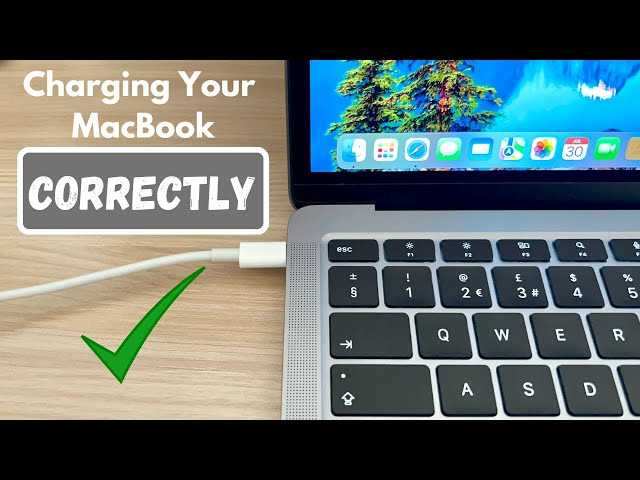

How Do I Know If My MacBook Pro Is Charging
Checking the Battery Icon on Your Screen
The easiest way to see if your MacBook Pro is charging is to look at the battery icon in the menu bar. When your Mac is plugged in properly, a lightning bolt appears inside the battery icon, indicating charging. If you see this icon with a lightning bolt, your MacBook Pro is actively charging. Sometimes, the icon might show a plug instead of a lightning bolt. This means your Mac is connected to power but may not be charging at that exact moment if the battery is full. Keep an eye on this icon as it provides quick visual confirmation of charging status.Monitoring the Battery Percentage
Another simple method is to check the battery percentage displayed next to the battery icon. If your MacBook Pro is charging, the percentage will typically increase over time when connected to power. If the percentage remains static, make sure everything is set up correctly. To see the battery percentage clearly, click the battery icon or go to System Preferences and select Battery. This allows you to monitor real-time changes and verify if your Mac is charging properly.Checking the Power Adapter and Connection
Ensure your power adapter and cable are connected securely to your MacBook Pro and power outlet. Sometimes, loose connections cause your Mac not to charge. Look for any visible damage to the cable or adapter, which can prevent proper charging. Use the MagSafe connector or USB-C port depending on your MacBook model. For MagSafe, a LED indicator on the connector glows amber when charging and green when fully charged. For USB-C, check the connector’s connection and ensure it’s snug.Investigating the Charging Port
Inspect the charging port on your MacBook Pro for dust, debris, or damage. Dirt can block the connection and prevent charging. Gently clean the port with a soft brush or compressed air if needed. Make sure the port is not loose or damaged. A damaged port might mean your Mac cannot charge properly, requiring professional repair.Verifying Power Source and Outlet
Sometimes, the problem isn’t with your Mac but the power source. Test the outlet with another device to ensure it is working. If using a power strip, try plugging directly into a wall socket. If your power source is faulty, your Mac may not receive power, so try multiple outlets or change the location to see if that resolves the issue.Using System Information to Confirm Charging Status
For a detailed view, open System Information on your MacBook Pro. Go to the Apple menu, choose About This Mac, then select System Report. Under Power, you’ll find information on charging status, battery health, and the connected power adapter. This report tells you if your Mac detects the charger and whether the battery is charging or not. It’s especially useful if you suspect hardware issues.Monitoring Battery Health and Condition
Battery health affects charging performance. To check this, click the battery icon while holding the Option key or go to System Preferences and select Battery. You’ll see the condition of your battery: Normal, Service Recommended, or Replace Soon. A poor battery health status can impact charging. If your battery is degraded, consider replacing it to restore optimal charging capability.Troubleshooting Common Charging Issues
If your MacBook Pro isn’t charging, start with basic troubleshooting steps. Restart your Mac, check connections, and test different power outlets. Reset the SMC (System Management Controller), which controls power functions. To do this, shut down your Mac, then press and hold Shift + Control + Option + Power button for ten seconds. Release and restart your Mac. If problems persist, consider updating macOS, as software updates often fix power-related bugs.Checking for Software Updates
Keeping your Mac updated can resolve charging issues caused by software bugs. To check for updates, go to System Preferences, then Software Update. Install any available updates and restart your Mac. Sometimes, outdated software can interfere with hardware functions, including charging. Staying current ensures your Mac operates smoothly.Knowing When to Seek Professional Help
If your MacBook Pro still refuses to charge after tests and troubleshooting, it might have a hardware issue. Contact Apple Support or visit an authorized service provider. Professional technicians can diagnose hardware failures such as a damaged battery, faulty charging port, or power supply issues. Prompt repairs can save your Mac from further damage.Additional Tips for Maintaining Charging Efficiency
To keep your MacBook Pro charging well:- Use the original charger and cable provided by Apple.
- Avoid exposing your Mac to extreme temperatures, as heat can affect battery performance.
- Keep the charging port clean and free of debris.
- Allow your battery to drain occasionally before recharging to prolong its lifespan.
- Monitor battery health regularly to determine when a replacement might be needed.
Understanding Different Charging Indicators for Various Models
Different MacBook Pro models may display charging differently. For example:- Older models with MagSafe show a glowing LED on the connector: amber when charging, green when full.
- USB-C MacBooks display charging status via the battery icon in the menu bar.
- Battery percentage updates in real-time when the Mac is plugged in and charging.
Edge Cases and Special Situations
In some cases, MacBook Pro may show as charged but not actually be charging. For example, if your battery is at 100% and the Mac is plugged in, the system might not need to recharge. Also, if your MacBook is in Battery Health Management mode, charging might pause to prolong battery lifespan. Check System Preferences > Battery > Battery Health to see if this feature is active.Summary of Key Indicators to Confirm Charging
Here’s a quick checklist:- Lightning bolt icon inside the battery icon on the menu bar.
- Increasing battery percentage over time while plugged in.
- Amber LED glowing on the MagSafe connector (if applicable).
- System Information showing Charger Connected and Charging status.
- Battery health status indicating that the battery is functioning well.
- No warning alerts about battery or charging issues in System Preferences.
MacBook Pro Battery Not Charging? Quick Fix Now!
Frequently Asked Questions
What visual indicators show that my MacBook Pro is charging?
When your MacBook Pro is charging, the battery icon in the menu bar displays a lightning bolt symbol inside it. If the charger is connected properly, you may also see the battery percentage increase over time. On some models, a small LED indicator near the charging port lights up to show that power is flowing into the device.
How can I verify if my MacBook Pro is receiving power from the charger?
If your MacBook Pro is plugged in and charging, the battery icon in the menu bar will show a charging symbol or a lightning bolt. Additionally, opening the System Information app and navigating to Power can display details about the current charging status and whether the system detects the charger correctly.
What should I do if my MacBook Pro doesn’t seem to be charging even when connected?
Ensure the charger and cable are functioning properly by testing them with another compatible device or using a different charger. Check the charging port for debris or damage. Resetting the System Management Controller (SMC) can also resolve charging issues, especially if the device isn’t recognizing the charger.
Can the battery percentage help determine if my MacBook Pro is charging?
Yes, observing the battery percentage can help. When plugging in your MacBook Pro, if the percentage starts to increase or remains steady while connected, the device is charging. If the percentage stays the same or decreases, it indicates a problem with charging or the power source.
Is there a difference in charging indicators between different MacBook Pro models?
Yes, some models feature different visual cues. For instance, newer models may display a different icon or color change in the battery status in the menu bar. Additionally, certain models have LED indicators on the charger itself that illuminate to confirm proper connection and charging activity.
Final Thoughts
To conclude, understanding how do i know if my macbook pro is charging is simple. Check the battery icon on your menu bar for a lightning bolt symbol or a change in the percentage. You can also look for a charging light on the MagSafe connector or in the system preferences. Making these observations ensures you stay informed about your MacBook Pro’s charging status.
Similar Posts































