How To Fix Wifi Connection Issues On Macbook Quickly
To quickly fix WiFi connection issues on your MacBook, try restarting your WiFi router and your Mac, resetting your network settings, or updating macOS to ensure compatibility. These simple steps often solve common connectivity problems without much hassle.
If your MacBook isn’t connecting to WiFi, don’t worry—many issues are easily fixable. First, check your router and restart it to refresh the connection. Next, restart your Mac to clear temporary glitches. If problems persist, reset your network settings or update your macOS to the latest version. These steps can resolve most WiFi hiccups and get you back online swiftly.
Having trouble staying connected to WiFi on your MacBook can be frustrating, especially when you rely on it for work, study, or entertainment. WiFi issues might stem from minor glitches, outdated software, or router problems. Fortunately, resolving these issues doesn’t have to be complicated. This guide will walk you through straightforward troubleshooting tips and fixes that can restore a strong, reliable WiFi connection on your MacBook, helping you get back online with minimal stress and maximum efficiency.

How to fix WiFi connection issues on MacBook
Understanding common WiFi problems on MacBook
Many MacBook users experience WiFi problems that can be frustrating. These issues often include slow internet speeds, dropped connections, or inability to connect at all. Understanding these common problems helps identify the right fix quickly.
WiFi issues may be caused by interference, outdated software, hardware problems, or network settings. Recognizing the symptoms can guide you to the most effective solution.
Check your WiFi network status
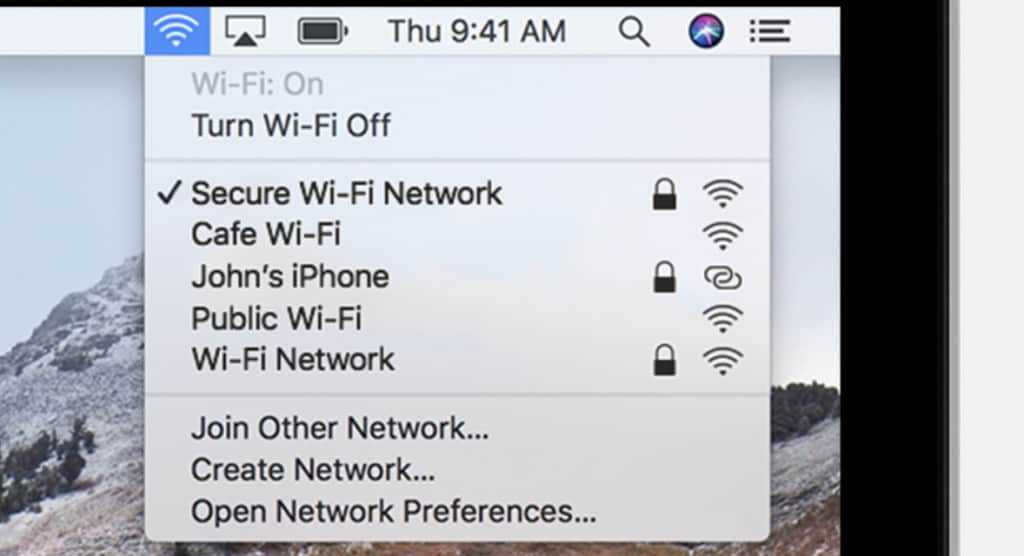
Start by ensuring your WiFi network is working properly. Look for the WiFi icon on your MacBook menu bar.
Click on the icon and see if your network appears in the list of available networks. If it does not, the problem might be with your router or internet service provider.
Sometimes, restarting your router resolves connectivity issues. Unplug the router, wait 10 seconds, then plug it back in.
Verify your MacBook’s WiFi settings
Incorrect network settings can cause connection problems. Open System Preferences and select Network.
Make sure WiFi is turned on. If it’s off, turn it on and try reconnecting to your network.
In the network list, select your WiFi network. Click on ‘Advanced’ to check saved networks and remove any outdated or conflicting entries.
Resetting the network settings may help if your MacBook is still not connecting properly.
Restart your MacBook
Sometimes, simply restarting your device can fix minor software glitches.
Click the Apple menu and select Restart. Wait until your MacBook boots up again before trying to connect to WiFi.
A fresh restart clears temporary glitches that may be blocking your connection.
Update macOS and WiFi drivers
Keeping your system updated ensures compatibility and fixes bugs that might cause WiFi problems.
Go to System Preferences, then click Software Update. Install any available updates.
Updates often include improvements to network connectivity features.
Forget and reconnect to WiFi network
Removing the network from your saved networks can resolve issues related to corrupted data.
In Network settings, select your WiFi network and click the minus (-) button to forget it.
Then, scan for available networks and reconnect by entering your WiFi password.
This refreshes your connection and often restores proper functionality.
Reset network configurations
Resetting network settings can fix persistent issues.
Open System Preferences, go to Network, select WiFi, then click ‘Make Service Inactive’ and delete the WiFi service.
Create a new WiFi service by clicking the ‘+’ button and selecting WiFi.
Reconnect to your WiFi network after this reset.
Run network diagnostics
macOS has built-in tools to diagnose WiFi problems.
Hold the Option key and click the WiFi icon on the menu bar.
Select ‘Open Wireless Diagnostics’ and follow prompted steps to identify issues.
The tool may suggest fixes or provide error codes for further troubleshooting.
Check for interference and signal strength
WiFi signals can be disrupted by other electronics or physical obstacles.
Ensure your MacBook is within a good range of your WiFi router.
Reduce interference by keeping other electronics away from your router and MacBook.
Changing your WiFi channel may also improve connection stability.
How to change your WiFi channel
Access your router’s admin panel through a web browser.
Locate the wireless settings and select a less congested channel, such as channel 1, 6, or 11.
Save changes and reconnect your MacBook to the WiFi network.
Reset your WiFi route
If network interference persists, resetting your router is a good step.
Unplug the router, wait 10 seconds, then plug it back in.
Allow the router to reboot completely before reconnecting your MacBook.
This process often clears network congestion or conflicts.
Check hardware issues
If WiFi problems continue, hardware issues might be involved.
Test your MacBook’s WiFi with another network to see if the problem persists.
If not, the problem may be your MacBook’s WiFi card or antenna.
Contact Apple Support or visit an authorized service provider for hardware diagnostics.
Use Ethernet as a backup option
If WiFi continues to fail, connecting via Ethernet can provide a reliable internet connection.
Use a USB to Ethernet adapter if your MacBook doesn’t have an Ethernet port.
This can help keep you connected while troubleshooting WiFi issues.
Reinstall macOS if necessary
As a last resort, reinstalling macOS can fix persistent software issues that cause WiFi failures.
Back up your important data first using Time Machine or iCloud.
Restart your Mac in Recovery Mode and choose ‘Reinstall macOS’ from the utility window.
Follow on-screen instructions to complete the process.
Reinstalling helps eliminate software conflicts affecting WiFi performance.
Prevent future WiFi problems
Maintaining good network habits can prevent future issues.
Keep your macOS up to date with the latest software releases.
Regularly restart your router and MacBook to refresh network connections.
Avoid placing your MacBook near microvaves or cordless phones that may cause interference.
Use strong, secure passwords for your WiFi network.
By following these steps, you can significantly reduce WiFi connection issues on your MacBook. Regular maintenance and troubleshooting help ensure your device stays connected for work, entertainment, and browsing.
How To Fix MacBook Not Connecting to Wi-Fi or Wi-Fi Not Working[SOLVED]
Frequently Asked Questions
Why does my MacBook repeatedly disconnect from WiFi networks?
If your MacBook keeps disconnecting from WiFi, it might be due to interference from other devices, outdated network settings, or problems with your router. To fix this, try restarting your MacBook and your router, forgetting and reconnecting to the WiFi network, and updating your MacBook’s software. You can also move closer to your router to improve signal strength and reduce interference.
How can I reset my MacBook’s network settings to resolve connectivity problems?
To reset your network settings, go to System Preferences > Network. Select Wi-Fi from the sidebar, then click the minus (-) button to remove it. After that, click the plus (+) button to add Wi-Fi again, choose your network, and enter the password. Restart your MacBook afterward to ensure changes take effect. This process resets all network configurations, often resolving persistent connectivity issues.
What should I do if my MacBook cannot find or connect to a specific WiFi network?
If your MacBook struggles to find or connect to a particular WiFi network, check if other devices can connect to the same network. Ensure the network isn’t hidden and that your MacBook is within range. You can also renew the DHCP lease in Network Preferences, delete and re-add the network, or restart your router. Updating your MacBook’s software might also help resolve compatibility issues.
How can I improve my MacBook’s WiFi signal strength?
To enhance your WiFi signal, position your router in a central location away from obstructions and electronic devices that cause interference. Keep your MacBook within a reasonable distance from the router. Updating your router’s firmware and changing the WiFi channel may also reduce interference and improve performance. Additionally, switching from 2.4 GHz to 5 GHz networks can offer faster speeds and better stability.
Is there a way to troubleshoot WiFi issues without restarting my MacBook?
Yes, you can troubleshoot WiFi problems without restarting your MacBook by turning WiFi off and on again from the menu bar or System Preferences. Running the Wireless Diagnostics tool, which you can access by holding the Option key and clicking the WiFi icon, can help identify issues. Additionally, resetting your network preferences or renewing the DHCP lease can often resolve connectivity problems on the spot.
Final Thoughts
Pour résoudre les problèmes de connexion WiFi sur MacBook, commencez par redémarrer votre ordinateur et votre routeur. Vérifiez également si votre Mac est à jour avec la dernière version macOS. Si le problème persiste, essayez de réinitialiser la configuration réseau ou de renouveler votre bail DHCP. En suivant ces étapes, vous pouvez généralement corriger les problèmes de WiFi sur MacBook. How to fix WiFi connection issues on MacBook ? En appliquant ces conseils, vous améliorerez votre connexion et éviterez des frustrations futures.

Similar Posts































