How To Monitor System Performance With Activity Monitor Effectively
To keep your Mac running smoothly, monitoring system performance with Activity Monitor is essential. It provides real-time insights into how your CPU, memory, disk, and network resources are being utilized, helping you identify and troubleshoot issues quickly. In just a few clicks, you can spot problematic processes draining your system’s power and take action to optimize performance.
Activity Monitor is a powerful tool built into macOS that allows you to track your system’s health effortlessly. By opening it, you can see which apps and processes are consuming the most resources, end unnecessary tasks, and keep your Mac running at its best. Whether you’re a casual user or a tech enthusiast, knowing how to monitor your system helps you stay ahead of potential problems and ensures smooth operation every day.
Monitoring your system performance with Activity Monitor is straightforward and incredibly useful. It offers a window into your Mac’s activity, helping you troubleshoot issues and maintain optimal operation with just a few simple steps.

How to monitor system performance with Activity Monitor
Understanding what Activity Monitor is
Activity Monitor is a built-in tool on Mac computers that helps you see what your system is doing. It shows real-time information about your CPU, memory, disk, and network usage. Knowing how to use it allows you to keep your Mac running smoothly and fix problems faster.
Getting started with Activity Monitor
To open Activity Monitor, go to your Applications folder, then open the Utilities folder. Double-click on Activity Monitor to launch it. Once open, you’ll see a window filled with data about your system’s current performance.
Overview of the main sections in Activity Monitor
Activity Monitor has several tabs, each focusing on a different part of your system:
- CPU – Shows how your processor is being used.
- Memory – Shows how much RAM is in use.
- Disk – Displays how data is written and read from your storage.
- Network – Shows data being sent and received over the internet.
Each tab provides a different view that helps identify specific system issues.
Monitoring CPU usage in detail
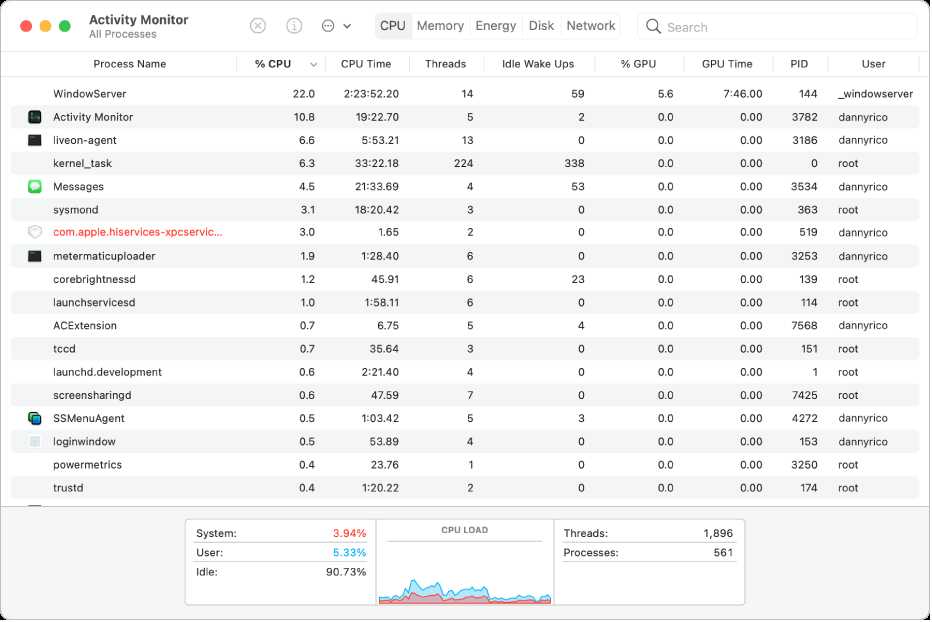
The CPU tab displays the percentage of your processor’s capacity being used. High CPU usage can slow down your Mac or cause apps to freeze. Look for processes that consume unusual amounts of CPU resources, especially if your system feels sluggish.
Understanding CPU columns and metrics
In the CPU tab, you’ll see columns like:
- Process Name – The app or process using the CPU.
- % CPU – The percentage of CPU used by each process.
- Thread Count – Number of execution threads for each process.
High values in % CPU indicate processes that might need attention.
Identifying resource-heavy processes
Sort processes by the % CPU column to identify which are using the most resources. If you find a process with a high % CPU that shouldn’t be active, you can select it and click the ‘X’ button to quit it.
Monitoring memory usage effectively
Memory usage measures how much RAM your system uses to keep apps running smoothly. When RAM is full, your system might slow down as it starts using your hard drive for extra space.
Key memory metrics to watch
In the Memory tab, look for:
- Memory Used – Total RAM currently in use.
- Cached Files – Files stored for quick access.
- Swap Used – When RAM is full, data moves to the hard drive, which slows down performance.
A high swap value suggests limited available RAM, which can cause lag.
How to free up memory
To improve memory performance, close unused apps or processes. You can also restart your Mac to clear cached files and reset memory usage.
Tracking disk activity and storage performance
The Disk tab shows real-time data about how your Mac reads and writes files. If your disk is constantly busy, apps might slow down, or you might experience delays when saving or opening files.
Understanding disk metrics
In this section, observe columns such as:
- Reads in Bytes – How much data is being read from your disk.
- Writes in Bytes – How much data is being written to your disk.
- Processes – Which apps are contributing to disk activity.
Excessive activity from certain apps suggests they might be the cause of slowdowns.
Managing disk performance issues
If disk activity stays high for a long time, consider closing some apps or restarting your Mac. Additional disk cleanup or upgrading your storage can also help improve performance.
Assessing network activity and bandwidth
The Network tab shows data transfer over your internet connection. Heavy network use can affect browsing, streaming, or online gaming experiences.
Key network data points
Focus on:
- Data Sent and Received – Total data flowing through your connection.
- Packets In/Out – Number of data packets sent and received.
- Process Name – Which apps are using your network.
Monitoring these helps identify apps consuming excessive bandwidth.
Troubleshooting network issues with Activity Monitor
If your internet is slow, check for processes with high data transfer. Quitting or restricting these applications can restore bandwidth for essential tasks.
Using Activity Monitor to troubleshoot system issues
Activity Monitor offers a quick way to diagnose various problems. Look for processes with unusually high resource usage, which could be causing system slowdowns.
Identifying and ending problematic processes
Select a process that takes up too much CPU or memory. Click the ‘X’ button to force quit it if necessary. Be cautious and ensure you’re not closing critical system processes.
Tracking performance over time
Use the real-time graph feature to observe how resource usage changes over time. This can help you predict and prevent future system slowdowns.
Customizing activity monitor for better monitoring
You can customize the columns and data displayed in Activity Monitor for more tailored monitoring. Use the ‘View’ menu to select which metrics are most important to you.
Creating a system performance snapshot
Take periodic snapshots of your system’s resource usage to compare performance over days or weeks. This aids in recognizing patterns or recurring issues.
Exporting data for further analysis
You can export process data for detailed analysis or sharing with support teams. Use the ‘File’ > ‘Save a Copy’ option to save the current data view.
Related tools and tips for optimizing system performance
While Activity Monitor is powerful, combining it with other tools enhances system management. For example, using disk cleanup apps or updating software ensures your Mac stays healthy.
Regular maintenance practices
Schedule regular restarts and updates to prevent system slowdown. Clear cache files and delete unnecessary apps to free up resources.
Monitoring system health with third-party apps
Third-party tools can offer advanced monitoring features that extend Activity Monitor’s capabilities. Use these tools for a more comprehensive view of your Mac’s health.
Final thoughts on monitoring your Mac’s performance
Using Activity Monitor regularly helps you understand your Mac’s behavior and keeps it running smoothly. By paying attention to CPU, memory, disk, and network activity, you can quickly identify and resolve issues. Consistent monitoring prevents small problems from becoming larger system failures, ensuring your Mac remains efficient and responsive.
How To Optimize Mac Performance Using Activity Monitor
Frequently Asked Questions
What are the key performance metrics available in Activity Monitor?
Activity Monitor provides various performance metrics that help you understand your system’s health. These include CPU usage, memory consumption, disk activity, and network bandwidth. Monitoring CPU usage shows how much processing power each application consumes. Memory metrics display how much RAM is being used and if any processes are causing memory pressure. Disk activity indicates read and write operations, helping identify potential bottlenecks. Network data reveals the amount of data sent and received, which can be useful for troubleshooting connectivity issues.
How can I identify processes that are consuming the most resources?
To find resource-intensive processes, open Activity Monitor and sort the list of processes by CPU or memory usage. Click on the CPU tab and then click on the “% CPU” column to sort processes from highest to lowest, highlighting which applications or background tasks use the most processing power. For memory usage, click on the Memory tab and sort by “Memory” to see which processes consume the most RAM. This visibility allows you to evaluate whether any applications are affecting system performance significantly and decide if you need to close or troubleshoot them.
What steps should I take if I notice unusual system activity in Activity Monitor?
If you observe abnormal activity, such as high CPU or memory consumption from unfamiliar processes, first verify their legitimacy. Right-click on the process to get more information or to quit it if necessary. Sometimes, malware or poorly optimized applications cause these issues. Restart your system to see if the activity subsides. Ensure your software and operating system are up to date, as updates often fix performance bugs. If problems persist, consider running security scans or consulting technical support to diagnose underlying issues.
How can I use Activity Monitor to troubleshoot disk performance problems?
To troubleshoot disk performance issues, open Activity Monitor and navigate to the Disk tab. Examine the “Read Bytes” and “Write Bytes” columns to identify processes causing high disk activity. If certain applications are performing extensive read/write operations, it might slow down your system. You can pause or quit these processes to see if disk responsiveness improves. Additionally, check the overall disk utilization at the bottom of the window to determine if your storage device is under heavy load, which could indicate hardware issues or the need for system optimizations.
Final Thoughts
Monitoring system performance with Activity Monitor helps identify resource hogs and troubleshoot issues quickly. Open the application, and you’ll see real-time data on CPU, memory, disk, and network usage.
Regularly checking these metrics allows you to keep your Mac running smoothly and prevent potential slowdowns. Focus on processes that consume excessive resources and consider quitting or managing them.
In conclusion, how to monitor system performance with Activity Monitor provides essential insights into your Mac’s health. Staying vigilant ensures optimal performance and quick problem resolution.

Similar Posts