How To Use Disk Utility To Verify And Repair Disks?

How to Use Disk Utility to Verify and Repair Disks
Introduction to Disk Utility
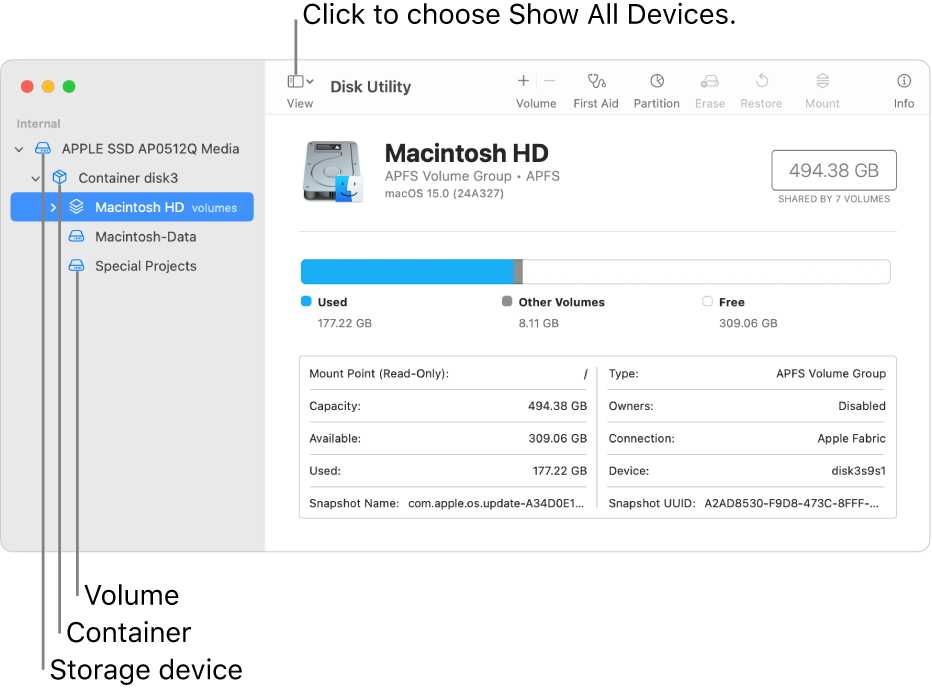
Disk Utility is a powerful tool available on Mac computers that helps you manage your hard drives and disks. It allows you to check for errors, repair problems, and ensure your disks run smoothly. Using Disk Utility is a simple way to keep your Mac healthy and prevent data loss.Understanding Disk Errors and Why They Matter
Over time, disks can get corrupted or develop errors due to unexpected shutdowns, hardware issues, or software glitches. These errors might cause slow performance, file corruption, or even system crashes. Regularly checking your disks helps identify issues early and keeps your data safe.Prerequisites Before Using Disk Utility
Before starting the verification or repair process, ensure your Mac is backed up. This protects your data in case something unexpected occurs during repair. Also, close all applications and save your work to prevent interruptions.Accessing Disk Utility on Your Mac
To open Disk Utility, follow these simple steps:- Click the Finder icon in the Dock.
- Navigate to the Applications folder.
- Open the Utilities folder.
- Double-click on Disk Utility.
Verifying a Disk with Disk Utility
Verifying helps identify issues without making any changes to the disk. To verify your disk:Select the Disk
Choose the disk or partition you want to check from the sidebar. Make sure you select the correct disk to avoid unnecessary risks.Run the Verify Process
Click on the “First Aid” button at the top of Disk Utility. Then, select “Run” to start the verification. Disk Utility will analyze the disk’s structure and report any problems found.Understanding the Verification Results
Once the process completes, Disk Utility displays a report with the results.- If no issues are found, you’ll see a message confirming the disk is OK.
- If errors are detected, Disk Utility will notify you of specific problems that may need repair.
Repairing a Disk Using Disk Utility
If verification shows errors, repairing the disk is the next step. Keep in mind that some errors may require your disk to be repaired from macOS Recovery mode.Repair a Disk When It’s Mounted
If your disk is mounted (visible in Finder), you can attempt repair directly:- Open Disk Utility.
- Select the disk or partition.
- Click on “First Aid” and then choose “Run.”
- Follow on-screen instructions and wait for the process to finish.
Repair a Disk in macOS Recovery Mode
For deeply corrupted disks, use macOS Recovery:- Restart your Mac and hold Command + R during startup.
- Select “Disk Utility” from the macOS Utilities window.
- Choose the disk you want to repair.
- Click “First Aid” and then “Run.”
- Wait for the repair process to complete, then restart your Mac.
Important Tips for Effective Disk Repair
- Always back up data before repairing disks to prevent accidental data loss.
- Run verification regularly to catch problems early.
- If repairs fail repeatedly, consider replacing the disk or consulting a professional.
- Use Disk Utility for both internal and external drives.
- Check the disk’s SMART status for signs of hardware failure, especially for traditional HDDs.
Related Topics for Disk Maintenance
Besides verifying and repairing disks, consider these practices:Optimizing Disk Performance
Defragmenting traditional hard drives (not SSDs) can improve performance. Use built-in tools or third-party applications to defragment your disk periodically.Managing Storage Space
Ensure your disk has enough free space to operate efficiently. Delete unnecessary files, empty the trash, and organize data regularly.Monitoring Disk Health
Use third-party apps that monitor SMART data for early signs of hardware failure. Regular monitoring helps plan replacements before critical failures occur.Common Troubleshooting Scenarios
Sometimes, Disk Utility cannot fix all issues. If you encounter persistent errors:- Run Disk Utility multiple times to see if errors resolve.
- Boot into Safe Mode by holding Shift during startup and rerun Disk Utility.
- Check external connections if using external disks, ensuring cables and ports are in good condition.
- Reformat the disk as a last resort, but remember this erases all data.
Additional Tools for Disk Verification and Repair
While Disk Utility covers most needs, other tools can provide deeper analysis:- DriveDx: Offers detailed health reports based on SMART data.
- TechTool Pro: Provides comprehensive diagnostics and repairs.
- SMART Utility: Checks the SMART status of disks.
Best Practices for Disk Maintenance
Consistent backup routines and regular disk checks are key. Schedule routine verifications, especially after power failures or system crashes. Keep your macOS updated to ensure compatibility with disk management tools.Summary of Step-by-Step Process
| Step | Action |
|---|---|
| 1 | Open Disk Utility from Applications/Utilities or Spotlight |
| 2 | Select the disk or partition you want to check |
| 3 | Click “First Aid” at the top and choose “Run” |
| 4 | Review the verification report for errors or issues |
| 5 | If errors are found, run “First Aid” again or use Recovery Mode for repairs |
How to repair a Mac disk with Disk Utility
Frequently Asked Questions
What should I do before repairing a disk with Disk Utility?
Before repairing a disk, back up all important data to prevent any loss during the process. Ensure that no applications are using the disk and quit any open files or programs associated with it. This preparation helps avoid complications and ensures a smoother repair process.
How can I verify a disk’s health using Disk Utility?
To check a disk’s condition, open Disk Utility and select the disk you want to verify. Click on the “First Aid” button and then choose “Run.” Disk Utility will scan the disk for errors and display a report of its health status, allowing you to determine if repairs are necessary.
What steps do I follow to repair a disk error with Disk Utility?
Start by opening Disk Utility and selecting the affected disk. Click on the “First Aid” button and confirm to run the repair process. Disk Utility will attempt to fix detected issues. If it reports that repairs were successful, restart your computer and check if the problem persists. If errors remain, consider reformatting the disk or seeking additional assistance.
Can I repair a disk that is not mounting or showing errors in Disk Utility?
Yes, sometimes a disk won’t mount or show errors but may still have underlying issues. Running “First Aid” can sometimes resolve mounting problems. If the disk still doesn’t mount after repair attempts, try connecting it to another port or computer. If issues persist, you might need to reformat the disk or consult a data recovery specialist.
How often should I verify and repair my disks using Disk Utility?
Regularly verify your disks, especially if you notice slow performance or unusual behavior. It’s advisable to run “First Aid” at least once a month or after installing significant system updates. Routine checks help maintain disk health and prevent potential data loss.
Final Thoughts
To verify and repair disks, open Disk Utility from your Applications folder. Select the disk you want to check from the sidebar. Click on the “First Aid” button, then choose “Run” to start the process. How to use Disk Utility to verify and repair disks involves running this feature whenever you suspect disk issues. It quickly identifies and fixes common problems, keeping your Mac in optimal condition. Regular checks help prevent data loss and improve system performance.
Similar Posts































