How To Remove App From Ipad A Simple Step-By-Step Guide
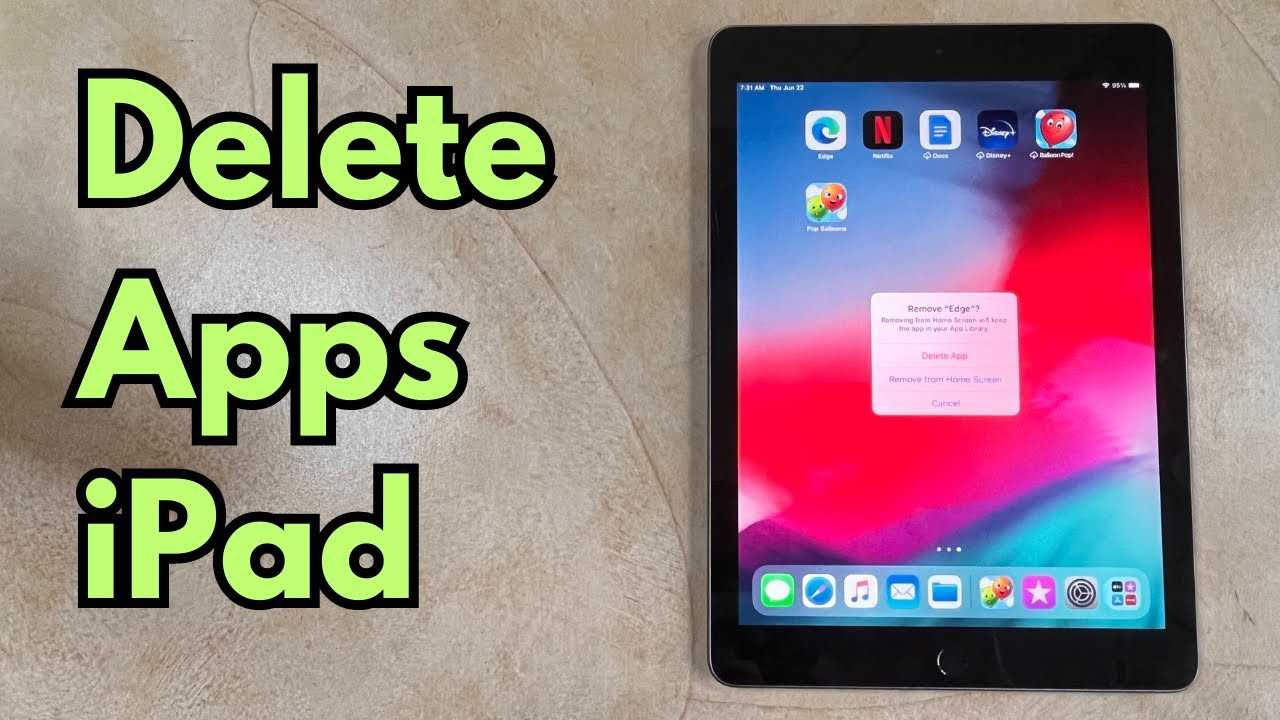

How to Remove App from iPad: A Complete Guide
Removing apps from your iPad might seem simple, but there are several ways to do it based on your iPad model and the iOS version you use. This guide will walk you through all the methods to delete apps quickly and easily, helping you free up storage space or organize your device better. Whether you want to delete a single app or multiple apps at once, you’ll find clear steps here to get the job done.Understanding Why You Might Want to Remove Apps
People often remove apps to make more space for new downloads or to keep their device clutter-free. Sometimes, apps drain battery life or slow down your iPad, making deletion a helpful step. Knowing the reason helps you decide the best method to remove an app without losing important data.Deleting Apps From Your Home Screen
The most common way to remove an app is directly from the Home Screen. This method works on all iPad models and iOS versions. Here’s how:- Locate the app icon you want to delete on your Home Screen.
- Press and hold the app icon until a menu appears or all icons start to wiggle.
- Tap on Remove app from the menu or tap the small X in the corner of the app.
- Confirm your choice by tapping Delete.
Using the App Library to Delete Apps
Starting with iOS 14, Apple introduced the App Library. It helps you organize apps and delete unused ones efficiently. To delete an app from the App Library:- Swipe left through your Home Screens until you reach the App Library.
- Find the app you wish to delete by browsing or searching.
- Tap and hold the app icon until a menu appears.
- Select Delete App, then confirm.
Removing Apps via Settings
If you want more control over your apps, the Settings app provides an alternative method.Steps to delete apps through Settings:
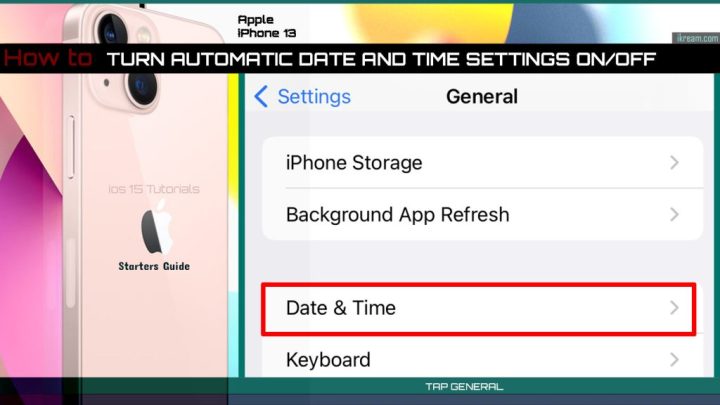
- Open the Settings app on your iPad.
- Scroll down and tap General.
- Select iPad Storage.
- Wait for the list of apps to load, then tap the app you want to delete.
- Tap Delete App and confirm.
Removing Multiple Apps at Once
If you want to delete several apps quickly, the fastest way is through the Home Screen or Settings.Bulk deletion through Home Screen:
- Press and hold any app icon until wiggle mode starts.
- Tap the small circle with a minus sign (–) on each app you want to delete.
- Tap Delete in the pop-up window for each app.
- Press Done when finished.
Bulk deletion via Settings:
- Repeat the steps in the “Using Settings” section to access the iPad Storage menu.
- In the list, tap each app you want to delete.
- Tap Delete App for each one.
Deleting Built-in Apps
Some apps come pre-installed on your iPad, like Safari or Mail. Apple generally doesn’t allow deleting these apps directly. However, you can remove their icons from the Home Screen or offload them.Offloading Built-in Apps
Offloading deletes the app but preserves its data. To offload an app:- Go to Settings.
- Select General, then iPad Storage.
- Find the app and tap on it.
- Choose Offload App.
- Confirm your selection.
Using Restrictions to Prevent App Reinstallations
If you want to stop apps from being reinstalled or added, you can set restrictions in your settings:- Open Settings and go to Screen Time.
- Select Content & Privacy Restrictions.
- Enable restrictions and set a passcode.
- Navigate to Allowed Apps and disable apps you want to hide.
Important Tips for Safe App Deletion
– Always double-check that you’re deleting the correct app to avoid losing important data. – Back up your data regularly to prevent accidental loss. – Remember that deleting an app may also remove its data unless stored in the cloud.Restoring Apps After Deletion
If you accidentally delete an app, you can always reinstall it from the App Store:- Open the App Store.
- Tap the Search tab and type the app’s name.
- Tap Download or the cloud icon to reinstall.
Troubleshooting Common Issues When Removing Apps
– If an app won’t delete, restart your iPad and try again. – For apps that won’t wiggle or show delete options, update your iOS to the latest version. – If storage doesn’t free up after deletion, restart your device or check for residual files.Summary of Best Practices for Removing Apps on iPad
- Use Home Screen for quick deletions of individual apps.
- Use Settings for better control and viewing storage stats.
- Offload apps to save data without full deletion.
- Be cautious with built-in apps and consider offloading instead of deleting.
- Back up important data before deleting apps.
How to Delete Apps on iPad – Quick Guide
Frequently Asked Questions
How can I delete an app on my iPad quickly?
To delete an app quickly, press and hold the app icon on your Home screen until it jiggles. Tap the small “X” or minus sign on the corner of the app icon, then confirm the deletion when prompted. The app will be removed from your device immediately.
Is there a way to remove multiple apps at once from my iPad?
Yes, you can remove multiple apps by entering jiggle mode on your Home screen. Tap and hold any app until all icons start to jiggle, then tap the small circles or minus signs on the apps you want to delete. Confirm each removal, and once you’re done, press the Home button or tap “Done” to exit jiggle mode.
What should I do if the app won’t delete normally?
If an app refuses to delete, restart your iPad and try again. If it still doesn’t work, check if the app is a built-in system app that cannot be removed. If it’s a third-party app, ensure no restrictions are enabled that prevent deletion by navigating to Settings > Screen Time > Content & Privacy Restrictions. Disable restrictions if necessary, then attempt to delete the app once more.
Can I delete apps directly from the App Store?
No, you cannot delete apps directly from the App Store. Instead, open the Home screen, locate the app, and follow the deletion process described earlier. From the App Store, you can only reinstall or update apps, but app removal happens directly on your device.
Will deleting an app also remove its data from my iPad?
Most of the time, deleting an app removes its data from your device. However, some apps may store data in iCloud or other cloud services, so deleting the app might not delete all associated data. If you want to free up storage completely, check app settings or iCloud storage to ensure all data is removed accordingly.
Final Thoughts
To remove an app from your iPad, tap and hold the app icon until it jiggles. Next, tap the “X” or “Remove App” option that appears. Confirm to delete the app, and it will be removed from your device. Alternatively, you can go to Settings > General > iPad Storage, find the app, and select “Delete App.” This method works well for managing multiple apps efficiently. In conclusion, knowing how to remove app from ipad helps keep your device organized and free of unwanted apps. Simply follow these steps for quick removal and better device management.
Similar Posts