How To Manage Startup Items To Speed Up Boot Time?
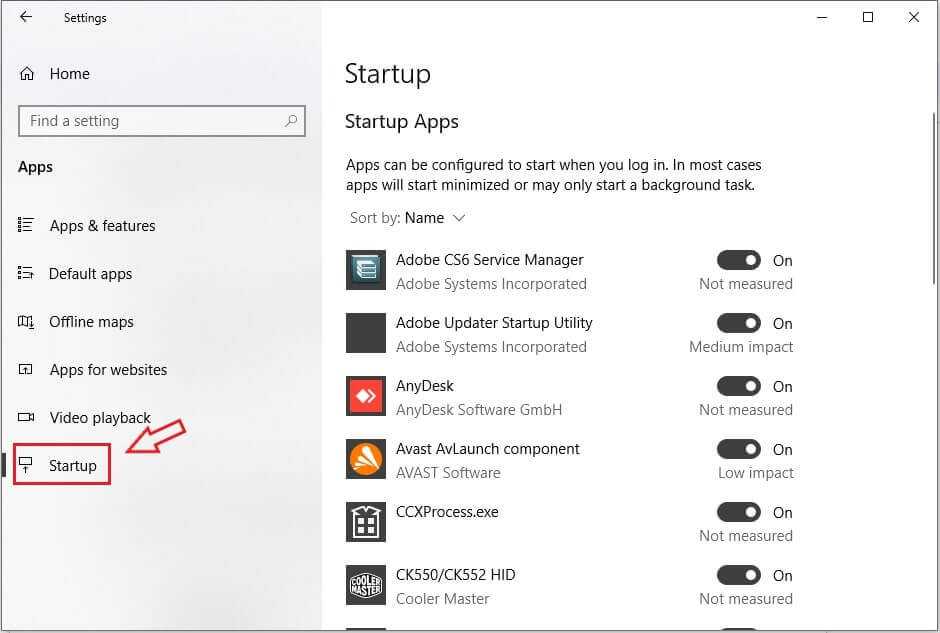

How to manage startup items to speed up boot time
Understanding what startup items are
Startup items are programs that automatically run when you turn on your computer. They can include software, background services, or processes needed for hardware to work smoothly. Some startup items are necessary, but many are unnecessary and slow down boot time.Why do too many startup items affect boot speed?
Having too many programs launching at startup causes your computer to work harder than it needs to. Each application consumes memory and processing power, which delays the overall boot process. Removing or disabling unnecessary items can significantly improve boot speed.How to identify which startup items are essential and which are not
Start by reviewing your startup programs carefully. Check the program names and their publisher information to determine their importance. Essential items usually have recognizable names or are related to system functions. Unfamiliar or unnecessary programs can often be disabled safely.Using Task Manager to manage startup items
Access your Task Manager by pressing Ctrl + Shift + Esc or right-clicking the taskbar and selecting Task Manager. Click on the Startup tab to see a list of programs that launch at startup. You can disable any program by right-clicking it and choosing ‘Disable.’Tips for using Task Manager effectively
– Look for programs with high startup impact ratings to prioritize disabling. – Avoid disabling security programs like antivirus or firewall services. – Regularly review the list for new or unnecessary items.Utilizing System Configuration (msconfig) for startup management
Open the Run dialog box (Windows + R), type ‘msconfig,’ and press Enter. Navigate to the Startup tab to see enabled programs, and uncheck items you don’t need at startup. Click OK and restart your computer to apply changes.Limitations of msconfig
Starting with Windows 8, msconfig’s startup management is moved to Task Manager. However, it remains useful for disabling non-startup services and troubleshooting startup issues.Using third-party tools to control startup programs
Specialized software like CCleaner or Autoruns provides advanced control over startup items. These tools offer detailed information about each program, including its location and impact on startup speed.Advantages of third-party tools
– View all startup items, including hidden or obscure programs. – Easily disable or enable programs with a single click. – Identify potentially malicious or unwanted software.Disabling unnecessary background processes
Many programs run in the background even after being disabled from startup. Use the Task Manager to close unneeded processes during startup, freeing system resources.Best practices for managing background processes
– Only end processes you recognize and are sure are unnecessary. – Regularly scan for malware or unwanted software using security tools. – Be cautious not to terminate essential system processes.Adjusting startup settings for specific applications
Some programs offer internal options to prevent automatic startup. Check the application’s settings to disable automatic launch or background activity.Examples of adjustment settings
– Email clients select ‘launch on startup’ to be turned off. – Cloud storage services like Dropbox or Google Drive have preferences for auto-start. – Hardware drivers or utilities often have options to disable auto-launch.Clearing temporary files and optimizing startup performance
Temporary files and cached data can clutter your system, causing delays during startup. Regular cleanup improves boot speed by reducing system load.Tools for cleaning temporary files
Use built-in utilities like Disk Cleanup or third-party apps to remove unnecessary files. Schedule regular cleanup to maintain optimal startup performance.Updating drivers and software for faster startup
Outdated or incompatible drivers can slow down your boot process or cause errors. Keep your drivers and system software updated for smoother startup performance.Steps to update drivers
– Use Device Manager to check for driver updates. – Visit manufacturer websites for the latest driver versions. – Use drivers’ update tools provided by your hardware vendors.Enabling fast startup options in Windows
Windows offers features like Fast Startup, which combines shutdown and hibernation to reduce boot time. Enabling this option can make your startup quicker.How to enable Fast Startup
– Go to Control Panel > Power Options. – Click on ‘Choose what the power buttons do.’ – Select ‘Change settings that are currently unavailable.’ – Check the ‘Turn on fast startup’ box. – Save changes and restart your computer.Monitoring and maintaining a lean startup environment
Regularly review your startup programs and remove items that are no longer necessary. Keep your system optimized by performing routine maintenance.Tips for ongoing management
– Periodically check Task Manager for new startup items. – Uninstall programs you no longer use. – Use system optimization tools to keep your PC clean and fast.Additional tips for speeding up boot time
Apart from managing startup items, consider these supplementary steps:- Disable unnecessary visual effects and animations.
- Upgrade to an SSD if using a traditional hard drive.
- Increase RAM to reduce swapping and improve performance.
make Windows boot FASTER! with these easy settings 😍 [windows 10/11]
Frequently Asked Questions
How can I identify which startup programs are unnecessary?
To determine which applications are unnecessary at startup, open the Task Manager or System Configuration tool on your computer. Review the list of programs that launch automatically, and look for those that you do not need immediately after booting. Research any unfamiliar applications to understand their purpose before disabling them if they seem non-essential.
What steps should I follow to disable startup items in Windows?
First, press Ctrl + Shift + Esc to open Task Manager. Navigate to the ‘Startup’ tab to see all enabled startup programs. Right-click on any program you wish to prevent from launching at startup and select ‘Disable.’ Remember to restart your computer to apply these changes and see if your boot time improves.
Are there any risks associated with disabling startup programs?
Disabling necessary system or security-related programs could affect your computer’s performance or security. To avoid issues, research each program before disabling it. Focus on disabling applications that are not critical for your system’s operation or security, and keep essential software enabled to ensure your computer functions correctly.
Can I manage startup items using third-party software?
Yes, you can use third-party tools designed to manage startup programs more efficiently. These tools often provide a clearer overview of startup items and allow you to disable or delay specific applications easily. Ensure you choose reputable software and use it cautiously to prevent undeclared disabling of important programs.
Will managing startup items significantly improve my boot time?
Managing startup programs can noticeably decrease the time it takes for your computer to become usable after startup. By limiting unnecessary applications from launching automatically, your system can allocate resources more effectively, resulting in faster boot times and improved overall performance. However, other factors like hardware specifications also influence boot speed.
Final Thoughts
Managing startup items effectively can significantly reduce your boot time. Disable unnecessary programs from starting automatically through task manager or system settings. Regularly review these items to ensure only essential applications load at startup. By doing so, you minimize delays and improve your device’s overall performance. Focusing on startup management helps your computer become ready faster each time you turn it on. Keep these practices in mind to maintain an optimized boot process. This is how to manage startup items to speed up boot time, making your experience smoother and more efficient.
Similar Posts































