How to Connect Outdoor Sound Box with Bluetooth 5.3
Quick Answer: The 30-Second Setup
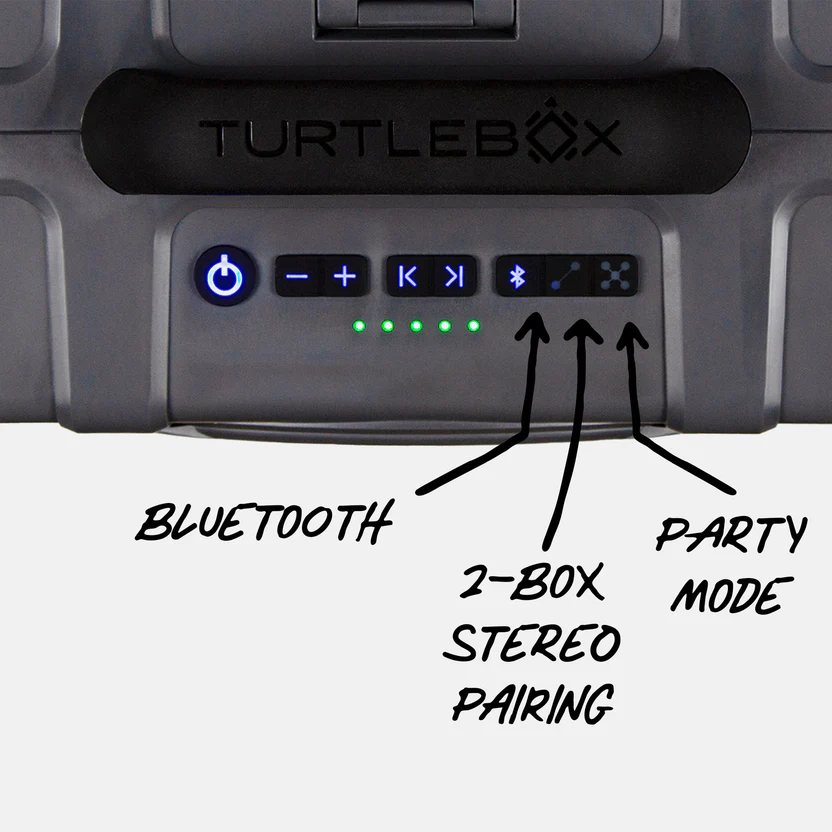
Power on your outdoor speaker. Press and hold the Bluetooth button for three to five seconds. The LED will start flashing rapidly.
Open your phone's Bluetooth settings. Find the speaker under available devices. Tap its name.
You're connected. The entire process takes under 30 seconds once you know the sequence.
Why Bluetooth 5.3 Actually Matters for Your Outdoor Speaker
You might be wondering why the version number matters at all. After all, Bluetooth is Bluetooth, right? Not quite.
Bluetooth 5.3 is the latest standard as of 2026, and it brings real improvements for outdoor use. The biggest difference is range. In open outdoor spaces, Bluetooth 5.3 can maintain a stable connection up to 240 meters (about 800 feet) line of sight.
That's roughly double what Bluetooth 4.2 could manage.
Latency is another area where 5.3 shines. The newer standard supports LE Audio, which cuts audio delay to around 40 to 80 milliseconds. That means you won't notice lip-sync issues when watching videos on your phone or laptop through the speaker.
Older Bluetooth versions often lag around 150 to 250 milliseconds, which is very noticeable.
Power efficiency is also better. Manufacturer specifications indicate that Bluetooth 5.3 uses roughly 40 percent less power than Bluetooth 4.2 during active connections. Your outdoor speaker's battery will last longer per charge, which is a big deal when you're camping or at the beach.
Per the official Bluetooth SIG specification, version 5.3 also improves connection stability in crowded environments. If you've ever been at a busy park or pool where multiple Bluetooth devices are competing for airspace, you know how frustrating dropouts can be. The 5.3 standard handles interference better, so your music stays on.
Before You Start: What You Need to Know About Your Gear
Before you jump into the pairing process, take a quick inventory of your equipment. This will save you from headaches later.
Check Your Speaker's Bluetooth Version
Most outdoor speakers sold today support Bluetooth 5.3, but not all do. Look at the product specifications on the box or the manufacturer's website. If your speaker only supports Bluetooth 4.2 or 5.0, it will still work with your phone.
The connection will just use the older standard's capabilities. You won't get the full range or power efficiency of 5.3.
Verify Your Source Device Compatibility
Your phone, laptop, or TV needs to support Bluetooth 5.3 as well for you to get the full benefit. Check your device's technical specifications. Most modern smartphones from 2023 onward include 5.3.
If you're using an older device, the connection will fall back to the highest version both devices share.
Identify Multipoint and TWS Support
Two features can make your outdoor speaker setup much more flexible. Multipoint allows you to connect two devices at once, like your phone and laptop. You can switch between them without re-pairing.
True Wireless Stereo (TWS) lets you pair two identical speakers together for stereo sound or louder party mode.
Check your speaker's manual or product page for these features. Not all outdoor speakers support them, even if they have Bluetooth 5.3. If you're planning to use your speaker for both music and calls, multipoint is a game changer.
Charge Your Speaker Fully
Your outdoor speaker needs enough battery power to maintain a stable Bluetooth connection. Low battery can cause the pairing process to fail or the connection to drop unexpectedly. Plug it in for at least 30 minutes before you start, especially if it's been sitting unused for a while.
Before you start the pairing process, make sure your phone's Bluetooth settings are easy to find. Android users might want to check that their notifications are configured properly for the Bluetooth settings menu, which can save time when you're outdoors.
Step-by-Step: Connecting Your Phone or Tablet
This is the most common scenario. You want to play music from your phone through your outdoor speaker. Here's exactly how to do it.
Step 1: Power On the Speaker
Press the power button on your outdoor speaker. Wait for the startup chime or voice prompt. Some speakers take a few seconds to boot up, so be patient.
Step 2: Enter Pairing Mode
Look for the Bluetooth button on your speaker. It's usually marked with the Bluetooth symbol. Press and hold it for three to five seconds.
The LED indicator will start flashing quickly, usually blue or white. You might hear a voice prompt saying "pairing" or "ready to connect."
If your speaker doesn't have a dedicated Bluetooth button, the power button might serve double duty. Some speakers enter pairing mode automatically when you power them on for the first time. Check your manual if you're unsure.
Step 3: Open Your Phone's Bluetooth Settings
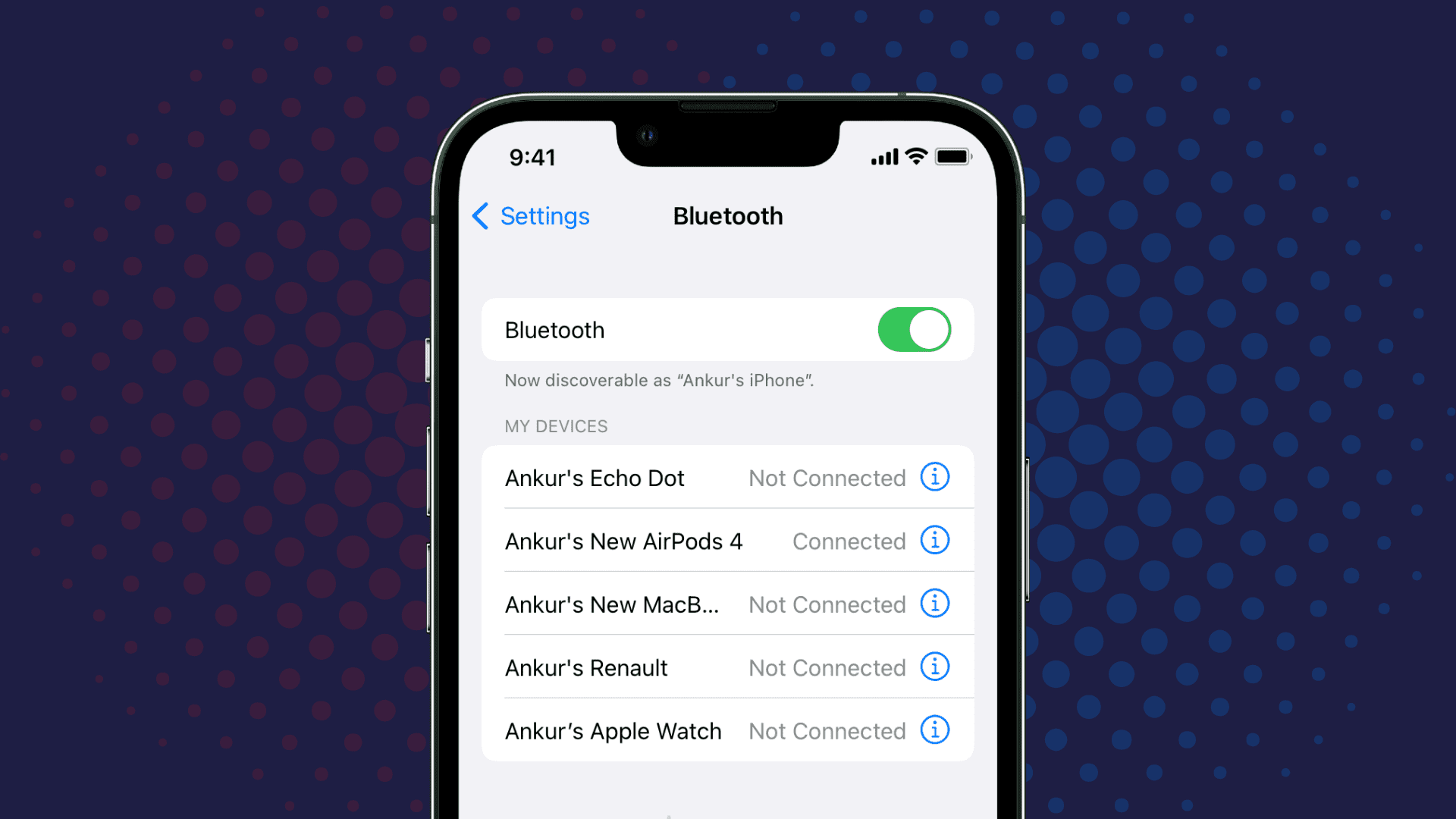
On an iPhone, go to Settings > Bluetooth. On Android, go to Settings > Connected Devices > Bluetooth. Make sure Bluetooth is toggled on.
Step 4: Select Your Speaker
Your phone will scan for nearby devices. After a few seconds, your outdoor speaker's name should appear under "Other Devices" or "Available Devices." Tap it. Your phone will attempt to connect.
Step 5: Confirm the Pairing
Most Bluetooth speakers don't require a PIN code. If prompted, try "0000" or "1234." Once connected, the speaker's LED will stop flashing and stay solid. You might hear a confirmation tone.
Your phone will show the speaker under "My Devices" or "Paired Devices."
Step 6: Test the Audio
Play a song or video to confirm the connection works. Adjust the volume on both your phone and the speaker. If you hear audio, you're all set.
Troubleshooting Tips for Phone Connections
If your speaker doesn't appear in the Bluetooth list, try these fixes:
- Move your phone closer to the speaker. Distance and obstacles can interfere with discovery.
- Turn Bluetooth off and on again on your phone.
- Restart the speaker by powering it off and back on.
- Clear previously paired devices from the speaker's memory. This is usually done by holding the Bluetooth button for 10 seconds.
If audio cuts out during playback, check for interference. Move your phone closer to the speaker and away from other electronic devices. Remember that the full range of Bluetooth 5.3 is only achievable in open outdoor spaces with no obstacles.
Connecting a Laptop or Smart TV (It's Different)
Connecting to a laptop or smart TV follows the same basic principle, but each platform has its own quirks. Here's what you need to know.
Windows Laptops
On Windows, click the Start button and open Settings. Go to Bluetooth and Devices. Make sure Bluetooth is turned on.
Click "Add device" and select Bluetooth. Your speaker should appear in the list. Click it and follow the prompts.
Windows sometimes has trouble with audio output after pairing. After connecting, right-click the speaker icon in the system tray. Select "Open Sound settings." Under "Choose your output device," select your outdoor speaker.
If you don't see it, click "Pair new device" and try again.
MacBooks
On a Mac, click the Apple menu and open System Settings. Go to Bluetooth. Make sure Bluetooth is on.
Your speaker should appear under "Nearby Devices." Click "Connect" next to its name.
Macs can be finicky about Bluetooth audio codecs. If you experience audio lag, try disconnecting and reconnecting. Some users find that restarting the Mac helps.
Content creators who use their Mac for editing work often connect external speakers, so the process is well documented.
Smart TVs
Smart TVs handle Bluetooth differently. The Bluetooth menu is usually buried in the settings. On a Samsung TV, go to Settings > Sound > Sound Output > Bluetooth Speaker List.
On a LG TV, go to Settings > Sound > Sound Out > Bluetooth. On a Roku TV, go to Settings > Remotes and Devices > Bluetooth.
The TV will scan for nearby Bluetooth devices. Put your speaker in pairing mode. Select it from the list.
The TV will confirm the connection.
Dealing with Audio Lag on Video Content
Audio lag is the most common problem when connecting a Bluetooth speaker to a TV or laptop. Because Bluetooth 5.3 has lower latency, this is less of an issue than with older versions. But it's not completely eliminated.
If you notice lip-sync issues, check your TV's audio settings. Many modern TVs have a "Bluetooth audio delay" or "AV sync" adjustment. You can tweak this to match the audio with the video.
On laptops, you might need to use a third-party app to adjust the delay.
For gaming, the lower latency of Bluetooth 5.3 makes a noticeable difference. If you're connecting your outdoor speaker to a gaming setup, you'll appreciate the tighter sync. Gamers who use curved monitors for better immersion often pair external speakers for a more complete experience.

Similar Posts





















