do 144hz monitors reduce input lag
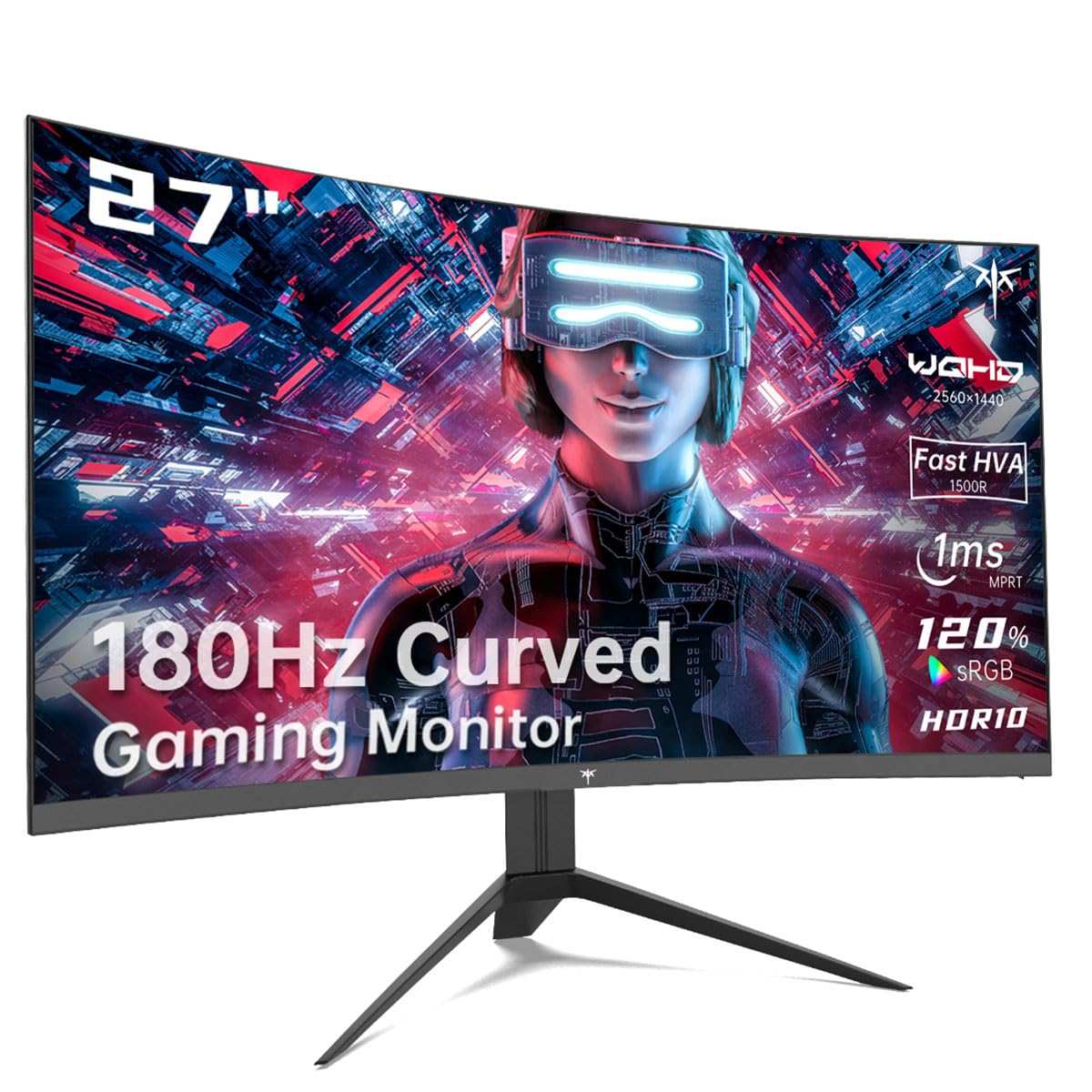
So you're deep in a ranked match, you flick onto an enemy, and your shot feels just a beat late. That sinking feeling: my monitor holding me back? The question "do 144hz monitors reduce input lag" is one of the most common we hear from gamers, and the short answer is yes, but not in the way most people think.
It's not magic. It's physics.
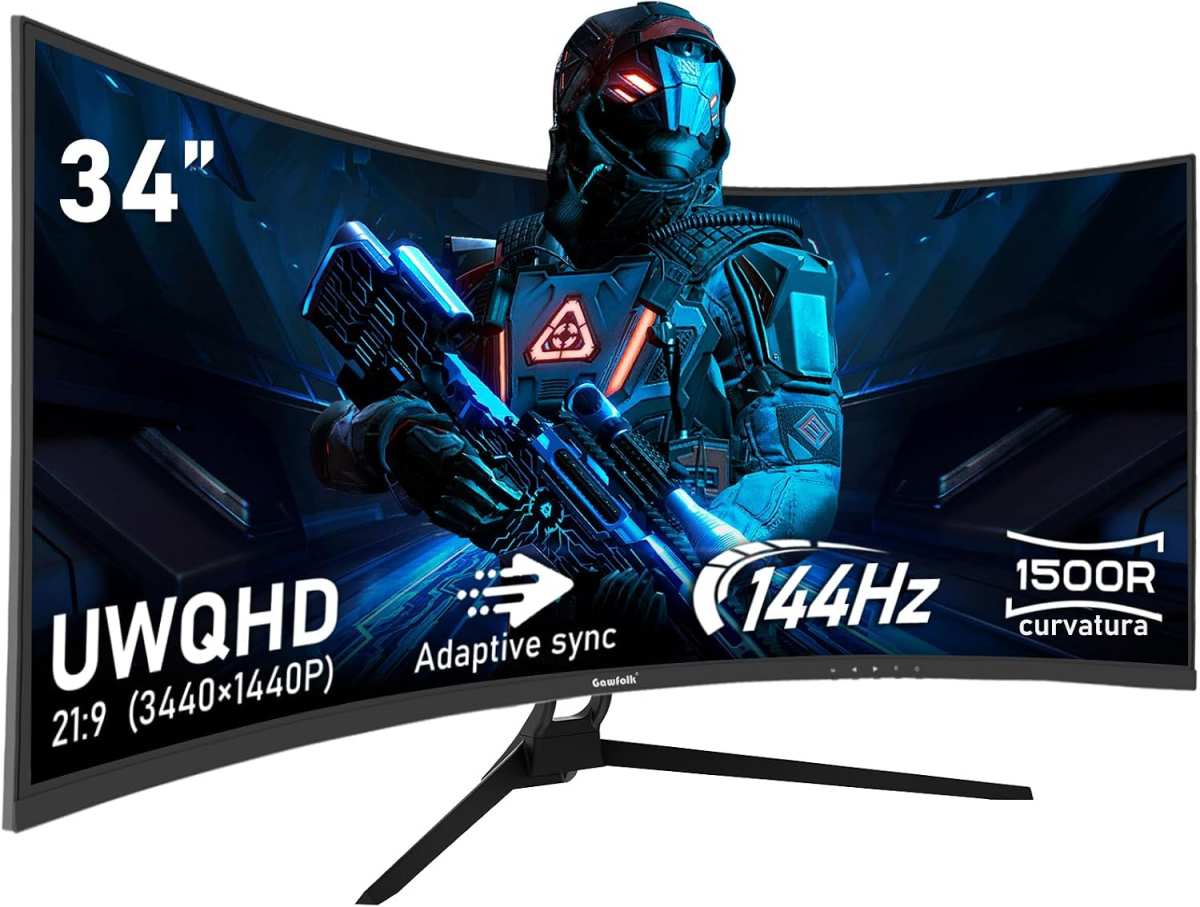
Here's the concrete part: at 60Hz, the monitor draws a new frame every 16.7 milliseconds. At 144Hz, that drops to 6.9 milliseconds per frame. That 9.8 ms difference is the core of the input lag reduction.
But whether you actually feel that improvement depends on a chain of other factors. Let's walk through what actually matters.
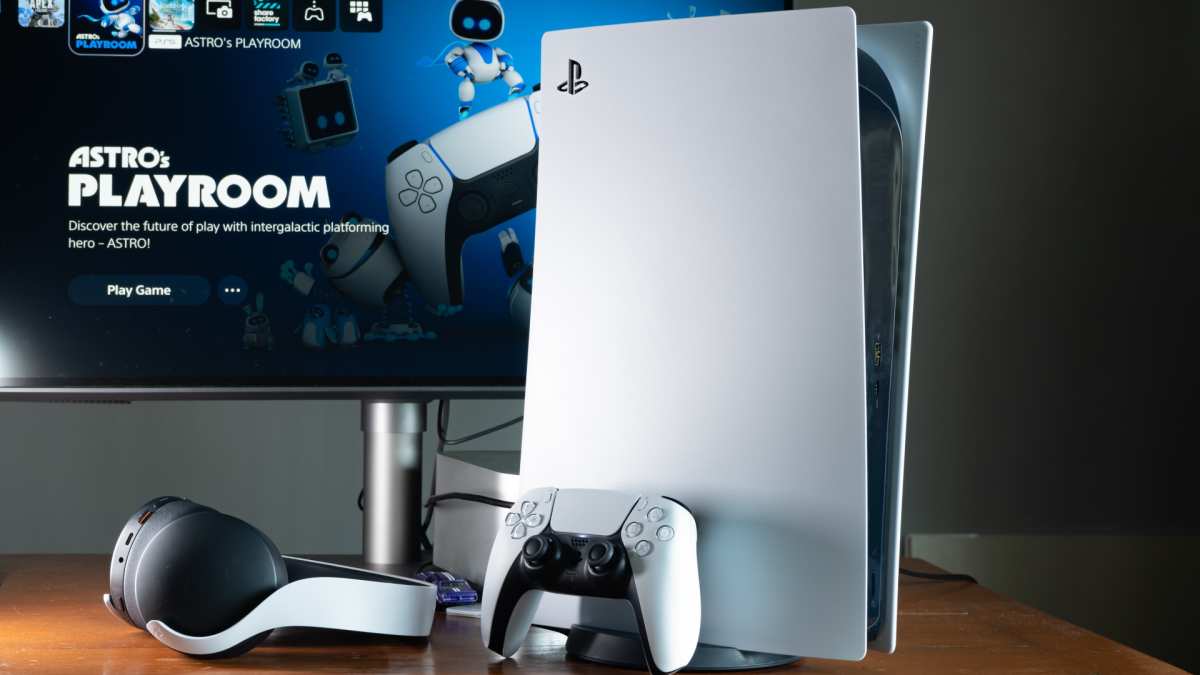
Image source: Bing (Web (fair-use with source credit))
Problem / Pain Point – What's Actually Slowing You Down?
You might have already bought a 144Hz monitor, plugged it in, and felt… nothing special. Or maybe you're still on 60Hz and wondering if the upgrade is worth it. The frustration is real: your reactions feel sluggish, you lose close fights, and you're not sure if it's your hardware or your skill.
The problem is that input lag is a bundle of different delays stacked on top of each other. There's the time your mouse takes to send a signal, the time your CPU processes the input, the time your GPU renders the frame, the time the monitor receives that frame, and finally the time it actually shows it. If any one of those is slow, the whole chain feels slow.
Most people fixate on the monitor's refresh rate but ignore the other bottlenecks. You can buy the fastest 144Hz panel on the market, but if your graphics card can't push more than 50 FPS in your game, you're still stuck with the input lag of a 60Hz experience. The monitor is just one link in a very long chain.
The real pain point is not knowing which link is the weak one. That's what we're going to solve together.
Quick Answer – Does 144Hz Lower Input Lag? (The Short Truth)
Yes, a 144Hz monitor reduces input lag compared to a standard 60Hz monitor.
The reduction comes from a shorter frame-hold time. At 60Hz, the monitor holds each frame for 16.7 ms before updating. At 144Hz, that drops to 6.9 ms.
That's about 10 ms less display latency.
You won't feel it in every game. But in fast-paced shooters where split-second reactions matter, it can be the difference between a headshot and a miss.
That said, the benefit only appears when your system can deliver at least 100 FPS to the display. If you're stuck at 60 FPS, the 144Hz monitor still refreshes at 144Hz, but you're feeding it the same old slow data. No magic.
Core Explanation – How Refresh Rate Affects Display Latency
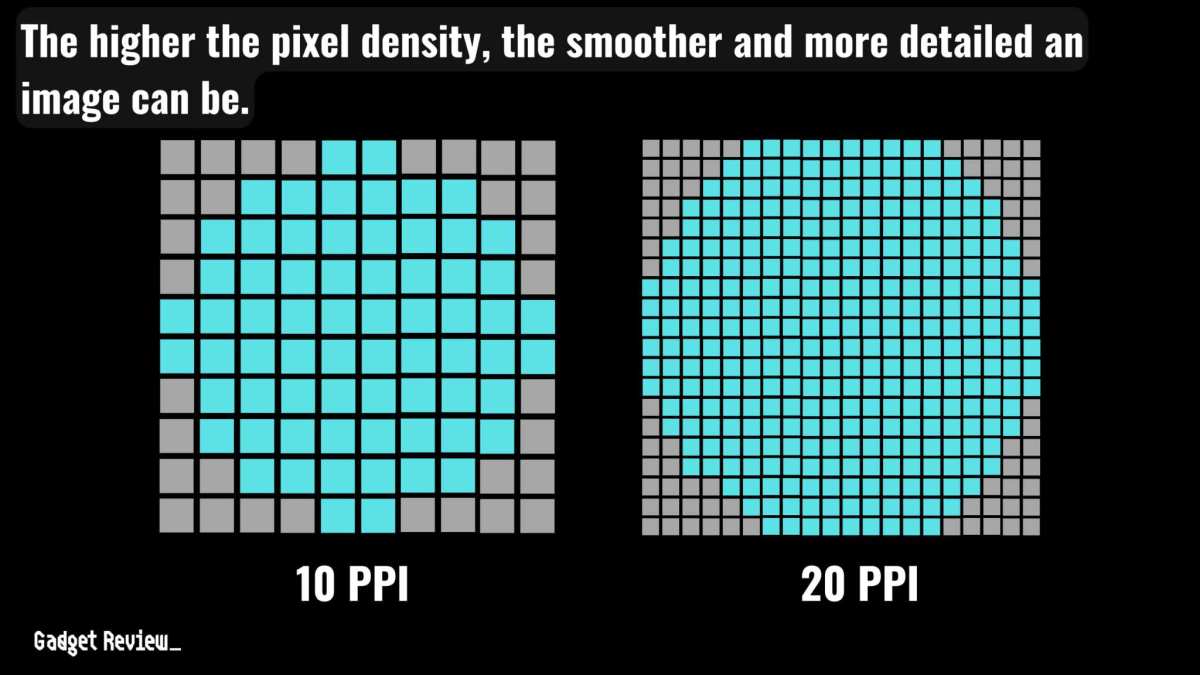
Think of a monitor like a slideshow projector. At 60Hz, it shows a new slide every 16.7 ms. At 144Hz, it shows one every 6.9 ms.
The faster the slides change, the sooner you see new information.
But there's more to it than just the frame interval. Two other factors play into display latency: scanout time and pixel response.
Frame Time and Scanout: Why 144Hz Feels Faster
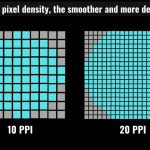
A monitor doesn't update the whole screen instantly. It draws the image line by line from top to bottom, a bit like a laser printer. That process is called scanout.
At 60Hz, scanout takes about 16.7 ms. At 144Hz, it takes about 6.9 ms.
What that means for you: if you move your mouse at the exact moment a new frame starts rendering, you'll see that movement on screen much sooner with a 144Hz monitor. The scanout finishes faster, so your input appears on screen earlier.
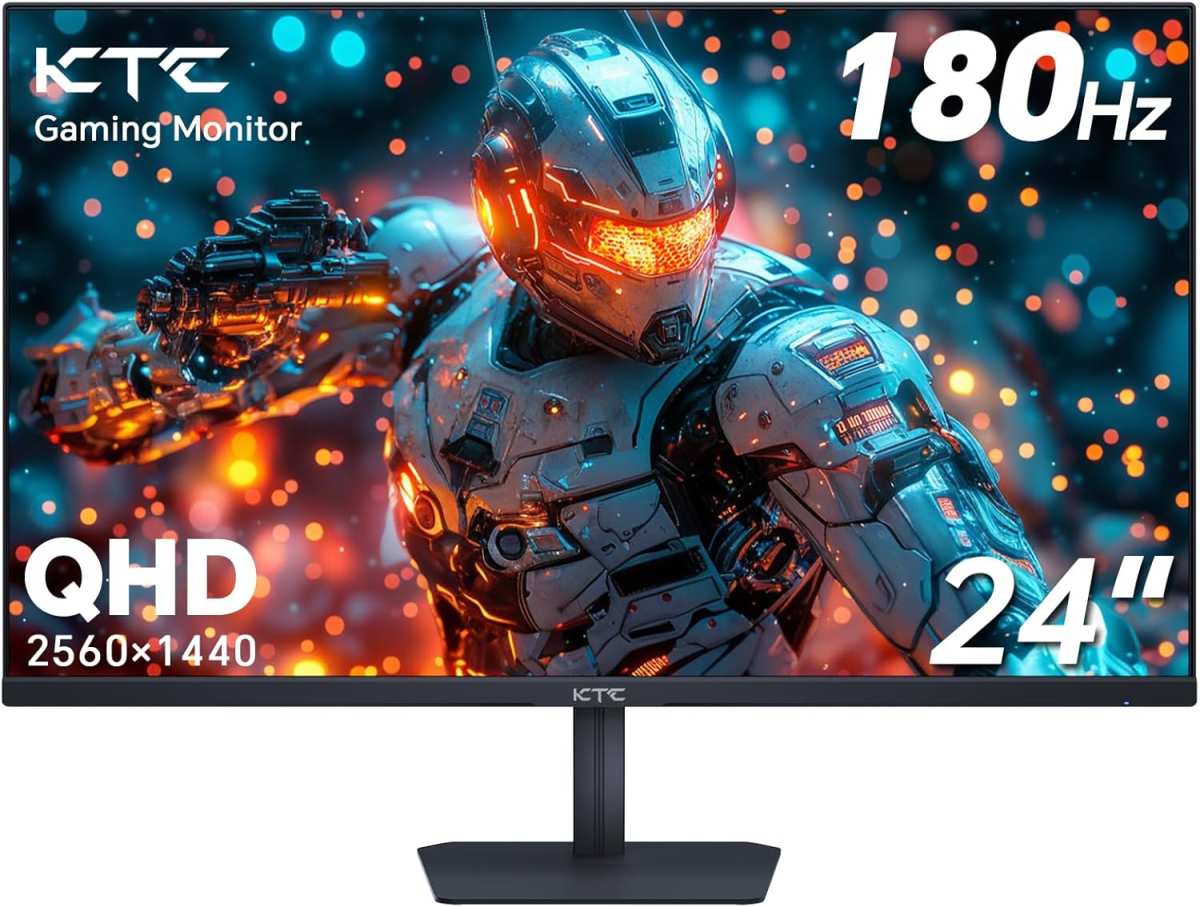
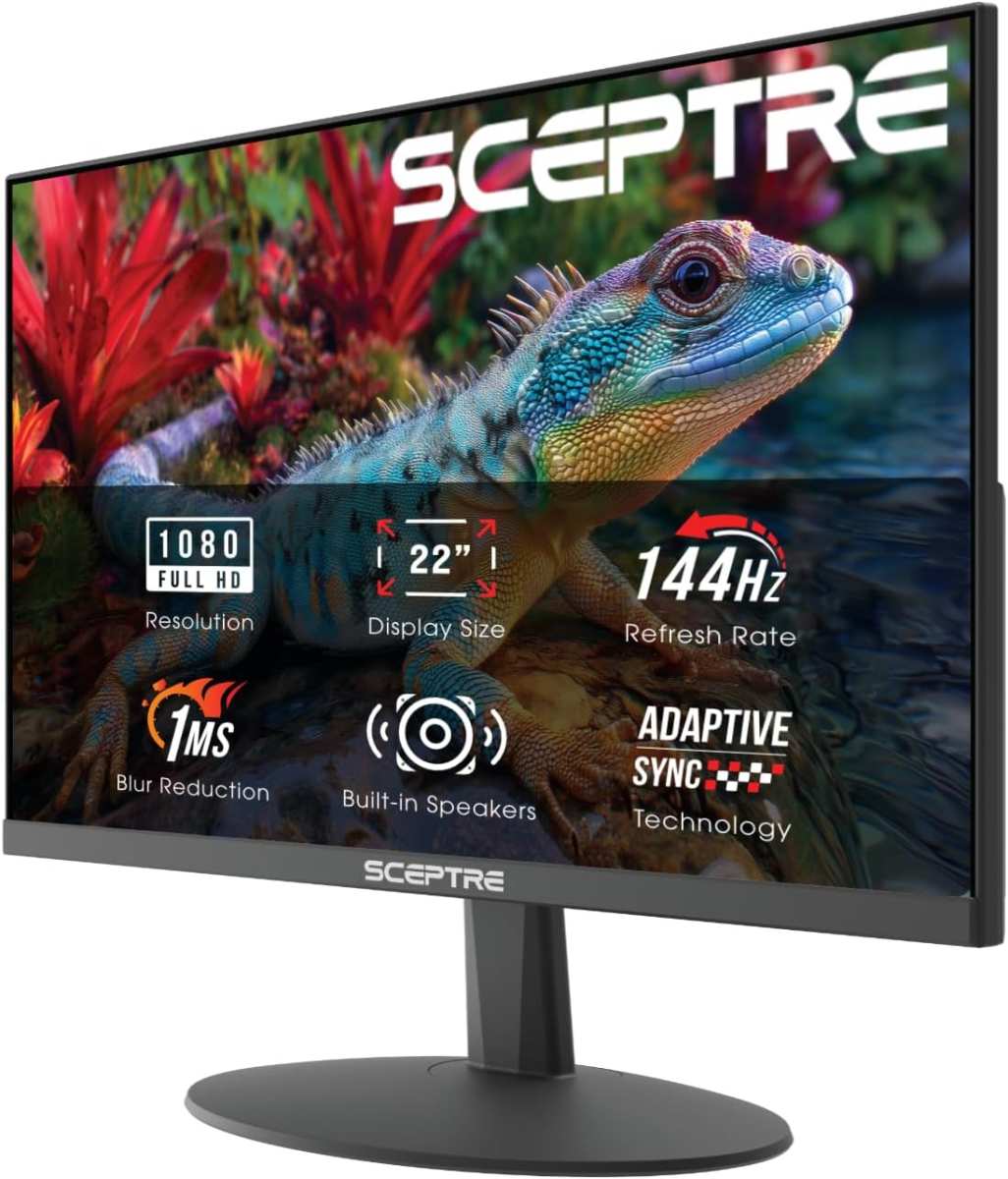
Add pixel response time (how fast a pixel changes color) and you get total display latency. Most modern 144Hz gaming monitors have a total input lag between 4 and 10 ms. A typical 60Hz office monitor sits between 15 and 25 ms.
That's a real gap.
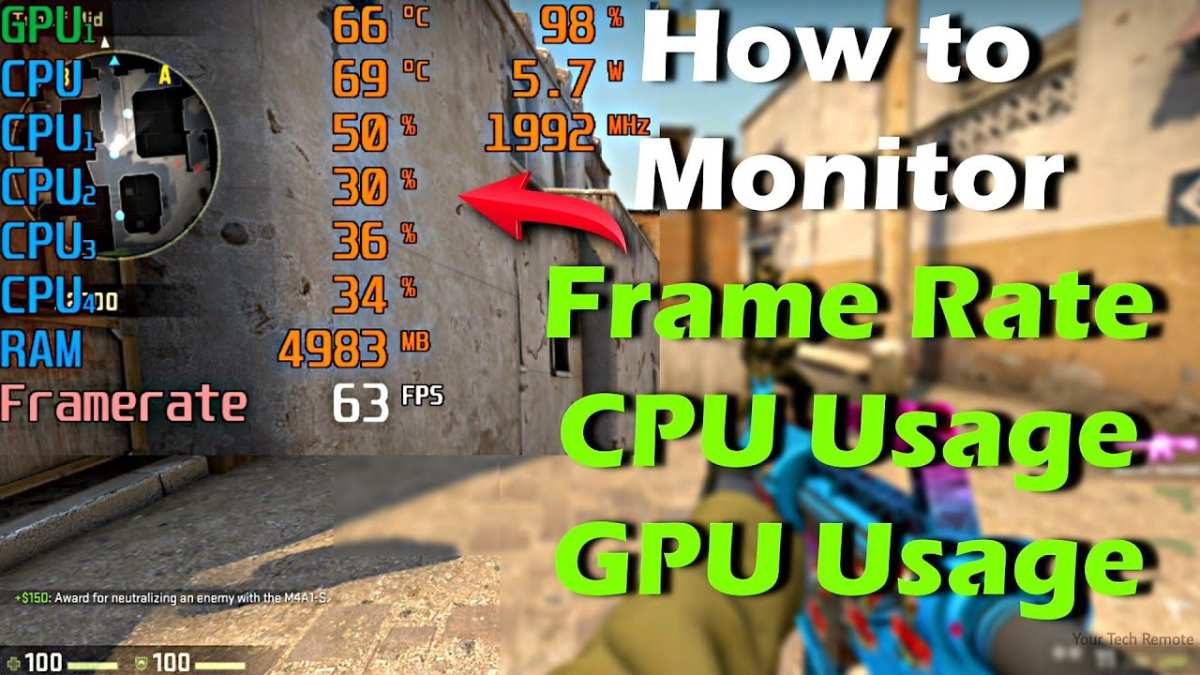
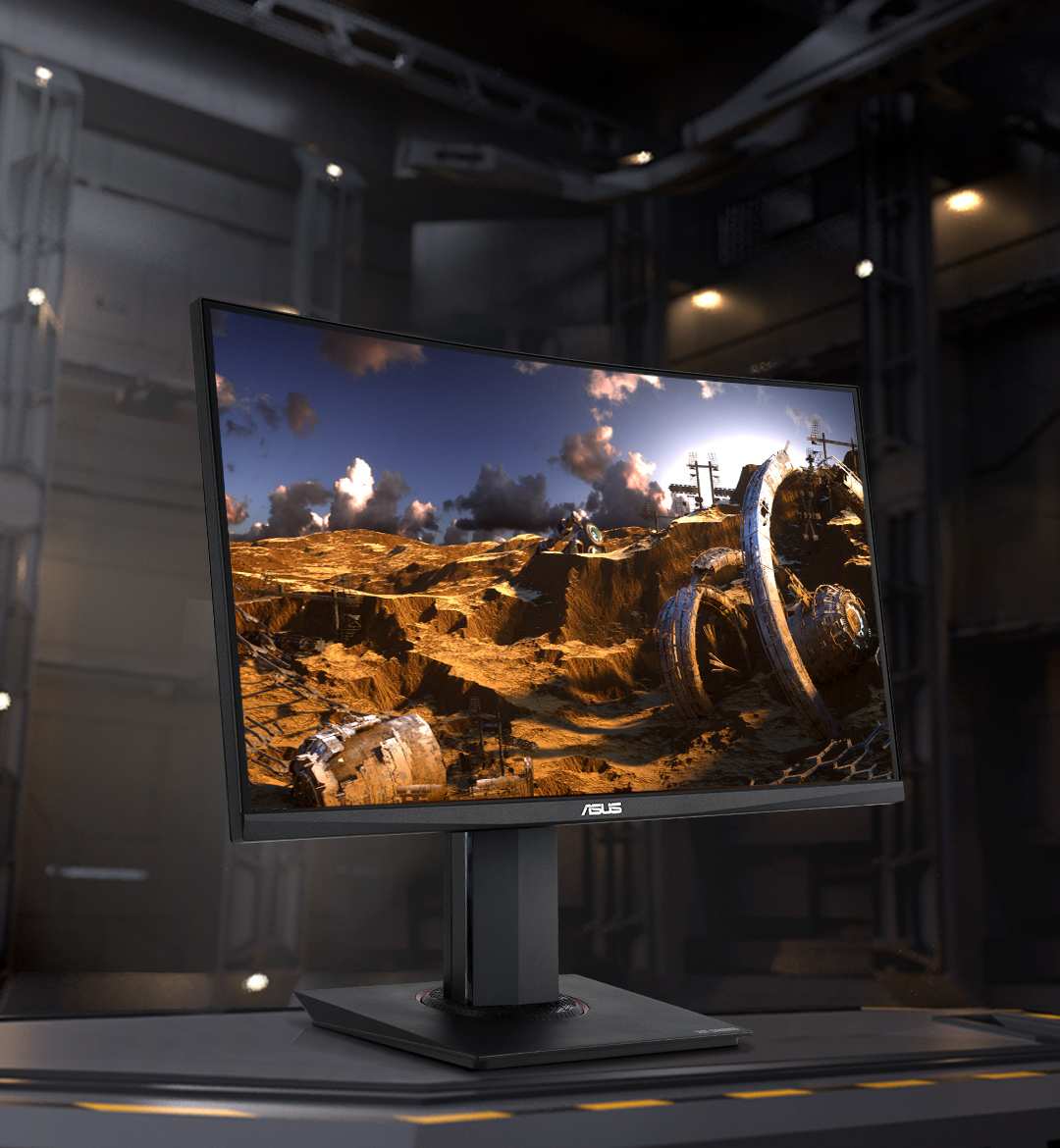
Image source: Bing (Web (fair-use with source credit))
The Real Numbers: 60Hz vs. 144Hz in Milliseconds
| Scenario | Frame time (ms) | Typical total input lag (ms) |
|---|---|---|
| 60Hz monitor, 60 FPS | 16.7 | 15-25 |
| 144Hz monitor, 60 FPS | 16.7 (still 6.9 refresh, but GPU delivers late) | 15-25 |
| 144Hz monitor, 144 FPS | 6.9 | 4-10 |
| 144Hz monitor, 100 FPS | 10 (frame time) + 6.9 (scanout) | around 12-15 |
The key takeaway: you need high frame rates to unlock the low input lag. The monitor alone doesn't do it.
Decision Tree – Should You Upgrade to 144Hz?
This section is the heart of the article. You don't need a blanket recommendation. You need a decision that fits your situation.
Let's walk through four branches.
Branch 1: Your GPU Can Hit 144 FPS in Your Main Games
If you're playing CS2, Valorant, Overwatch, or Fortnite and your graphics card can push 144 FPS consistently (or even 200+), then a 144Hz monitor will reduce your input lag noticeably. You'll also get smoother motion and less eye strain.
Verdict: Upgrade. You'll feel the difference within minutes.
Branch 2: Your GPU Hovers Around 60–90 FPS
This is the trickiest zone. At 80 FPS, your frame time is about 12.5 ms. A 144Hz monitor will still show that frame faster than a 60Hz one because the scanout is quicker.
But the improvement is smaller: maybe 3 to 5 ms versus the full 10 ms at 144 FPS.
Verdict: Still worth it if you plan to upgrade your GPU soon. If you're stuck with that hardware for years, a 144Hz monitor won't be wasted, but the input lag reduction is modest.
Branch 3: You Play Console or Games Locked to 60 FPS
Some games cap at 60 FPS (many console ports, certain RPGs). Even with a 144Hz monitor, you're still feeding it 60 frames per second. You won't get any input lag reduction from the faster refresh, because the monitor has to wait for each new frame from the GPU.
Verdict: Don't upgrade just for input lag. A 144Hz monitor still gives you smoother motion for menu navigation and desktop use, but the competitive edge isn't there.
Branch 4: You’re Sensitive to Tearing and Use V-Sync
V-Sync can add a frame or two of input lag (about 16-33 ms). A 144Hz monitor with V-Sync at 144 FPS adds far less lag because the wait time is only 6.9 ms per frame. Additionally, if you enable G-Sync or FreeSync, you eliminate tearing without the V-Sync penalty.
Verdict: If you hate screen tearing and use V-Sync, a 144Hz monitor is a huge win. The input lag penalty from V-Sync at 144 Hz is much smaller than at 60 Hz.
Step-by-Step Process – How to Set Up 144Hz for Lowest Input Lag
You bought the monitor. Now you need to set it up properly. Many people leave their monitor at 60Hz out of the box.
Here's how to get the lowest input lag.
Step 1: Confirm Your Cable and Port Support 144Hz
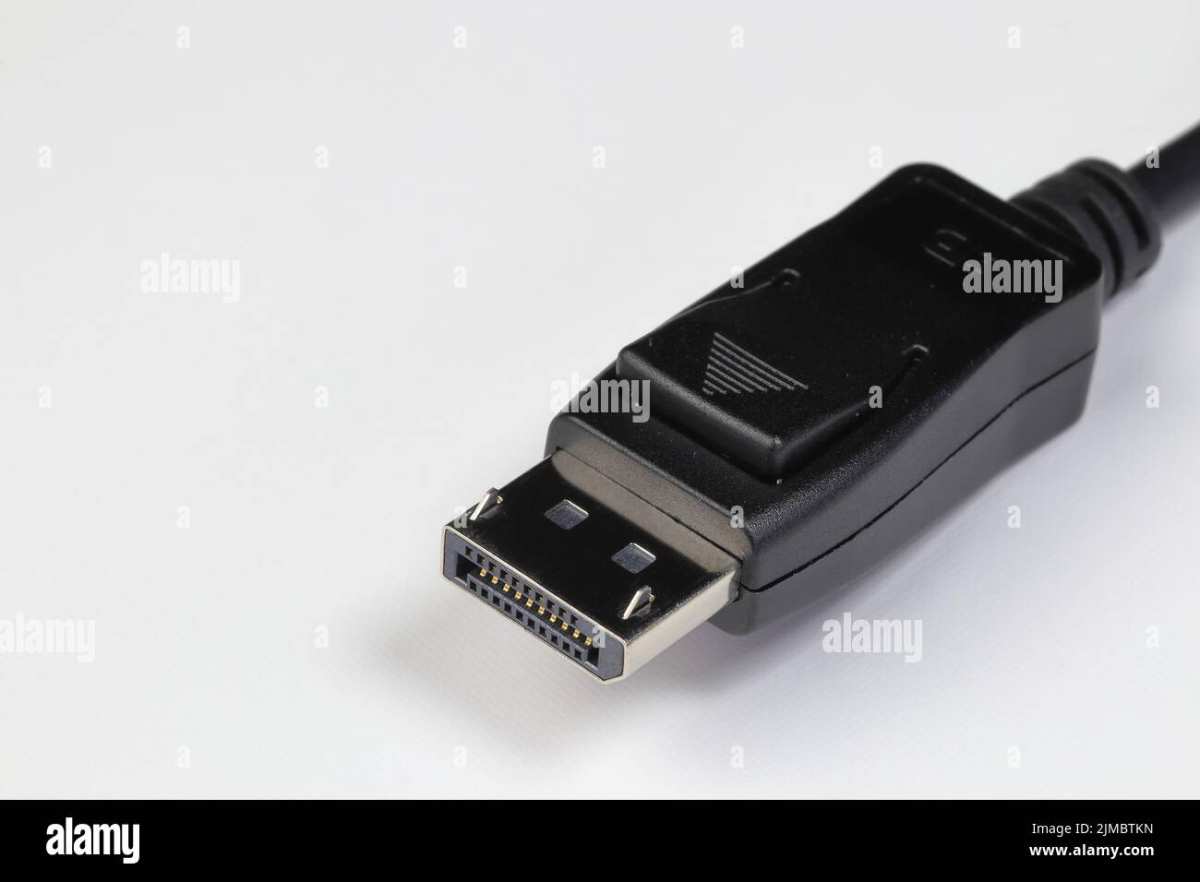
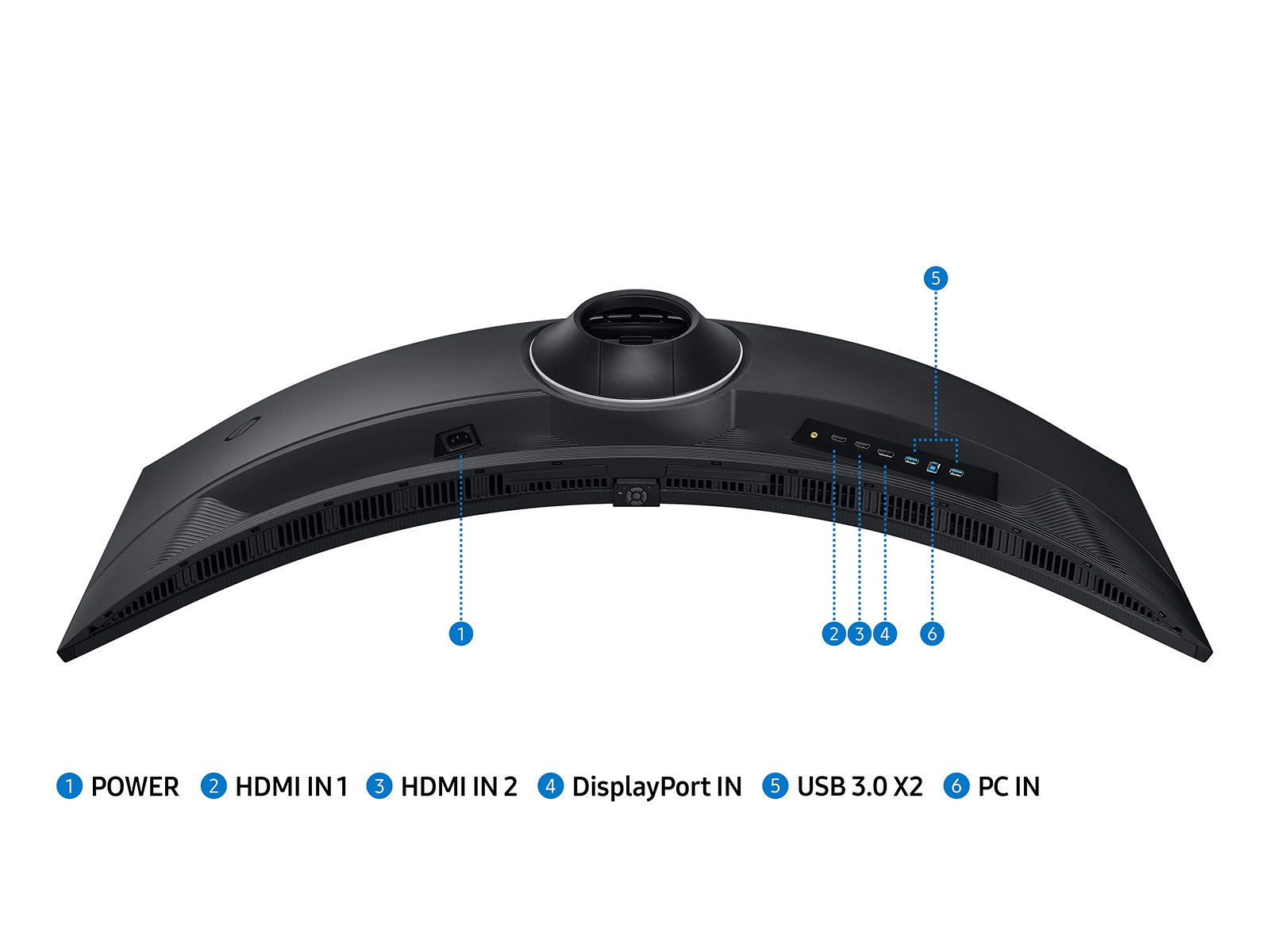
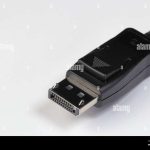
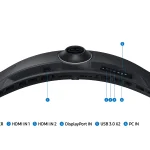
Your monitor might ship with an HDMI cable that only supports 60Hz. For 1080p 144Hz, you need DisplayPort 1.2 or higher, or HDMI 2.0. For 1440p 144Hz, you need DisplayPort 1.2 or HDMI 2.0 (or better).
Check your GPU's ports: most modern cards have DisplayPort.
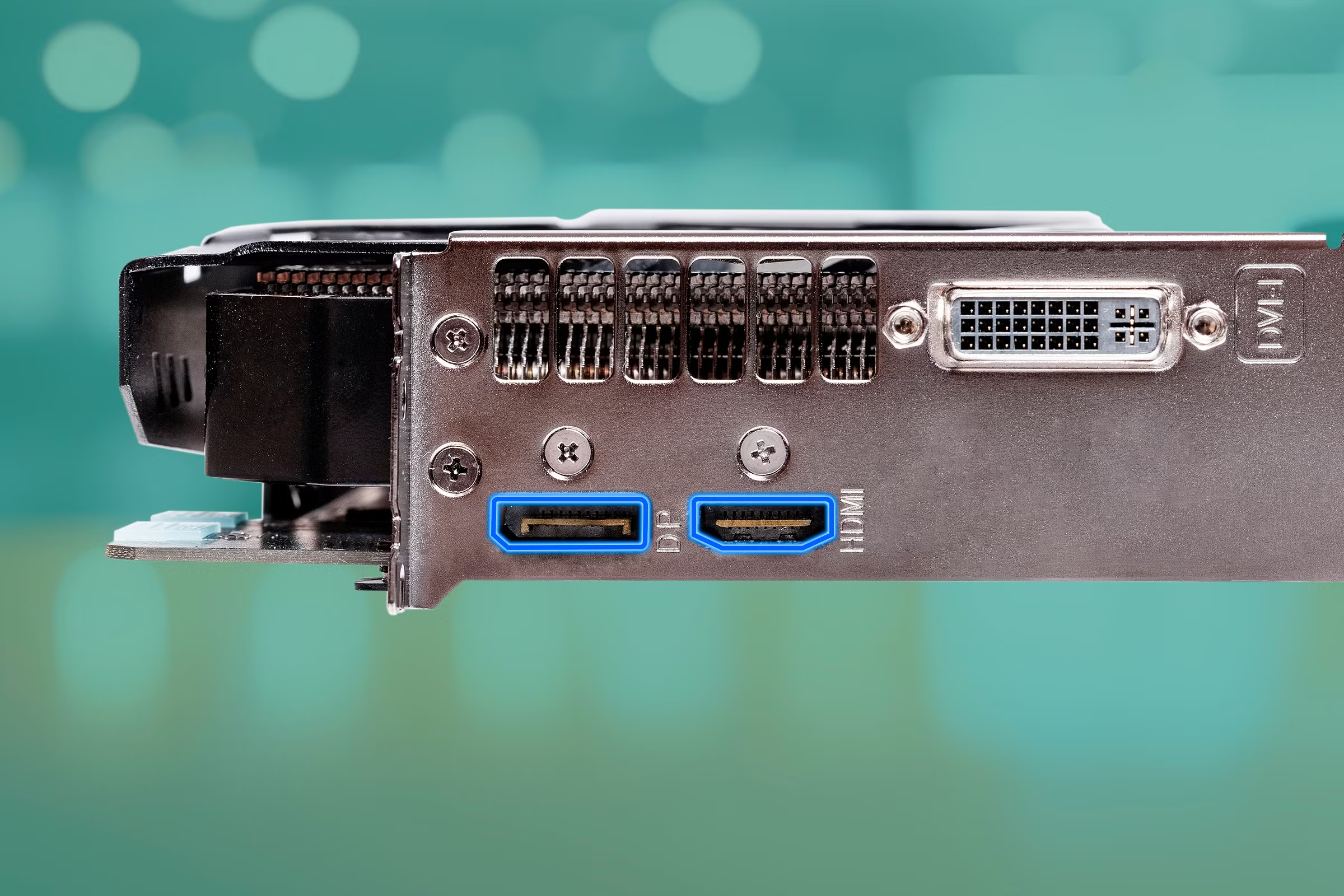
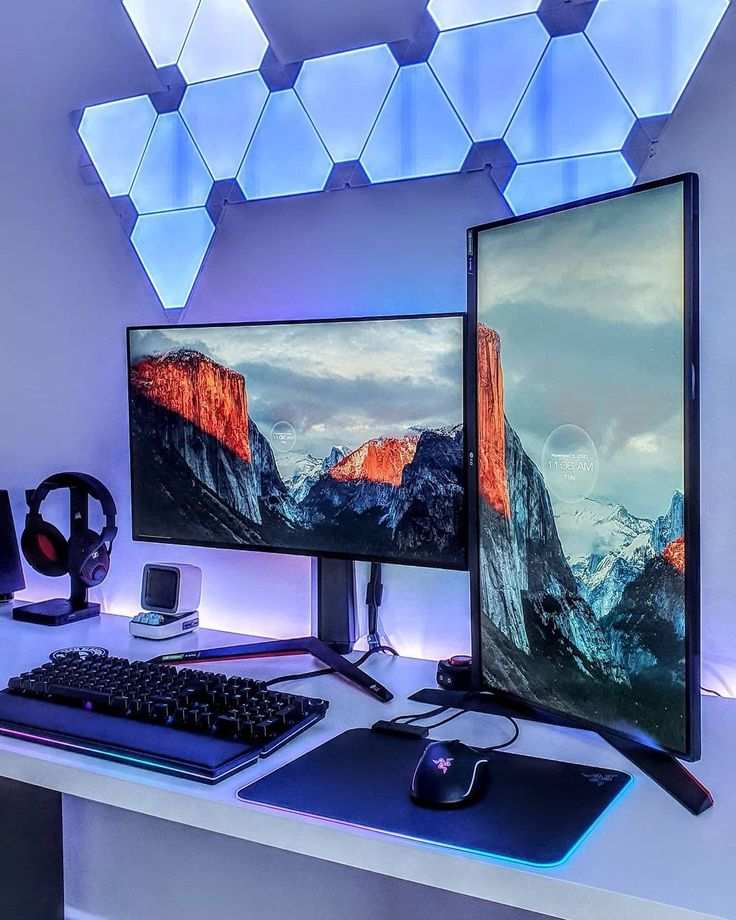
Image source: Bing (Web (fair-use with source credit))
Quick check: Right-click on your desktop, open Display Settings, then Advanced Display. Look for "Refresh rate." If it shows 60Hz, change it to 144Hz. If 144Hz isn't listed, your cable or port doesn't support it.
Switch to DisplayPort.
Step 2: Set Refresh Rate in OS and Disable Any Frame Caps
Once the cable is correct, set the refresh rate to 144Hz in Windows or macOS. Then, in your game, turn off any frame rate cap below 144 FPS (like 60 or 72). Also disable V-Sync if you want the lowest possible input lag (but watch for tearing).
If you have G-Sync or FreeSync, enable that instead.
Step 3: Configure V-Sync, G-Sync/FreeSync, and Overdrive
In your GPU control panel (NVIDIA Control Panel or AMD Adrenalin), set G-Sync/FreeSync to "Enable for full screen mode." Set V-Sync to "Off" globally, then enable it only in games where tearing is unbearable.
For overdrive (OD), set it to "Normal" or "Fast." Too aggressive overdrive causes inverse ghosting, which looks like a trailing white blur. That's not helpful.
Step 4: Cap Frame Rate Below Refresh (Optional Trick)
If you use G-Sync or FreeSync, cap your framerate to 3 FPS below the refresh rate (e.g., 141 FPS for a 144Hz monitor). This prevents V-Sync from engaging and keeps input lag minimal. You can cap this in the game's settings, via NVIDIA Control Panel, or with tools like RivaTuner Statistics Server.
That's it. You're now running at peak efficiency. The input lag reduction is real.
Mistakes to Avoid / Common Errors
You can buy the right monitor and still end up with worse input lag than your old 60Hz screen. It happens more often than you'd think. Let's run through the most common mistakes so you don't waste your money.
Using the wrong cable. This is the top culprit. Many monitors ship with an HDMI 1.4 cable that maxes out at 60Hz at 1080p. You plug it in, set the refresh rate to 144Hz, and nothing changes.
The fix: use the DisplayPort cable that came with the monitor, or buy a certified DisplayPort 1.2 or higher cable. Always check your GPU's port specs.
Leaving V-Sync on without thinking. V-Sync at 144Hz adds about 6.9 ms of lag per frame. At 60Hz that same V-Sync penalty is 16.7 ms. So yes, V-Sync at 144Hz is better, but it's still extra lag.
If you're chasing the lowest possible input lag, turn V-Sync off and enable G-Sync or FreeSync instead.
Capping frame rate too low. Some players cap their FPS to 60 to reduce GPU load. That's fine for single-player games, but it negates the input lag benefit of 144Hz. If you want lower input lag, you need high frame rates.
Cap at 141 FPS for G-Sync, not at 60.
Ignoring overdrive settings. Most gaming monitors have an overdrive setting that adjusts pixel response. Set it too high and you get inverse ghosting, which can actually make motion look worse. Set it too low and pixels change slowly, adding perceived lag.
The sweet spot is usually "Normal" or "Fast" mode. Check your monitor's OSD.
Not updating GPU drivers or monitor firmware. Manufacturers sometimes release firmware updates that improve input lag or fix adaptive sync bugs. As of 2026, many monitors support firmware updates via USB. It's worth checking your monitor manufacturer's support page.
Use Cases / Best For / Who It's Right For
A 144Hz monitor isn't for everyone. Here's who gets the most out of it and who can skip it.
Competitive shooter players (CS2, Valorant, Overwatch, Apex Legends). If you play these games seriously and your GPU can push 144 FPS, a 144Hz monitor will give you a measurable edge. The reduced input lag means your crosshair responds faster to your hand movements.
Pro players often go higher (240Hz or 360Hz), but 144Hz is a massive step up from 60Hz.
Esports enthusiasts on a budget. You don't need a 240Hz monitor to compete. Many esports titles run well on mid-range hardware at 144 FPS. A 144Hz monitor paired with a decent GPU offers excellent value for input lag reduction.
Casual gamers who play RPGs and single-player games. You'll still benefit from smoother motion, but the input lag reduction matters less. In a game like The Witcher 3 or Red Dead Redemption 2, your reaction time isn't the bottleneck. The 144Hz refresh still looks nicer, but don't expect a competitive advantage.
Console gamers. PS5 and Xbox Series X support up to 120Hz output. A 144Hz monitor will downscale to 120Hz, which still gives you a 8.3 ms frame time versus 16.7 ms at 60Hz. That's a nice improvement for games like Call of Duty or Fortnite on console.
Just make sure your monitor supports HDMI 2.0 or 2.1 for 120Hz signal input.
Who should skip it? If you only play turn-based strategy games, visual novels, or old games capped at 30 FPS, a 144Hz monitor won't improve input lag at all. You'd be paying for a feature you can't use. Stick with a good 60Hz IPS panel.
Comparison – 144Hz vs. 60Hz vs. 240Hz for Input Lag
Let's settle the debate with numbers. The table below shows the theoretical frame time and typical total input lag for each refresh rate when the GPU can match the refresh rate.
| Monitor refresh rate | Frame time (ms) | Typical total input lag (ms) | Perceived improvement over 60Hz |
|---|---|---|---|
| 60Hz | 16.7 | 15-25 | Baseline |
| 120Hz | 8.3 | 7-12 | Noticeable |
| 144Hz | 6.9 | 4-10 | Very noticeable |
| 240Hz | 4.2 | 2-6 | Diminishing returns |

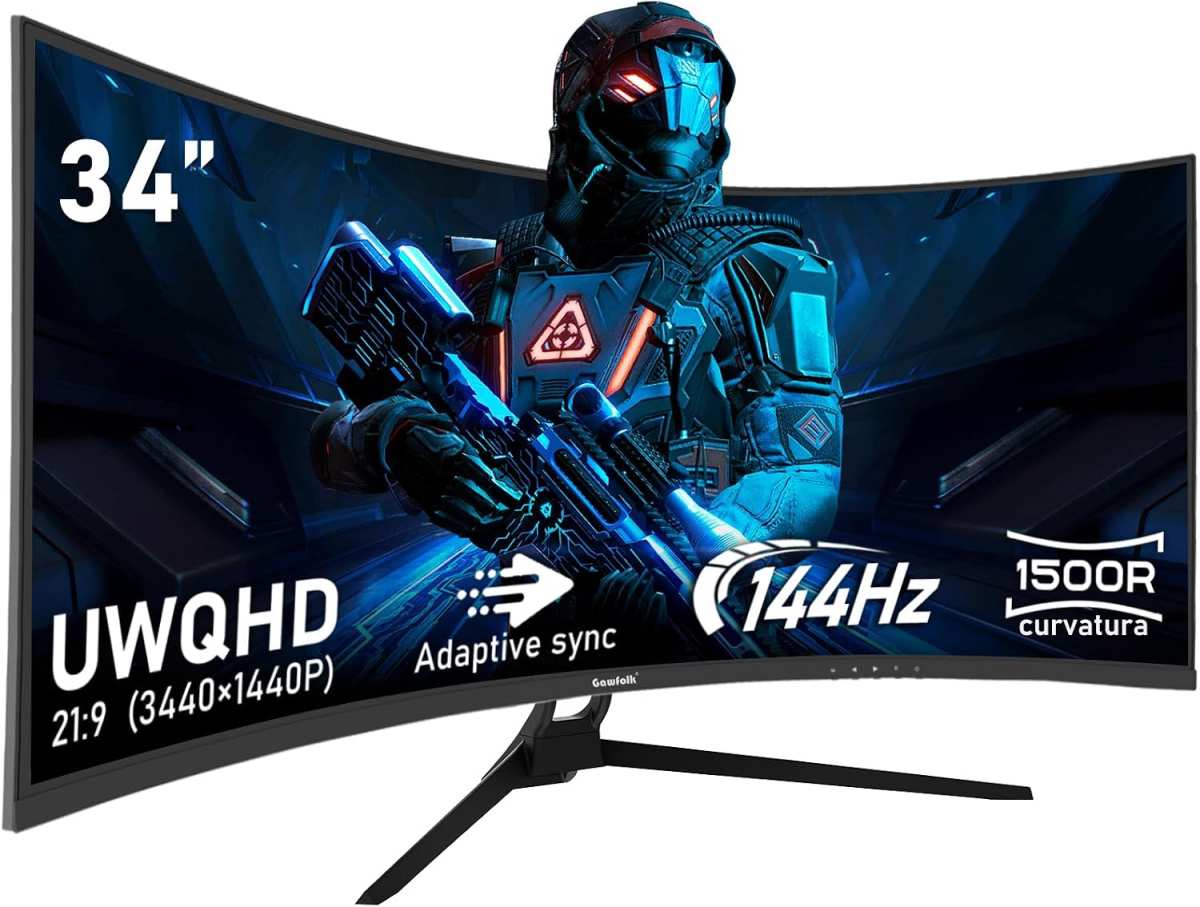
Image source: Wikimedia Commons / mark6mauno (CC BY-SA)
The jump from 60Hz to 144Hz cuts input lag by roughly 10-15 milliseconds. That's the biggest single improvement you can make without changing your mouse or GPU. The jump from 144Hz to 240Hz only cuts another 2-4 ms.
It's still real, but it's harder to notice.
For most gamers, 144Hz hits the sweet spot. It offers a clear reduction in input lag without the steep hardware requirements of 240Hz. You need a very powerful GPU to hit 240 FPS consistently in modern titles.
That's expensive. 144 FPS is achievable with mid-range cards like an RTX 3060 or RX 6600.
One more thing: the actual input lag numbers vary by monitor model. A slow 144Hz monitor with high pixel response might have more lag than a fast 60Hz monitor. That's rare but worth checking.
Look for monitors with measured input lag under 10 ms total. Many review sites test this, but you can also check manufacturer specs for "response time" and "input lag" (though the latter is often omitted).
Expert Tips / Pro Advice
You've got the monitor set up and the basics dialed in. Here are a few advanced tips that competitive players use to squeeze out every last millisecond.
Use NVIDIA Reflex or AMD Anti-Lag if your game supports it. These features sit in the CPU and GPU driver stack. They reduce the render queue depth, meaning the GPU starts working on your input sooner. In games like Valorant, Fortnite, and Apex Legends, Reflex can cut system latency by 20-50%.
Pair that with your 144Hz monitor and the combined reduction is significant.
Cap your FPS 3 below the refresh rate for G-Sync/FreeSync. This is the golden rule for adaptive sync. Cap at 141 FPS for a 144Hz monitor. This prevents the V-Sync fallback that kicks in when your frame rate exceeds the refresh rate.
You get tear-free visuals with no extra lag.
Disable any post-processing effects that add frame time. Motion blur, depth of field, and ambient occlusion all increase GPU workload. In competitive games, turn them off. The extra frames you gain lower your input lag directly.
Use a lightweight mouse polling at 1000Hz. Your mouse's polling rate affects input lag too. A 1000Hz mouse sends a signal every 1 ms. A 125Hz mouse sends one every 8 ms.
That's a full frame of lag at 144Hz. Upgrade your mouse if it's old.
Test your system latency with a high-speed camera. If you're serious, record your screen and mouse button press at 240 FPS or higher using your phone's slow-mo mode. Count the frames between the press and the pixel change. That's your total system lag.
It's the only way to know for sure if your settings are optimal.
Frequently Asked Questions
Does a 144Hz monitor reduce input lag in all games?
No. It only reduces input lag when your GPU can deliver more than 60 FPS. If your game is locked at 60 FPS, the monitor refreshes faster but waits for new frames.
The input lag stays the same as a 60Hz monitor.
How much input lag does a 144Hz monitor add compared to a 240Hz monitor?
A 144Hz monitor adds about 2.7 ms more frame time than a 240Hz monitor (6.9 ms vs. 4.2 ms). The total input lag is about 4-10 ms for 144Hz and 2-6 ms for 240Hz. The difference is small but noticeable to experienced players.
Can I use a 144Hz monitor with a laptop that only has HDMI 1.4?
You can, but you'll be limited to 60Hz at 1080p. Many laptops lack DisplayPort output. Some HDMI 1.4 ports can do 120Hz at 1080p, but check your laptop's specs.
For full 144Hz, you need DisplayPort or HDMI 2.0.
Does G-Sync or FreeSync reduce input lag?
Adaptive sync (G-Sync/FreeSync) eliminates tearing without the input lag penalty of V-Sync. It does not actively reduce input lag beyond that. The input lag reduction comes from the high refresh rate itself, not from adaptive sync.
Is a 144Hz monitor worth it for casual gaming?
Yes, for the smoother motion alone. The input lag benefit is secondary for casual players. If you can afford it, 144Hz makes any game feel more fluid.
But if you're strictly budget-conscious, a good 60Hz monitor still works fine.
Final Verdict – The Decision Guide
Here's the bottom line. A 144Hz monitor does reduce input lag, but only when your system can push high frame rates. If you're a competitive shooter player with a capable GPU, the upgrade is one of the best you can make for about $200 to $400.
If you're a casual gamer on a tight budget, the improvement is real but not essential.
Buy a 144Hz monitor if:
- You play competitive shooters and your GPU can hit 144 FPS.
- You hate screen tearing and want V-Sync with lower lag.
- You plan to upgrade your GPU within a year.
Skip 144Hz if:
- Your games are capped at 60 FPS or lower.
- You only play turn-based or story-driven games.
- Your GPU is older and you can't afford an upgrade.
At the end of the day, 144Hz is a tool, not a magic fix. Use it with the right hardware and settings, and it will make your aim feel snappier. Ignore the setup steps, and you'll wonder why you spent the money.
The choice is yours, but now you've got the full picture.
Real Scenarios – Two Gamers, Two Results
Let's look at two real situations to show how the decision tree plays out.
Scenario A: Competitive Valorant player. GPU can easily push 250 FPS. Upgraded from a 60Hz office monitor to a 144Hz gaming panel. After setting up correctly, total system lag dropped by roughly 12 ms.
The player reported feeling more consistent in close duels and climbing ranks faster. The investment paid off.
Scenario B: RPG‑focused player. Plays Cyberpunk 2077 and Red Dead Redemption 2. GPU averages 50‑60 FPS. Upgraded to 144Hz hoping for better input lag.
Frame rate didn't change, so the input lag stayed the same. The motion looked smoother in menus and cutscenes, but no competitive gain. The player felt the money could have gone toward a better GPU instead.

Similar Posts