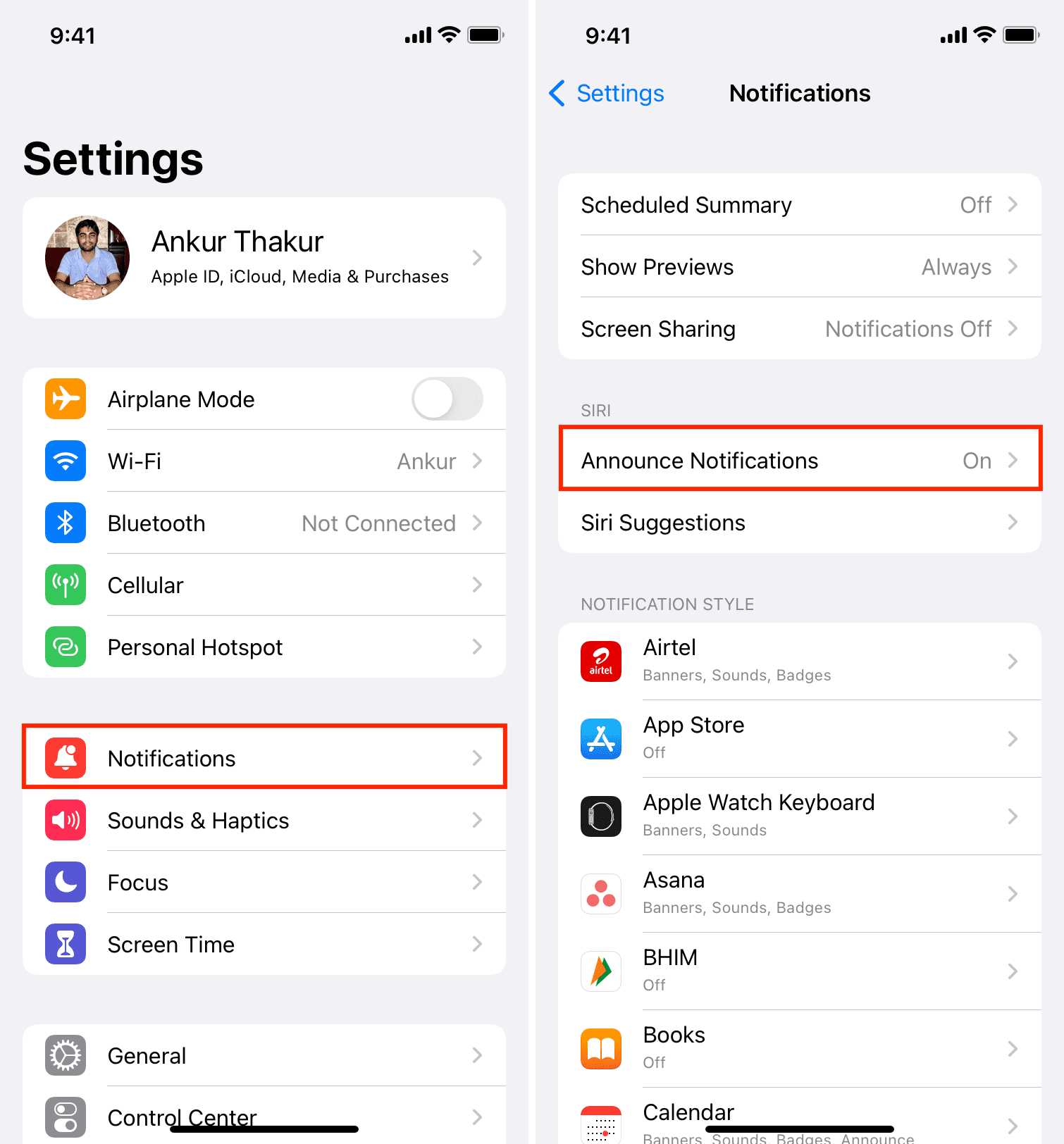
Want to boost your productivity and stay distraction-free on your Mac? Mastering Focus Mode and Do Not Disturb can help you carve out uninterrupted time and manage notifications effortlessly. These features allow you to customize when and how you receive alerts, so you can concentrate on what truly matters. To quickly enable Focus Mode or Do Not Disturb on macOS, just open Control Center, tap the Focus or Do Not Disturb icon, and select your desired setting. You can also set schedules or automate these features through System Preferences for a seamless experience. Getting started with Focus Mode and Do…
Author: Hanna
To keep your MacBook running smoothly, regular maintenance is key. By cleaning up unnecessary files, updating software, and keeping an eye on system performance, you can extend your MacBook’s lifespan and prevent frustrating slowdowns. A little routine care goes a long way in maintaining optimal performance and ensuring your device stays responsive and reliable. Regular maintenance involves simple habits like clearing out clutter, updating your macOS and apps, and monitoring your storage space. These small steps help prevent issues before they start and keep everything running at peak efficiency. With just a few minutes of attention each week, your MacBook…
Creating and managing user accounts on your MacBook is straightforward and essential for maintaining privacy and organizing multiple users. Whether you’re setting up a new account for a family member or managing permissions for colleagues, knowing how to do this ensures your Mac runs smoothly and securely. Just a few clicks can add new users, assign roles, or customize access, giving everyone the right environment to work or play. In short, you can easily create and manage user accounts through System Preferences, where you add users, set permissions, and switch between accounts with ease. This keeps your personal data protected…
To share files instantly using AirDrop, simply turn on Wi-Fi and Bluetooth, open the file you want to send, and select AirDrop from the sharing options. Choose the nearby device, and voilà! Your files transfer seamlessly without any cables or complicated steps. AirDrop is a quick and effortless way to share photos, videos, documents, and more between Apple devices. It works by creating a direct wireless connection between devices in close proximity, making file sharing fast and private. Whether you’re at home, work, or on the go, using AirDrop saves you time and hassle, letting you focus on what truly…
To effortlessly transfer files between your MacBook and iPhone, use AirDrop for quick, wireless sharing, or leverage iCloud for seamless synchronization across devices. You can also connect your devices via a cable or use third-party apps for more specialized transfers. With these methods, moving photos, documents, or music becomes simple and fast, letting you focus more on your content rather than the transfer process. Transferring files between a MacBook and an iPhone is straightforward once you know your options. Using AirDrop is the fastest way for small files, while iCloud ensures your data stays synced across all your devices. Alternatively,…
If your MacBook’s WiFi keeps dropping or won’t connect at all, don’t panic—there are simple steps you can take to fix the problem quickly. First, check your network settings, restart your device, and ensure your router isn’t causing the issue. Updating your software and resetting network preferences can also work wonders. The quickest solution is to restart your MacBook and your router, clear your network settings, and ensure your software is up to date. These straightforward steps often resolve most WiFi issues without the need for technical support. Are you tired of frustration caused by unstable WiFi on your MacBook?…
Mastering keyboard shortcuts can dramatically increase your efficiency and save you time throughout your day. Using shortcuts allows you to perform tasks faster than navigating through menus, keeping your workflow smooth and uninterrupted. The key is to familiarize yourself with common shortcuts relevant to your daily activities and customize them to suit your needs. In this article, you’ll discover practical tips on learning and effectively using keyboard shortcuts to boost your productivity. In short, leveraging keyboard shortcuts is about learning the most useful combinations for your applications and practicing them regularly. Start with the basics, like copy, paste, and save,…
If your MacBook suddenly freezes and becomes unresponsive, don’t panic—there are quick ways to get it back on track. The first step is usually a force restart, which can resolve temporary glitches. For more stubborn issues, resetting the SMC or NVRAM can help restore normal function. Understanding these simple troubleshooting steps can save you time and frustration. To reset a frozen or unresponsive MacBook, try force quitting the app or performing a force restart by holding down the power button. If that doesn’t work, resetting the System Management Controller (SMC) or the NVRAM can often fix deeper problems. These methods…
To connect external monitors to your MacBook quickly, simply identify the ports available on your device, choose the right cable or adapter, and then connect your monitor. Once connected, go to System Preferences to configure your display settings for optimal use. It’s a straightforward process that can instantly extend your workspace or boost your productivity. Connecting external monitors to a MacBook enhances your multitasking ability and makes your workspace more efficient. Whether you’re working on multiple projects or enjoying a larger screen for entertainment, setting this up is easier than you might think. Just ensure you have the right cables…