How To Stop Airpods From Reading Texts Effectively

How to Stop AirPods from Reading Texts
Understanding Why Your AirPods Read Texts
Many AirPods users wonder why their headphones automatically read incoming texts. This feature is designed to keep you informed without needing to look at your phone. However, if you find it distracting or unnecessary, you can disable it. Recognizing the reason behind this feature helps in deciding how to turn it off effectively.How the Text-to-Speech Feature Works on AirPods
AirPods use a connected device’s settings to read messages aloud. When your iPhone receives a message, the AirPods automatically activate speech to read the message out loud if the feature is enabled. This seamless process is part of the VoiceOver and Announce Messages functions integrated with iOS.Checking Your AirPods Compatibility and Settings
Before adjusting features, ensure your AirPods are compatible with iOS or Android devices. Most AirPods connect seamlessly with Apple devices, but their features depend on system settings. Updating your device’s software can also influence available options for managing notifications and voice features.How to Turn Off Announce Messages on iPhone
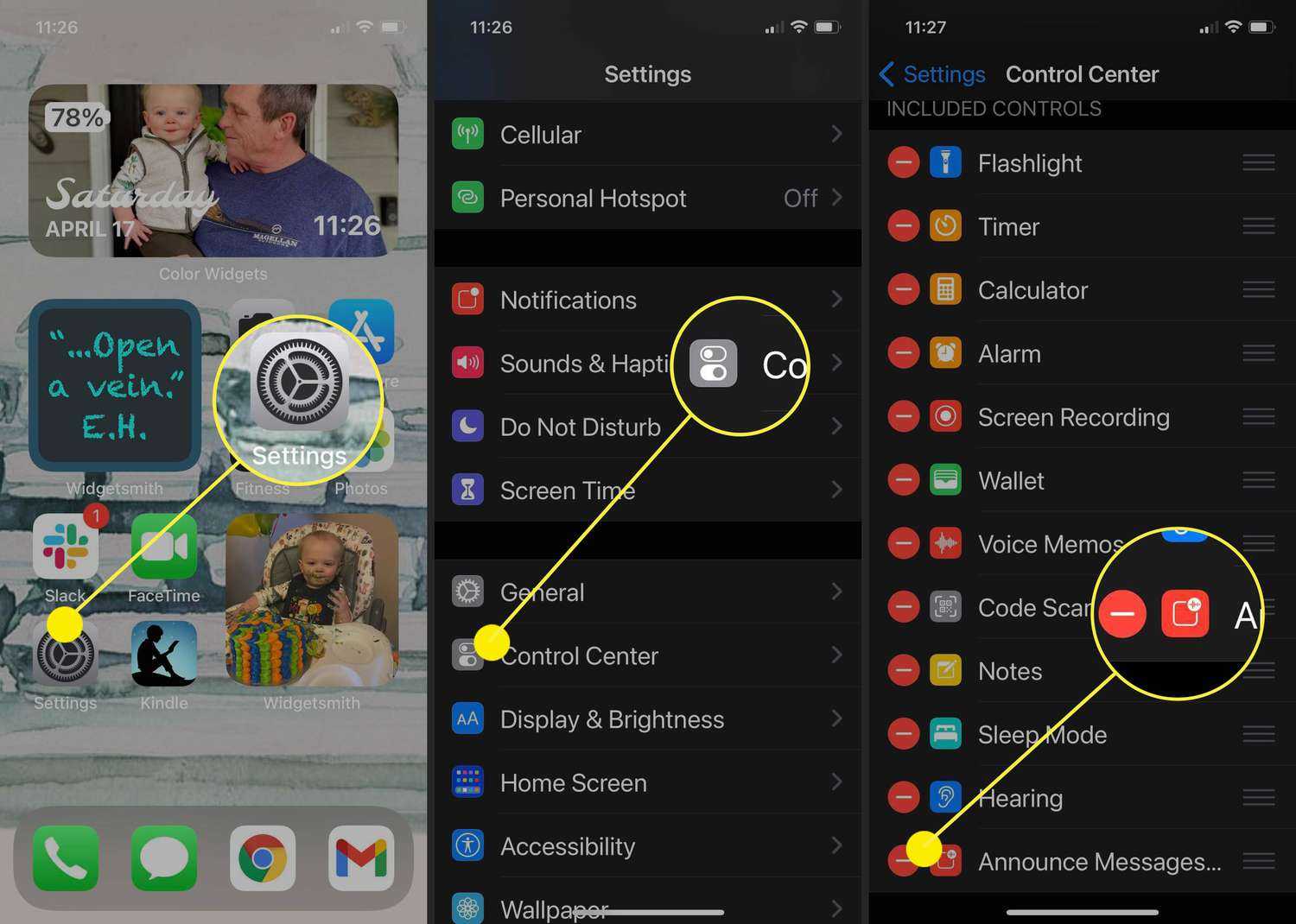
The primary way to stop your AirPods from reading texts is by disabling the “Announce Messages” feature on your iPhone. Follow these steps:- Open the Settings app on your iPhone.
- Scroll down and tap on ‘Notifications.’
- Select ‘Announce Messages.’
- Toggle off the switch next to ‘Announce Messages.’
Adjusting AirPods Settings for Notification Management
Besides disabling Announce Messages, you can modify other notification settings to prevent texts from reading aloud:Managing Siri’s Announcements
AirPods rely on Siri to read messages aloud. Turn Siri notifications off by:- Going to Settings.
- Selecting ‘Siri & Search.’
- Toggle off ‘Announce Calls’ and ‘Announce Notifications.’
Controlling Notification Settings in the Control Center
You can also manage notifications directly:- Swipe down from the top right corner to access Control Center.
- Press and hold the ‘Notification’ banner or icon.
- Disable ‘Announce Notifications’ if available.
Disabling VoiceOver for a More Controlled Experience
VoiceOver is an accessibility feature that reads everything on your screen. Turning it off stops all spoken feedback, including text messages:- Open Settings.
- Tap ‘Accessibility.’
- Select ‘VoiceOver.’
- Switch off ‘VoiceOver.’
Adjusting Notification Settings on Android Devices
For Android users with AirPods, the process varies:- Open Settings and go to ‘Notifications.’
- Find and select your messaging app.
- Disable the option for spoken notifications or voice reading features.
Using Third-Party Apps to Manage Audio Notifications
There are apps available that allow finer control over notification sounds and speech. These apps can silence or customize how and when texts are read aloud:- Explore apps like ‘Notification Control,’ ‘Sound Control,’ or similar.
- Adjust settings within these apps to prevent message reading.
- Ensure they are compatible with your device and AirPods.
Tips for Managing Notifications During Specific Activities
If you want to control message reading during certain situations, like meetings or workouts, consider these tips:- Use Do Not Disturb mode to suppress all notifications.
- Customize Do Not Disturb settings to allow alerts only from specific contacts.
- Temporarily disable message announcing features via settings during these times.
Resetting Your AirPods for Fresh Settings
If changing settings doesn’t stop text reading, resetting your AirPods can help:- Place your AirPods in the charging case and keep the lid open.
- Press and hold the setup button on the back for about 15 seconds.
- Release when the status light flashes amber and then white.
- Reconnect your AirPods and adjust settings again.
Additional Tips for Managing Notifications Effectively
To optimize your notification experience:- Regularly check for device software updates to ensure compatibility and access to new features.
- Review notification settings periodically to adapt to changing needs.
- Use focus modes or custom profiles for different scenarios—work, leisure, sleep.
Summary of Key Settings to Disable Text Reading on AirPods
Below is a quick reference table:| Step | Action | Impact |
|---|---|---|
| Disable Announce Messages | Settings > Notifications > Announce Messages | Stops all messages from being read aloud |
| Turn off Siri Announcements | Settings > Siri & Search > Announce Calls & Notifications | Prevents Siri from speaking notifications |
| Disable VoiceOver | Settings > Accessibility > VoiceOver | Stops all audible feedback from your device |
| Adjust Do Not Disturb | Settings > Focus > Do Not Disturb | Suppresses all notifications temporarily |
Frequently Asked Questions
How can I disable the voice prompts on my AirPods to prevent them from reading texts aloud?
To stop your AirPods from reading texts, you can turn off the VoiceOver feature on your connected device. On an iPhone, go to Settings > Accessibility > VoiceOver and toggle it off. This disables the speech feature that causes your AirPods to read messages. Remember to disconnect and reconnect your AirPods after making this change for it to take effect.
Is there a way to prevent my AirPods from reading notifications without turning off all voice features?
Yes, you can customize notification settings so that your AirPods do not read notifications aloud. Open the Settings app on your iPhone, tap Notifications, then select Announce Notifications. Turn off the toggle for ‘Announce Notifications’ to stop notifications from being read through your AirPods. This way, other voice features remain active while notifications stay silent.
Can I adjust settings on my device to stop my AirPods from reading texts without affecting other functions?
Absolutely. You can disable specific features related to text reading without turning off all accessibility options. On your iPhone, navigate to Settings > Notifications > Announce Notifications and switch it off. Make sure that VoiceOver or other speech services remain enabled if you want to keep using them for other tasks. This targeted adjustment helps prevent texts from being read aloud while maintaining full functionality for other features.
Final Thoughts
To stop AirPods from reading texts, start by opening the Settings app on your iPhone. Tap on Notifications, then select Announce Messages with Siri. Turn off the toggle to disable this feature. You can also customize which contacts Siri announces messages from or disable Announce Messages entirely. This prevents your AirPods from reading texts aloud without affecting other notifications. In conclusion, learning how to stop Airpods from reading texts is simple. Adjust your Siri messaging settings, and your AirPods will no longer read texts aloud when not desired.
Similar Posts































