How To Stop Airpods From Reading Notifications Effectively
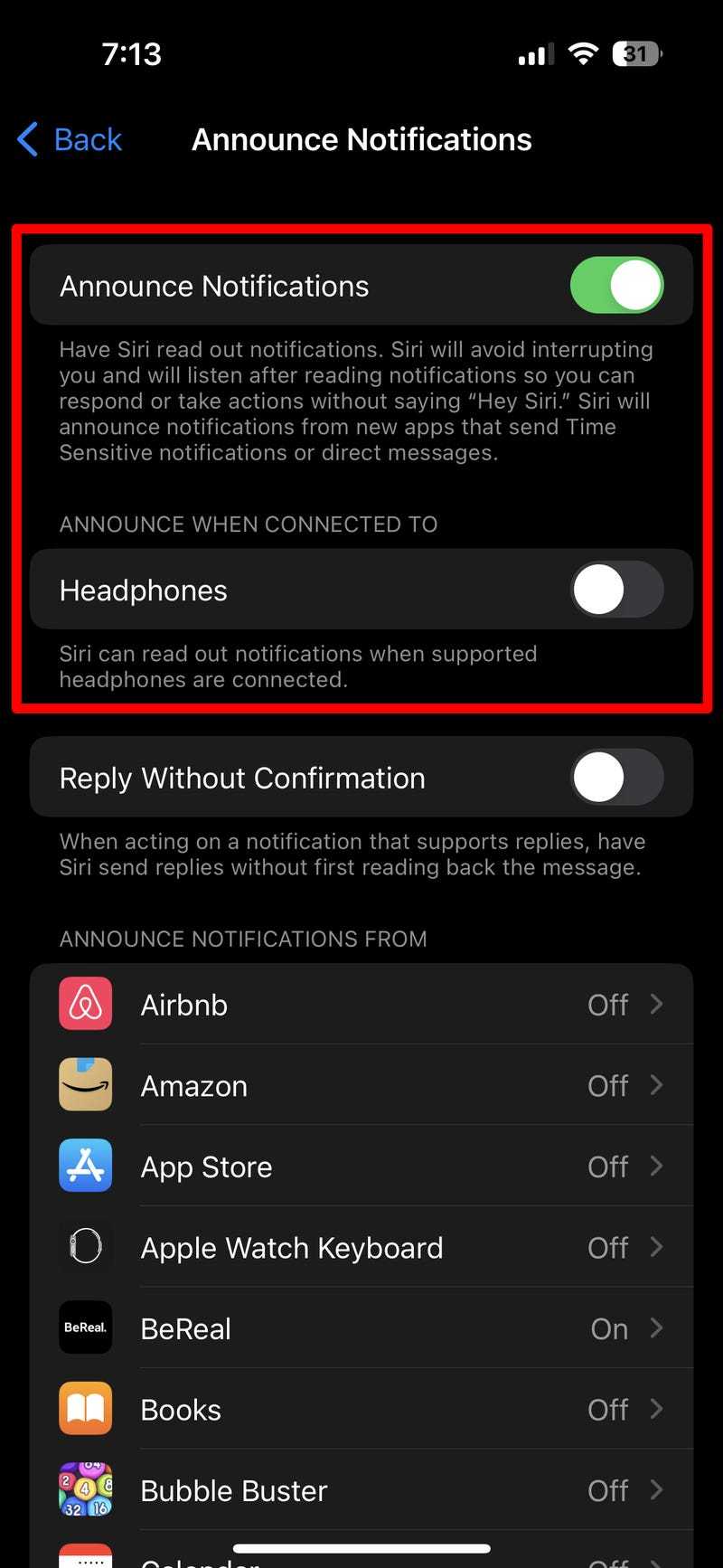
To stop your AirPods from reading notifications, simply disable the feature in your device settings or on your iPhone. You can turn off the spoken notifications feature entirely or customize which alerts you want read aloud. This quick fix will give you back control over what your AirPods announce.
If you want your AirPods to stop reading notifications, you need to adjust your device’s settings, either by turning off the “Announce Notifications” option or customizing notification preferences in the iPhone settings. Once done, your AirPods will no longer audibly read incoming alerts, allowing you to focus without interruptions.
If your AirPods keep reading notifications and you find it distracting, don’t worry – it’s an easy fix. Many users love the feature for convenience, but sometimes it can be more of a nuisance. This article will guide you step-by-step on how to disable notification reading on your AirPods, so you can enjoy a quieter, more private listening experience. Whether you want to turn off notifications altogether or just mute specific alerts, I’ll walk you through the simplest ways to regain control over your audio environment.

How to Stop AirPods from Reading Notifications
Understanding Why AirPods Read Notifications
AirPods are designed to make your life easier, but sometimes they might do more than you want. When your AirPods read notifications aloud, it can interrupt your focus or disturb your privacy. This feature, called “Notification Reading,” is a helpful way to stay updated hands-free, but it’s not for everyone. Knowing how to turn this off can give you more control over your listening experience.
How the Notification Reading Feature Works
Your AirPods connect to your iPhone or iPad via Bluetooth. When you receive a notification, the device can automatically read it aloud through your AirPods. This feature uses the settings in your device’s Notification Center and Siri to decide when to read notifications. It’s especially useful when you’re walking or exercising, but it can be distracting during work or quiet moments.
Steps to Disable Notification Reading on AirPods
The main way to stop AirPods from reading notifications is to change settings on your iPhone or iPad, as they control this feature. Follow these simple steps:
- Open the Settings app on your device.
- Scroll down and tap Notifications.
- Look for Announce Notifications and select it.
- Turn off the toggle for Announce Notifications.
This will prevent your AirPods from automatically reading out any new notifications.
Adjusting Siri Settings for Notification Control
Since Siri manages the announcement of notifications, tweaking its settings can help. Here’s what to do:
Disable Siri Announcements for AirPods
- Open Settings.
- Tap Siri & Search.
- Select Siri Responses.
- Choose When Silent or disable Always Speak Responses.
Disabling these options ensures Siri doesn’t read notifications aloud through your AirPods.
Manage Announce Notifications per App
You may want some apps to still announce notifications. You can customize this:
- Go to Settings.
- Tap Notifications.
- Select the app you want to modify.
- Tap Announcements.
- Turn off Announce Notifications.
This way, only the notifications you choose will be announced.
Using Control Center to Mute Notifications Temporarily
For quick control, the Control Center offers an easy way to mute notifications:
- Swipe down from the top-right corner of your screen (or swipe up from the bottom on older devices).
- Tap the Airplane Mode icon to disable network connections temporarily (disabling notifications indirectly).
- Or, toggle off Focus Mode to stop notifications from appearing.
While this doesn’t directly mute notifications from reading aloud, it stops new notifications from coming through temporarily.
Disabling Announce Notifications for Specific Devices
If you use multiple Apple devices, you might want to disable announcement notifications only on certain ones:
- Access Settings on the device.
- Navigate to Notifications.
- Select Announce Notifications.
- Toggle it off for devices you don’t want reading notifications.
This provides more precise control over your notification settings.
Ensuring Your AirPods Are Up to Date
An outdated firmware can sometimes cause issues with notification behavior. To keep your AirPods updated:
- Keep your AirPods connected to your iPhone or iPad.
- Open the Settings app.
- Go to General.
- Tap About and then AirPods (if available).
- Follow prompts to update firmware if updates are available.
Updating may fix bugs related to notifications or audio features.
Resetting AirPods to Fix Notification Issues
If notification settings aren’t behaving as expected, resetting your AirPods can help:
- Put your AirPods in their case and close the lid.
- Wait for 30 seconds, then open the lid.
- Press and hold the setup button on the back of the case until the LED flashes amber then white.
- Reconnect your AirPods to your device and adjust settings again.
Resetting clears any glitches that might cause unwanted notification reading.
Additional Tips to Manage Notification Sounds and Alerts
Besides turning off announcement features, consider managing other alert settings:
- Mute notification sounds permanently in Settings > Sounds & Haptics.
- Disable notification banners or alerts for less important apps.
- Use Focus modes to customize when notifications can be announced or read aloud.
These additions help create a quieter, less disruptive environment.
Related Topics for Better Control and Privacy
To optimize your experience further, explore some related settings:
Managing Do Not Disturb Mode
This mode silences all notifications and alerts, preventing any reading aloud.
Customizing Focus Modes
You can create focus profiles for work, sleep, or personal time, controlling notification delivery.
Privacy Settings for Notifications
Adjust who can see your notifications and what details are visible on the lock screen for added privacy.
Using Third-Party Apps to Control Notifications
Some apps provide more advanced notification control, including scheduling or muting specific alerts.
Turning off the feature that allows your AirPods to read notifications is straightforward once you understand the settings involved. By managing your Notification Center, Siri responses, and device-specific options, you gain full control over when and how notifications are announced. This helps customize your listening experience and ensures your privacy and focus are maintained. Remember to keep your devices updated and consider resetting your AirPods if problems persist. With these steps, you can enjoy your AirPods without unwanted notifications reading aloud.
Frequently Asked Questions
How can I disable notification alerts from playing through my AirPods?
To stop notification alerts from playing through your AirPods, go to your device’s Settings, then tap on Notifications. Find the app you want to modify, and toggle off the “Sound” or “Alerts” option. This prevents notifications from making sounds or reading aloud through your AirPods, ensuring you only receive visual alerts on your device.
What steps should I take to prevent AirPods from announcing notifications automatically?
You should disable the “Announce Notifications” feature on your iPhone or compatible device. Head to Settings, then tap on Notifications. Select “Announce Notifications” and toggle it off. This action stops your AirPods from automatically reading out notifications when connected, giving you control over when to hear alerts.
Can I customize which notifications are read aloud on my AirPods?
Yes, you can modify notification settings to control which alerts are announced. Open your device’s Settings, tap Notifications, and then select the specific app. Look for the “Announce Notifications” option within that app’s settings and choose to disable it or customize it. This way, only selected notifications are read aloud, and others remain silent.
Final Thoughts
To stop AirPods from reading notifications, you should disable the notification feature on your device. Go to your device’s settings and turn off the “Announce Notifications” option. This change ensures your AirPods won’t read notifications aloud.
Adjusting these settings is quick and simple, providing you better control over your audio experience. Remember, how to stop airpods from reading notifications primarily involves disabling the feature in your device’s settings.

Similar Posts