How To Stop Airpods From Reading Messages Effectively

How to Stop AirPods from Reading Messages
Understanding Why AirPods Read Your Messages
AirPods have a feature called Announce Messages, which helps you stay connected without constantly checking your phone. This feature reads incoming messages aloud, so you don’t miss important notifications. While useful for some users, others find it intrusive or distracting. Knowing why your AirPods are reading messages helps you decide how to turn this feature off effectively.How the Announce Messages Feature Works
This feature is integrated into Apple’s iOS, specifically designed for iPhone users. When enabled, AirPods detect incoming messages and read them out loud. It works on both AirPods Pro and newer AirPods models, as well as some Beats earbuds. The feature is activated via your iPhone’s settings and can be customized based on your preferences.Steps to Disable Announce Messages on Your iPhone
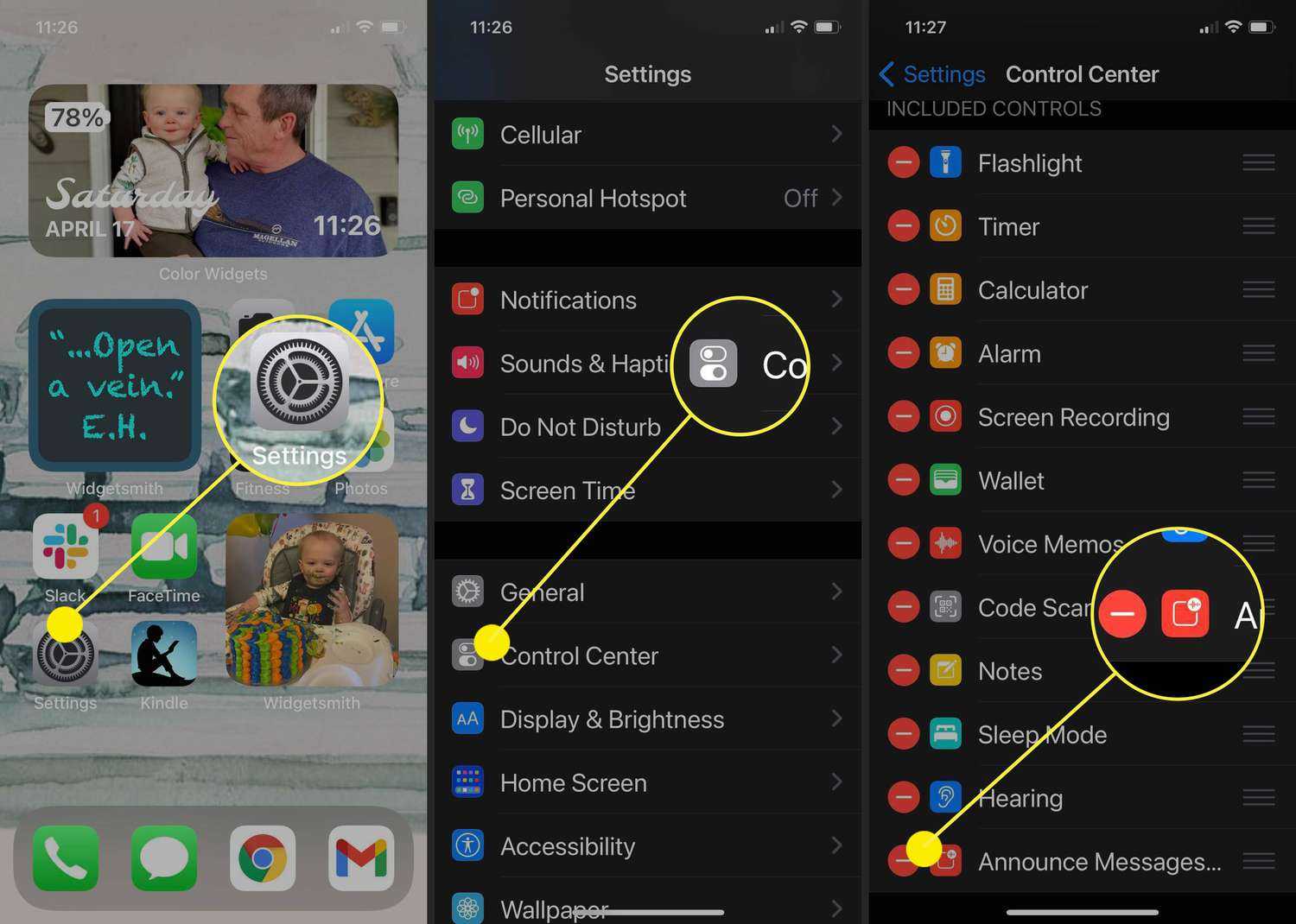
Disabling message reading begins with adjusting your iPhone settings. Follow these steps for a quick fix:- Open the Settings app on your iPhone.
- Scroll down and tap on Notifications.
- Tap on Announce Messages.
- Toggle the switch to Off.
Managing Announce Messages via Siri Settings
The feature is also linked to Siri voice assistant settings. To fully disable it:- Open Settings on your iPhone.
- Select Siri & Search.
- Find Announce Messages with Siri.
- Toggle off Announce Messages with Siri.
Adjusting Notification Settings for Specific Apps
If you prefer to only stop reading messages from certain apps:- Go to Settings on your iPhone.
- Tap Notifications.
- Select the app (like Messages or WhatsApp).
- Disable Allow Notifications or adjust the notification style.
Using Control Center to Manage Audio Notifications
For a quick toggle while using your AirPods:- Open the Control Center by swiping down from the top right corner on iPhones with Face ID or swiping up on older models.
- Press and hold the volume slider.
- Tap on Audio Output.
- Select your AirPods.
Disabling Announce Messages for Specific AirPods Models
Some AirPods models allow individual settings:- Ensure your AirPods are connected to your iPhone.
- Navigate to Settings >Bluetooth.
- Tap the i icon next to your AirPods.
- Look for options such as Announce Messages and toggle accordingly.
Configuring Focus Mode to Limit Notifications
Focus Mode is a new feature that can prevent message readouts:- Open Settings >Focus.
- Create or select a focus mode (like Do Not Disturb).
- Tap Apps and add apps you want to silence notifications from.
- Ensure the Allow Notifications setting is turned off for messaging apps.
Using Do Not Disturb to Stop Reading Messages
Enabling Do Not Disturb mode temporarily:- Swipe up or down to access Control Center.
- Tap the moon icon to turn on Do Not Disturb.
- This silences all notifications, including message reads.
Checking for Firmware Updates and Device Compatibility
Sometimes, features like message reading are affected by device firmware:- Open the Settings app.
- Go to General >Software Update.
- Install any available updates to ensure compatibility and bug fixes.
Controlling Messaging Settings Through iOS Accessibility Options
Accessibility features can impact how notifications are read:- Navigate to Settings >Accessibility.
- Check options like VoiceOver or Spoken Content.
- Adjust settings to prevent automatic message readouts if enabled.
Using Third-Party Apps for Additional Control
Some apps may offer advanced notification management:- Research apps designed to block or customize voice notifications.
- Ensure they are compatible with your iOS version and AirPods model.
- Follow app instructions for optimal setup and usage.
Additional Tips for Managing Notifications and AirPods Behavior
To further customize your experience:- Turn off Bluetooth when not using AirPods to prevent accidental voice prompts.
- Reset your AirPods if settings seem inconsistent—press and hold the setup button until the LED flashes amber.
- Consult Apple Support for device-specific issues or persistent notification problems.
Summary of Key Settings to Disable Message Reading on AirPods
| Step | Action | Location |
|---|---|---|
| Disable Announce Messages | Toggle off in Settings > Notifications | iPhone Settings |
| Turn off Announce Messages with Siri | Disable in Settings > Siri & Search | iPhone Settings |
| Control Individual AirPods | Adjust Bluetooth settings for your device | Settings > Bluetooth |
| Use Focus Mode or Do Not Disturb | Activate to silence notifications temporarily | iPhone Settings or Control Center |
Frequently Asked Questions
How can I disable the voice notifications on my AirPods?
To stop your AirPods from reading messages aloud, go to your iPhone or iPad settings. Navigate to Bluetooth, find your AirPods in the device list, and tap the info icon. Then, select ‘Announce Messages’ and toggle it off. This prevents your AirPods from reading incoming message notifications aloud.
What steps should I follow to turn off message reading from my AirPods using Siri?
Open the Settings app on your iOS device, then tap on ‘Siri & Search.’ Find the ‘Announce Messages with Siri’ option and toggle it off. Turning this setting off ensures that Siri won’t read messages aloud through your AirPods, giving you quiet notifications.
Is there a way to prevent my AirPods from reading messages only during certain times?
Yes, you can set Focus modes like Do Not Disturb to limit notifications. Enable your preferred Focus mode in Settings, then customize which notifications are delivered during that period. When active, your AirPods won’t read messages aloud, helping you avoid interruptions at specific times.
Can I customize which contacts’ messages are announced by AirPods?
Currently, AirPods do not offer built-in options to select specific contacts for message notifications. You can, however, stop all message announcements by disabling the ‘Announce Messages’ feature altogether, as described earlier. For more granular control, you might need to manage message notifications directly on your device.
Final Thoughts
To stop airpods from reading messages, start by opening your device’s Settings app. Navigate to Bluetooth and tap the info icon next to your AirPods. Turn off the ‘Announce Messages’ option to disable message reading. You can also manage this feature through Siri settings. Disable ‘Announce Messages with Siri’ to prevent your AirPods from reading messages aloud. In conclusion, understanding how to stop airpods from reading messages helps avoid unwanted interruptions and preserves your privacy. Adjust these settings to suit your preferences and enjoy a more seamless audio experience.
Similar Posts































