How To Stop Airpods From Announcing Notifications

How to Stop AirPods from Announcing Notifications
Many AirPods users find the notification announcements helpful, but sometimes they can become distracting or unwanted. Learning how to stop AirPods from announcing notifications can improve your listening experience. This guide will walk you through the steps to disable these announcements easily and discuss related settings to customize your AirPods usage.
Understanding Notification Announcements on AirPods
Notification announcements are a feature that allows your AirPods to read important alerts aloud. This feature uses Siri to announce incoming messages, calendar alerts, or app notifications. While helpful for hands-free access, it may not suit everyone’s needs, especially when listening in noisy environments or during meetings.
Why You Might Want to Turn Off Notification Announcements
- Reduce Distractions: Notifications can interrupt your music or calls.
- Privacy Concerns: Announcements might reveal sensitive information to nearby people.
- Preference for Visual Alerts: Some users prefer seeing notifications on their device rather than hearing them.
- Battery Saving: Disabling voice alerts can slightly conserve battery life.
Basic Steps to Stop AirPods from Announcing Notifications
Disabling notification announcements involves adjusting settings both on your iPhone and within the AirPods configuration. Follow these simple steps:
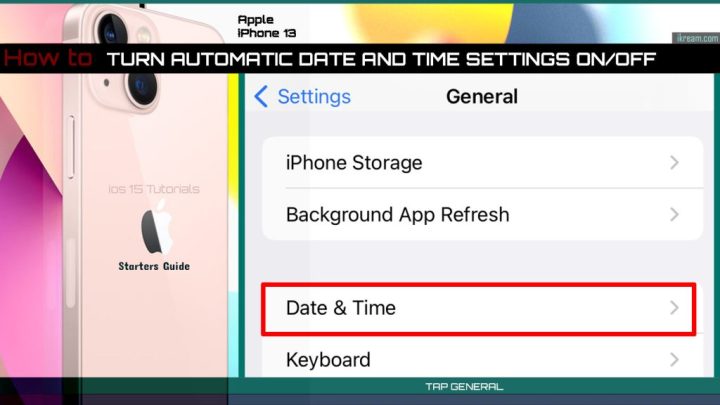
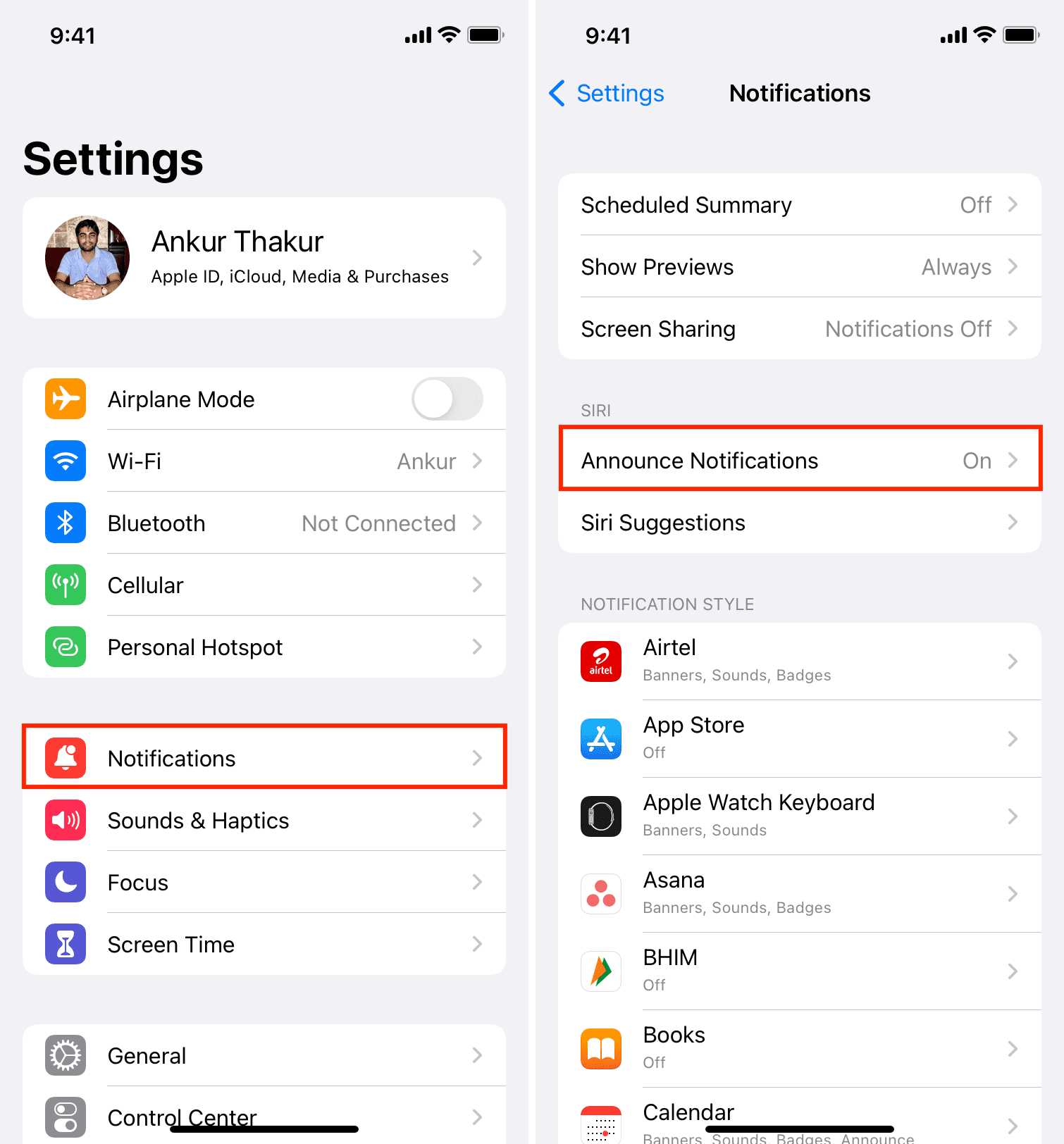
Step 1: Use Your iPhone Settings App
- Open the Settings app on your iPhone.
- Scroll down and select Notifications.
- Tap on Announce Notifications.
- Disable the toggle next to Announce Notifications.
Step 2: Adjust Siri Settings
Since Siri manages notification announcements, tampering with its settings can help. Here’s how:
- Return to the main Settings menu.
- Select Siri & Search.
- Locate Announce Calls & Notifications.
- Turn off Announce Calls and Announce Notifications.
Customizing Notification Announcements for Specific Apps
If you prefer to disable announcements only for certain apps, you can do so via Notification Settings:
| App | Steps to Disable Announcements |
|---|---|
| Messages, Mail, or other apps |
|
Using the Control Center to Disable Announcements
For quick adjustments, you can use the Control Center:
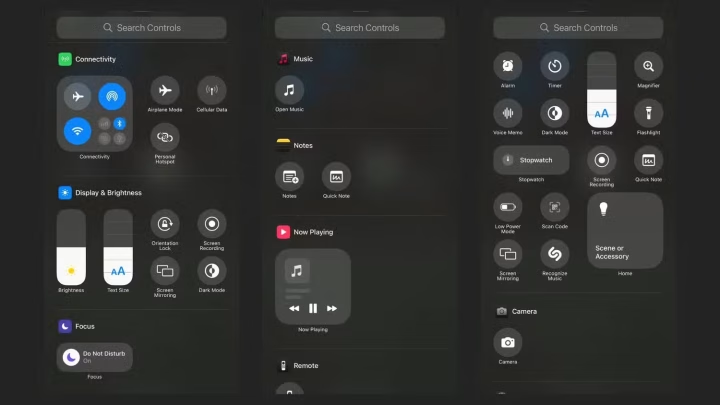
- Open the Control Center by swiping down from the top right corner of your iPhone.
- Press and hold the Volume control.
- Tap on Announce Notifications to toggle it off.
Disabling Announcements on AirPods via Accessibility Settings
Accessibility features can also influence how notifications are announced. To modify these:
- Go to Settings.
- Select Accessibility.
- Tap on Hearing or Audio/Visual.
- Adjust settings related to audio routing and notifications.
Additional Tips to Manage Notification Announcements
Adjust Your Focus Settings
Focus modes can help minimize distractions, including notification announcements:
- Navigate to Settings.
- Select Focus.
- Create or select a focus mode like Work or Personal.
- Customize notifications to silence or allow as needed.
Turning Off VoiceOver if Not Needed
If VoiceOver is enabled, it might also interfere with notifications. To disable it:
- Open Settings.
- Tap on Accessibility.
- Choose VoiceOver.
- Toggle it off.
Troubleshooting Common Issues
If notifications still announce despite disabling settings, try the following:
- Restart your iPhone and AirPods.
- Ensure your device and AirPods firmware are up to date.
- Reset your AirPods by holding the setup button until the status light blinks amber and white.
- Reconnect your AirPods after resetting.
Summary of Key Settings to Disable Notification Announcements
- Settings > Notifications > Announce Notifications (disable)
- Settings > Siri & Search > Announce Notifications (disable)
- Control Center > Volume > Announce Notifications (toggle off)
- Accessibility > Hearing > Disable VoiceOver if active
Additional Methods for a Customized Audio Experience
Aside from turning off announcements, you might want to explore customizing sound alerts. Adjusting volume levels or switching to visual notifications can make your experience more tailored:
| Method | Description |
|---|---|
| Adjusting Volume | Use the volume controls to set your preferred sound level, reducing the impact of notifications. |
| Using Visual Alerts | Enable banner alerts or lock screen notifications to see alerts without hearing them read aloud. |
| Custom Notification Sounds | Select different sounds for alerts that don’t require voice announcements. |
Related Topics to Enhance Your AirPods Usage
- How to Improve AirPods Battery Life
- Best Ways to Clean AirPods
- How to Pair AirPods with Multiple Devices
- Customizing Ear Tip Fit for Better Sound Quality
Knowing how to manage notification announcements allows you to create a more comfortable listening environment. Whether you choose to disable everything or selectively modify alerts, adjusting these settings ensures your AirPods work exactly as you want.
Frequently Asked Questions
Can I turn off notification alerts on my AirPods using the iPhone settings?
Yes, you can prevent your AirPods from announcing notifications by adjusting the notification settings on your iPhone. Go to Settings > Notifications, then select the app you want to modify. Turn off the ‘Announce Notifications’ option for that app, which will stop notifications from being read aloud on your AirPods.
What steps should I follow to disable notifications from being announced when using AirPods with iOS 15 or later?
To stop your AirPods from announcing notifications on iOS 15 or newer, open the Settings app on your iPhone. Tap on ‘Notifications,’ then select ‘Announce Notifications.’ Toggle off the switch to disable the feature entirely or adjust settings for specific apps as needed. This change ensures notifications no longer play through your AirPods.
Is it possible to disable notification announcements directly from the AirPods themselves?
Currently, AirPods do not have a manual control to disable notification announcements directly through the device. You must adjust this setting on your iPhone or iOS device by navigating through the Settings app as described previously. Making these adjustments on your phone provides more precise control over notification delivery.
How can I use Siri settings to stop AirPods from announcing notifications?
You can disable notification announcements by modifying Siri settings. Navigate to Settings > Siri & Search on your device, then find ‘Announce Notifications.’ Turn off this option to prevent Siri from reading notifications aloud on your AirPods. This method allows you to manage notification alerts effectively.
Will turning off the ‘Announce Notifications’ feature affect other VoiceOver or accessibility features on my device?
Disabling ‘Announce Notifications’ specifically stops notifications from being read aloud through your AirPods. It should not impact other VoiceOver or accessibility features unless you also disable broader accessibility options. Your device’s overall voice and accessibility functions remain unaffected unless you change those settings separately.
Final Thoughts
To stop AirPods from announcing notifications, you should adjust the settings in your device’s Bluetooth menu. Navigate to your device’s notification settings and toggle off the feature that reads notifications aloud. You can also disable this feature directly through the AirPods settings in your paired device. In conclusion, knowing how to stop AirPods from announcing notifications allows you to enjoy a quieter listening experience. Simply turn off the notification announcement feature in your device’s settings, making your AirPods behave just the way you want.
Similar Posts