Is Ultrawide Monitor Good for Office Productivity
An ultrawide monitor is good for office productivity if your work spans multiple windows simultaneously. Video editors, developers, and financial analysts benefit most from the extra width. For focused single-task workers, a standard 27-inch display often makes more sense.
Your ideal choice depends entirely on how you spend most of your workday.
Why This Comparison Matters More Than You Think
Is ultrawide monitor good for office productivity? That's the question, and the answer flips depending on who's asking. A software developer juggling a terminal, browser, and code editor lives and breathes screen width.
Someone answering emails and editing the occasional Google Doc? They're paying for pixels they'll never touch.
Here's what most reviews skip: the productivity gain isn't automatic. You have to set it up right. You need a window management strategy.
You need to think about desk depth, panel type, and whether your operating system plays nice with ultrawide resolutions. macOS, for instance, still handles scaling on 21:9 panels awkwardly, which can tank text clarity if you pick the wrong resolution.
Manufacturers like Dell, LG, and Samsung have flooded the market with options ranging from 34 inches at $300 to 49-inch super ultrawides north of $1,200 as of 2026. That's a massive spread. Understanding the real trade-offs between a single ultrawide, a super ultrawide, and a traditional dual-monitor setup helps you avoid expensive regret.
Let's break each option down honestly.
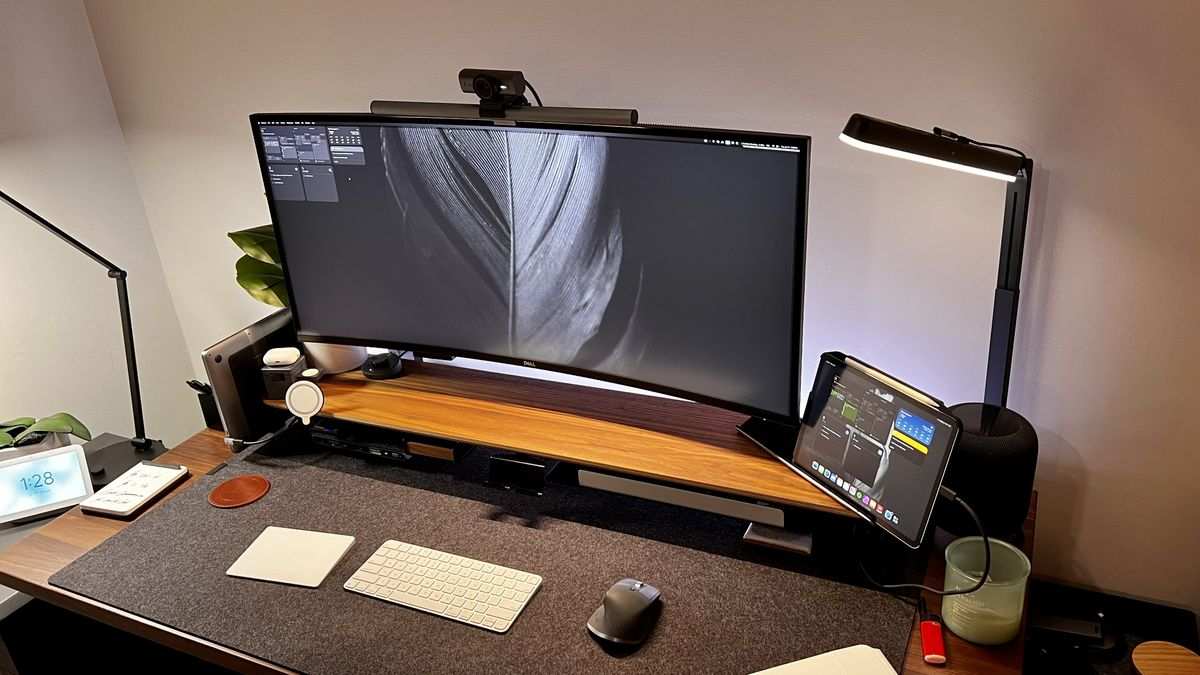
Image source: Bing (Web (fair-use with source credit))
The Three Main Setup Options Explained
Before comparing anything, we need to understand what we're actually choosing between. Each setup has distinct characteristics that affect daily workflow in different ways.
Single Ultrawide (21:9, 34"–40")
A standard ultrawide runs a 21:9 aspect ratio, most commonly at 3440×1440 resolution on a 34-inch panel. That gives you roughly 33% more horizontal screen area than a standard 27-inch 1440p monitor. The curve typically sits at 1800R or 1900R on newer models, which brings the edges closer to your eyes and reduces neck strain.
Popular options in this category include the Dell U4025QW (40-inch, 5K2K resolution), the LG 40WP95C, and the Samsung ViewFinity S6. These panels prioritize color accuracy, USB-C connectivity, and built-in KVM switches for multi-device users.
Super Ultrawide (32:9, 43"–49")
A super ultrawide is essentially two 27-inch 1440p monitors fused into one seamless panel. The Samsung Odyssey OLED G9 and the Dell U4924DW live in this space. You get 5120×1440 resolution across 49 inches of curved display.
That's a lot of real estate.
The benefit is obvious: no bezel gap down the middle. The downside? You need serious desk depth (at least 30 inches) and the panel curves aggressively at 1000R.
Some people love the wraparound feel. Others find it disorienting for productivity work that requires straight lines, like spreadsheet columns or code indentation.
Dual Monitor Setup (Two 24"–27")
Two separate monitors remain the most common office configuration for good reason. You get physical separation between tasks, each display can be oriented independently (portrait and landscape, for example), and if one dies, you're not completely dead in the water.
The bezel gap is the obvious drawback. So is the cable clutter and the need for either a dual monitor arm or two separate stands eating desk space. But for pure flexibility, dual monitors are still hard to beat.
Side-by-Side Comparison: Ultrawide vs. Dual vs. Single Large Monitor
Let's put the three options head to head across the factors that actually matter for office work.
| Factor | Single Ultrawide (34"–40") | Super Ultrawide (49") | Dual 27" Monitors | Single 32" 4K |
|---|---|---|---|---|
| Total Resolution | 3440×1440 to 5120×2160 | 5120×1440 | 2× 2560×1440 (5120×1440 combined) | 3840×2160 |
| Bezel | None | None | Center bezel gap | None |
| Desk Space Needed | Moderate (single stand) | Large (heavy, deep) | High (dual arms/stands) | Low (single stand) |
| Cable Management | Simplest (1–2 cables) | Simple (1–2 cables) | More complex (4+ cables) | Simplest |
| Window Management | Requires software | Requires software | OS-native (snap per screen) | OS-native |
| Failure Risk | Single point | Single point | One survives if other fails | Single point |
| Price Range (2026) | $300–$1,100 | $800–$1,500+ | $400–$900 (pair) | $350–$700 |
| Best For | Focused multitaskers | Power users, traders | Flexible task separation | Single-app focus |
The ultrawide wins on simplicity and aesthetics. Dual monitors win on resilience and flexibility. The super ultrawide is a niche play for people who genuinely need 40+ inches of uninterrupted width and have the desk to support it.
One thing worth noting: a 40-inch 5K2K ultrawide like the Dell U4025QW gives you the same usable width as a 49-inch super ultrawide but with higher pixel density and less aggressive curvature. That makes it a better fit for most office workers who want the ultrawide experience without feeling like they're sitting inside a screen.
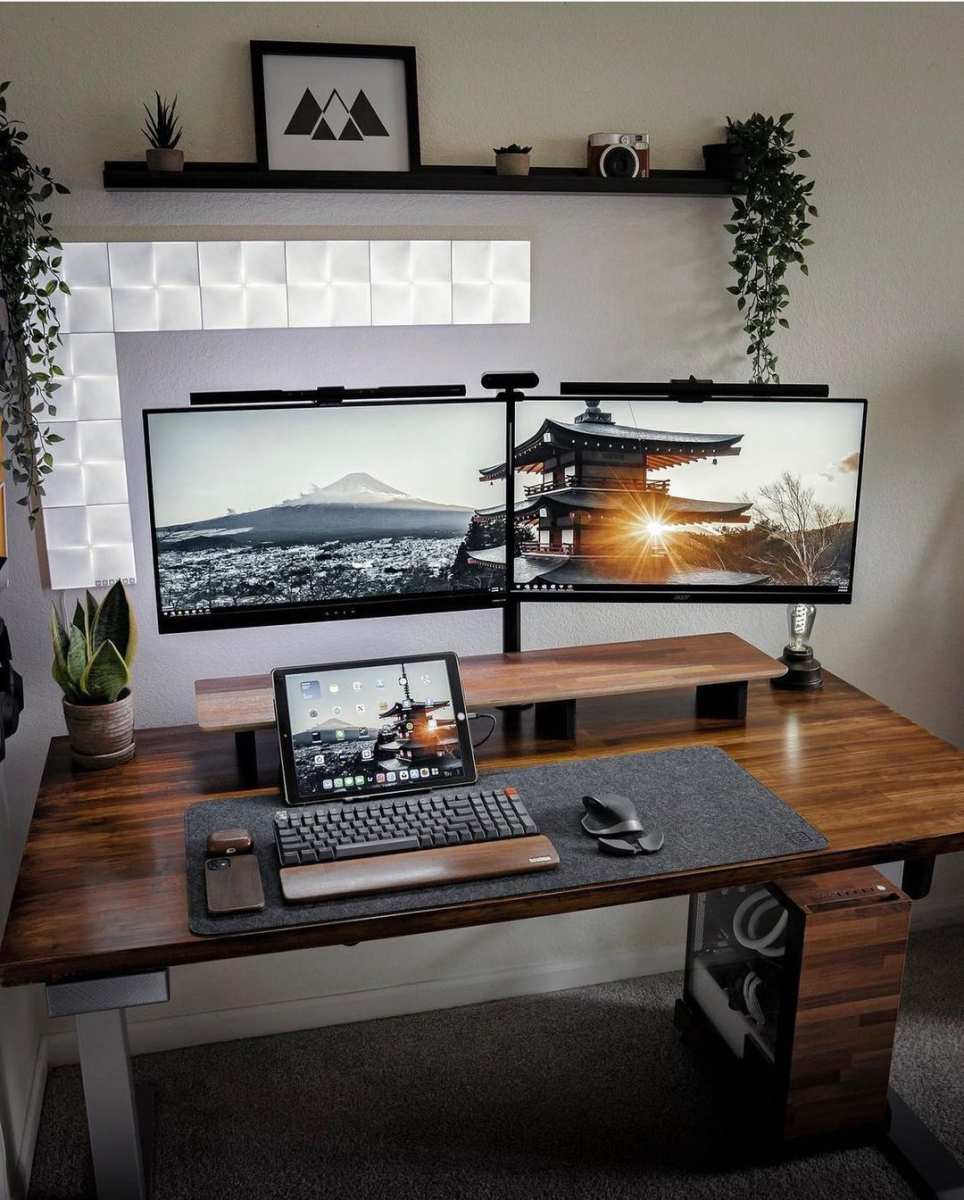
Image source: Bing (Web (fair-use with source credit))
Who Actually Benefits Most from an Ultrawide
This is where the "is ultrawide monitor good for office productivity" question gets its real answer. It's not about the hardware. It's about the work.
Software Developers and Programmers
If you're running an IDE on one side, a browser with documentation in the middle, and a terminal on the far right, an ultrawide is a game changer. No bezel interrupting your flow. Three full columns of code visible at once.
Tools like FancyZones (Windows) or Magnet (macOS) let you snap these layouts in seconds.
A 34-inch 3440×1440 panel gives you roughly 110 characters per line at a comfortable code font size. That's enough for long method signatures, wide SQL queries, or complex JSON without horizontal scrolling.
Financial Analysts and Traders
This is the ultrawide's home turf. Trading platforms like Bloomberg Terminal, Thinkorswim, or MetaTrader benefit enormously from horizontal width. You can tile six or eight watchlists, charts, and order windows across a single screen without overlapping windows or alt-tabbing constantly.
The Samsung Odyssey OLED G9 and Dell U4924DW are popular in finance for exactly this reason. The 32:9 aspect ratio replaces what used to require three or four monitors on a trader's desk.
Video Editors and Content Creators
Timeline-based editing software (DaVinci Resolve, Premiere Pro, Final Cut Pro) was practically designed for ultrawides. A 34-inch panel shows you a full timeline with tracks visible, your preview window, and your effects panel all at once. No more constantly expanding and collapsing panels.
Color-accurate ultrawides like the LG 40WP95C with DisplayHDR 400 or the ASUS ProArt PA348CGV cover DCI-P3 gamuts needed for video work. That's a two-in-one setup: productivity canvas and reference display.
Writers, Researchers, and Office Generalists
Here's where it gets less clear. If your work is primarily one application at a time (Word, Gmail, Slack, a web browser), an ultrawide doesn't add much. You'll have a lot of empty screen space on the sides.
A single 27-inch 4K monitor with good scaling gives you sharp text and plenty of room for two side-by-side windows, which covers 90% of office tasks.
That said, writers who work with a document on one side and research on the other do benefit. The same goes for anyone who regularly compares two spreadsheets or PDFs side by side.
Who Should Skip the Ultrawide
- People in open-plan offices where screen visibility from the side is a privacy concern (that wide viewing angle works against you)
- Anyone on a tight budget who'd sacrifice panel quality just to get ultrawide width
- macOS users who rely on precise text rendering and don't want to deal with scaling workarounds
- Workers whose software doesn't support ultrawide resolutions well (some legacy enterprise apps still don't)
The Real Drawbacks Nobody Talks About in Reviews
Reviews love to praise the immersive experience and clean setup. They're not wrong. But the day-to-day friction points rarely get the spotlight.
Window Management Isn't Automatic
Out of the box, Windows and macOS don't do a great job of organizing windows across an ultrawide. You'll drag things around manually until you install a window management tool. PowerToys FancyZones is free on Windows and essential.
Magnet costs a few dollars on macOS and works well. Without one of these, you're fighting the screen all day.
macOS Scaling Is Still Annoying
Apple's handling of non-native resolutions on ultrawides remains frustrating. A 34-inch 3440×1440 panel doesn't scale cleanly from macOS's rendering pipeline. You'll either run at native resolution (everything too small) or use a scaled resolution that introduces slight blurriness.
Tools like BetterDisplay or SwitchResX help, but it's an extra layer of hassle that Windows users don't deal with.
Single Point of Failure
If your dual monitor setup loses one panel, you keep working on the other. If your ultrawide dies, you're done until it's repaired or replaced. For mission-critical work, this is a real consideration.
Some professionals keep a cheap backup monitor in a drawer for exactly this reason.
Desk Space and Ergonomics
A 34-inch ultrawide needs about 30 inches of desk depth for comfortable viewing distance. A 49-inch super ultrawide wants even more. If your desk is shallow (24 inches or less), you'll find yourself leaning forward or pushing the monitor too far back.
The curve helps, but it doesn't eliminate the depth requirement.
Also, the edges of a large ultrawide sit far from your central focal point. For tasks that require precise attention to detail at the screen edges (like checking formatting in a wide spreadsheet), you'll turn your head more than you would with a smaller, flatter display.
Meeting and Screen-Sharing Awkwardness
Sharing your screen on Zoom or Teams from an ultrawide creates a problem. If you share your full screen, attendees on a 16:9 laptop see a letterboxed, tiny version of your desktop. If you share a single window, you lose the multitasking advantage.
Most people end up sharing a virtual display or a specific app window, which takes extra setup before every meeting.
What Size and Specs Actually Matter for Office Use
Not all ultrawides are built the same, and the specs that matter for office work differ from what gamers or video editors prioritize.
Resolution and Pixel Density
For a 34-inch panel, 3440×1440 (UWQHD) is the sweet spot. You get around 110 PPI, which is sharp enough for text without requiring display scaling. Running at native resolution keeps everything crisp.
For a 40-inch 5K2K panel (5120×2160), you get roughly 140 PPI. Text looks razor sharp. This is the resolution range where the Dell U4025QW and LG 40WP95C shine for office productivity.
For a 49-inch super ultrawide at 5120×1440, pixel density drops to about 108 PPI. That's noticeably less sharp than the 34-inch UWQHD option at the same viewing distance. You'll see pixels if you sit close.
The trade-off is sheer width.
Quick rule: 34 inches at 3440×1440 for most people. 40 inches at 5120×2160 if you want more space and sharper text. 49 inches only if you specifically need the equivalent of two monitors without a bezel.
Curvature: Does It Help or Hurt for Work?
Curvature is measured in "R" (the radius of the curve in millimeters). A 1000R curve is aggressive. A 1900R curve is gentle.
For office productivity, a gentler curve (1800R or 1900R) is generally better. It reduces geometric distortion, which matters when you're looking at straight lines in spreadsheets, code, or documents. Aggressive curves like 1000R are designed for immersive gaming and sit-closer scenarios.
They can actually make text at the edges harder to read comfortably.
Panel Type: IPS vs. VA vs. OLED for Office Work
- IPS (In-Plane Switching): Best all-around for office work. Wide viewing angles, accurate colors, good text clarity. Most office ultrawides use IPS panels. Response times are adequate but not gaming-grade.
- VA (Vertical Alignment): Higher contrast ratio (deeper blacks), which is nice for mixed media consumption. Slightly slower response times can cause smearing in scrolling text. Budget-friendly option.
- OLED: Perfect blacks, infinite contrast, stunning colors. The Samsung Odyssey OLED G9 is gorgeous. But OLED carries burn-in risk with static UI elements (taskbars, toolbars) displayed for hours every day. For office use with lots of static content, this is a legitimate concern over a 3, 5 year lifespan.
For pure office productivity, a good IPS panel is the safest bet. You get consistent color, no burn-in risk, and sharp text.
Connectivity: USB-C, KVM, and Why They Matter
If you're connecting a laptop, USB-C with power delivery (at least 65W, ideally 90W or more) is a must. It carries video, data, and charging through a single cable. That's the difference between a clean desk and a rat's nest of wires.
A built-in KVM switch lets you control two computers with one keyboard and mouse, switching between them with a button press. The Dell U4025QW includes this. If you work with both a personal laptop and a desktop, or a work and personal machine, a KVM-equipped ultrawide simplifies your setup dramatically.
How to Set Up an Ultrawide for Actual Productivity
Buying the monitor is step one. Setting it up correctly is where the productivity actually comes from.
Ergonomic Positioning
- Height: The top of the screen should sit at or slightly below eye level. Your gaze should tilt slightly downward (about 10, 20 degrees) without bending your neck.
- Distance: For a 34-inch panel, sit 28, 36 inches away. For a 40-inch, 32, 40 inches. For a 49-inch, 36, 48 inches. Closer than that and you'll be turning your head constantly.
- Angle: Tilt the monitor up 10, 15 degrees. If using a curved panel, center the curve on your natural sitting position. Move your chair, not the monitor, when your primary position shifts.
A monitor arm (like the Ergotron LX or the Amazon Basics premium arm) gives you the flexibility to dial this in precisely. The included stands on most ultrawides are functional but limited in adjustment range.
Window Management Tools You Need
This is non-negotiable. Without a window management tool, an ultrawide is just a big screen with windows scattered everywhere.
Windows:
- PowerToys FancyZones (free, Microsoft): Create custom snap zones. Set up a three-column layout, a main-plus-sidebars layout, or whatever matches your workflow. Drag windows while holding Shift to snap them into zones.
- DisplayFusion (paid, ~$30): More advanced, with multi-monitor support, taskbar customization, and hotkey-driven window positioning.
macOS:
- Magnet (~$8, App Store): Simple, reliable, keyboard shortcut-driven. Snap windows to halves, thirds, or quarters with a keystroke.
- Divvy (~$14): Grid-based window sizing. Precise control over window dimensions.
- Rectangle (free, open source): Lightweight alternative to Magnet with similar functionality.
Recommended starting layouts:
- Three equal columns (coding: editor, browser, terminal)
- Center-wide with two narrow sidebars (writing: document, research, notes)
- Two columns with a top-right quadrant (spreadsheet work: main sheet, reference sheet, calculator/notes)
Calibration Basics
Out-of-box color accuracy on office ultrawides is usually decent, but calibration improves it further.
- Set color temperature to 6500K (the standard daylight white point)
- Adjust brightness to 120, 160 cd/m² for typical office lighting (lower in dim rooms, higher in bright ones)
- Use the sRGB mode if your panel offers it, to prevent oversaturation in everyday applications
- For color-critical work, use a hardware calibrator like the Calibrite ColorChecker Display or X-Rite i1Display
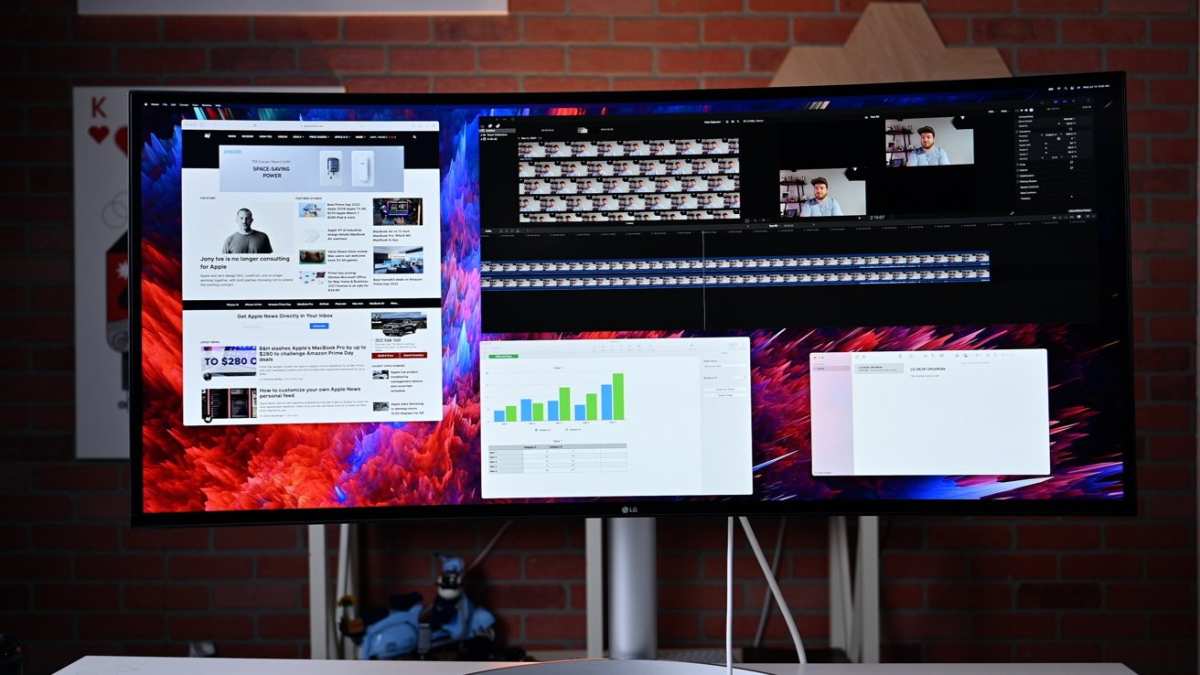
Image source: Bing (Web (fair-use with source credit))
Pricing Reality Check: What You'll Actually Spend
Ultrawide pricing spans a wide range, and the cheapest option isn't always the best value for office work.
| Category | Size | Resolution | Example Models | Price Range (2026) |
|---|---|---|---|---|
| Budget Office | 34" | 3440×1440 | LG 34WN80C, Dell U3423WE | $300–$500 |
| Mid-Range Office | 34"–38" | 3440×1440 to 3840×1600 | LG 38WN95C, Samsung S36CG70 | $500–$900 |
| Premium Office | 40" | 5120×2160 | Dell U4025QW, LG 40WP95C | $900–$1,300 |
| Super Ultrawide | 49" | 5120×1440 | Samsung OLED G9, Dell U4924DW | $1,000–$1,500+ |
| Dual 27" IPS Pair | 2× 27" | 2× 2560×1440 | Dell S2722QC, LG 27UK850 | $400–$700 (pair) |
The sweet spot for most office workers in 2026 sits in the $500, $900 range. That gets you a 34-inch or 38-inch IPS panel with USB-C, good color accuracy, and a reliable warranty from Dell, LG, or Samsung. Spending more gets you higher resolution (5K2K) or super ultrawide width, which isn't necessary for most productivity workflows.
Spending less than $300 usually means sacrificing color accuracy, build quality, or connectivity. A $200 ultrawide exists, but it's often a VA panel with mediocre viewing angles and no USB-C. For 8 hours a day of office work, that's a false economy.
Don't forget to budget for a monitor arm ($50, $150) and possibly a window management app ($0, $30). These small costs make a big difference in daily usability.
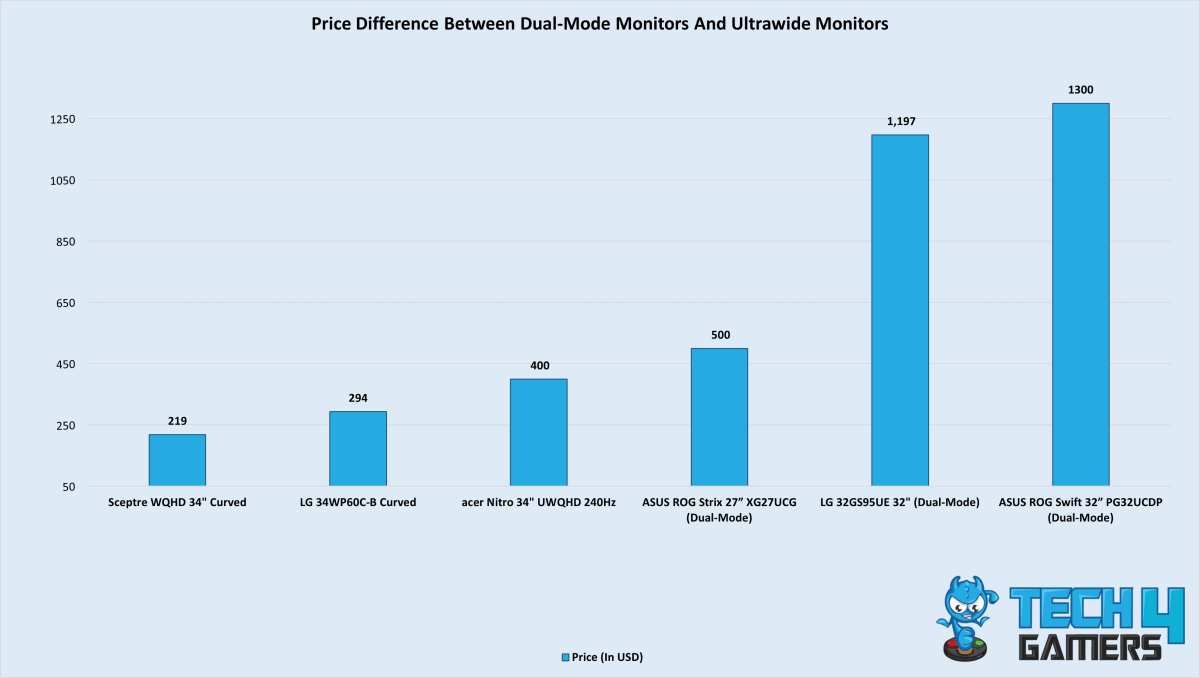
Image source: Bing (Web (fair-use with source credit))
Common Mistakes People Make Before Buying
These are the errors we see most often when people jump into an ultrawide purchase without doing their homework.
- Buying based on size alone. A 34-inch VA panel at $250 looks like a deal until you realize the viewing angles are poor and text at the edges looks washed out. Panel type matters as much as size.
- Ignoring desk depth. A 49-inch super ultrawide on a 24-inch-deep desk forces you to sit too close. Measure before you buy.
- Assuming the OS handles window management. It doesn't, not well. Budget time to set up FancyZones, Magnet, or equivalent tools on day one.
- Skipping USB-C. If you use a laptop, running a separate power cable and a display cable defeats the purpose of the clean ultrawide setup. Make sure the monitor delivers enough wattage for your laptop.
- Overlooking warranty and burn-in policies. OLED ultrawides look stunning, but check the manufacturer's burn-in warranty. Samsung and LG offer varying coverage. For 8-hour daily office use with static elements, IPS is the safer long-term bet.
- Not checking software compatibility. If your work relies on legacy or proprietary software, test it on an ultrawide before committing. Some older applications don't handle 21:9 or 32:9 resolutions gracefully.
- Expecting dual-monitor flexibility. An ultrawide with Picture-by-Picture mode can simulate dual monitors, but it's not the same. PbP splits the screen into two virtual displays, but you lose the independent orientation, physical separation, and independent brightness control that two real monitors provide.
Frequently Asked Questions
Is an ultrawide monitor good for office work?
Yes, for multitasking-heavy office work. Developers, analysts, and creative professionals benefit most from the extra horizontal space. For single-application workers, a standard 27-inch monitor is often more practical and cost-effective.
What size ultrawide is best for productivity?
34 inches at 3440×1440 is the sweet spot for most office workers. It offers enough width for three-column layouts without requiring aggressive scaling or excessive desk depth. A 40-inch 5K2K panel is the upgrade pick for sharper text and more workspace.
Is a 49-inch ultrawide too big for office work?
Not too big, but it's overkill for most people. A 49-inch super ultrawide suits traders, video editors, and developers who need many windows visible simultaneously. It requires at least 30 inches of desk depth and an aggressive 1000R curve that not everyone finds comfortable.
Do I need a special graphics card for an ultrawide monitor?
Most modern integrated graphics (Intel Iris Xe, AMD Radeon 780M) can drive a 34-inch 3440×1440 panel at 60Hz without issue. For 5K240Hz or super ultrawide resolutions, a dedicated GPU is recommended. For basic office use, integrated graphics are sufficient.
Is macOS good with ultrawide monitors?
It works, but scaling is a known pain point. macOS doesn't handle 3440×1440 natively as cleanly as Windows. You may need third-party tools like BetterDisplay for proper scaled resolution options. A 5K2K (5120×2160) ultrawide scales better on macOS because it's closer to the Retina 5K pipeline.
Can I use an ultrawide for video conferencing?
Yes, but screen sharing requires planning. Sharing your full screen on a 21:9 panel creates a letterboxed view for 16:9 participants. Most people share a single application window instead.
Some conferencing apps now support sharing a virtual display or screen region, which solves this problem.
Final Verdict: The Decision Guide
So, is ultrawide monitor good for office productivity? Here's the honest breakdown.
Get a 34-inch or 40-inch ultrawide if:
- You regularly work with three or more windows side by side
- You're a developer, financial analyst, video editor, or creative professional
- You value a clean, single-cable desk setup
- Your software supports ultrawide resolutions
- You're on Windows or you've confirmed macOS scaling works for your chosen panel
Get dual 27-inch monitors if:
- You need physical task separation (email on one screen, work on the other)
- You want the flexibility to orient one screen vertically
- Redundancy matters (one monitor fails, you keep working)
- You're on a tighter budget and want better overall panel quality per dollar
Get a super ultrawide (49-inch) if:
- You're a trader, developer, or creative pro who needs the equivalent of two monitors with no bezel
- You have a deep desk (30+ inches) and don't mind the aggressive curve
- You've tested one in person and the wraparound feel works for you
Stick with a single 27-inch or 32-inch 4K monitor if:
- Your work is primarily one application at a time
- You prefer maximum pixel density for sharp text
- You don't want to think about window management
- You're on macOS and want the simplest scaling experience
The ultrawide isn't universally better. It's better for specific workflows. Match the tool to the work, not the other way around.

Similar Posts





















