Effective Iphone Setting To Block Spam Calls For Better
To block spam calls on your iPhone, simply enable the built-in features designed for this purpose. **Adjust your settings to filter unknown callers or use third-party apps for added security.** Navigating the iPhone setting to block spam calls is straightforward and can save you from constant interruptions. By customizing your call settings, you gain more control over who gets through. Keep your phone free of unwanted calls with these easy steps.

iPhone Setting to Block Spam Calls
When your iPhone rings unexpectedly with a strange number, it can sometimes be a spam call trying to scam or annoy you. Luckily, your iPhone has built-in features that help you block these unwanted calls. Learning how to set your iPhone to block spam calls can save you time, frustration, and protect your privacy. In this section, we’ll explore all the ways you can use your iPhone settings to stop spam calls effectively.
Understanding Spam Calls and Why They Happen
Before diving into the settings, it’s helpful to understand what spam calls are. Spam calls often come from telemarketers, scammers, or automated systems. They typically use fake numbers or spoofed caller ID to trick you into answering or giving sensitive information.
Why do spam calls happen?
- Scammers want to steal your personal information or money.
- Telemarketers might call with unwanted sales pitches.
- Automated systems dial numbers en masse, hoping someone answers.
Knowing this, it becomes clear why blocking these calls is essential for your safety and peace of mind.
Using the Built-in ‘Silence Unknown Callers’ Feature
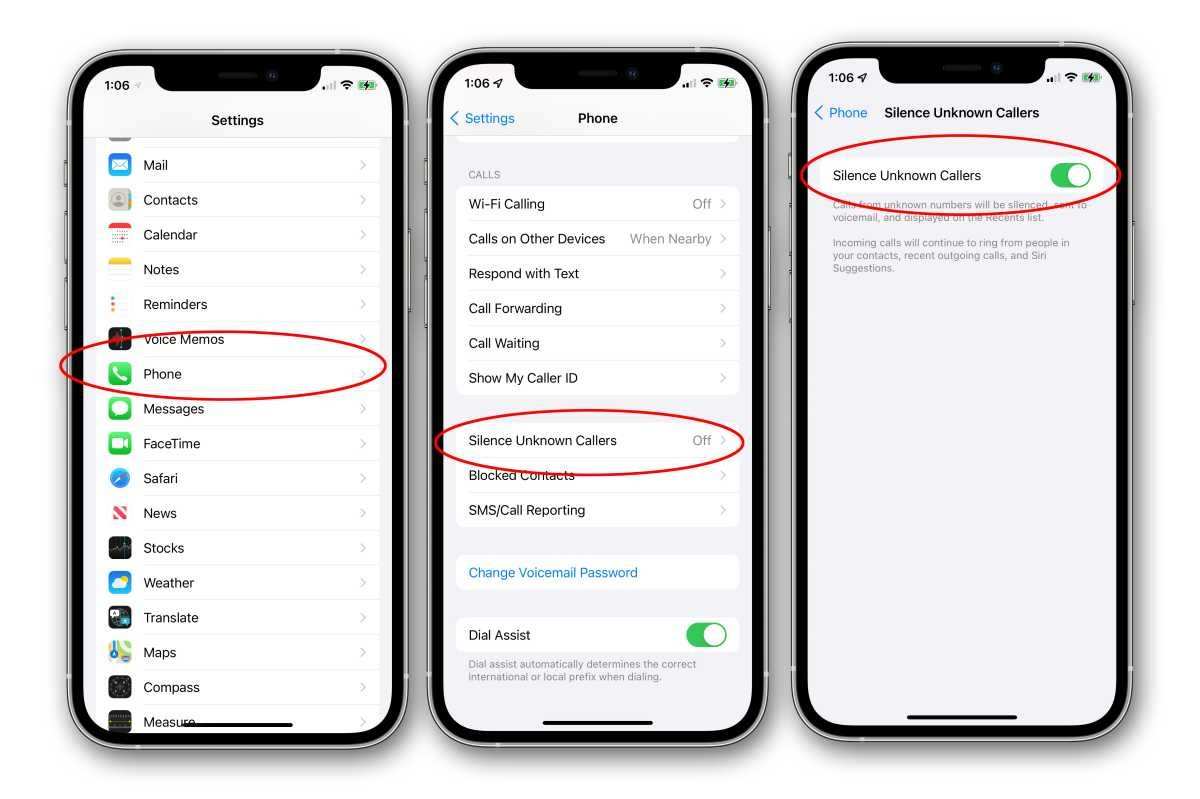
One of the easiest ways to block spam calls on your iPhone is by turning on the ‘Silence Unknown Callers’ feature. When you activate this, any calls from numbers not saved in your contacts, recent calls, or suggestions from Siri will be silenced and sent directly to voicemail.
How to activate ‘Silence Unknown Callers’
- Open the Settings app on your iPhone.
- Scroll down and tap on ‘Phone.’
- Find and select ‘Silence Unknown Callers.’
- Switch the toggle to ON (green).
Once enabled, your iPhone will now filter out calls from unknown numbers. You can still view missed calls later in your call log.
Pros and Cons of using ‘Silence Unknown Callers’
| Advantages | Limitations |
|---|---|
| Reduces interruptions from unknown sources | May miss important calls from new contacts or businesses |
| Simple to activate and manage | Requires manual checking of missed calls |
This feature is perfect if you want a straightforward method to reduce spam calls without needing extra apps.
Blocking Specific Numbers Manually
If you recognize specific numbers that keep calling you with spam or scam messages, you can block them directly. Here’s how:
Steps to block a number in your Phone app
- Open the Phone app on your iPhone.
- Tap on the ‘Recents’ tab to see your recent calls.
- Locate the number you want to block.
- Tap the info icon (a small circle with an ‘i’) next to the number.
- Scroll down and select ‘Block this Caller.’
- Confirm by tapping ‘Block Contact.’
Once blocked, calls from this number will no longer ring on your device, and future messages from the same number will be filtered out.
Managing Blocked Numbers
To see or manage numbers you’ve blocked:
- Go to Settings.
- Select ‘Phone.’
- Tap ‘Blocked Contacts.’
- Here, you can add new numbers or unblock existing ones.
This method works well for targeted spam calls from known numbers.
Using the ‘Filter Unknown Senders’ for Messages
Spam isn’t limited to phone calls; it often comes through text messages too. iPhones offer a feature called ‘Filter Unknown Senders’ to help manage unwanted messages.
Activating ‘Filter Unknown Senders’
- Open Settings on your iPhone.
- Scroll down and tap on ‘Messages.’
- Find and toggle on ‘Filter Unknown Senders.’
This feature moves messages from numbers not in your contacts to a separate tab, making it easier to spot and delete spam messages quickly.
Benefits of Using Message Filtering
- Minimizes spam message clutter.
- Helps identify unwanted messages faster.
- Reduces risk of falling for scams through text.
Keep in mind, this doesn’t block calls from unknown numbers but adds an extra layer of spam prevention for messages.
Setting Up Call Blocking with Third-Party Apps
Sometimes, your iPhone’s built-in tools may not catch every spam call. In such cases, third-party apps designed specifically to block spam calls can be very effective.
Popular spam call blocking apps
- Hiya
- Truecaller
- YouMail
- RoboKiller
How to integrate third-party apps with your iPhone
- Download your preferred app from the App Store.
- Follow the app’s instructions to set it up, which usually involves granting permissions.
- Go to Settings > Phone > Call Blocking & Identification.
- Enable the toggle for the app to allow it to identify and block spam calls.
Third-party apps often use databases of spam numbers and real-time caller ID technology to stop unwanted calls more effectively.
Regular Maintenance and Best Practices
Blocking calls is an ongoing process. To keep your iPhone free from spam calls, follow these best practices:
- Regularly review your blocked numbers list in Settings.
- Avoid answering calls from suspicious or unknown numbers.
- Don’t click on links or give personal info in unsolicited messages.
- Update your iPhone software regularly for the latest security features.
- Keep your call blocking apps updated for optimal performance.
Remaining vigilant and proactive helps prevent spam calls from ever reaching you.
Final Tips for a Spam-Free Calling Experience
While the above steps greatly reduce spam calls, no method is entirely foolproof. Combining multiple strategies offers the best protection:
- Use ‘Silence Unknown Callers’ for automatic filtering.
- Block individual spam numbers as soon as you recognize them.
- Utilize message filters to avoid text spam.
- Install trusted third-party apps for added security.
- Stay cautious about sharing your phone number online or with untrusted sources.
By applying these tips, you can enjoy smoother, less interrupted communication on your iPhone.
—
In sum, setting your iPhone to block spam calls involves understanding its built-in features and knowing how to activate, customize, and extend those protections. Whether you choose to enable ‘Silence Unknown Callers,’ block specific numbers manually, or use third-party apps, each method helps protect your privacy and peace of mind. Regularly updating your settings and remaining cautious about unknown contacts ensures your iPhone remains a safe and effective communication tool.
Frequently Asked Questions
How can I enable Silence Unknown Callers on my iPhone?
To activate Silence Unknown Callers, go to Settings, then tap on Phone. Find the option labeled Silence Unknown Callers and toggle it on. This feature automatically silences calls from numbers not in your contacts, recent calls, or Siri Suggestions, helping to reduce spam calls effectively.
What is the process to block specific spam numbers manually?
Open the Phone app and navigate to Recents or Contacts. Find the spam number you want to block, tap the “i” icon next to it, then scroll down and select Block this Caller. Confirm your choice, and future calls from that number will be automatically blocked.
Can I filter suspected spam calls without blocking them completely?
Yes, iPhone offers a filtering feature through the Phone settings. By enabling Filtering Unknown & Unwanted Calls under Settings > Phone, calls from unknown numbers will be sent directly to voicemail or labeled as potential spam, giving you a chance to review them later.
Are there any third-party apps recommended to help block spam calls on iPhone?
Many third-party apps like RoboKiller, Hiya, and Truecaller can help identify and block spam calls more effectively. These apps often provide real-time caller ID and spam reporting features, but ensure you review their privacy policies and give necessary permissions for optimal performance.
How does iOS update help in managing spam calls better?
Apple periodically updates iOS to improve spam call detection and blocking features. Updating your device ensures you have access to the latest tools, such as improved filtering algorithms and enhanced reporting options, making it easier to handle unwanted calls efficiently.
Final Thoughts
In summary, optimizing your iPhone settings to block spam calls can significantly reduce unwanted interruptions. By enabling features like Silence Unknown Callers and using the built-in Phone app filters, you protect your privacy. The iPhone setting to block spam calls offers a straightforward way to manage these nuisances effectively. Taking these steps ensures a smoother calling experience, keeping you focused on what matters most.

Similar Posts































