Iphone Setting To Only Allow Calls From Contacts For Privacy
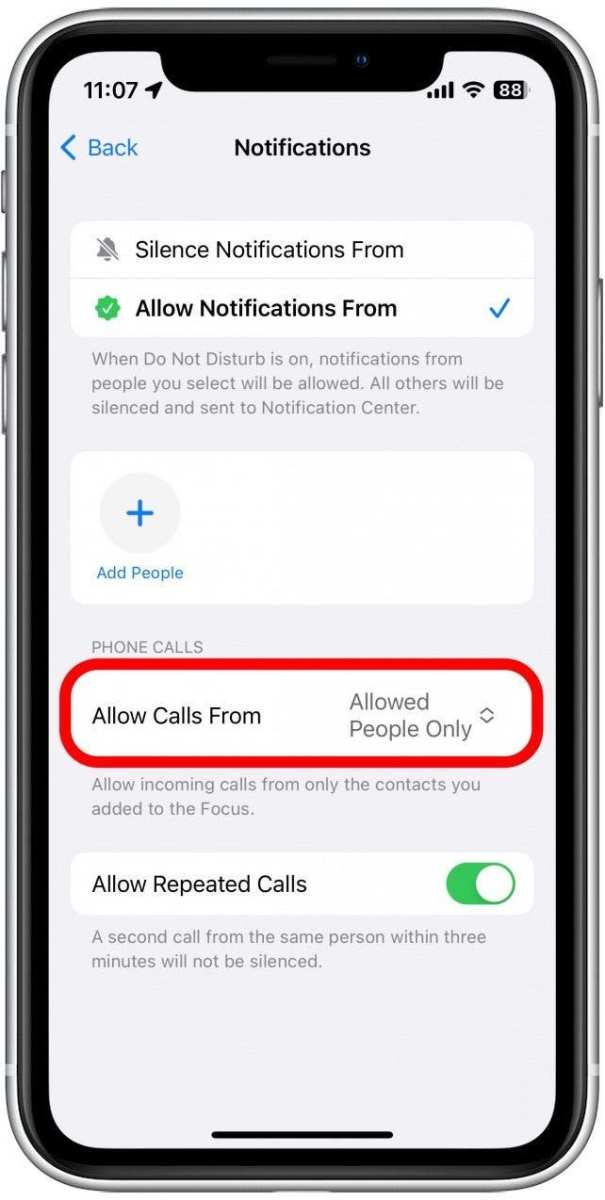

iPhone Setting to Only Allow Calls from Contacts
When it comes to managing incoming calls on your iPhone, you might want to control who can reach you directly. Whether you need a break from spam calls or want to ensure only your trusted contacts can call you, setting your iPhone to only allow calls from contacts can make your phone usage more comfortable and secure. This feature helps filter out unknown numbers, telemarketers, or spam calls, giving you peace of mind and reducing interruptions during work or rest. In this section, we will explore how to set your iPhone to only allow calls from your contacts, why it might be beneficial, and how to customize this setting to suit your needs.Understanding the Call Filtering Feature on iPhone
Before diving into the setup process, it’s important to understand what call filtering entails. Apple introduced tools to help users manage incoming calls more effectively, especially with iOS updates. The core idea is to restrict calls to only known contacts while blocking or silencing the rest. The main features that support this functionality include:- Silence Unknown Callers: A built-in feature that automatically silences calls from numbers not saved in your contacts, sending them directly to voicemail without ringing.
- Call Blocking & Identification: Allows you to block specific numbers and, with third-party apps, identify potential spam callers.
- Focus Modes & Do Not Disturb: These modes can be customized to allow calls only from contacts or favorites, further controlling who can reach you.
Setting Up ‘Silence Unknown Callers’ on iPhone
The quickest way to restrict calls to your contacts involves enabling a feature called “Silence Unknown Callers.” Here’s how you can set it up:- Open the Settings app on your iPhone.
- Scroll down and tap on “Phone.”
- Find the option “Silence Unknown Callers” and toggle it on.
- You receive many spam or telemarketing calls.
- You want to avoid interruptions during work or sleep.
- You prefer to only hear from people you know personally or have saved as contacts.
Using Focus Mode to Allow Calls from Contacts Only
If you want more control over which calls you receive, Focus Mode on iPhone proves useful. Focus mode helps customize notifications and calls depending on your activity or preference. Setting a custom Focus mode to only allow calls from contacts involves:- Open Settings and tap on “Focus.”
- Tap the + icon to create a new custom Focus or select an existing one.
- Name your Focus mode, for example, “Work” or “Rest.”
- Tap “People” under the Allowed Notifications section.
- Tap “Calls From” and select “Favorites” or “Contacts” to allow calls only from your contacts.
- Enhance this by configuring other notifications as needed, then activate the Focus mode.
Implementing Call Blocking for Specific Numbers
Apart from enabling general restrictions, you might want to block specific individual numbers that are bothering you or are suspicious. To do this:- Open the Phone app and go to your recent calls or contacts.
- Tap on the info icon next to the number or contact.
- Scroll down and select “Block this Caller.”
Using Third-Party Apps for Enhanced Call Filtering
While Apple’s native tools are effective, third-party apps can add extra layers of call filtering. These apps often provide:- Real-time spam call identification.
- Automatic blocking of known scam or telemarketing numbers.
- Customizable blacklists and whitelists.
- Download and install the app of your choice.
- Grant necessary permissions for call identification and blocking.
- Configure your preferences within the app to block unsolicited calls or only allow calls from contacts.
- Ensure the app is set as the default caller ID or spam filter if applicable.
Customizing Call Settings Based on Your Needs
Every user has different preferences. Some might want to block all unknown callers entirely, while others want to allow calls from only a select group. Here is how to tailor your settings:| Use Case | Recommended Setting |
|---|---|
| Only receive calls from contacts during work hours | Create a focused mode with allowed calls from contacts or favorites |
| Block all unknown numbers permanently | Enable “Silence Unknown Callers” and block specific nuisance numbers |
| Receive calls from anyone except telemarketers | Use third-party spam filtering apps and block known spam numbers |
Testing and Confirming Your Settings
After configuring your preferred settings, take a moment to test if everything works as expected:- Ask a trusted contact to call you to ensure they can reach you without issues.
- Have an unknown number call to see if it is silenced or blocked as intended.
- Verify your call logs and notification settings to confirm they match your preferences.
Additional Tips for Managing Calls on Your iPhone
Managing call notifications goes hand-in-hand with setting your iPhone to only allow calls from contacts. Here are some extra tips:- Update your contacts regularly to include important numbers, such as doctors or delivery services.
- Use the “Favorites” list for people you want to hear from at all times, even with strict filtering active.
- Periodically review your blocked contacts list to ensure no essential numbers are unintentionally blocked.
- Consider customizing your voicemail message, especially if you restrict calls heavily, so your callers know your contact preferences.
Frequently Asked Questions
How can I set my iPhone to only accept calls from saved contacts?
Navigate to Settings > Do Not Disturb. Turn on Do Not Disturb, then tap on ‘Allow Calls From’ and select ‘Contacts.’ This setting ensures only calls from numbers saved in your contacts reach you while other calls are silenced.
Can I customize which contacts are allowed to call me even when Do Not Disturb is active?
Yes, you can create a favorites list in the Phone app and allow calls only from these contacts. Go to Phone > Favorites, add selected contacts, then set Do Not Disturb to allow calls from ‘Favorites.’ This way, only calls from your preferred contacts will come through during restricted hours.
What happens to calls from unknown numbers if I enable this setting?
Calls from numbers not saved in your contacts will be silenced and not ring through when you activate the ‘Allow Calls From Contacts’ feature. These calls will go to voicemail or be rejected, depending on your settings, helping you avoid unwanted interruptions.
Is it possible to receive alerts for calls from contacts but silence others?
Yes. You can customize notifications by setting your iPhone to allow notifications only for calls from your contacts. Use the ‘Favorites’ list or the ‘Contacts’ option in Do Not Disturb settings to receive alerts exclusively from these contacts while other calls remain muted.
How do I ensure emergency calls can still come through if I restrict calls to only contacts?
Go to Settings > Emergency SOS and turn on ‘Auto Call.’ This feature allows emergency calls to come through even when you restrict calls to contacts only. Additionally, make sure that Emergency SOS is enabled and that your emergency contacts are saved in your device.
Final Thoughts
To ensure you only receive calls from your contacts, adjusting your iPhone settings is simple. Activate the ‘Do Not Disturb’ mode and customize it to allow calls only from your contacts. This feature helps you avoid unwanted interruptions during important moments. The ‘iPhone setting to only allow calls from contacts’ offers a practical way to manage your calls efficiently. By setting this, you focus on essential communications and minimize distractions. Overall, this option enhances your control over incoming calls, providing peace of mind.
Similar Posts































