Iphone Screen Broken Touch Not Working Fix Tips
If your iPhone screen is broken and the touch isn’t working, don’t worry — **the first step is to restart your device or try a force restart**. This may temporarily fix the issue or reveal if it’s hardware or software related.
Dealing with an iPhone screen broken touch not working can be frustrating, but there are simple fixes to try before visiting a repair shop. Sometimes, a software glitch causes the unresponsiveness, and a quick reset can solve the problem.

Understanding the Issue of an iPhone Screen Broken and Touch Not Working
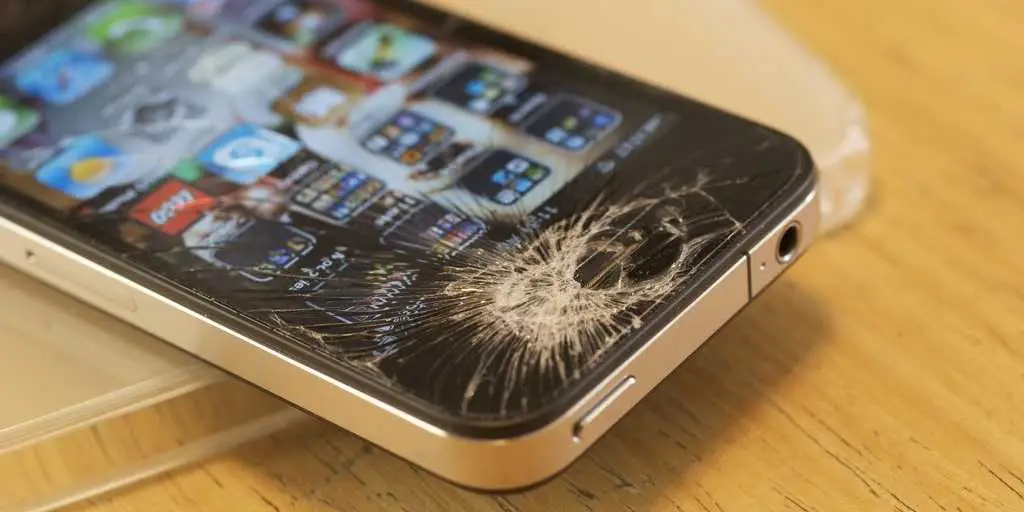
When your iPhone screen gets damaged, it can lead to frustrating problems, especially if the touch functionality stops working. Many users see their device’s screen cracked but assume it still functions normally. However, a broken screen often results in a loss of touch responsiveness, making it difficult to navigate or even access essential data.
In this section, we will explore what causes the touch not to work after a screen break and why this problem can appear suddenly or gradually. Understanding the root of the issue helps in deciding whether to fix your device yourself or seek professional help.
Common Causes of a Broken iPhone Screen Leading to Unresponsive Touch
A cracked or shattered screen can cause various issues affecting the touch system. Here are some of the most common causes:
- Physical Damage: Impact from drops, hits, or pressure can damage the screen’s glass and underlying digitizer—the part responsible for detecting touch.
- Damage to the Digitizer: If the digitizer is cracked or broken, the touch input won’t register, even if the display appears intact.
- Internal Connection Issues: The impact can loosen or disconnect internal cables that communicate between the screen and the main circuit board.
- Water Damage or Moisture: Exposure to liquids can corrode internal components, causing the touch system to malfunction.
- Software Glitches: Sometimes, a hardware issue triggers software errors, making touch responses unresponsive.
Symptoms That Indicate Your iPhone Screen Is Broken and Touch Not Working
Knowing the signs of a damaged screen helps you quickly identify the problem:
- The screen is cracked or shattered when you look at it.
- The display still shows images, but touch responses are inconsistent or nonexistent.
- You notice black spots, lines, or dead pixels on the screen.
- The screen is unresponsive to taps and swipes, even after restarting your device.
- You see flickering or strange colors, indicating internal damage.
Why Does the Touch Stop Working After a Screen Break?
The connection between the screen and the rest of the phone plays a vital role in touch responsiveness. Damage to this connection can cause the touch functionality to fail. Here’s what mainly causes this:
Damage to the Digitizer Layer
The digitizer is a thin layer of glass beneath the outer screen glass, which detects touch input. When the screen cracks, the digitizer may also suffer damage, which results in:
- Touch inputs not registering at all
- Erratic or ghost touches
Broken or Disconnected Internal Cables
The display assembly connects to the mainboard via flex cables. If these cables get loosened or torn during impact:
- The touch screen might become unresponsive
- The display could malfunction or stop working altogether
Hardware Malfunction or Short Circuit
Severe impact may cause internal components to malfunction, leading to problems like:
- Short circuits that interfere with touch signals
- Internal component failure that affects display performance
Is Your iPhone Still Functional Despite the Touch Issue?
Sometimes, the display still functions visually, but the touch doesn’t. In other cases, the entire screen might appear black or frozen.
It’s important to verify if your iPhone still responds to external stimuli, like notifications or sound cues. If voice commands or external buttons work, but the screen remains unresponsive, you likely have a hardware issue with the digitizer or internal connections.
How to Troubleshoot an iPhone with a Broken Screen and No Touch Response
Before opting for repairs, you can attempt some troubleshooting steps:
Force Restart Your iPhone
Many software hiccups can cause temporary unresponsiveness. To force restart:
- For iPhone 8 or later: Quickly press and release volume up, then volume down, then hold the side button until the Apple logo appears.
- For iPhone 7 or 7 Plus: Hold the volume down button and the sleep/wake button simultaneously until the Apple logo appears.
- For earlier models: Hold the home button and the sleep/wake button simultaneously until the Apple logo appears.
Check if the Device Responds to External Buttons or Voice Commands
Even if the screen is unresponsive, your phone might still accept commands:
- Try asking Siri for help or opening apps via voice commands.
- Press external buttons to see if the device responds with sounds or vibrations.
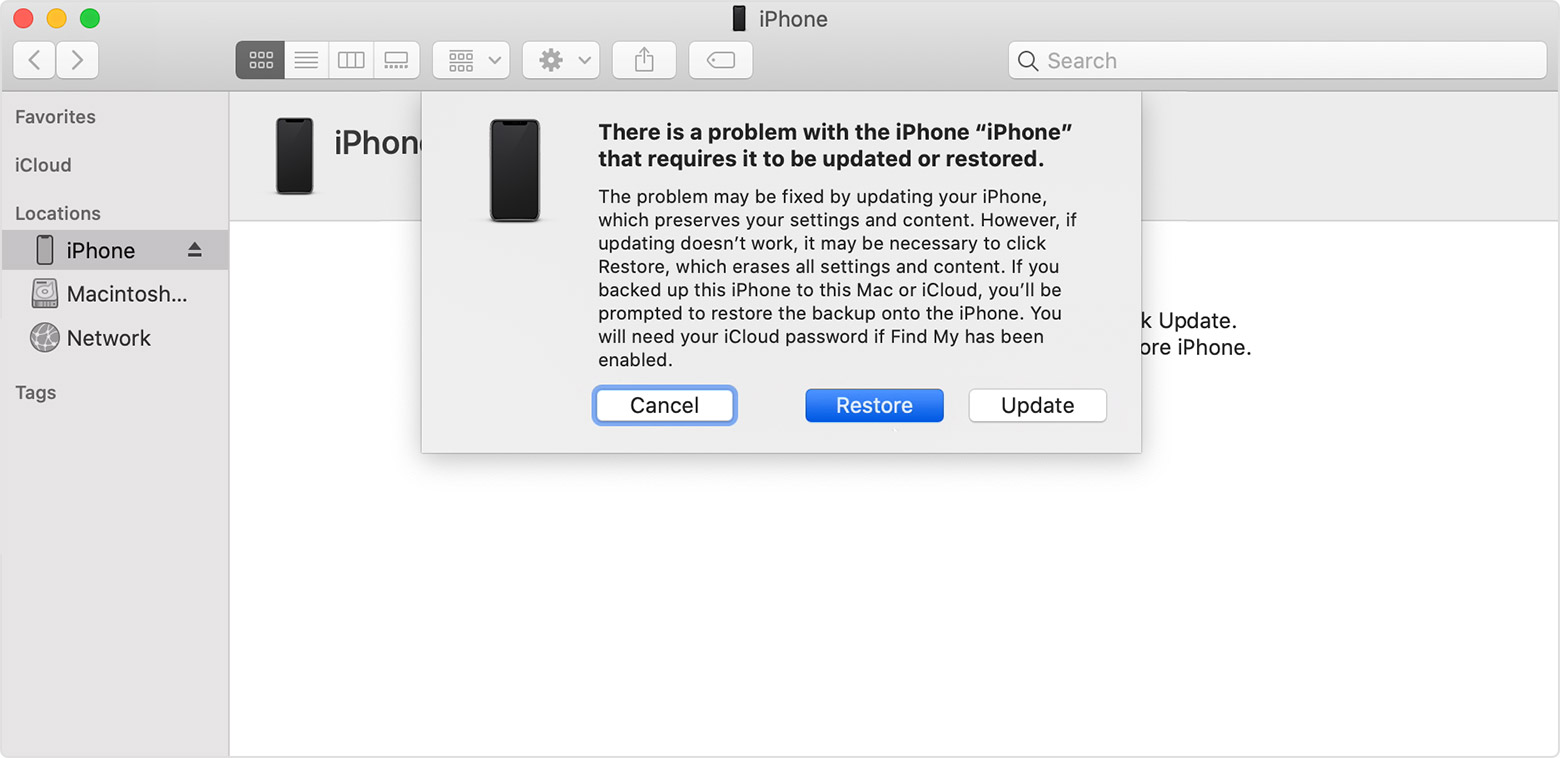
Connect to a Computer and Use iTunes or Finder
Connecting your iPhone to a computer can help you:
- Back up your data to avoid losing important information.
- Enter recovery mode to attempt repairs or restore the device.
Assess if External Factors Are Causing the Issue
Sometimes, debris or dust can block the touch layer. Cleaning the screen gently with a microfiber cloth might help, but avoid pushing or pressing hard on the damaged screen.
Options for Fixing an iPhone with a Broken Screen and Touch Not Working
Once you determine the screen is physically damaged and touch is unresponsive, you’ll need to explore repair options.
Professional Repair Services
Many authorized service providers can replace your iPhone screen:
- Apple Authorized Service Centers: Offer genuine parts and warranty on repairs.
- Third-party Repair Shops: Usually more affordable but verify their reputation and parts quality.
DIY Repair Kits and Guides
If you’re comfortable handling small electronics:
- Purchase high-quality replacement screens compatible with your iPhone model.
- Follow detailed video tutorials specific to your device model.
- Gather necessary tools: small screwdrivers, opening picks, suction cups, and adhesive.
Remember that DIY repairs carry the risk of further damage if not done properly and may void any remaining warranty.
Considerations When Choosing a Repair Method
Think about:
- Cost of repair versus device value.
- Warranty or guarantee offered by the repair shop.
- Likelihood of permanent damage if the device isn’t repaired promptly.
Preventing Future Screen Damage and Touch Issues
Prevention is always better than repair. Here are some tips to avoid similar problems in the future:
- Use a sturdy protective case and screen protector to absorb shocks.
- Avoid dropping your iPhone or exposing it to water and extreme temperatures.
- Be mindful of handling your phone, especially in crowded or slippery environments.
- Regularly clean the screen with a microfiber cloth to prevent buildup of dirt or oils, which can affect touch sensitivity.
Regular Maintenance and Updates
Keeping your iPhone’s software updated ensures optimal performance and might fix minor glitches related to touch responsiveness.
Proper Storage and Handling Tips
Properly storing your device when not in use reduces risk:
- Keep your phone in a safe, dry place.
- Avoid placing heavy objects on top of your device.
- Handle your phone carefully, especially when using it outdoors or in busy areas.
Dealing with an iPhone screen that’s broken and unresponsive to touch can be a frustrating experience, but understanding the causes and available solutions makes managing the problem easier. Whether you choose professional repairs or attempt minor fixes yourself, addressing the issue quickly can prevent further damage. Taking preventive steps and handling your device with care will prolong its lifespan and save you money in the long run. If your screen is cracked and touch doesn’t work, exploring repair options right away helps restore your iPhone’s full functionality and ensures you can continue using your device comfortably.
Frequently Asked Questions
What steps can I take if my iPhone screen is cracked but the display still works?
If your iPhone screen is cracked but the display remains functional, start by backing up your data to prevent any loss. Avoid applying pressure or using the touchscreen excessively to prevent further damage. Consider using a protective case or screen protector to prevent additional cracks. Schedule a repair appointment with an authorized service provider to replace the damaged screen securely.
How do I troubleshoot an unresponsive touch screen on my iPhone after a drop?
First, try restarting your iPhone to see if the touch responsiveness returns. If it remains unresponsive, perform a force restart based on your iPhone model. Clean the screen gently to remove any debris or moisture that might interfere with touch sensitivity. If the problem persists, seek professional repair to diagnose potential internal damage or hardware issues.
Is there a way to temporarily fix a broken iPhone screen with touch issues?
While a temporary fix isn’t a long-term solution, you can protect the screen from further damage by applying a temporary screen protector. This can help keep loose glass fragments contained and prevent additional cracks. Avoid pressing or poking the damaged area, and get professional repair services as soon as possible to restore full functionality.
What should I do to prevent further damage to my iPhone with a broken screen?
Protect your device by applying a durable screen protector or a rugged case that can absorb shocks. Handle your iPhone carefully to avoid applying pressure to the damaged area. Do not expose your device to water or extreme temperatures, as these can worsen internal issues. It’s best to schedule a professional repair promptly to fix the screen and prevent future harm.
Can software updates fix an unresponsive touchscreen on a broken iPhone?
Software updates generally do not resolve hardware-related touch issues caused by screen damage. If your touchscreen is unresponsive due to a crack or internal damage, updating iOS won’t restore touch functionality. In such cases, replacing or repairing the screen is necessary to regain proper operation.
How do I find a reliable repair service for my broken iPhone screen?
Look for authorized Apple service providers or certified repair shops with good reviews and a proven track record. Confirm that they use genuine parts and provide warranties on their repairs. It’s also helpful to ask for an estimate upfront and inquire about the repair process to ensure your device receives quality care.
Final Thoughts
A broken iPhone screen that doesn’t respond to touch can be frustrating. Immediate repair or replacement is often necessary to restore full functionality.
Addressing the issue quickly prevents further damage and data loss.
In summary, ‘iphone screen broken touch not working’ indicates a need for professional repair. Taking action promptly ensures your device functions properly again.

Similar Posts