How To Fix Not Working Iphone Screen Effectively
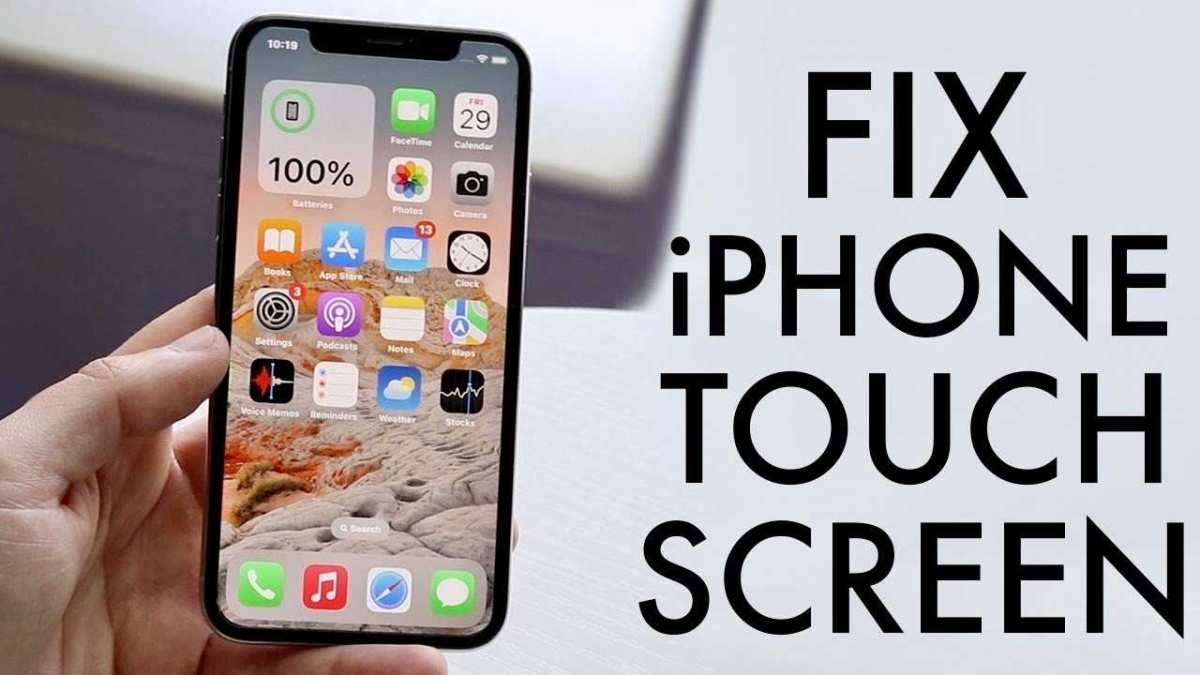

How to Fix Not Working iPhone Screen: A Complete Guide
Understanding Why Your iPhone Screen Might Not Work
Sometimes, your iPhone screen stops responding or turns completely black. This can happen for various reasons, like software glitches, hardware damage, or even an everyday accident. Recognizing the cause helps you pick the right fix and avoid unnecessary repairs.Common Causes of a Non-Responsive iPhone Screen
- Software crashes: Apps or the iOS itself might freeze causing the screen to be unresponsive.
- Physical damage: Dropping your phone or exposure to water can damage the screen or internal components.
- Battery issues: A dead or failing battery can prevent the screen from turning on.
- Hardware faults: Problems with the display connector or internal parts may cause display failure.
- Overheating: Excessive heat can temporarily disable the touchscreen to protect internal parts.
Preliminary Steps to Troubleshoot Your iPhone Screen
Before trying complex fixes, perform some simple checks. These steps often resolve minor issues without needing repairs.1. Force Restart Your iPhone
Different iPhone models require specific methods for a force restart. This can fix temporary glitches causing the screen to freeze.For iPhone 8 and later
- Press and quickly release the volume up button.
- Press and quickly release the volume down button.
- Press and hold the side button until the Apple logo appears.
For iPhone 7 and iPhone 7 Plus
- Simultaneously press and hold the volume down button and the sleep/wake button.
- Keep holding until the Apple logo shows up.
For iPhone 6s and earlier
- Press and hold both the home button and the sleep/wake button.
- Release both when the Apple logo appears.
2. Check for Physical Damage or Water Exposure
Look for cracks, dents, or water marks. Physical damage often requires professional repair. If water damage is suspected, turn off your phone immediately and avoid turning it back on until checked.3. Charge Your iPhone
Plug your device into a charger and wait a few minutes. A completely drained battery may make the screen appear dead even if the device is still functional.Advanced Fixes for Non-Responsive iPhone Screens
If basic troubleshooting fails, consider these advanced steps to fix your problem.1. Update or Restore Your iPhone via iTunes or Finder
Connecting your iPhone to a computer can help fix software issues.Steps to update your iPhone software
- Connect your iPhone to a computer with the latest version of iTunes or macOS Finder.
- Select your device when it appears.
- Click on ‘Check for Updates’ and follow prompts to install any available updates.
Steps to restore your iPhone
- Back up your data for safety.
- Select ‘Restore iPhone’ in iTunes or Finder.
- Confirm and wait for the process to complete. This erases all data and reinstalls iOS.
2. Use Recovery Mode to Fix Serious Software Problems
If your iPhone won’t respond or get stuck, recovery mode can help.Enter Recovery Mode
- Connect your iPhone to a computer with a Lightning cable.
- Open iTunes or Finder.
- For iPhone 8 and later: press and release volume up, then volume down, then hold the side button until recovery mode appears.
- For earlier models: hold the home and side/top buttons until recovery mode is visible.
Restore or Update from Recovery Mode
- Choose ‘Update’ to reinstall iOS without deleting data.
- If that doesn’t work, select ‘Restore’ to erase everything and start fresh.
Hardware Fixes and When to Seek Professional Help
Some issues cannot be resolved at home and need expert assistance.Signs You Need Professional Repair
- Cracked or shattered screen that affects display visibility.
- Persistent unresponsiveness even after software resets.
- Water damage signs or corrosion inside the phone.
- Physical impact caused by drops or hits.
What Repairs Professionals Can Do
- Replace broken LCD or digitizer components.
- Fix loose or damaged display connectors.
- Address water damage and corrosion.
- Replace internal components if needed.
DIY Repair Options for the Skilled
If you have experience, some fixes can be done safely at home.Tools You Will Need
- Small Phillips and pentalobe screwdrivers.
- Plastic opening tools and a pry tool.
- Tweezers and a suction cup.
- Replacement screens or parts from reputable suppliers.
Steps to Replace Your iPhone Screen
- Power off the device completely.
- Remove the screws around the display using the correct screwdriver.
- Use a suction cup to lift the screen gently from the body.
- Disconnect the display connectors carefully.
- Replace the damaged screen with a new one, reconnecting all cables securely.
- Reassemble and test your device before sealing it completely.
Precautions and Tips for Safe Repair
- Work in a static-free environment to avoid damaging internal parts.
- Follow detailed guides tailored to your specific iPhone model.
- Use quality replacement parts to ensure longevity and performance.
- Backup your data before starting any repair.
When to Consider Buying a New iPhone
If your device is severely damaged or repair costs are too high, purchasing a new iPhone might be the best choice.Factors to Consider
- Age of the device and remaining warranty.
- Cost estimates for repairs versus replacement.
- Compatibility with new iOS features and updates.
- Overall device performance and condition.
Keeping Your iPhone Screen Healthy
Prevention is always better than repair. Protect your screen from damage with these tips.Protective Measures
- Use a tempered glass screen protector.
- Invest in a sturdy case to absorb shocks.
- Avoid exposing your phone to extreme heat or moisture.
- Handle your device carefully and avoid dropping it.
Regular Maintenance for Longevity
Perform software updates regularly to prevent glitches that could affect the display. Keep your device clean by wiping it with a soft, lint-free cloth to remove dirt and fingerprints. This comprehensive guide offers multiple ways to tackle the problem of a non-working iPhone screen effectively. Whether you choose simple troubleshooting, professional repair, or DIY replacement, always prioritize safety and the health of your device to get the best results.How to fix a frozen or unresponsive iPhone. #iphone #apple #shorts
Frequently Asked Questions
What should I do if my iPhone screen remains black and does not turn on?
If your iPhone screen stays black and doesn’t respond, try performing a force restart. Depending on your iPhone model, press and quickly release the volume up button, then press and quickly release the volume down button. Next, press and hold the side button until the Apple logo appears. If this doesn’t work, ensure your device has enough battery charge by connecting it to a power source for at least 15 minutes, then attempt the restart process again.
How can I troubleshoot a frozen iPhone screen?
A frozen screen often indicates a software glitch. To resolve this, perform a force restart tailored to your device model. For newer iPhones, press and release volume up, then volume down, and hold the side button until the Apple logo shows. If the issue persists, update your iOS to the latest version using a computer with iTunes or Finder, or consider restoring your device to factory settings after backing up your data.
What steps should I take if my iPhone’s touch isn’t responding?
If your iPhone’s touch screen stops responding, first try a force restart, as described above. If the problem continues, clean your screen with a soft, lint-free cloth to remove dirt or moisture. Remove any screen protectors or cases that might interfere with touch sensitivity. If none of these actions work, check for software updates, or contact Apple Support for further diagnostics or repair options.
Final Thoughts
Pour conclure, si votre écran d’iPhone ne fonctionne pas, essayez d’abord de forcer le redémarrage pour réinitialiser le système. Vérifiez aussi si votre appareil a besoin d’une mise à jour logicielle ou si l’écran est endommagé. Si ces étapes ne suffisent pas, consultez un professionnel pour des réparations. En résumé, toute cette démarche vous aide à comprendre comment fixer un écran d’iPhone qui ne répond pas. Connaître ces astuces est essentiel pour résoudre efficacement le problème de not working iphone screen.
Similar Posts































